

Earn More by Sharing What You Love
Do you create content for developers working with .NET, C#, Java, Python, or Node.js? Turn your expertise into extra income!
Tim Corey
38m 57s
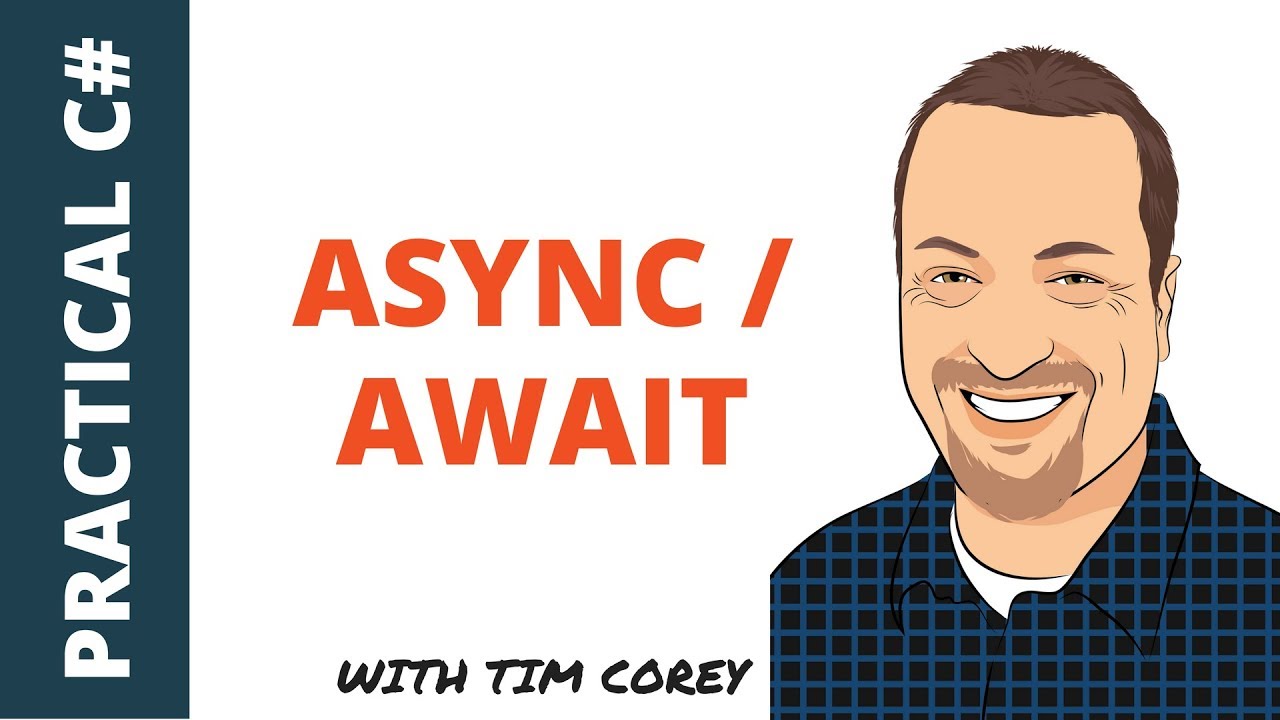
Asynchronous programming can seem daunting with its complex terminology, but it offers significant benefits in making applications faster and more responsive. Tim Corey's video on "C# Async / Await - Make your app more responsive and faster with asynchronous programming" provides a practical guide on using these features effectively.
In this article, we'll use Tim Corey's detailed video to break down these concepts, demonstrating the practical applications of async and await through clear examples. We'll cover various scenarios, from asynchronous event handlers to handling multiple tasks, synchronization contexts, error handling, and the common pitfalls like the use of async void methods. By the end of this article, you'll have a solid understanding of asynchronous programming and how to implement it in your own C# applications.
Asynchronous programming in C# is essential for improving application performance, especially when working with I/O-bound or CPU-bound operations. The async and await keywords allow developers to write asynchronous code that can execute long-running tasks without blocking the main thread. By marking a method with the async keyword, you signal that the method will perform an asynchronous operation, returning a Task or Task<T>. The await keyword is used within an async method to pause the execution until the awaited task completes, allowing other operations to run concurrently.
Unlike synchronous programming, where tasks run sequentially and can block the calling thread, asynchronous methods enable you to handle multiple tasks simultaneously, such as background processes or handling user input, without freezing the UI thread. In this article, we will explore how async and await work together, covering concepts like async void methods, error handling, context switches, and synchronization contexts. You'll learn how to efficiently manage multiple asynchronous operations and handle exceptions, ensuring smooth execution across the calling thread, UI thread, and task completion. This approach is particularly useful for scenarios involving file systems, network requests, or concurrent requests where responsiveness is key.
Tim introduces asynchronous programming by explaining the difference between synchronous and asynchronous operations. In synchronous programming, tasks are performed sequentially, causing delays if a task takes a long time. Asynchronous programming allows tasks to be executed in parallel or in the background, improving performance and responsiveness.
Tim highlights two main benefits of asynchronous programming:
Tim sets up a demo Windows Presentation Foundation (WPF) application to demonstrate the difference between synchronous and asynchronous operations. The application has two buttons: one for executing tasks synchronously and another for executing them asynchronously.

The application also includes a results pane to display the output.
Tim explains the code behind the synchronous operation. A Stopwatch is used to measure the execution time of the task.
private void ExecuteSync_Click(object sender, RoutedEventArgs e)
{
    Stopwatch stopwatch = Stopwatch.StartNew();
    List<string> websites = GetWebsiteList();
    foreach (var website in websites)
    {
        string result = DownloadWebsite(website);
        ReportWebsiteInfo(website, result);
    }
    stopwatch.Stop();
    ResultsWindow.Text += $"Total execution time: {stopwatch.ElapsedMilliseconds} ms{Environment.NewLine}";
}

private List<string> GetWebsiteList()
{
    return new List<string>
    {
        "https://www.yahoo.com",
        "https://www.google.com",
        "https://www.microsoft.com",
        "https://www.cnn.com",
        "https://www.codeproject.com",
        "https://www.stackoverflow.com"
    };
}

private string DownloadWebsite(string websiteURL)
{
    WebClient client = new WebClient();
    return client.DownloadString(websiteURL);
}

private void ReportWebsiteInfo(string website, string data)
{
    ResultsWindow.Text += $"{website}: {data.Length} characters{Environment.NewLine}";
}Private Sub ExecuteSync_Click(sender As Object, e As RoutedEventArgs)
Dim stopwatch As Stopwatch = Stopwatch.StartNew()
Dim websites As List(Of String) = GetWebsiteList()
For Each website In websites
Dim result As String = DownloadWebsite(website)
ReportWebsiteInfo(website, result)
Next
stopwatch.Stop()
ResultsWindow.Text &= $"Total execution time: {stopwatch.ElapsedMilliseconds} ms{Environment.NewLine}"
End Sub
Private Function GetWebsiteList() As List(Of String)
Return New List(Of String) From {
"https://www.yahoo.com",
"https://www.google.com",
"https://www.microsoft.com",
"https://www.cnn.com",
"https://www.codeproject.com",
"https://www.stackoverflow.com"
}
End Function
Private Function DownloadWebsite(websiteURL As String) As String
Dim client As New WebClient()
Return client.DownloadString(websiteURL)
End Function
Private Sub ReportWebsiteInfo(website As String, data As String)
ResultsWindow.Text &= $"{website}: {data.Length} characters{Environment.NewLine}"
End SubPrivate Sub ExecuteSync_Click(sender As Object, e As RoutedEventArgs)
Dim stopwatch As Stopwatch = Stopwatch.StartNew()
Dim websites As List(Of String) = GetWebsiteList()
For Each website In websites
Dim result As String = DownloadWebsite(website)
ReportWebsiteInfo(website, result)
Next
stopwatch.Stop()
ResultsWindow.Text &= $"Total execution time: {stopwatch.ElapsedMilliseconds} ms{Environment.NewLine}"
End Sub
Private Function GetWebsiteList() As List(Of String)
Return New List(Of String) From {
"https://www.yahoo.com",
"https://www.google.com",
"https://www.microsoft.com",
"https://www.cnn.com",
"https://www.codeproject.com",
"https://www.stackoverflow.com"
}
End Function
Private Function DownloadWebsite(websiteURL As String) As String
Dim client As New WebClient()
Return client.DownloadString(websiteURL)
End Function
Private Sub ReportWebsiteInfo(website As String, data As String)
ResultsWindow.Text &= $"{website}: {data.Length} characters{Environment.NewLine}"
End SubThis code performs the following steps:
Tim runs the application to demonstrate the synchronous operation. He notes that the UI becomes unresponsive while the websites are being downloaded, and the results are displayed all at once after the downloads are complete.

For a practical demonstration of the form not moving, watch the video for better understanding at 9:20.
Tim tackles the first problem by converting the synchronous method to an asynchronous one. This involves using the async and await keywords. Here's a step-by-step explanation of the process:
Copy Existing Synchronous Method:
Tim copies the existing synchronous method and renames it to indicate that it will be asynchronous.
private async Task RunDownloadAsync()
{
    // Same code as RunDownloadSync, but will be modified for async
}
private async Task RunDownloadAsync()
{
// Same code as RunDownloadSync, but will be modified for async
}Private Async Function RunDownloadAsync() As Task
' Same code as RunDownloadSync, but will be modified for async
End FunctionPrivate Async Function RunDownloadAsync() As Task
' Same code as RunDownloadSync, but will be modified for async
End FunctionModify Download Call for Asynchronous Execution:
Tim wraps the download call in a Task.Run to execute it asynchronously.
private async Task<WebsiteDataModel> DownloadWebsiteAsync(string websiteURL)
{
    return await Task.Run(() => DownloadWebsite(websiteURL));
}
private async Task<WebsiteDataModel> DownloadWebsiteAsync(string websiteURL)
{
return await Task.Run(() => DownloadWebsite(websiteURL));
}Private Async Function DownloadWebsiteAsync(websiteURL As String) As Task(Of WebsiteDataModel)
Return Await Task.Run(Function() DownloadWebsite(websiteURL))
End FunctionPrivate Async Function DownloadWebsiteAsync(websiteURL As String) As Task(Of WebsiteDataModel)
Return Await Task.Run(Function() DownloadWebsite(websiteURL))
End FunctionThe await keyword ensures that the method waits for the asynchronous task to complete before continuing.
Ensure the Method is Async:
The method signature is updated to include the async keyword, and it returns a Task.
private async Task RunDownloadAsync()
{
List<string> websites = GetWebsiteList();
foreach (var website in websites)
{
var result = await DownloadWebsiteAsync(website);
ReportWebsiteInfo(website, result);
}
}private async Task RunDownloadAsync()
{
List<string> websites = GetWebsiteList();
foreach (var website in websites)
{
var result = await DownloadWebsiteAsync(website);
ReportWebsiteInfo(website, result);
}
}Private Async Function RunDownloadAsync() As Task
Dim websites As List(Of String) = GetWebsiteList()
For Each website In websites
Dim result = Await DownloadWebsiteAsync(website)
ReportWebsiteInfo(website, result)
Next
End FunctionPrivate Async Function RunDownloadAsync() As Task
Dim websites As List(Of String) = GetWebsiteList()
For Each website In websites
Dim result = Await DownloadWebsiteAsync(website)
ReportWebsiteInfo(website, result)
Next
End FunctionHandle the Event Correctly:
The button click event handler is updated to call the new asynchronous method.
private async void ExecuteAsync_Click(object sender, RoutedEventArgs e)
{
Stopwatch stopwatch = Stopwatch.StartNew();
await RunDownloadAsync();
stopwatch.Stop();
ResultsWindow.Text += $"Total execution time: {stopwatch.ElapsedMilliseconds} ms{Environment.NewLine}";
}private async void ExecuteAsync_Click(object sender, RoutedEventArgs e)
{
Stopwatch stopwatch = Stopwatch.StartNew();
await RunDownloadAsync();
stopwatch.Stop();
ResultsWindow.Text += $"Total execution time: {stopwatch.ElapsedMilliseconds} ms{Environment.NewLine}";
}Private Async Sub ExecuteAsync_Click(sender As Object, e As RoutedEventArgs)
Dim stopwatch As Stopwatch = Stopwatch.StartNew()
Await RunDownloadAsync()
stopwatch.Stop()
ResultsWindow.Text += $"Total execution time: {stopwatch.ElapsedMilliseconds} ms{Environment.NewLine}"
End SubPrivate Async Sub ExecuteAsync_Click(sender As Object, e As RoutedEventArgs)
Dim stopwatch As Stopwatch = Stopwatch.StartNew()
Await RunDownloadAsync()
stopwatch.Stop()
ResultsWindow.Text += $"Total execution time: {stopwatch.ElapsedMilliseconds} ms{Environment.NewLine}"
End SubNote that event handlers can return void even though they call asynchronous methods.
Tim shows that by using the await keyword, the UI remains responsive. This allows users to interact with the window while the asynchronous task is running.
// UI remains responsive
private async void ExecuteAsync_Click(object sender, RoutedEventArgs e)
{
Stopwatch stopwatch = Stopwatch.StartNew();
await RunDownloadAsync();
stopwatch.Stop();
ResultsWindow.Text += $"Total execution time: {stopwatch.ElapsedMilliseconds} ms{Environment.NewLine}";
}// UI remains responsive
private async void ExecuteAsync_Click(object sender, RoutedEventArgs e)
{
Stopwatch stopwatch = Stopwatch.StartNew();
await RunDownloadAsync();
stopwatch.Stop();
ResultsWindow.Text += $"Total execution time: {stopwatch.ElapsedMilliseconds} ms{Environment.NewLine}";
}' UI remains responsive
Private Async Sub ExecuteAsync_Click(sender As Object, e As RoutedEventArgs)
Dim stopwatch As Stopwatch = Stopwatch.StartNew()
Await RunDownloadAsync()
stopwatch.Stop()
ResultsWindow.Text += $"Total execution time: {stopwatch.ElapsedMilliseconds} ms{Environment.NewLine}"
End Sub' UI remains responsive
Private Async Sub ExecuteAsync_Click(sender As Object, e As RoutedEventArgs)
Dim stopwatch As Stopwatch = Stopwatch.StartNew()
Await RunDownloadAsync()
stopwatch.Stop()
ResultsWindow.Text += $"Total execution time: {stopwatch.ElapsedMilliseconds} ms{Environment.NewLine}"
End SubTo ensure that the total execution time is correctly reported, Tim adds the await keyword to the call in the button click event handler.
// Correctly waits for the asynchronous task to complete
private async void ExecuteAsync_Click(object sender, RoutedEventArgs e)
{
Stopwatch stopwatch = Stopwatch.StartNew();
await RunDownloadAsync();
stopwatch.Stop();
ResultsWindow.Text += $"Total execution time: {stopwatch.ElapsedMilliseconds} ms{Environment.NewLine}";
}// Correctly waits for the asynchronous task to complete
private async void ExecuteAsync_Click(object sender, RoutedEventArgs e)
{
Stopwatch stopwatch = Stopwatch.StartNew();
await RunDownloadAsync();
stopwatch.Stop();
ResultsWindow.Text += $"Total execution time: {stopwatch.ElapsedMilliseconds} ms{Environment.NewLine}";
}' Correctly waits for the asynchronous task to complete
Private Async Sub ExecuteAsync_Click(sender As Object, e As RoutedEventArgs)
Dim stopwatch As Stopwatch = Stopwatch.StartNew()
Await RunDownloadAsync()
stopwatch.Stop()
ResultsWindow.Text += $"Total execution time: {stopwatch.ElapsedMilliseconds} ms{Environment.NewLine}"
End Sub' Correctly waits for the asynchronous task to complete
Private Async Sub ExecuteAsync_Click(sender As Object, e As RoutedEventArgs)
Dim stopwatch As Stopwatch = Stopwatch.StartNew()
Await RunDownloadAsync()
stopwatch.Stop()
ResultsWindow.Text += $"Total execution time: {stopwatch.ElapsedMilliseconds} ms{Environment.NewLine}"
End SubBy waiting for the asynchronous method to complete, the execution time is measured accurately, and the results are displayed as they are retrieved.
Tim addresses the limitation of waiting for each task to complete sequentially by using parallel execution. Here's how he modifies the code to achieve this:
Copy the Existing Async Method:
Tim duplicates the existing async method and renames it to indicate parallel execution.
private async Task RunDownloadParallelAsync()
{
// Parallel execution logic will be added here
}private async Task RunDownloadParallelAsync()
{
// Parallel execution logic will be added here
}Private Async Function RunDownloadParallelAsync() As Task
' Parallel execution logic will be added here
End FunctionPrivate Async Function RunDownloadParallelAsync() As Task
' Parallel execution logic will be added here
End FunctionCreate a List of Tasks:
A list of tasks is created to store all the download tasks.
List<Task<WebsiteDataModel>> tasks = new List<Task<WebsiteDataModel>>();List<Task<WebsiteDataModel>> tasks = new List<Task<WebsiteDataModel>>();Dim tasks As New List(Of Task(Of WebsiteDataModel))()Dim tasks As New List(Of Task(Of WebsiteDataModel))()Initiate All Tasks Without Awaiting:
Instead of awaiting each download task immediately, Tim adds them to the list of tasks.
foreach (var website in websites)
{
tasks.Add(DownloadWebsiteAsync(website));
}foreach (var website in websites)
{
tasks.Add(DownloadWebsiteAsync(website));
}For Each website In websites
tasks.Add(DownloadWebsiteAsync(website))
NextFor Each website In websites
tasks.Add(DownloadWebsiteAsync(website))
NextAwait All Tasks to Complete:
The Task.WhenAll method is used to await the completion of all tasks. This method returns an array of results once all tasks are complete.
WebsiteDataModel[] results = await Task.WhenAll(tasks);WebsiteDataModel[] results = await Task.WhenAll(tasks);Dim results As WebsiteDataModel() = Await Task.WhenAll(tasks)Dim results As WebsiteDataModel() = Await Task.WhenAll(tasks)Process the Results:
After all tasks have completed, Tim processes the results in a loop.
foreach (var result in results)
{
ReportWebsiteInfo(result);
}foreach (var result in results)
{
ReportWebsiteInfo(result);
}For Each result In results
ReportWebsiteInfo(result)
NextFor Each result In results
ReportWebsiteInfo(result)
NextHere is the complete code for the parallel execution method:
private async Task RunDownloadParallelAsync()
{
List<string> websites = GetWebsiteList();
List<Task<WebsiteDataModel>> tasks = new List<Task<WebsiteDataModel>>();
foreach (var website in websites)
{
tasks.Add(DownloadWebsiteAsync(website));
}
WebsiteDataModel[] results = await Task.WhenAll(tasks);
foreach (var result in results)
{
ReportWebsiteInfo(result);
}
}private async Task RunDownloadParallelAsync()
{
List<string> websites = GetWebsiteList();
List<Task<WebsiteDataModel>> tasks = new List<Task<WebsiteDataModel>>();
foreach (var website in websites)
{
tasks.Add(DownloadWebsiteAsync(website));
}
WebsiteDataModel[] results = await Task.WhenAll(tasks);
foreach (var result in results)
{
ReportWebsiteInfo(result);
}
}Private Async Function RunDownloadParallelAsync() As Task
Dim websites As List(Of String) = GetWebsiteList()
Dim tasks As New List(Of Task(Of WebsiteDataModel))()
For Each website As String In websites
tasks.Add(DownloadWebsiteAsync(website))
Next
Dim results As WebsiteDataModel() = Await Task.WhenAll(tasks)
For Each result As WebsiteDataModel In results
ReportWebsiteInfo(result)
Next
End FunctionPrivate Async Function RunDownloadParallelAsync() As Task
Dim websites As List(Of String) = GetWebsiteList()
Dim tasks As New List(Of Task(Of WebsiteDataModel))()
For Each website As String In websites
tasks.Add(DownloadWebsiteAsync(website))
Next
Dim results As WebsiteDataModel() = Await Task.WhenAll(tasks)
For Each result As WebsiteDataModel In results
ReportWebsiteInfo(result)
Next
End FunctionTim updates the button click event handler to call the new parallel execution method.
private async void ExecuteAsync_Click(object sender, RoutedEventArgs e)
{
Stopwatch stopwatch = Stopwatch.StartNew();
await RunDownloadParallelAsync();
stopwatch.Stop();
ResultsWindow.Text += $"Total execution time: {stopwatch.ElapsedMilliseconds} ms{Environment.NewLine}";
}private async void ExecuteAsync_Click(object sender, RoutedEventArgs e)
{
Stopwatch stopwatch = Stopwatch.StartNew();
await RunDownloadParallelAsync();
stopwatch.Stop();
ResultsWindow.Text += $"Total execution time: {stopwatch.ElapsedMilliseconds} ms{Environment.NewLine}";
}Private Async Sub ExecuteAsync_Click(sender As Object, e As RoutedEventArgs)
Dim stopwatch As Stopwatch = Stopwatch.StartNew()
Await RunDownloadParallelAsync()
stopwatch.Stop()
ResultsWindow.Text &= $"Total execution time: {stopwatch.ElapsedMilliseconds} ms{Environment.NewLine}"
End SubPrivate Async Sub ExecuteAsync_Click(sender As Object, e As RoutedEventArgs)
Dim stopwatch As Stopwatch = Stopwatch.StartNew()
Await RunDownloadParallelAsync()
stopwatch.Stop()
ResultsWindow.Text &= $"Total execution time: {stopwatch.ElapsedMilliseconds} ms{Environment.NewLine}"
End SubBy waiting for RunDownloadParallelAsync, the total execution time is accurately measured and reported.
Tim demonstrates the performance improvement by running the application with parallel execution. The results show a significant reduction in total execution time compared to sequential execution.
// Parallel execution
async Task RunDownloadParallelAsync();// Parallel execution
async Task RunDownloadParallelAsync();' Parallel execution
Async Function RunDownloadParallelAsync() As Task
End Function' Parallel execution
Async Function RunDownloadParallelAsync() As Task
End FunctionThe speed boost is evident as the websites are downloaded concurrently, reducing the total wait time to the duration of the slowest individual download.
Task.Run() vs Async Method CallTim explains the concept of using Task.Run() to wrap a synchronous method and make it asynchronous when you can't modify the original method. However, he also shows the preferred approach of modifying the method itself to be asynchronous if you have control over it.
Wrapping Method in Task.Run():
This approach is useful when you cannot change the original method's code but still want to execute it asynchronously.
private async Task<WebsiteDataModel> DownloadWebsiteAsync(string websiteURL)
{
    return await Task.Run(() => DownloadWebsite(websiteURL));
}
private async Task<WebsiteDataModel> DownloadWebsiteAsync(string websiteURL)
{
return await Task.Run(() => DownloadWebsite(websiteURL));
}Private Async Function DownloadWebsiteAsync(websiteURL As String) As Task(Of WebsiteDataModel)
Return Await Task.Run(Function() DownloadWebsite(websiteURL))
End FunctionPrivate Async Function DownloadWebsiteAsync(websiteURL As String) As Task(Of WebsiteDataModel)
Return Await Task.Run(Function() DownloadWebsite(websiteURL))
End FunctionMaking a Method Asynchronous:
If you can modify the method, it's better to convert the method itself to be asynchronous by using an appropriate asynchronous API.
Tim demonstrates this by changing DownloadWebsite to DownloadWebsiteAsync and using DownloadStringTaskAsync from WebClient.
private async Task<WebsiteDataModel> DownloadWebsiteAsync(string websiteURL)
{
WebClient client = new WebClient();
string data = await client.DownloadStringTaskAsync(websiteURL);
return new WebsiteDataModel { URL = websiteURL, Data = data };
}private async Task<WebsiteDataModel> DownloadWebsiteAsync(string websiteURL)
{
WebClient client = new WebClient();
string data = await client.DownloadStringTaskAsync(websiteURL);
return new WebsiteDataModel { URL = websiteURL, Data = data };
}Private Async Function DownloadWebsiteAsync(websiteURL As String) As Task(Of WebsiteDataModel)
Dim client As New WebClient()
Dim data As String = Await client.DownloadStringTaskAsync(websiteURL)
Return New WebsiteDataModel With {.URL = websiteURL, .Data = data}
End FunctionPrivate Async Function DownloadWebsiteAsync(websiteURL As String) As Task(Of WebsiteDataModel)
Dim client As New WebClient()
Dim data As String = Await client.DownloadStringTaskAsync(websiteURL)
Return New WebsiteDataModel With {.URL = websiteURL, .Data = data}
End FunctionAdjusting the Calling Method:
After converting the method, the calling code needs to be adjusted to remove the Task.Run() wrapper and directly call the asynchronous method.
private async Task RunDownloadParallelAsync()
{
List<string> websites = GetWebsiteList();
List<Task<WebsiteDataModel>> tasks = new List<Task<WebsiteDataModel>>();
foreach (var website in websites)
{
    tasks.Add(DownloadWebsiteAsync(website));
}
WebsiteDataModel[] results = await Task.WhenAll(tasks);
foreach (var result in results)
{
ReportWebsiteInfo(result);
}
}private async Task RunDownloadParallelAsync()
{
List<string> websites = GetWebsiteList();
List<Task<WebsiteDataModel>> tasks = new List<Task<WebsiteDataModel>>();
foreach (var website in websites)
{
    tasks.Add(DownloadWebsiteAsync(website));
}
WebsiteDataModel[] results = await Task.WhenAll(tasks);
foreach (var result in results)
{
    ReportWebsiteInfo(result);
}
}Private Async Function RunDownloadParallelAsync() As Task
Dim websites As List(Of String) = GetWebsiteList()
Dim tasks As New List(Of Task(Of WebsiteDataModel))()
For Each website As String In websites
tasks.Add(DownloadWebsiteAsync(website))
Next
Dim results As WebsiteDataModel() = Await Task.WhenAll(tasks)
For Each result As WebsiteDataModel In results
ReportWebsiteInfo(result)
Next
End FunctionPrivate Async Function RunDownloadParallelAsync() As Task
Dim websites As List(Of String) = GetWebsiteList()
Dim tasks As New List(Of Task(Of WebsiteDataModel))()
For Each website As String In websites
tasks.Add(DownloadWebsiteAsync(website))
Next
Dim results As WebsiteDataModel() = Await Task.WhenAll(tasks)
For Each result As WebsiteDataModel In results
ReportWebsiteInfo(result)
Next
End FunctionTim wraps up with several important takeaways for using async and await:
async, it should return a Task or Task<T> instead of void (except for event handlers).await for Dependable Operations: Use the await keyword when you need the result of an asynchronous operation before proceeding.Task.Run() to wrap synchronous methods when you cannot modify the original method.Async to the method name to indicate it is an asynchronous operation.Tim emphasizes that asynchronous programming in C# has been made simpler with async, await, and Task. Complexities such as threading contexts and apartment models are managed behind the scenes.
Tim Corey's tutorial on async and await in C# offers an invaluable resource for mastering asynchronous programming. By carefully explaining concepts like task parallelism, UI responsiveness, and the importance of using async and await in the right context, Tim provides developers with the tools to create faster and more responsive applications. His detailed walkthrough demonstrates how to efficiently handle long-running tasks without blocking the main thread, as well as strategies for managing asynchronous operations and parallel execution.
For a deeper understanding and additional practical examples, I highly recommend watching Tim Corey's video. His insights into async void methods, error handling, and managing synchronization contexts will further enhance your ability to implement these concepts in your projects.
Do you create content for developers working with .NET, C#, Java, Python, or Node.js? Turn your expertise into extra income!

Join our newsletter, you’ll get exclusive access on article updates. We value your privacy

