# How to Import Excel Files in C#
IronXL enables C# developers to import Excel data with just one line of code, supporting XLSX, CSV, and other formats without Interop dependencies, allowing immediate access to cells, ranges, and worksheets for data manipulation.
*as-heading:2(Quickstart: Instantly Load Your Excel File)*
With just one method call using IronXL's timeout-free API, you can load any supported Excel sheet (XLSX, CSV, etc.) in seconds - no Interop, no fuss. Begin interacting with the workbook immediately by accessing cells, ranges, or sheets as needed.
```cs
:title=Quickly Import Excel in One Line
WorkBook wb = IronXL.WorkBook.Load("path/to/data.xlsx");
```
<div class="learnn-how-section">
<div class="row">
<div class="col-sm-6">
<h2>Import Excel Data C#</h2>
<ul class="list-unstyled">
<li>Import Data with the IronXL Library</li>
<li>Import Excel data in C#</li>
<li>Import data of specific cell range</li>
<li>Import Excel data with aggregate functions SUM, AVG, MIN, MAX, and more</li>
</ul>
</div>
<div class="col-sm-6">
<div class="download-card">
<img style="box-shadow: none; width: 308px; height: 320px;" src="/img/faq/excel/how-to-work.svg" class="img-responsive learn-how-to-img replaceable-img" />
</div>
</div>
</div>
</div>
<hr class="separator" />
<div class="hsg-featured-snippet">
<h3>Minimal Workflow (5 steps)</h3>
<ol>
<li><a class="js-modal-open" data-modal-id="trial-license-after-download" href="https://nuget.org/packages/IronXL.Excel/">Download and install the C# library to import Excel files</a></li>
<li>Prepare the Excel files to be imported</li>
<li>Use the <code>Load</code> method to import spreadsheet</li>
<li>Edit the loaded Excel file using intuitive APIs</li>
<li>Export the edited Excel file in various types</li>
</ol>
</div>
<h4 class="tutorial-segment-title">Step 1</h4>
## Installing the IronXL Library
### IronXL Makes Excel Import Easier
Import data using the functions provided by the IronXL Excel library, which we'll be using in this tutorial. The software is available free for development. IronXL provides a comprehensive [C# Excel API](https://ironsoftware.com/csharp/excel/docs/) that simplifies working with Excel files without requiring Microsoft Office or Interop dependencies. This makes it ideal for server environments and cloud deployments.
### Installation Methods
Install into your [C# Project via DLL Download](/csharp/excel/packages/IronXL.zip) or navigate [using the NuGet package](https://www.nuget.org/packages/IronXL.Excel). For detailed installation guidance, check out our [getting started overview](https://ironsoftware.com/csharp/excel/docs/).
```shell
:ProductInstall
```
<hr class="separator" />
<h4 class="tutorial-segment-title">How to Tutorial</h4>
## Accessing a WorkSheet in Your Project
### Basic WorkBook Loading Process
For our project needs today, we'll import Excel data into our C# application using the IronXL software installed in step 1. The library supports various Excel formats and provides intuitive methods for [loading spreadsheets](https://ironsoftware.com/csharp/excel/how-to/load-spreadsheet/).
For step 2, we'll load our Excel `WorkBook` in our C# project by using the `WorkBook.Load()` function of IronXL. We pass the path of the Excel `WorkBook` as a string parameter in this function:
```csharp
// Load Excel file
WorkBook wb = WorkBook.Load("Path");
```
The Excel file at the specified path will be loaded into `wb`. This method supports XLSX, XLS, CSV, TSV, and other common spreadsheet formats.
### Accessing a Specific WorkSheet
Next, we need to access a specific `WorkSheet` of the Excel file whose data will be imported into the project. For this purpose, we can use the `GetWorkSheet()` function of IronXL, passing the sheet name as a string parameter to specify which sheet of the `WorkBook` to import. Learn more about managing worksheets in our guide.
```csharp
// Specify sheet name of Excel WorkBook
WorkSheet ws = wb.GetWorkSheet("SheetName");
```
The `WorkSheet` will be imported as `ws`, and `wb` is the `WorkBook` which we defined in the above code sample.
### Alternative Methods to Access WorkSheets
The following alternative ways exist to import an Excel `WorkSheet` into the project. Each method provides flexibility depending on your specific use case:
```csharp
// Import WorkSheet by various methods
// by sheet indexing
WorkSheet mySheet = wb.WorkSheets[SheetIndex];
// get default WorkSheet
WorkSheet defaultSheet = wb.DefaultWorkSheet;
// get first WorkSheet
WorkSheet firstSheet = wb.WorkSheets.First();
// for the first or default sheet
WorkSheet firstOrDefaultSheet = wb.WorkSheets.FirstOrDefault();
```
Now, we can easily import any type of data from the specified Excel files. Let's explore all possible aspects for importing Excel file data in our project.
<hr class="separator" />
## Importing Excel Data in C#
### Basic Cell Import Method
This is the basic aspect of importing Excel file data into our project. IronXL provides multiple ways to access cell data, making it flexible for different scenarios.
For this purpose, we can use a cell addressing system to specify which cell data we need to import. It returns the value of a specific cell address from the Excel file:
```csharp
var cellValue = ws["Cell Address"];
```
### Importing Data Using Row and Column Indexes
We can also import cell data from Excel files by using row and column indexes. This line of code returns the value of the specified row and column index. This approach is particularly useful when iterating through data programmatically:
```csharp
var cellValueByIndex = ws.Rows[RowIndex].Columns[ColumnIndex];
```
### Storing Imported Values in Variables
To assign imported cell values to variables, use this code. The `ToString()` method ensures compatibility with string variables, but you can also cast to other types as needed:
```csharp
// Import Data by Cell Address
// by cell addressing
string val = ws["Cell Address"].ToString();
// by row and column indexing
string valWithIndexing = ws.Rows[RowIndex].Columns[ColumnIndex].Value.ToString();
// for numeric values
decimal numericValue = ws["B2"].DecimalValue;
// for date values
DateTime dateValue = ws["C2"].DateTimeValue;
```
In the above examples, the row and column index starts at 0. For more advanced cell operations, explore our guide on [clearing cells](https://ironsoftware.com/csharp/excel/how-to/clear-cells/) and [copying cells](https://ironsoftware.com/csharp/excel/how-to/copy-cells/).
<hr class="separator" />
## Importing Data from a Specific Range
### Range Function Syntax
To import data in a specific range from an Excel `WorkBook`, use the `range` function. Define the range by describing the starting and ending cell addresses. This returns all cell values within the specified range. For comprehensive range selection techniques, see our select range guide.
```csharp
var rangeData = ws["Starting Cell Address:Ending Cell Address"];
```
### Complete Range Import Example
For more information about working with range in Excel files and learn more about pulling data in different methods. The following example demonstrates importing both individual cell values and ranges:
```csharp
using IronXL;
using System;
// Import Excel WorkBook
WorkBook wb = WorkBook.Load("sample.xlsx");
// Specify WorkSheet
WorkSheet ws = wb.GetWorkSheet("Sheet1");
// Import data of specific cell
string val = ws["A4"].Value.ToString();
Console.WriteLine("Import Value of A4 Cell address: {0}", val);
Console.WriteLine("import Values in Range From B3 To B9 :\n");
// Import data in specific range
foreach (var item in ws["B3:B9"])
{
Console.WriteLine(item.Value.ToString());
}
Console.ReadKey();
```
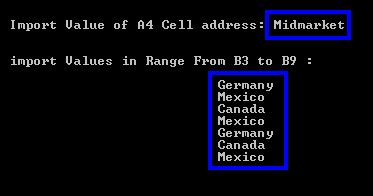
The above code displays the following output:
<center>
<div class="center-image-wrapper">
<a rel="nofollow" href="/img/faq/excel/csharp-import-excel/1output.png" target="_blank"><img src="/img/faq/excel/csharp-import-excel/1output.png" alt="Console output showing Excel range B3:B9 import results with Midmarket value and country list including Germany, Mexico, Canada" class="img-responsive add-shadow" /></a>
</div>
</center>
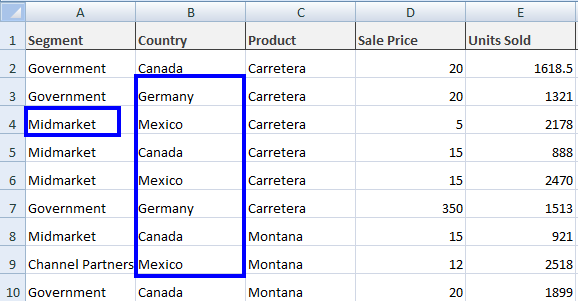
With the values of Excel file `sample.xlsx` as:
<center>
<div class="center-image-wrapper">
<a rel="nofollow" href="/img/faq/excel/csharp-import-excel/1excel.png" target="_blank"><img src="/img/faq/excel/csharp-import-excel/1excel.png" alt="Excel spreadsheet with sales data showing blue highlighted cells for range selection during import process" class="img-responsive add-shadow" /></a>
</div>
</center>
<hr class="separator" />
## Importing Excel Data Using Aggregate Functions
### Available Aggregate Functions
Apply aggregate functions to Excel files and import the resulting data from these functions. IronXL provides built-in math functions that make data analysis straightforward. Here are examples of different functions and their usage:
- `Sum()`
```csharp
// To find the sum of a specific cell range
var sum = ws["Starting Cell Address:Ending Cell Address"].Sum();
```
- `Average()`
```csharp
// To find the average of a specific cell range
var average = ws["Starting Cell Address:Ending Cell Address"].Avg();
```
- `Min()`
```csharp
// To find the minimum in a specific cell range
var minimum = ws["Starting Cell Address:Ending Cell Address"].Min();
```
- `Max()`
```csharp
// To find the maximum in a specific cell range
var maximum = ws["Starting Cell Address:Ending Cell Address"].Max();
```
### Using Multiple Aggregate Functions Together
Read more about working with aggregate functions in Excel for C# and learn more about pulling data in different methods. These functions are particularly useful for generating summary statistics or validating imported data.
See an example of importing Excel file data by applying these functions:
```csharp
using IronXL;
using System;
// Import Excel file
WorkBook wb = WorkBook.Load("sample.xlsx");
// Specify WorkSheet
WorkSheet ws = wb.GetWorkSheet("Sheet1");
// Import Excel file data by applying aggregate functions
decimal sum = ws["D2:D9"].Sum();
decimal avg = ws["D2:D9"].Avg();
decimal min = ws["D2:D9"].Min();
decimal max = ws["D2:D9"].Max();
Console.WriteLine("Sum From D2 To D9: {0}", sum);
Console.WriteLine("Avg From D2 To D9: {0}", avg);
Console.WriteLine("Min From D2 To D9: {0}", min);
Console.WriteLine("Max From D2 To D9: {0}", max);
Console.ReadKey();
```
The above code gives us this output:
<center>
<div class="center-image-wrapper">
<a rel="nofollow" href="/img/faq/excel/csharp-import-excel/2output.png" target="_blank"><img src="/img/faq/excel/csharp-import-excel/2output.png" alt="Console output showing Excel aggregate functions: Sum=452, Avg=56.5, Min=5, Max=350 for range D2 to D9" class="img-responsive add-shadow" /></a>
</div>
</center>
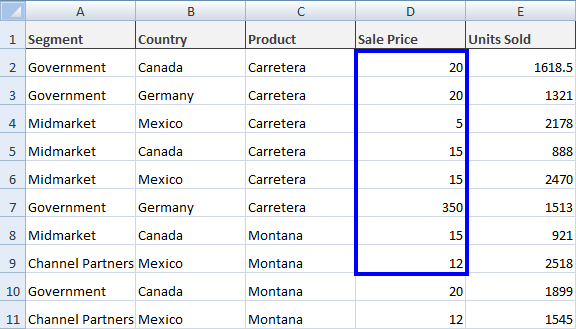
And our file `sample.xlsx` contains these values:
<center>
<div class="center-image-wrapper">
<a rel="nofollow" href="/img/faq/excel/csharp-import-excel/2excel.png" target="_blank"><img src="/img/faq/excel/csharp-import-excel/2excel.png" alt="Excel spreadsheet with sales data showing highlighted Sale Price column containing values for aggregate function analysis" class="img-responsive add-shadow" /></a>
</div>
</center>
<hr class="separator" />
## Importing Complete Excel File Data
### The ToDataSet Method
To import complete Excel file data into a C# project, first parse the loaded `WorkBook` into a `DataSet`. This way, the complete Excel data imports into the `DataSet`, and `WorkSheets` in Excel files become `DataTables` within that `DataSet`. This approach is particularly useful for database operations or when working with data-bound controls. Learn more about importing and exporting as `DataSet`.
```csharp
// Import WorkBook into DataSet
DataSet ds = wb.ToDataSet();
```
This imports our specified `WorkSheet` into a `DataSet` for use according to requirements. This method is especially powerful when working with multiple sheets simultaneously or when integrating Excel data with ADO.NET operations.
### Handling Column Headers
Often, the first row of an Excel file serves as column names. In this case, make the first row `DataTable` column names. Set the boolean parameter of the `ToDataSet()` function of IronXL as follows:
```csharp
// Import WorkBook into DataSet with first row as ColumnNames
DataSet ds = wb.ToDataSet(true);
```
This makes the first row of the Excel file `DataTable` column names, which is essential for maintaining data structure integrity when working with structured Excel data.
### Complete DataSet Import Example
See a complete example of importing Excel data into a `DataSet` and using the first row of an Excel `WorkSheet` as `DataTable` column names:
```csharp
using IronXL;
using System;
using System.Data;
WorkBook wb = WorkBook.Load("sample.xlsx");
WorkSheet ws = wb.GetWorkSheet("Sheet1");
// Import Excel data into a DataSet
DataSet ds = wb.ToDataSet(true);
Console.WriteLine("Excel file data imported to dataset successfully.");
Console.ReadKey();
```
Working with Excel `Dataset` and `DataTable` functions can be complex, but we have more examples available for incorporating file data into your C# project. For advanced scenarios, consider exploring our guides on Excel to SQL via `DataTable` and loading Excel from SQL database.
`ToDataSet` holds every row in memory at once, which suits the file sizes most imports deal with. When the source file is large enough that the `DataSet` itself becomes the bottleneck, [stream the rows](https://ironsoftware.com/csharp/excel/how-to/stream-large-excel-files/) and flush them to your destination in batches, so peak memory follows the batch size instead of the row count.
<hr class="separator" />
<h4 class="tutorial-segment-title">Library Quick Access</h4>
<div class="tutorial-section">
<div class="row">
<div class="col-sm-8">
<h3>Explore the IronXL Reference</h3>
<p>Learn more about pulling Excel data via cells, range, datasets and datatables in our full documentation API Reference for IronXL.</p>
<a class="doc-link" href="/csharp/excel/object-reference/api/" target="_blank"> Explore the IronXL Reference <i class="fa fa-chevron-right"></i></a>
</div>
<div class="col-sm-4">
<div class="tutorial-image">
<img style="max-width: 110px; width: 100px; height: 140px;" alt="" class="img-responsive add-shadow" src="/img/svgs/documentation.svg" width="100" height="140" />
</div>
</div>
</div>
</div>
IronXL enables C# developers to import Excel data with just one line of code, supporting XLSX, CSV, and other formats without Interop dependencies, allowing immediate access to cells, ranges, and worksheets for data manipulation.
Quickstart: Instantly Load Your Excel File
With just one method call using IronXL's timeout-free API, you can load any supported Excel sheet (XLSX, CSV, etc.) in seconds - no Interop, no fuss. Begin interacting with the workbook immediately by accessing cells, ranges, or sheets as needed.
Import data using the functions provided by the IronXL Excel library, which we'll be using in this tutorial. The software is available free for development. IronXL provides a comprehensive C# Excel API that simplifies working with Excel files without requiring Microsoft Office or Interop dependencies. This makes it ideal for server environments and cloud deployments.
For our project needs today, we'll import Excel data into our C# application using the IronXL software installed in step 1. The library supports various Excel formats and provides intuitive methods for loading spreadsheets.
For step 2, we'll load our Excel WorkBook in our C# project by using the WorkBook.Load() function of IronXL. We pass the path of the Excel WorkBook as a string parameter in this function:
' Load Excel file
Dim wb As WorkBook = WorkBook.Load("Path")
The Excel file at the specified path will be loaded into wb. This method supports XLSX, XLS, CSV, TSV, and other common spreadsheet formats.
Accessing a Specific WorkSheet
Next, we need to access a specific WorkSheet of the Excel file whose data will be imported into the project. For this purpose, we can use the GetWorkSheet() function of IronXL, passing the sheet name as a string parameter to specify which sheet of the WorkBook to import. Learn more about managing worksheets in our guide.
// Specify sheet name of Excel WorkBookWorkSheet ws = wb.GetWorkSheet("SheetName");
// Specify sheet name of Excel WorkBook
WorkSheet ws = wb.GetWorkSheet("SheetName");
' Specify sheet name of Excel WorkBookDim ws AsWorkSheet = wb.GetWorkSheet("SheetName")
' Specify sheet name of Excel WorkBook
Dim ws As WorkSheet = wb.GetWorkSheet("SheetName")
The WorkSheet will be imported as ws, and wb is the WorkBook which we defined in the above code sample.
Alternative Methods to Access WorkSheets
The following alternative ways exist to import an Excel WorkSheet into the project. Each method provides flexibility depending on your specific use case:
// Import WorkSheet by various methods// by sheet indexingWorkSheet mySheet = wb.WorkSheets[SheetIndex];// get default WorkSheetWorkSheet defaultSheet = wb.DefaultWorkSheet;// get first WorkSheetWorkSheet firstSheet = wb.WorkSheets.First();// for the first or default sheetWorkSheet firstOrDefaultSheet = wb.WorkSheets.FirstOrDefault();
// Import WorkSheet by various methods

// by sheet indexing
WorkSheet mySheet = wb.WorkSheets[SheetIndex];

// get default WorkSheet
WorkSheet defaultSheet = wb.DefaultWorkSheet;

// get first WorkSheet
WorkSheet firstSheet = wb.WorkSheets.First();

// for the first or default sheet
WorkSheet firstOrDefaultSheet = wb.WorkSheets.FirstOrDefault();
' Import WorkSheet by various methods' by sheet indexingDim mySheet AsWorkSheet = wb.WorkSheets(SheetIndex)' get default WorkSheetDim defaultSheet AsWorkSheet = wb.DefaultWorkSheet' get first WorkSheetDim firstSheet AsWorkSheet = wb.WorkSheets.First()' for the first or default sheetDim firstOrDefaultSheet AsWorkSheet = wb.WorkSheets.FirstOrDefault()
' Import WorkSheet by various methods

' by sheet indexing
Dim mySheet As WorkSheet = wb.WorkSheets(SheetIndex)

' get default WorkSheet
Dim defaultSheet As WorkSheet = wb.DefaultWorkSheet

' get first WorkSheet
Dim firstSheet As WorkSheet = wb.WorkSheets.First()

' for the first or default sheet
Dim firstOrDefaultSheet As WorkSheet = wb.WorkSheets.FirstOrDefault()
Now, we can easily import any type of data from the specified Excel files. Let's explore all possible aspects for importing Excel file data in our project.
Importing Excel Data in C#
Basic Cell Import Method
This is the basic aspect of importing Excel file data into our project. IronXL provides multiple ways to access cell data, making it flexible for different scenarios.
For this purpose, we can use a cell addressing system to specify which cell data we need to import. It returns the value of a specific cell address from the Excel file:
var cellValue = ws["Cell Address"];
var cellValue = ws["Cell Address"];
Dim cellValue = ws("Cell Address")
Dim cellValue = ws("Cell Address")
Importing Data Using Row and Column Indexes
We can also import cell data from Excel files by using row and column indexes. This line of code returns the value of the specified row and column index. This approach is particularly useful when iterating through data programmatically:
var cellValueByIndex = ws.Rows[RowIndex].Columns[ColumnIndex];
var cellValueByIndex = ws.Rows[RowIndex].Columns[ColumnIndex];
Dim cellValueByIndex = ws.Rows(RowIndex).Columns(ColumnIndex)
Dim cellValueByIndex = ws.Rows(RowIndex).Columns(ColumnIndex)
Storing Imported Values in Variables
To assign imported cell values to variables, use this code. The ToString() method ensures compatibility with string variables, but you can also cast to other types as needed:
// Import Data by Cell Address// by cell addressingstring val = ws["Cell Address"].ToString();// by row and column indexingstring valWithIndexing = ws.Rows[RowIndex].Columns[ColumnIndex].Value.ToString();// for numeric valuesdecimal numericValue = ws["B2"].DecimalValue;// for date valuesDateTime dateValue = ws["C2"].DateTimeValue;
// Import Data by Cell Address
// by cell addressing
string val = ws["Cell Address"].ToString();

// by row and column indexing
string valWithIndexing = ws.Rows[RowIndex].Columns[ColumnIndex].Value.ToString();

// for numeric values
decimal numericValue = ws["B2"].DecimalValue;

// for date values
DateTime dateValue = ws["C2"].DateTimeValue;
' Import Data by Cell Address' by cell addressingDim val AsString = ws("Cell Address").ToString()' by row and column indexingDim valWithIndexing AsString = ws.Rows(RowIndex).Columns(ColumnIndex).Value.ToString()' for numeric valuesDim numericValue AsDecimal = ws("B2").DecimalValue' for date valuesDim dateValue AsDateTime = ws("C2").DateTimeValue
' Import Data by Cell Address
' by cell addressing
Dim val As String = ws("Cell Address").ToString()

' by row and column indexing
Dim valWithIndexing As String = ws.Rows(RowIndex).Columns(ColumnIndex).Value.ToString()

' for numeric values
Dim numericValue As Decimal = ws("B2").DecimalValue

' for date values
Dim dateValue As DateTime = ws("C2").DateTimeValue
In the above examples, the row and column index starts at 0. For more advanced cell operations, explore our guide on clearing cells and copying cells.
Importing Data from a Specific Range
Range Function Syntax
To import data in a specific range from an Excel WorkBook, use the range function. Define the range by describing the starting and ending cell addresses. This returns all cell values within the specified range. For comprehensive range selection techniques, see our select range guide.
var rangeData = ws["Starting Cell Address:Ending Cell Address"];
var rangeData = ws["Starting Cell Address:Ending Cell Address"];
Dim rangeData = ws("Starting Cell Address:Ending Cell Address")
Dim rangeData = ws("Starting Cell Address:Ending Cell Address")
Complete Range Import Example
For more information about working with range in Excel files and learn more about pulling data in different methods. The following example demonstrates importing both individual cell values and ranges:
using IronXL;using System;// Import Excel WorkBookWorkBook wb = WorkBook.Load("sample.xlsx");// Specify WorkSheetWorkSheet ws = wb.GetWorkSheet("Sheet1");// Import data of specific cellstring val = ws["A4"].Value.ToString();Console.WriteLine("Import Value of A4 Cell address: {0}", val);Console.WriteLine("import Values in Range From B3 To B9 :\n");// Import data in specific rangeforeach (var item in ws["B3:B9"]){Console.WriteLine(item.Value.ToString());}Console.ReadKey();
using IronXL;
using System;

// Import Excel WorkBook
WorkBook wb = WorkBook.Load("sample.xlsx");

// Specify WorkSheet
WorkSheet ws = wb.GetWorkSheet("Sheet1");

// Import data of specific cell
string val = ws["A4"].Value.ToString();
Console.WriteLine("Import Value of A4 Cell address: {0}", val);

Console.WriteLine("import Values in Range From B3 To B9 :\n");

// Import data in specific range
foreach (var item in ws["B3:B9"])
{
    Console.WriteLine(item.Value.ToString());
}

Console.ReadKey();
ImportsIronXLImportsSystem' Import Excel WorkBookDim wb AsWorkBook = WorkBook.Load("sample.xlsx")' Specify WorkSheetDim ws AsWorkSheet = wb.GetWorkSheet("Sheet1")' Import data of specific cellDim val AsString = ws("A4").Value.ToString()Console.WriteLine("Import Value of A4 Cell address: {0}", val)Console.WriteLine("import Values in Range From B3 To B9 :" & vbCrLf)' Import data in specific rangeFor Each item In ws("B3:B9")Console.WriteLine(item.Value.ToString())NextConsole.ReadKey()
Imports IronXL
Imports System

' Import Excel WorkBook
Dim wb As WorkBook = WorkBook.Load("sample.xlsx")

' Specify WorkSheet
Dim ws As WorkSheet = wb.GetWorkSheet("Sheet1")

' Import data of specific cell
Dim val As String = ws("A4").Value.ToString()
Console.WriteLine("Import Value of A4 Cell address: {0}", val)

Console.WriteLine("import Values in Range From B3 To B9 :" & vbCrLf)

' Import data in specific range
For Each item In ws("B3:B9")
    Console.WriteLine(item.Value.ToString())
Next

Console.ReadKey()
The above code displays the following output:
With the values of Excel file sample.xlsx as:
Importing Excel Data Using Aggregate Functions
Available Aggregate Functions
Apply aggregate functions to Excel files and import the resulting data from these functions. IronXL provides built-in math functions that make data analysis straightforward. Here are examples of different functions and their usage:
Sum()
// To find the sum of a specific cell rangevar sum = ws["Starting Cell Address:Ending Cell Address"].Sum();
// To find the sum of a specific cell range
var sum = ws["Starting Cell Address:Ending Cell Address"].Sum();
' To find the sum of a specific cell rangeDim sum = ws("Starting Cell Address:Ending Cell Address").Sum()
' To find the sum of a specific cell range
Dim sum = ws("Starting Cell Address:Ending Cell Address").Sum()
Average()
// To find the average of a specific cell rangevar average = ws["Starting Cell Address:Ending Cell Address"].Avg();
// To find the average of a specific cell range
var average = ws["Starting Cell Address:Ending Cell Address"].Avg();
' To find the average of a specific cell rangeDim average = ws("Starting Cell Address:Ending Cell Address").Avg()
' To find the average of a specific cell range
Dim average = ws("Starting Cell Address:Ending Cell Address").Avg()
Min()
// To find the minimum in a specific cell rangevar minimum = ws["Starting Cell Address:Ending Cell Address"].Min();
// To find the minimum in a specific cell range
var minimum = ws["Starting Cell Address:Ending Cell Address"].Min();
' To find the minimum in a specific cell rangeDim minimum = ws("Starting Cell Address:Ending Cell Address").Min()
' To find the minimum in a specific cell range
Dim minimum = ws("Starting Cell Address:Ending Cell Address").Min()
Max()
// To find the maximum in a specific cell rangevar maximum = ws["Starting Cell Address:Ending Cell Address"].Max();
// To find the maximum in a specific cell range
var maximum = ws["Starting Cell Address:Ending Cell Address"].Max();
' To find the maximum in a specific cell rangeDim maximum = ws("Starting Cell Address:Ending Cell Address").Max()
' To find the maximum in a specific cell range
Dim maximum = ws("Starting Cell Address:Ending Cell Address").Max()
Using Multiple Aggregate Functions Together
Read more about working with aggregate functions in Excel for C# and learn more about pulling data in different methods. These functions are particularly useful for generating summary statistics or validating imported data.
See an example of importing Excel file data by applying these functions:
using IronXL;using System;// Import Excel fileWorkBook wb = WorkBook.Load("sample.xlsx");// Specify WorkSheetWorkSheet ws = wb.GetWorkSheet("Sheet1");// Import Excel file data by applying aggregate functionsdecimal sum = ws["D2:D9"].Sum();decimal avg = ws["D2:D9"].Avg();decimal min = ws["D2:D9"].Min();decimal max = ws["D2:D9"].Max();Console.WriteLine("Sum From D2 To D9: {0}", sum);Console.WriteLine("Avg From D2 To D9: {0}", avg);Console.WriteLine("Min From D2 To D9: {0}", min);Console.WriteLine("Max From D2 To D9: {0}", max);Console.ReadKey();
using IronXL;
using System;

// Import Excel file
WorkBook wb = WorkBook.Load("sample.xlsx");

// Specify WorkSheet
WorkSheet ws = wb.GetWorkSheet("Sheet1");

// Import Excel file data by applying aggregate functions
decimal sum = ws["D2:D9"].Sum();
decimal avg = ws["D2:D9"].Avg();
decimal min = ws["D2:D9"].Min();
decimal max = ws["D2:D9"].Max();

Console.WriteLine("Sum From D2 To D9: {0}", sum);
Console.WriteLine("Avg From D2 To D9: {0}", avg);
Console.WriteLine("Min From D2 To D9: {0}", min);
Console.WriteLine("Max From D2 To D9: {0}", max);

Console.ReadKey();
ImportsIronXLImportsSystem' Import Excel fileDim wb AsWorkBook = WorkBook.Load("sample.xlsx")' Specify WorkSheetDim ws AsWorkSheet = wb.GetWorkSheet("Sheet1")' Import Excel file data by applying aggregate functionsDim sum AsDecimal = ws("D2:D9").Sum()Dim avg AsDecimal = ws("D2:D9").Avg()Dim min AsDecimal = ws("D2:D9").Min()Dim max AsDecimal = ws("D2:D9").Max()Console.WriteLine("Sum From D2 To D9: {0}", sum)Console.WriteLine("Avg From D2 To D9: {0}", avg)Console.WriteLine("Min From D2 To D9: {0}", min)Console.WriteLine("Max From D2 To D9: {0}", max)Console.ReadKey()
Imports IronXL
Imports System

' Import Excel file
Dim wb As WorkBook = WorkBook.Load("sample.xlsx")

' Specify WorkSheet
Dim ws As WorkSheet = wb.GetWorkSheet("Sheet1")

' Import Excel file data by applying aggregate functions
Dim sum As Decimal = ws("D2:D9").Sum()
Dim avg As Decimal = ws("D2:D9").Avg()
Dim min As Decimal = ws("D2:D9").Min()
Dim max As Decimal = ws("D2:D9").Max()

Console.WriteLine("Sum From D2 To D9: {0}", sum)
Console.WriteLine("Avg From D2 To D9: {0}", avg)
Console.WriteLine("Min From D2 To D9: {0}", min)
Console.WriteLine("Max From D2 To D9: {0}", max)

Console.ReadKey()
The above code gives us this output:
And our file sample.xlsx contains these values:
Importing Complete Excel File Data
The ToDataSet Method
To import complete Excel file data into a C# project, first parse the loaded WorkBook into a DataSet. This way, the complete Excel data imports into the DataSet, and WorkSheets in Excel files become DataTables within that DataSet. This approach is particularly useful for database operations or when working with data-bound controls. Learn more about importing and exporting as DataSet.
// Import WorkBook into DataSetDataSet ds = wb.ToDataSet();
// Import WorkBook into DataSet
DataSet ds = wb.ToDataSet();
' Import WorkBook into DataSetDim ds AsDataSet = wb.ToDataSet()
' Import WorkBook into DataSet
Dim ds As DataSet = wb.ToDataSet()
This imports our specified WorkSheet into a DataSet for use according to requirements. This method is especially powerful when working with multiple sheets simultaneously or when integrating Excel data with ADO.NET operations.
Handling Column Headers
Often, the first row of an Excel file serves as column names. In this case, make the first row DataTable column names. Set the boolean parameter of the ToDataSet() function of IronXL as follows:
// Import WorkBook into DataSet with first row as ColumnNamesDataSet ds = wb.ToDataSet(true);
// Import WorkBook into DataSet with first row as ColumnNames
DataSet ds = wb.ToDataSet(true);
net
net
This makes the first row of the Excel file DataTable column names, which is essential for maintaining data structure integrity when working with structured Excel data.
Complete DataSet Import Example
See a complete example of importing Excel data into a DataSet and using the first row of an Excel WorkSheet as DataTable column names:
using IronXL;using System;using System.Data;WorkBook wb = WorkBook.Load("sample.xlsx");WorkSheet ws = wb.GetWorkSheet("Sheet1");// Import Excel data into a DataSetDataSet ds = wb.ToDataSet(true);Console.WriteLine("Excel file data imported to dataset successfully.");Console.ReadKey();
using IronXL;
using System;
using System.Data;

WorkBook wb = WorkBook.Load("sample.xlsx");
WorkSheet ws = wb.GetWorkSheet("Sheet1");

// Import Excel data into a DataSet
DataSet ds = wb.ToDataSet(true);

Console.WriteLine("Excel file data imported to dataset successfully.");
Console.ReadKey();
ImportsIronXLImportsSystemImportsSystem.DataDim wb AsWorkBook = WorkBook.Load("sample.xlsx")Dim ws AsWorkSheet = wb.GetWorkSheet("Sheet1")' Import Excel data into a DataSetDim ds AsDataSet = wb.ToDataSet(True)Console.WriteLine("Excel file data imported to dataset successfully.")Console.ReadKey()
Imports IronXL
Imports System
Imports System.Data

Dim wb As WorkBook = WorkBook.Load("sample.xlsx")
Dim ws As WorkSheet = wb.GetWorkSheet("Sheet1")

' Import Excel data into a DataSet
Dim ds As DataSet = wb.ToDataSet(True)

Console.WriteLine("Excel file data imported to dataset successfully.")
Console.ReadKey()
Working with Excel Dataset and DataTable functions can be complex, but we have more examples available for incorporating file data into your C# project. For advanced scenarios, consider exploring our guides on Excel to SQL via DataTable and loading Excel from SQL database.
ToDataSet holds every row in memory at once, which suits the file sizes most imports deal with. When the source file is large enough that the DataSet itself becomes the bottleneck, stream the rows and flush them to your destination in batches, so peak memory follows the batch size instead of the row count.
Library Quick Access
Explore the IronXL Reference
Learn more about pulling Excel data via cells, range, datasets and datatables in our full documentation API Reference for IronXL.
How can I import Excel files into a C# project using IronXL?
You can import Excel files into a C# project using IronXL by using the `WorkBook.Load()` method. This method allows you to load XLSX, CSV, and other formats without requiring Interop dependencies.
What formats can I import using IronXL in C#?
IronXL supports importing various spreadsheet formats including XLSX, CSV, TSV, and others into your C# project without needing Interop.
Is it possible to access specific worksheets from an Excel file in C# using IronXL?
Yes, you can access specific worksheets from an Excel file using the `GetWorkSheet()` method in IronXL by passing the name of the worksheet as a string parameter.
Can IronXL perform aggregate functions on imported Excel data in C#?
Yes, IronXL allows you to perform aggregate functions such as `Sum()`, `Avg()`, `Min()`, and `Max()` on imported data from Excel files in a C# project.
How do I import data from a specific range of Excel cells in IronXL?
You can import data from a specific range using the range function syntax like `ws["Starting Cell Address:Ending Cell Address"]` to retrieve values from the specified Excel cell range in IronXL.
Is it possible to use Excel data as a DataSet in C# with IronXL?
Yes, you can import the complete Excel file data into a `DataSet` using the `ToDataSet()` method of IronXL. This method is particularly useful for database operations or data-bound controls.
Can the first row of an Excel file be used as column names in IronXL?
Yes, when importing Excel data into a `DataSet`, you can set the first row as column names by using the `ToDataSet(true)` method in IronXL.
How do I import numeric or date values from Excel cells using IronXL?
In IronXL, you can import numeric values using `.DecimalValue` and date values using `.DateTimeValue` from specific Excel cells to ensure they are in the correct data type.
What is the advantage of using IronXL for Excel import in C# over Interop?
IronXL requires no Interop dependencies, making it ideal for server environments and cloud deployments where Microsoft Office installation is not feasible.
Is IronXL available for free for development purposes?
Yes, IronXL is available for free for development purposes, providing a comprehensive C# Excel API to simplify working with Excel files.
Curtis Chau holds a Bachelor’s degree in Computer Science (Carleton University) and specializes in front-end development with expertise in Node.js, TypeScript, JavaScript, and React. Passionate about crafting intuitive and aesthetically pleasing user interfaces, Curtis enjoys working with modern frameworks and creating well-structured, visually appealing manuals.