


C# Guide: Using IronOCR Image Filters for Better OCR

IronOCR提供您所需的工具來讀取可能需要進行濾鏡預處理的影像。 您可以從各種濾鏡中選擇,以操控影像使其可被處理。
快速開始:應用過濾器清理OCR影像
在一個簡單的呼叫鏈中,您可以應用DeNoise, Binarize, 和Deskew過濾器,以在OCR之前提高掃描的清晰度。 此範例展示了如何簡單地使用IronOCR的內建過濾器增強影像,並立即開始。

OCR影像過濾器列表
以下的影像過濾器可以真正提高性能:
Filters to change the Image OrientationRotate- 將影像按度數順時針旋轉。若逆時針旋轉,使用負數。Deskew- 將影像旋轉至正確方向和垂直角度。 這對於OCR很有用,因為Tesseract對於傾斜掃描的容忍度最低可達5度。Scale- 等比例縮放OCR輸入頁。
Filters to manipulate Image ColorsBinarize- 此影像過濾器將每個像素轉成黑或白,不存在中間色。 這可能在文字與背景對比度極低的情況下提高OCR性能。ToGrayScale- 此影像過濾器將每個像素轉成灰色階梯。 不太可能提高OCR準確性,但可能提高速度。Invert- 反轉所有顏色。 例如:白變成黑,反之亦然。ReplaceColor- 在特定閾值內將影像中的某顏色替換為另一顏色。
Filters to improve Contrast in an ImageContrast- 自動增加對比度。 此過濾器常能改善低對比度掃描的OCR速度和準確性。Dilate- 進階形態學。 _膨脹_將像素新增到影像中物體的邊界。 相對於侵蝕。Erode- 進階形態學。 _侵蝕_去除物體邊界的像素。 相對於膨脹。
Filters to reduce Image NoiseSharpen- 銳化模糊的OCR文件並將alpha通道壓平為白色。DeNoise- 移除數位雜訊。此過濾器僅應在預期有雜訊的情境中使用。EnhanceResolution- 提升低品質影像的解析度。 通常不需要此過濾器,因為_OcrInput.TargetDPI_會自動捕捉和解決低解析度輸入。
過濾器範例與用法
以下範例展示如何在您的程式碼中應用過濾器。
:path=/static-assets/ocr/content-code-examples/tutorials/c-sharp-ocr-image-filters-1.csusing IronOcr;
using System;
var ocr = new IronTesseract();
using var input = new OcrInput();
input.LoadImage("my_image.png");
input.Deskew();
var result = ocr.Read(input);
Console.WriteLine(result.Text);Imports IronOcr
Imports System
Private ocr = New IronTesseract()
Private input = New OcrInput()
input.LoadImage("my_image.png")
input.Deskew()
Dim result = ocr.Read(input)
Console.WriteLine(result.Text)除錯過濾器 / 過濾器在做什麼?
如果您在程式中讀取影像或條碼時遇到困難,可以保存一個過濾結果的影像。 這樣,您可以除錯並精確地看到每個過濾器的效果及其如何操控影像。
:path=/static-assets/ocr/content-code-examples/tutorials/c-sharp-ocr-image-filters-2.csusing IronOcr;
using System;
var file = "skewed_image.tiff";
var ocr = new IronTesseract();
using var input = new OcrInput();
var pageindices = new int[] { 1, 2 };
input.LoadImageFrames(file, pageindices);
// Here we apply the filter: Deskew
input.Deskew();
// Save the input with filter(s) applied
input.SaveAsImages("my_deskewed");
// We read, then print the text to the console
var result = ocr.Read(input);
Console.WriteLine(result.Text);Imports IronOcr
Imports System
Private file = "skewed_image.tiff"
Private ocr = New IronTesseract()
Private input = New OcrInput()
Private pageindices = New Integer() { 1, 2 }
input.LoadImageFrames(file, pageindices)
' Here we apply the filter: Deskew
input.Deskew()
' Save the input with filter(s) applied
input.SaveAsImages("my_deskewed")
' We read, then print the text to the console
Dim result = ocr.Read(input)
Console.WriteLine(result.Text)過濾器使用案例
旋轉
過濾器說明
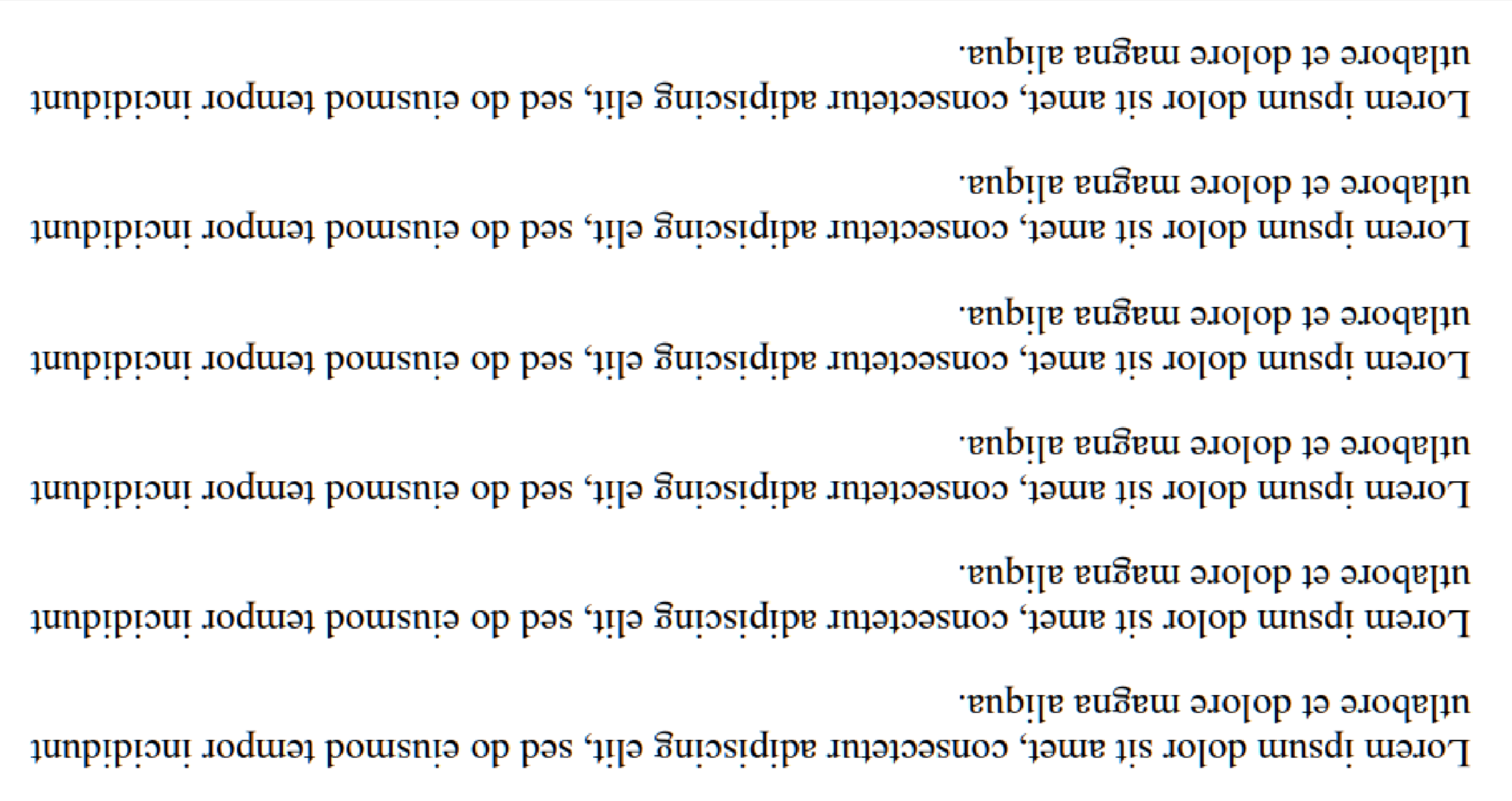
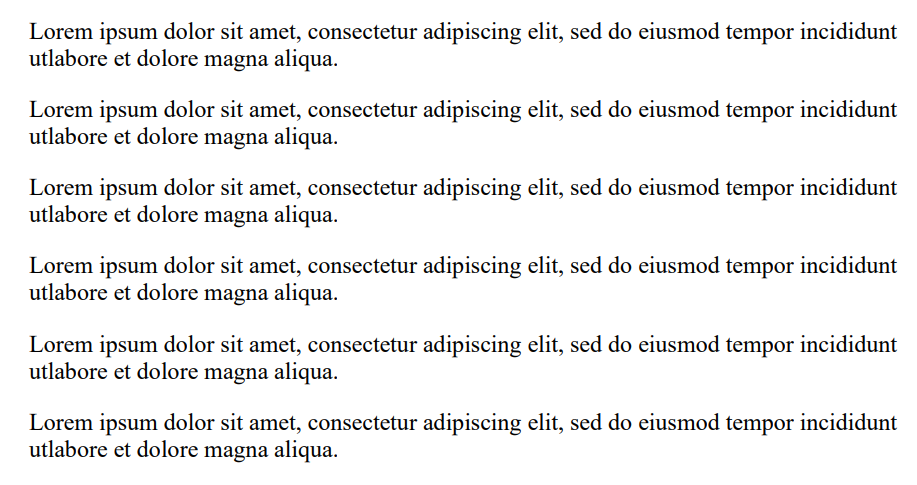
旋轉是一種用於手動設定影像已知旋轉角度,以使其盡量變直的過濾器。 IronOCR具有運行Deskew()的功能,然而,對此的容忍度相當狹窄,最適合用於幾乎完全是直的影像(約在15度以內)。 對於旋轉了90度或倒置的輸入影像,我們應該呼叫Rotate()。
使用案例程式碼範例
這是一個呼叫Rotate()來修正倒置影像的範例:
:path=/static-assets/ocr/content-code-examples/tutorials/c-sharp-ocr-image-filters-3.csusing IronOcr;
using System;
var image = "screenshot.png";
var ocr = new IronTesseract();
using var input = new OcrInput();
// Load at least one image
input.LoadImage(image);
// Rotate 180 degrees because image is upside-down
input.Rotate(180);
// Read image into variable: result
var result = ocr.Read(input);
// Example print to console
Console.WriteLine(result.Text);Imports IronOcr
Imports System
Private image = "screenshot.png"
Private ocr = New IronTesseract()
Private input = New OcrInput()
' Load at least one image
input.LoadImage(image)
' Rotate 180 degrees because image is upside-down
input.Rotate(180)
' Read image into variable: result
Dim result = ocr.Read(input)
' Example print to console
Console.WriteLine(result.Text)之前 Input.Rotate(180) |
之後 Input.Rotate(180) |
|---|---|
 |
 |
去斜
過濾器說明
使用霍夫變換試圖在一定的容忍度內矯正影像的姿勢。 這對不完全直的影像來說很重要,因為傾斜的文件可能導致讀取錯誤。
使用案例程式碼範例
這是一個呼叫Deskew()來修正偏斜圖像的範例:
:path=/static-assets/ocr/content-code-examples/tutorials/c-sharp-ocr-image-filters-4.csusing IronOcr;
using System;
var image = @"paragraph_skewed.png";
var ocr = new IronTesseract();
using var input = new OcrInput();
// Load at least one image
input.LoadImage(image);
// Apply deskew with 15 degree snap
bool didDeskew = input.Deskew(15);
if (didDeskew)
{
// Read image into variable: result
var result = ocr.Read(input);
Console.WriteLine(result.Text);
}
else
{
Console.WriteLine("Deskew not applied because Image Orientation could not be determined.");
}Imports IronOcr
Imports System
Private image = "paragraph_skewed.png"
Private ocr = New IronTesseract()
Private input = New OcrInput()
' Load at least one image
input.LoadImage(image)
' Apply deskew with 15 degree snap
Dim didDeskew As Boolean = input.Deskew(15)
If didDeskew Then
' Read image into variable: result
Dim result = ocr.Read(input)
Console.WriteLine(result.Text)
Else
Console.WriteLine("Deskew not applied because Image Orientation could not be determined.")
End If縮放
過濾器說明
縮放是一個有用的圖像操作過濾器,有助於使用已有的像素調整圖像大小。 當條碼因圖像寬度僅十幾個像素,每條僅一個像素,或文字太小且無抗鋸齒處理而未被掃描時可使用此功能。
1000px x 1000px,條碼可以被很好地讀取,這點應在找不到條碼時考慮。
使用案例程式碼範例
這是一個呼叫Scale()來放大條碼中條與條之間的空隙以進行掃描的範例:
:path=/static-assets/ocr/content-code-examples/tutorials/c-sharp-ocr-image-filters-5.csusing IronOcr;
using System;
var image = @"small_barcode.png";
var ocr = new IronTesseract();
// Optional: This example uses a barcode
ocr.Configuration.ReadBarCodes = true;
using var input = new OcrInput();
// Load at least one image
input.LoadImage(image);
// Apply scale
input.Scale(400); // 400% is 4 times larger
// Read image into variable: result
var result = ocr.Read(input);
// Example print to console
Console.WriteLine(result.Text);Imports IronOcr
Imports System
Private image = "small_barcode.png"
Private ocr = New IronTesseract()
' Optional: This example uses a barcode
ocr.Configuration.ReadBarCodes = True
Dim input = New OcrInput()
' Load at least one image
input.LoadImage(image)
' Apply scale
input.Scale(400) ' 400% is 4 times larger
' Read image into variable: result
Dim result = ocr.Read(input)
' Example print to console
Console.WriteLine(result.Text)二值化
過濾器說明
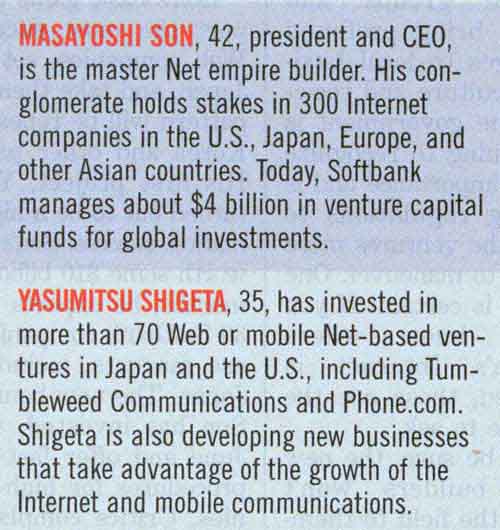
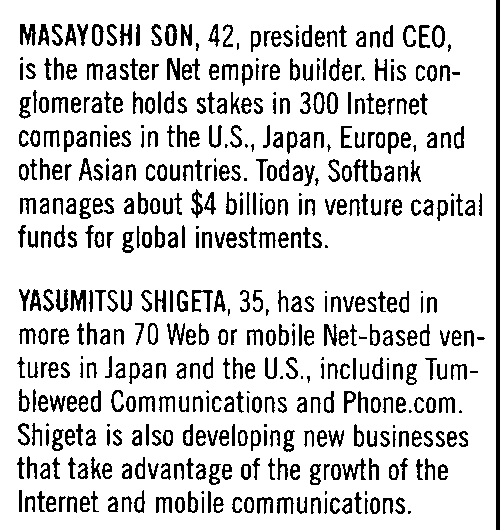
二值化過濾器將圖像中的所有像素分類為黑色或白色,取決於自適應算法。 這消除了所有顏色,將背景分離為純白,任何被識別為文字的被著色為純黑以便於閱讀。
使用案例程式碼範例
這是一個呼叫Binarize()對齊彩色文字並去除背景顏色和噪音的範例:
:path=/static-assets/ocr/content-code-examples/tutorials/c-sharp-ocr-image-filters-6.csusing IronOcr;
using System;
var image = @"no-binarize.jpg";
var ocr = new IronTesseract();
using var input = new OcrInput();
// Load at least one image
input.LoadImage(image);
// Apply Binarize
input.Binarize();
// Read image into variable: result
var result = ocr.Read(input);
// Example print to console
Console.WriteLine(result.Text);Imports IronOcr
Imports System
Private image = "no-binarize.jpg"
Private ocr = New IronTesseract()
Private input = New OcrInput()
' Load at least one image
input.LoadImage(image)
' Apply Binarize
input.Binarize()
' Read image into variable: result
Dim result = ocr.Read(input)
' Example print to console
Console.WriteLine(result.Text)之前 Binarize() |
之後 Binarize() |
|---|---|
 |
 |
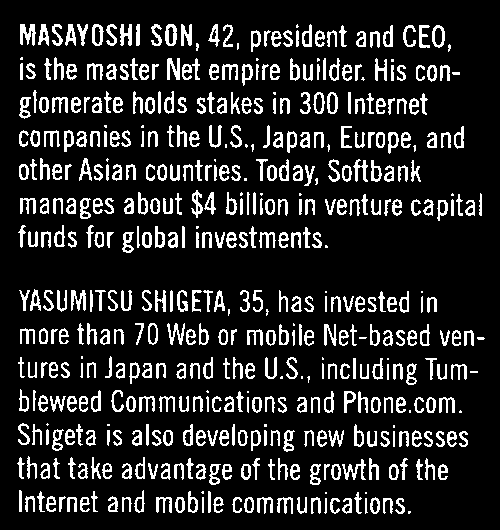
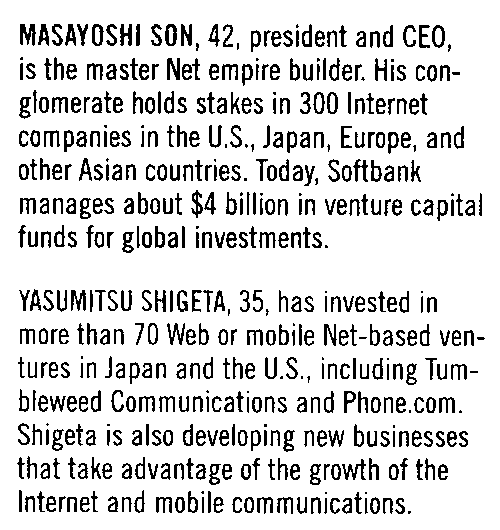
反轉
過濾器說明
IronOCR在影像black text on a white background時效果最好。 使用Invert濾鏡通過反轉影像中的所有顏色以實現此效果。
使用案例程式碼範例
這是一個呼叫Invert()的範例,將白色變為黑色,反之亦然:
:path=/static-assets/ocr/content-code-examples/tutorials/c-sharp-ocr-image-filters-7.csusing IronOcr;
using System;
var image = @"before-invert.png";
var ocr = new IronTesseract();
using var input = new OcrInput();
// Load at least one image
input.LoadImage(image);
// Apply Invert
input.Invert(true);
// Read image into variable: result
var result = ocr.Read(input);
// Example print to console
Console.WriteLine(result.Text);Imports IronOcr
Imports System
Private image = "before-invert.png"
Private ocr = New IronTesseract()
Private input = New OcrInput()
' Load at least one image
input.LoadImage(image)
' Apply Invert
input.Invert(True)
' Read image into variable: result
Dim result = ocr.Read(input)
' Example print to console
Console.WriteLine(result.Text)Before |
After |
|---|---|
 |
 |
常見問題
圖像濾鏡如何提高C#中的OCR準確性?
IronOCR中的圖像濾鏡可以預處理圖像以提高其質量,從而改進OCR準確性。濾鏡如二值化和對比度通過調整顏色和對比度來提升可讀性,而旋轉和去斜則修正圖像方向。
有哪些濾鏡可以用來校正圖像方向?
IronOCR提供旋轉和去斜濾鏡來解決圖像方向問題。旋轉允許手動調整圖像角度,而去斜則能自動將略微傾斜的圖像校正。
二值化濾鏡對圖像預處理有何影響?
IronOCR中的二值化濾鏡將圖像像素轉換為黑白,這樣可以消除背景色並提高文字可見性,特別是在低對比的情況下提高OCR準確性。
什麼時候適合使用降噪濾鏡?
當圖像中存在數字噪聲時,如銳化和去噪等降噪濾鏡應被使用。這些濾鏡能清理圖像,使文字更清晰,以便在IronOCR中獲得更好的OCR結果。
提升圖像解析度會影響OCR性能嗎?
是的,使用增強解析度濾鏡可以藉由提高低質量圖像的解析度來改善OCR性能。雖然IronOCR的預設MinimumDPI和TargetDPI設定通常已足夠,但在必要時該濾鏡能提供額外的解析度增強。
色彩操控濾鏡在OCR中有何作用?
像反轉、轉灰階和二值化的色彩操控濾鏡在IronOCR中可調節圖像顏色以提高文字可讀性。反轉改變色彩方案,轉灰階把圖像轉為灰階,二值化則簡化圖像為黑白。
對比和銳化濾鏡有何不同?
IronOCR中的對比濾鏡增加亮暗區域的差異,增強文字清晰度,而銳化濾鏡則強化邊緣,使文字更為明顯,兩者都有助於提高OCR識別。
如何在IronOCR中儲存和除錯過濾後的圖像?
在IronOCR中應用濾鏡後,使用SaveAsImages功能儲存和除錯過濾後的圖像。這有助於可視化濾鏡效果,並確保預處理步驟提高了圖像質量以用於OCR。
IronOCR中提供哪些進階形態學濾鏡?
IronOCR提供進階形態學濾鏡如膨脹和腐蝕。膨脹會為物件邊界新增像素以增強特徵,而腐蝕則移除它們,兩者皆用於澄清圖像細節以提高OCR準確性。


還在滾動?
想要快速證明? PM > Install-Package IronOcr
執行範例 觀看您的圖像轉變為可搜尋文字。






 免費開始
免費開始 免費開始
免費開始 預訂免費直播演示
















