



How to Read Excel Files in C# Without Interop: Complete Developer Guide

처음으로 .NET 서비스에서 Excel 파일을 읽어야 했을 때, Microsoft Interop을 사용했다가 거의 즉시 후회했습니다. 서버에 Office가 설치되어 있어야 했으며, 메서드 중간에 예외가 발생하면 프로세스가 누수되고, 어떤 종류의 부하에서도 중단되었습니다. 우리는 그 정확한 벽들에 계속 부딪히면서 IronXL을 개발했습니다. 이 가이드는 오늘날 실제 생산 환경에서 XLS 및 XLSX 파일을 읽는 방법이며, 사람들이 가장 많이 겪는 함정을 포함하고 있습니다.
대부분의 과정은 직접 파일 형식 읽기로, Excel 애플리케이션이 필요하지 않습니다: 워크북을 로드하고, 셀 주소로 값을 추출하고, 범위를 검증하며, 데이터를 데이터베이스나 API에 삽입합니다. 이 라이브러리는 기기에 Microsoft Office가 설치되어 있지 않아도 XLS 및 XLSX 파일을 처리합니다.
빠른 시작: IronXL을 사용하여 한 줄로 셀 읽기
한 줄로 Excel 워크북을 로드하고 셀에서 값을 가져옵니다. Interop 없이, 설정 없이, 백그라운드에서 Excel 프로세스가 실행되지 않습니다.

IronXL을 사용하여 Excel 파일을 C#에서 읽는 방법은?
설치 자체는 NuGet 설치와 using IronXL; 지시문입니다. 라이브러리는 .XLS 및 .XLSX를 모두 처리하므로 동일한 코드 경로가 레거시 스프레드시트와 현대 Open XML 형식에 작동합니다.
시작하려면 다음 단계를 따르세요.
- 엑셀 파일을 읽기 위한 C# 라이브러리를 다운로드하세요 .
WorkBook.Load()사용하여 Excel 작업 책 로드 및 읽기GetWorkSheet()메서드를 사용하여 워크시트 액세스- Excel 스타일의 주소인
sheet["A1"].Value를 사용하여 셀 값 읽기 - 스프레드시트 데이터를 프로그램 방식으로 검증하고 처리합니다.
- Entity Framework를 사용하여 데이터를 데이터베이스로 내보내기
IronXL은 C#에서 Microsoft Excel 문서를 Office 제품에 의존하지 않고 읽고 편집합니다. Microsoft Excel이 설치될 필요가 없으며, Interop이 필요하지 않습니다. 접근 방식 및 API 표면의 차이에 대해서는 Microsoft.Office.Interop.Excel과의 비교를 참조하세요.
Interop에서 왔다면, 코드 작성 전에 사고 모델이 다르다는 점을 명확히 이해하는 것이 중요합니다. Interop은 무대 뒤에서 실제 Excel.exe 프로세스를 시작하며, 코드는 해당 응용 프로그램을 자동화하여 COM을 통해 작동합니다. IronXL은 파일 바이트를 메모리에 직접 읽어 객체로 제공합니다. 엑셀 프로세스 없음, 메시지 펌프 없음, COM 마샬링 없음. 가장 일반적으로 발생하는 실수의 실제 결과: Interop은 셀을 [1, 1]에서 인덱스하며(Excel의 UI와 동일한 1 기반), 하지만 IronXL 행/열 액세스는 0 기반입니다. 스프레드시트 UI와 같은 두 가지 라이브러리에서 ["A1"] 문자열 인덱서가 일치하므로 문자열 형식에 머무를 수 있으면 마이그레이션이 거의 동일하게 읽힙니다. 오후 내내 발생한 오차 하나 버그는 모두 숫자 인덱서에서 발생합니다.
IronXL 구성품:
- 당사 .NET 엔지니어의 전담 제품 지원
- Microsoft Visual Studio를 통한 간편한 설치
- 개발을 위한 무료 평가판 테스트.
liteLicense라이센스
C# 및 VB.NET 프로젝트 모두 Excel 파일을 읽거나 생성하기 위해 IronXL을 동일하게 사용할 수 있습니다.
IronXL을 사용하여 .XLS 및 .XLSX Excel 파일 읽기
IronXL을 사용하여 Excel 파일을 읽는 데 필요한 핵심 워크플로는 다음과 같습니다.
- NuGet 패키지를 통해 IronXL Excel 라이브러리를 설치하거나 .NET Excel DLL 을 다운로드하십시오.
WorkBook.Load()메서드를 사용하여 어떤 XLS, XLSX 또는 CSV 문서도 읽기- Excel 스타일의 주소인
sheet["A11"].DecimalValue를 사용하여 셀 값 액세스
:path=/static-assets/excel/content-code-examples/tutorials/how-to-read-excel-file-csharp-1.csusing IronXL;
using System;
using System.Linq;
// Load Excel workbook from file path
WorkBook workBook = WorkBook.Load("test.xlsx");
// Access the first worksheet using LINQ
WorkSheet workSheet = workBook.WorkSheets.First();
// Read integer value from cell A2
int cellValue = workSheet["A2"].IntValue;
Console.WriteLine($"Cell A2 value: {cellValue}");
// Iterate through a range of cells
foreach (var cell in workSheet["A2:A10"])
{
Console.WriteLine("Cell {0} has value '{1}'", cell.AddressString, cell.Text);
}
// Advanced Operations with LINQ
// Calculate sum using built_in Sum() method
decimal sum = workSheet["A2:A10"].Sum();
// Find maximum value using LINQ
decimal max = workSheet["A2:A10"].Max(c => c.DecimalValue);
// Output calculated results
Console.WriteLine($"Sum of A2:A10: {sum}");
Console.WriteLine($"Maximum value: {max}");Imports IronXL
Imports System
Imports System.Linq
' Load Excel workbook from file path
Dim workBook As WorkBook = WorkBook.Load("test.xlsx")
' Access the first worksheet using LINQ
Dim workSheet As WorkSheet = workBook.WorkSheets.First()
' Read integer value from cell A2
Dim cellValue As Integer = workSheet("A2").IntValue
Console.WriteLine($"Cell A2 value: {cellValue}")
' Iterate through a range of cells
For Each cell In workSheet("A2:A10")
Console.WriteLine("Cell {0} has value '{1}'", cell.AddressString, cell.Text)
Next
' Advanced Operations with LINQ
' Calculate sum using built_in Sum() method
Dim sum As Decimal = workSheet("A2:A10").Sum()
' Find maximum value using LINQ
Dim max As Decimal = workSheet("A2:A10").Max(Function(c) c.DecimalValue)
' Output calculated results
Console.WriteLine($"Sum of A2:A10: {sum}")
Console.WriteLine($"Maximum value: {max}")이 코드 스니펫은 지속적으로 사용할 네 가지 작업, 즉 워크북 로드, 주소로 셀 읽기, 범위 반복, 그리고 범위에 대한 계산 실행을 설명합니다. WorkBook.Load()는 확장자에서 파일 형식을 감지하며 범위 구문 ["A2:A10"]는 Excel 자체에 입력할 셀 선택과 일치합니다. 범위는 IEnumerable<Cell>이며, 따라서 LINQ는 합계, 필터링 및 프로젝션을 위해 직접 작동합니다.
실제로 얼마나 빠른가요?
현실적인 성능을 느낄 수 있도록, 이 튜토리얼 전반에서 사용된 동일한 종류의 파일을 로드하고 작업 시간을 측정하는 작은 콘솔 프로젝트를 작성했습니다. 이 하니스는 직접 실행할 수 있는 ReadExcelBenchmark 샘플 프로젝트에 있습니다. Windows 11 상자에서 .NET 9.0.7을 실행할 때, 여러 번 실행한 통계적으로 대략 다음과 같은 결과가 나옵니다:
| 작업 | 첫 번째 찬 부하 (새 프로세스) | 10번 반복에 대한 평균 온도 |
|---|---|---|
GDP.xlsx (213 행)를 로드하고 B 열의 합계 |
~270 ms | ~40 ms (범위 25–70 ms) |
People.xlsx (100 행)를 로드하고 모든 셀을 정규식으로 확인 |
~30 밀리초 | ~28 ms |
첫 번째 콜드 숫자는 IronXL의 어셈블리 로드와 JIT 초기화에 의해 좌우되며, 두 번째 콜드 숫자는 어셈블리가 이미 메모리에 있으므로 훨씬 낮습니다. JIT가 핫 경로를 컴파일하면 워밍 런은 좁은 대역으로 수렴합니다.
이 크기의 파일에서 여러 초의 로드가 보일 경우, 범위 밖에서 한 번 대신 반복문 안에서 WorkBook.Load()를 호출하는 것이 원인입니다. 워크북을 한 번 로드한 다음, 실제로 필요한 셀 또는 행을 반복합니다. 제가 받은 "IronXL이 느리다"라는 지원 티켓의 절반 정도에서 그 정확한 패턴을 발견합니다.
이 튜토리얼의 코드 예제는 서로 다른 데이터 시나리오를 보여주는 세 가지 샘플 Excel 스프레드시트를 사용합니다.
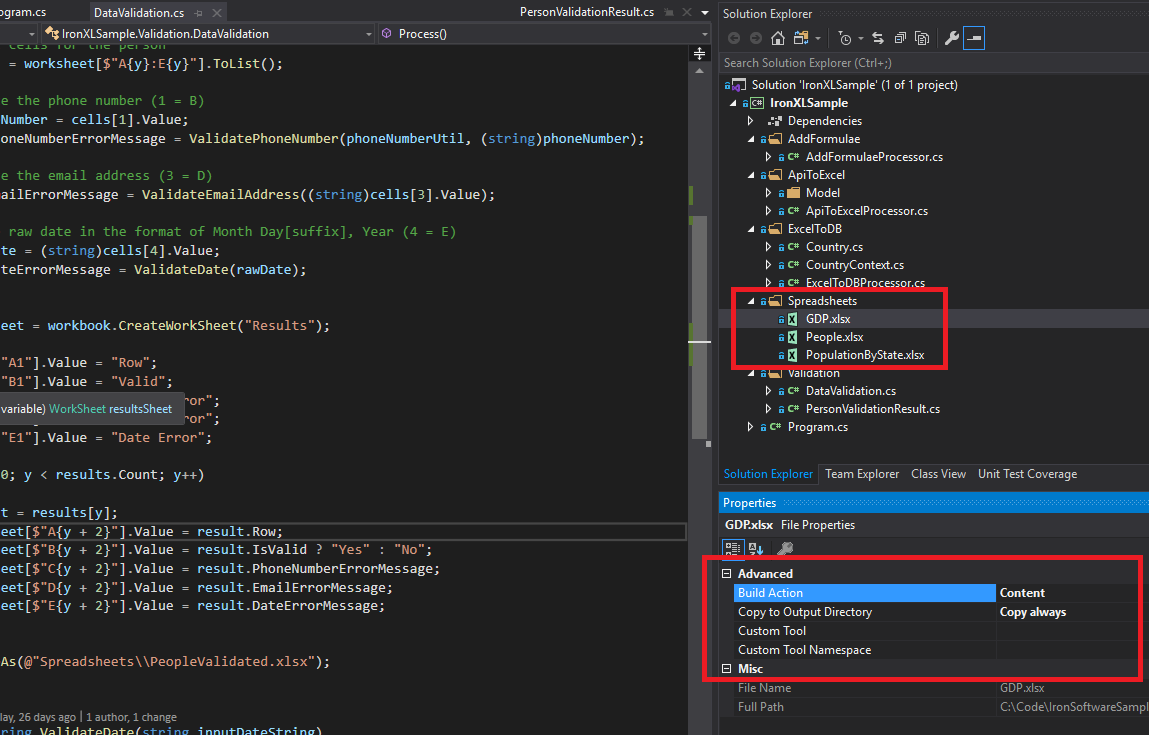 본 튜토리얼에서는 IronXL의 다양한 작업 방법을 설명하기 위해 샘플 Excel 파일(GDP.xlsx, People.xlsx, PopulationByState.xlsx)을 사용합니다.
IronXL C# 라이브러리를 설치하려면 어떻게 해야 하나요?
.NET 프로젝트에 IronXL.Excel 라이브러리를 NuGet을 통해 추가하거나 DLL을 직접 참조하여 추가합니다.
IronXL NuGet Install-Package
- Visual Studio에서 프로젝트를 마우스 오른쪽 버튼으로 클릭하고 "NuGet 패키지 관리"를 선택합니다.
- 검색 탭에서
IronXL.Excel찾기 - 설치 버튼을 클릭하여 IronXL을 프로젝트에 추가하세요.
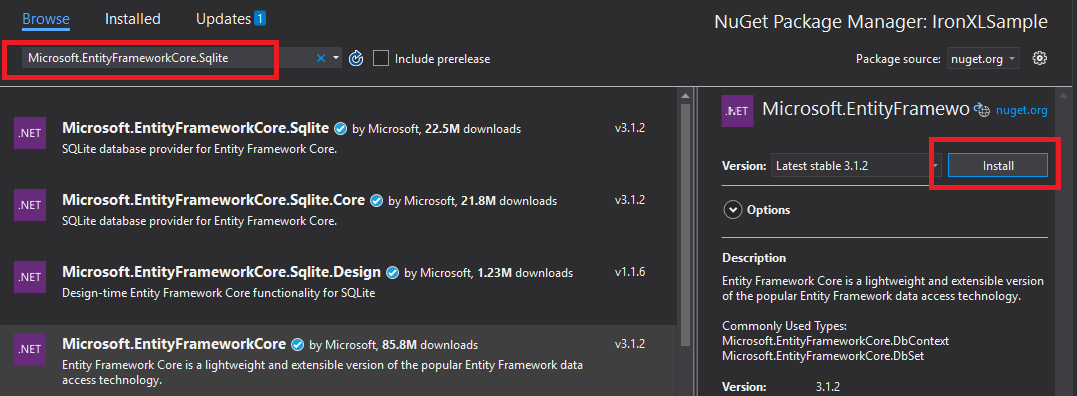 Visual Studio의 NuGet 패키지 관리자를 통해 IronXL을 설치하면 종속성 관리가 자동으로 이루어집니다.
또는 패키지 관리자 콘솔을 사용하여 IronXL을 설치하십시오.
- 패키지 관리자 콘솔을 엽니다(도구 → NuGet 패키지 관리자 → 패키지 관리자 콘솔).
- 설치 명령을 실행하세요:
Install-Package IronXL.Excel
NuGet 웹사이트에서도 패키지 세부 정보를 확인할 수 있습니다.
수동 설치
수동 설치의 경우, IronXL .NET Excel DLL을 다운로드하고 Visual Studio 프로젝트에서 직접 참조하십시오.
엑셀 통합 문서를 불러오고 읽는 방법은 무엇인가요?
WorkBook 클래스는 전체 Excel 파일을 나타냅니다. WorkBook.Load() 메소드를 사용하여 Excel 파일을 로드하십시오. 이 메소드는 XLS, XLSX, CSV 및 TSV 형식을 위한 파일 경로를 허용합니다.
:path=/static-assets/excel/content-code-examples/tutorials/how-to-read-excel-file-csharp-2.csusing IronXL;
using System;
using System.Linq;
// Load Excel file from specified path
WorkBook workBook = WorkBook.Load(@"Spreadsheets\GDP.xlsx");
Console.WriteLine("Workbook loaded successfully.");
// Access specific worksheet by name
WorkSheet sheet = workBook.GetWorkSheet("Sheet1");
// Read and display cell value
string cellValue = sheet["A1"].StringValue;
Console.WriteLine($"Cell A1 contains: {cellValue}");
// Perform additional operations
// Count non_empty cells in column A
int rowCount = sheet["A:A"].Count(cell => !cell.IsEmpty);
Console.WriteLine($"Column A has {rowCount} non_empty cells");Imports IronXL
Imports System
Imports System.Linq
' Load Excel file from specified path
Dim workBook As WorkBook = WorkBook.Load("Spreadsheets\GDP.xlsx")
Console.WriteLine("Workbook loaded successfully.")
' Access specific worksheet by name
Dim sheet As WorkSheet = workBook.GetWorkSheet("Sheet1")
' Read and display cell value
Dim cellValue As String = sheet("A1").StringValue
Console.WriteLine($"Cell A1 contains: {cellValue}")
' Perform additional operations
' Count non_empty cells in column A
Dim rowCount As Integer = sheet("A:A").Count(Function(cell) Not cell.IsEmpty)
Console.WriteLine($"Column A has {rowCount} non_empty cells")각 WorkBook에는 개별 Excel 시트를 나타내는 여러 WorkSheet 객체가 포함되어 있습니다. GetWorkSheet()를 사용하여 이름으로 워크시트에 액세스하십시오.
:path=/static-assets/excel/content-code-examples/tutorials/how-to-read-excel-file-csharp-3.csusing IronXL;
using System;
// Get worksheet by name
WorkSheet workSheet = workBook.GetWorkSheet("GDPByCountry");
Console.WriteLine("Worksheet 'GDPByCountry' not found");
// List available worksheets
foreach (var sheet in workBook.WorkSheets)
{
Console.WriteLine($"Available: {sheet.Name}");
}Imports IronXL
Imports System
' Get worksheet by name
Dim workSheet As WorkSheet = workBook.GetWorkSheet("GDPByCountry")
Console.WriteLine("Worksheet 'GDPByCountry' not found")
' List available worksheets
For Each sheet In workBook.WorkSheets
Console.WriteLine($"Available: {sheet.Name}")
Next새 Excel 문서를 C#에서 만드는 방법은?
원하는 파일 형식이 있는 WorkBook 개체를 구성하여 새 Excel 문서를 만드십시오. IronXL은 최신 XLSX 형식과 기존 XLS 형식을 모두 지원합니다.
:path=/static-assets/excel/content-code-examples/tutorials/how-to-read-excel-file-csharp-4.csusing IronXL;
// Create new XLSX workbook (recommended format)
WorkBook workBook = WorkBook.Create(ExcelFileFormat.XLSX);
// Set workbook metadata
workBook.Metadata.Author = "Your Application";
workBook.Metadata.Comments = "Generated by IronXL";
// Create new XLS workbook for legacy support
WorkBook legacyWorkBook = WorkBook.Create(ExcelFileFormat.XLS);
// Save the workbook
workBook.SaveAs("NewDocument.xlsx");Imports IronXL
' Create new XLSX workbook (recommended format)
Private workBook As WorkBook = WorkBook.Create(ExcelFileFormat.XLSX)
' Set workbook metadata
workBook.Metadata.Author = "Your Application"
workBook.Metadata.Comments = "Generated by IronXL"
' Create new XLS workbook for legacy support
Dim legacyWorkBook As WorkBook = WorkBook.Create(ExcelFileFormat.XLS)
' Save the workbook
workBook.SaveAs("NewDocument.xlsx")참고: Excel 2003 및 이전 버전과의 호환성이 필요한 경우에만 ExcelFileFormat.XLS을 사용하십시오.
엑셀 문서에 워크시트를 추가하려면 어떻게 해야 하나요?
IronXL WorkBook에는 워크시트가 모음으로 포함되어 있습니다. 이러한 구조를 이해하면 여러 시트로 구성된 엑셀 파일을 만들 때 도움이 됩니다.
 IronXL에서 여러 워크시트 개체를 포함하는 워크북 구조의 시각적 표현입니다.
CreateWorkSheet()을 사용하여 새 워크시트를 만드십시오:
:path=/static-assets/excel/content-code-examples/tutorials/how-to-read-excel-file-csharp-5.csusing IronXL;
// Create multiple worksheets with descriptive names
WorkSheet summarySheet = workBook.CreateWorkSheet("Summary");
WorkSheet dataSheet = workBook.CreateWorkSheet("RawData");
WorkSheet chartSheet = workBook.CreateWorkSheet("Charts");
// Set the active worksheet
workBook.SetActiveTab(0); // Makes "Summary" the active sheet
// Access default worksheet (first sheet)
WorkSheet defaultSheet = workBook.DefaultWorkSheet;Imports IronXL
' Create multiple worksheets with descriptive names
Dim summarySheet As WorkSheet = workBook.CreateWorkSheet("Summary")
Dim dataSheet As WorkSheet = workBook.CreateWorkSheet("RawData")
Dim chartSheet As WorkSheet = workBook.CreateWorkSheet("Charts")
' Set the active worksheet
workBook.SetActiveTab(0) ' Makes "Summary" the active sheet
' Access default worksheet (first sheet)
Dim defaultSheet As WorkSheet = workBook.DefaultWorkSheet셀 값을 읽고 편집하는 방법은 무엇인가요?
단일 셀을 읽고 편집합니다.
워크시트의 인덱서 속성을 통해 개별 셀에 접근할 수 있습니다. IronXL의 Cell 클래스는 강력한 타입의 값 속성을 제공합니다.
:path=/static-assets/excel/content-code-examples/tutorials/how-to-read-excel-file-csharp-6.csusing IronXL;
using System;
using System.Linq;
// Load workbook and get worksheet
WorkBook workBook = WorkBook.Load("test.xlsx");
WorkSheet workSheet = workBook.DefaultWorkSheet;
// Access cell B1
IronXL.Cell cell = workSheet["B1"].First();
// Read cell value with type safety
string textValue = cell.StringValue;
int intValue = cell.IntValue;
decimal decimalValue = cell.DecimalValue;
DateTime? dateValue = cell.DateTimeValue;
// Check cell data type
if (cell.IsNumeric)
{
Console.WriteLine($"Numeric value: {cell.DecimalValue}");
}
else if (cell.IsText)
{
Console.WriteLine($"Text value: {cell.StringValue}");
}Imports IronXL
Imports System
Imports System.Linq
' Load workbook and get worksheet
Dim workBook As WorkBook = WorkBook.Load("test.xlsx")
Dim workSheet As WorkSheet = workBook.DefaultWorkSheet
' Access cell B1
Dim cell As IronXL.Cell = workSheet("B1").First()
' Read cell value with type safety
Dim textValue As String = cell.StringValue
Dim intValue As Integer = cell.IntValue
Dim decimalValue As Decimal = cell.DecimalValue
Dim dateValue As DateTime? = cell.DateTimeValue
' Check cell data type
If cell.IsNumeric Then
Console.WriteLine($"Numeric value: {cell.DecimalValue}")
ElseIf cell.IsText Then
Console.WriteLine($"Text value: {cell.StringValue}")
End If다른 데이터 유형을 위한 다중 속성을 제공하며 가능한 경우 값을 자동으로 변환하는 Cell 클래스. 셀 작업에 대한 자세한 내용은 셀 서식 튜토리얼을 참조하세요.
:path=/static-assets/excel/content-code-examples/tutorials/how-to-read-excel-file-csharp-7.cs// Write different data types to cells
workSheet["A1"].Value = "Product Name"; // String
workSheet["B1"].Value = 99.95m; // Decimal
workSheet["C1"].Value = DateTime.Today; // Date
workSheet["D1"].Formula = "=B1*1.2"; // Formula
// Format cells
workSheet["B1"].FormatString = "$#,##0.00"; // Currency format
workSheet["C1"].FormatString = "yyyy-MM-dd";// Date format
// Save changes
workBook.Save();' Write different data types to cells
workSheet("A1").Value = "Product Name" ' String
workSheet("B1").Value = 99.95D ' Decimal
workSheet("C1").Value = DateTime.Today ' Date
workSheet("D1").Formula = "=B1*1.2" ' Formula
' Format cells
workSheet("B1").FormatString = "$#,##0.00" ' Currency format
workSheet("C1").FormatString = "yyyy-MM-dd" ' Date format
' Save changes
workBook.Save()셀 범위를 어떻게 사용할 수 있나요?
Range 클래스는 셀 컬렉션을 나타내어 Excel 데이터에 대한 대량 작업을 가능하게 합니다.
:path=/static-assets/excel/content-code-examples/tutorials/how-to-read-excel-file-csharp-8.csusing IronXL;
using Range = IronXL.Range;
// Select range using Excel notation
Range range = workSheet["D2:D101"];
// Alternative: Use Range class for dynamic selection
Range dynamicRange = workSheet.GetRange("D2:D101"); // Row 2_101, Column D
// Perform bulk operations
range.Value = 0; // Set all cells to 0Imports IronXL
' Select range using Excel notation
Dim range As Range = workSheet("D2:D101")
' Alternative: Use Range class for dynamic selection
Dim dynamicRange As Range = workSheet.GetRange("D2:D101") ' Row 2_101, Column D
' Perform bulk operations
range.Value = 0 ' Set all cells to 0셀 개수를 알고 있을 때 루프를 사용하여 효율적으로 범위를 처리합니다.
// Data validation example
public class ValidationResult
{
    public int Row { get; set; }
    public string PhoneError { get; set; }
    public string EmailError { get; set; }
    public string DateError { get; set; }
    public bool IsValid => string.IsNullOrEmpty(PhoneError) &&
                           string.IsNullOrEmpty(EmailError) &&
                           string.IsNullOrEmpty(DateError);
}

// Validate data in rows 2-101
var results = new List<ValidationResult>();

for (int row = 2; row <= 101; row++)
{
    var result = new ValidationResult { Row = row };

    // Get row data efficiently
    var phoneCell = workSheet[$"B{row}"];
    var emailCell = workSheet[$"D{row}"];
    var dateCell = workSheet[$"E{row}"];

    // Validate phone number
    if (!IsValidPhoneNumber(phoneCell.StringValue))
        result.PhoneError = "Invalid phone format";

    // Validate email
    if (!IsValidEmail(emailCell.StringValue))
        result.EmailError = "Invalid email format";

    // Validate date
    if (!dateCell.IsDateTime)
        result.DateError = "Invalid date format";

    results.Add(result);
}

// Helper methods
bool IsValidPhoneNumber(string phone) =>
    System.Text.RegularExpressions.Regex.IsMatch(phone, @"^\d{3}-\d{3}-\d{4}$");

bool IsValidEmail(string email) =>
    email.Contains("@") && email.Contains(".");
// Data validation example
public class ValidationResult
{
public int Row { get; set; }
public string PhoneError { get; set; }
public string EmailError { get; set; }
public string DateError { get; set; }
public bool IsValid => string.IsNullOrEmpty(PhoneError) &&
string.IsNullOrEmpty(EmailError) &&
string.IsNullOrEmpty(DateError);
}
// Validate data in rows 2-101
var results = new List<ValidationResult>();
for (int row = 2; row <= 101; row++)
{
var result = new ValidationResult { Row = row };
// Get row data efficiently
var phoneCell = workSheet[$"B{row}"];
var emailCell = workSheet[$"D{row}"];
var dateCell = workSheet[$"E{row}"];
// Validate phone number
if (!IsValidPhoneNumber(phoneCell.StringValue))
result.PhoneError = "Invalid phone format";
// Validate email
if (!IsValidEmail(emailCell.StringValue))
result.EmailError = "Invalid email format";
// Validate date
if (!dateCell.IsDateTime)
result.DateError = "Invalid date format";
results.Add(result);
}
// Helper methods
bool IsValidPhoneNumber(string phone) =>
System.Text.RegularExpressions.Regex.IsMatch(phone, @"^\d{3}-\d{3}-\d{4}$");
bool IsValidEmail(string email) =>
email.Contains("@") && email.Contains(".");' Data validation example
Public Class ValidationResult
Public Property Row() As Integer
Public Property PhoneError() As String
Public Property EmailError() As String
Public Property DateError() As String
Public ReadOnly Property IsValid() As Boolean
Get
Return String.IsNullOrEmpty(PhoneError) AndAlso String.IsNullOrEmpty(EmailError) AndAlso String.IsNullOrEmpty(DateError)
End Get
End Property
End Class
' Validate data in rows 2-101
Private results = New List(Of ValidationResult)()
For row As Integer = 2 To 101
Dim result = New ValidationResult With {.Row = row}
' Get row data efficiently
Dim phoneCell = workSheet($"B{row}")
Dim emailCell = workSheet($"D{row}")
Dim dateCell = workSheet($"E{row}")
' Validate phone number
If Not IsValidPhoneNumber(phoneCell.StringValue) Then
result.PhoneError = "Invalid phone format"
End If
' Validate email
If Not IsValidEmail(emailCell.StringValue) Then
result.EmailError = "Invalid email format"
End If
' Validate date
If Not dateCell.IsDateTime Then
result.DateError = "Invalid date format"
End If
results.Add(result)
Next row
' Helper methods
'INSTANT VB TODO TASK: Local functions are not converted by Instant VB:
'bool IsValidPhoneNumber(string phone)
'{
' Return System.Text.RegularExpressions.Regex.IsMatch(phone, "^\d{3}-\d{3}-\d{4}$");
'}
'INSTANT VB TODO TASK: Local functions are not converted by Instant VB:
'bool IsValidEmail(string email)
'{
' Return email.Contains("@") && email.Contains(".");
'}엑셀 스프레드시트에 수식을 추가하는 방법은 무엇인가요?
Formula 속성을 사용하여 Excel 수식을 적용하십시오. IronXL은 표준 Excel 수식 구문을 지원합니다.
:path=/static-assets/excel/content-code-examples/tutorials/how-to-read-excel-file-csharp-9.csusing IronXL;
// Add formulas to calculate percentages
int lastRow = 50;
for (int row = 2; row < lastRow; row++)
{
// Calculate percentage: current value / total
workSheet[$"C{row}"].Formula = $"=B{row}/B{lastRow}";
// Format as percentage
workSheet[$"C{row}"].FormatString = "0.00%";
}
// Add summary formulas
workSheet["B52"].Formula = "=SUM(B2:B50)"; // Sum
workSheet["B53"].Formula = "=AVERAGE(B2:B50)"; // Average
workSheet["B54"].Formula = "=MAX(B2:B50)"; // Maximum
workSheet["B55"].Formula = "=MIN(B2:B50)"; // Minimum
// Force formula evaluation
workBook.EvaluateAll();Imports IronXL
' Add formulas to calculate percentages
Dim lastRow As Integer = 50
For row As Integer = 2 To lastRow - 1
' Calculate percentage: current value / total
workSheet($"C{row}").Formula = $"=B{row}/B{lastRow}"
' Format as percentage
workSheet($"C{row}").FormatString = "0.00%"
Next
' Add summary formulas
workSheet("B52").Formula = "=SUM(B2:B50)" ' Sum
workSheet("B53").Formula = "=AVERAGE(B2:B50)" ' Average
workSheet("B54").Formula = "=MAX(B2:B50)" ' Maximum
workSheet("B55").Formula = "=MIN(B2:B50)" ' Minimum
' Force formula evaluation
workBook.EvaluateAll()기존 수식을 수정하려면 Excel 수식 튜토리얼을 참조하세요.
스프레드시트 데이터의 유효성을 어떻게 검증할 수 있나요?
내가 자주 보는 일반적인 사용 사례는 데이터베이스로 데이터를 가져오기 전에 사용자가 제공한 스프레드시트를 검증하는 것입니다. 아래 예제는 정규 표현식과 IronXL의 내장형 타입 검사를 사용하여 전화번호, 이메일, 날짜를 확인합니다.
:path=/static-assets/excel/content-code-examples/tutorials/how-to-read-excel-file-csharp-13.csusing System.Text.RegularExpressions;
using IronXL;
// Validation implementation
for (int i = 2; i <= 101; i++)
{
var result = new PersonValidationResult { Row = i };
results.Add(result);
// Get cells for current person
var cells = workSheet[$"A{i}:E{i}"].ToList();
// Validate phone (column B)
string phone = cells[1].StringValue;
if (!Regex.IsMatch(phone, @"^\+?1?\d{10,14}$"))
{
result.PhoneNumberErrorMessage = "Invalid phone format";
}
// Validate email (column D)
string email = cells[3].StringValue;
if (!Regex.IsMatch(email, @"^[^@\s]+@[^@\s]+\.[^@\s]+$"))
{
result.EmailErrorMessage = "Invalid email address";
}
// Validate date (column E)
if (!cells[4].IsDateTime)
{
result.DateErrorMessage = "Invalid date format";
}
}
Imports System.Text.RegularExpressions
Imports IronXL

' Validation implementation
For i As Integer = 2 To 101
    Dim result As New PersonValidationResult With {.Row = i}
    results.Add(result)

    ' Get cells for current person
    Dim cells = workSheet($"A{i}:E{i}").ToList()

    ' Validate phone (column B)
    Dim phone As String = cells(1).StringValue
    If Not Regex.IsMatch(phone, "^\+?1?\d{10,14}$") Then
        result.PhoneNumberErrorMessage = "Invalid phone format"
    End If

    ' Validate email (column D)
    Dim email As String = cells(3).StringValue
    If Not Regex.IsMatch(email, "^[^@\s]+@[^@\s]+\.[^@\s]+$") Then
        result.EmailErrorMessage = "Invalid email address"
    End If

    ' Validate date (column E)
    If Not cells(4).IsDateTime Then
        result.DateErrorMessage = "Invalid date format"
    End If
Next i유효성 검사 결과를 새 워크시트에 저장합니다.
:path=/static-assets/excel/content-code-examples/tutorials/how-to-read-excel-file-csharp-14.cs// Create results worksheet
var resultsSheet = workBook.CreateWorkSheet("ValidationResults");
// Add headers
resultsSheet["A1"].Value = "Row";
resultsSheet["B1"].Value = "Valid";
resultsSheet["C1"].Value = "Phone Error";
resultsSheet["D1"].Value = "Email Error";
resultsSheet["E1"].Value = "Date Error";
// Style headers
resultsSheet["A1:E1"].Style.Font.Bold = true;
resultsSheet["A1:E1"].Style.SetBackgroundColor("#4472C4");
resultsSheet["A1:E1"].Style.Font.Color = "#FFFFFF";
// Output validation results
for (int i = 0; i < results.Count; i++)
{
var result = results[i];
int outputRow = i + 2;
resultsSheet[$"A{outputRow}"].Value = result.Row;
resultsSheet[$"B{outputRow}"].Value = result.IsValid ? "Yes" : "No";
resultsSheet[$"C{outputRow}"].Value = result.PhoneNumberErrorMessage ?? "";
resultsSheet[$"D{outputRow}"].Value = result.EmailErrorMessage ?? "";
resultsSheet[$"E{outputRow}"].Value = result.DateErrorMessage ?? "";
// Highlight invalid rows
if (!result.IsValid)
{
resultsSheet[$"A{outputRow}:E{outputRow}"].Style.SetBackgroundColor("#FFE6E6");
}
}
// Auto-fit columns
for (int col = 0; col < 5; col++)
{
resultsSheet.AutoSizeColumn(col);
}
// Save validated workbook
workBook.SaveAs(@"Spreadsheets\PeopleValidated.xlsx");
Imports System

' Create results worksheet
Dim resultsSheet = workBook.CreateWorkSheet("ValidationResults")

' Add headers
resultsSheet("A1").Value = "Row"
resultsSheet("B1").Value = "Valid"
resultsSheet("C1").Value = "Phone Error"
resultsSheet("D1").Value = "Email Error"
resultsSheet("E1").Value = "Date Error"

' Style headers
resultsSheet("A1:E1").Style.Font.Bold = True
resultsSheet("A1:E1").Style.SetBackgroundColor("#4472C4")
resultsSheet("A1:E1").Style.Font.Color = "#FFFFFF"

' Output validation results
For i As Integer = 0 To results.Count - 1
    Dim result = results(i)
    Dim outputRow As Integer = i + 2

    resultsSheet($"A{outputRow}").Value = result.Row
    resultsSheet($"B{outputRow}").Value = If(result.IsValid, "Yes", "No")
    resultsSheet($"C{outputRow}").Value = If(result.PhoneNumberErrorMessage, "")
    resultsSheet($"D{outputRow}").Value = If(result.EmailErrorMessage, "")
    resultsSheet($"E{outputRow}").Value = If(result.DateErrorMessage, "")

    ' Highlight invalid rows
    If Not result.IsValid Then
        resultsSheet($"A{outputRow}:E{outputRow}").Style.SetBackgroundColor("#FFE6E6")
    End If
Next

' Auto-fit columns
For col As Integer = 0 To 4
    resultsSheet.AutoSizeColumn(col)
Next

' Save validated workbook
workBook.SaveAs("Spreadsheets\PeopleValidated.xlsx")엑셀 데이터를 데이터베이스로 내보내는 방법은 무엇인가요?
IronXL을 Entity Framework와 함께 사용하여 스프레드시트 데이터를 데이터베이스로 직접 내보낼 수 있습니다. 이 예제는 국가별 GDP 데이터를 SQLite로 내보내는 방법을 보여줍니다.
using System;
using System.ComponentModel.DataAnnotations;
using Microsoft.EntityFrameworkCore;
using IronXL;

// Define entity model
public class Country
{
    [Key]
    public Guid Id { get; set; } = Guid.NewGuid();

    [Required]
    [MaxLength(100)]
    public string Name { get; set; }

    [Range(0, double.MaxValue)]
    public decimal GDP { get; set; }

    public DateTime ImportedDate { get; set; } = DateTime.UtcNow;
}
using System;
using System.ComponentModel.DataAnnotations;
using Microsoft.EntityFrameworkCore;
using IronXL;
// Define entity model
public class Country
{
[Key]
public Guid Id { get; set; } = Guid.NewGuid();
[Required]
[MaxLength(100)]
public string Name { get; set; }
[Range(0, double.MaxValue)]
public decimal GDP { get; set; }
public DateTime ImportedDate { get; set; } = DateTime.UtcNow;
}Imports System
Imports System.ComponentModel.DataAnnotations
Imports Microsoft.EntityFrameworkCore
Imports IronXL
' Define entity model
Public Class Country
<Key>
Public Property Id() As Guid = Guid.NewGuid()
<Required>
<MaxLength(100)>
Public Property Name() As String
<Range(0, Double.MaxValue)>
Public Property GDP() As Decimal
Public Property ImportedDate() As DateTime = DateTime.UtcNow
End Class데이터베이스 작업을 위한 Entity Framework 컨텍스트를 구성합니다.
public class CountryContext : DbContext
{
    public DbSet<Country> Countries { get; set; }

    protected override void OnConfiguring(DbContextOptionsBuilder optionsBuilder)
    {
        // Configure SQLite connection
        optionsBuilder.UseSqlite("Data Source=CountryGDP.db");

        // Enable sensitive data logging in development
        #if DEBUG
        optionsBuilder.EnableSensitiveDataLogging();
        #endif
    }

    protected override void OnModelCreating(ModelBuilder modelBuilder)
    {
        // Configure decimal precision
        modelBuilder.Entity<Country>()
            .Property(c => c.GDP)
            .HasPrecision(18, 2);
    }
}
public class CountryContext : DbContext
{
public DbSet<Country> Countries { get; set; }
protected override void OnConfiguring(DbContextOptionsBuilder optionsBuilder)
{
// Configure SQLite connection
optionsBuilder.UseSqlite("Data Source=CountryGDP.db");
// Enable sensitive data logging in development
#if DEBUG
optionsBuilder.EnableSensitiveDataLogging();
#endif
}
protected override void OnModelCreating(ModelBuilder modelBuilder)
{
// Configure decimal precision
modelBuilder.Entity<Country>()
.Property(c => c.GDP)
.HasPrecision(18, 2);
}
}Public Class CountryContext
Inherits DbContext
Public Property Countries() As DbSet(Of Country)
Protected Overrides Sub OnConfiguring(ByVal optionsBuilder As DbContextOptionsBuilder)
' Configure SQLite connection
optionsBuilder.UseSqlite("Data Source=CountryGDP.db")
' Enable sensitive data logging in development
#If DEBUG Then
optionsBuilder.EnableSensitiveDataLogging()
#End If
End Sub
Protected Overrides Sub OnModelCreating(ByVal modelBuilder As ModelBuilder)
' Configure decimal precision
modelBuilder.Entity(Of Country)().Property(Function(c) c.GDP).HasPrecision(18, 2)
End Sub
End ClassMicrosoft.EntityFrameworkCore.SqlServer)를 설치하고 연결 구성을 이에 맞게 수정하십시오.엑셀 데이터를 데이터베이스로 가져오기:
using System.Threading.Tasks;
using IronXL;
using Microsoft.EntityFrameworkCore;

public async Task ImportGDPDataAsync()
{
    try
    {
        // Load Excel file
        var workBook = WorkBook.Load(@"Spreadsheets\GDP.xlsx");
        var workSheet = workBook.GetWorkSheet("GDPByCountry");

        using (var context = new CountryContext())
        {
            // Ensure database exists
            await context.Database.EnsureCreatedAsync();

            // Clear existing data (optional)
            await context.Database.ExecuteSqlRawAsync("DELETE FROM Countries");

            // Import data with progress tracking
            int totalRows = 213;
            for (int row = 2; row <= totalRows; row++)
            {
                // Read country data
                var countryName = workSheet[$"A{row}"].StringValue;
                var gdpValue = workSheet[$"B{row}"].DecimalValue;

                // Skip empty rows
                if (string.IsNullOrWhiteSpace(countryName))
                    continue;

                // Create and add entity
                var country = new Country
                {
                    Name = countryName.Trim(),
                    GDP = gdpValue * 1_000_000 // Convert to actual value if in millions
                };

                await context.Countries.AddAsync(country);

                // Save in batches for performance
                if (row % 50 == 0)
                {
                    await context.SaveChangesAsync();
                    Console.WriteLine($"Imported {row - 1} of {totalRows} countries");
                }
            }

            // Save remaining records
            await context.SaveChangesAsync();
            Console.WriteLine($"Successfully imported {await context.Countries.CountAsync()} countries");
        }
    }
    catch (Exception ex)
    {
        Console.WriteLine($"Import failed: {ex.Message}");
        throw;
    }
}
using System.Threading.Tasks;
using IronXL;
using Microsoft.EntityFrameworkCore;
public async Task ImportGDPDataAsync()
{
try
{
// Load Excel file
var workBook = WorkBook.Load(@"Spreadsheets\GDP.xlsx");
var workSheet = workBook.GetWorkSheet("GDPByCountry");
using (var context = new CountryContext())
{
// Ensure database exists
await context.Database.EnsureCreatedAsync();
// Clear existing data (optional)
await context.Database.ExecuteSqlRawAsync("DELETE FROM Countries");
// Import data with progress tracking
int totalRows = 213;
for (int row = 2; row <= totalRows; row++)
{
// Read country data
var countryName = workSheet[$"A{row}"].StringValue;
var gdpValue = workSheet[$"B{row}"].DecimalValue;
// Skip empty rows
if (string.IsNullOrWhiteSpace(countryName))
continue;
// Create and add entity
var country = new Country
{
Name = countryName.Trim(),
GDP = gdpValue * 1_000_000 // Convert to actual value if in millions
};
await context.Countries.AddAsync(country);
// Save in batches for performance
if (row % 50 == 0)
{
await context.SaveChangesAsync();
Console.WriteLine($"Imported {row - 1} of {totalRows} countries");
}
}
// Save remaining records
await context.SaveChangesAsync();
Console.WriteLine($"Successfully imported {await context.Countries.CountAsync()} countries");
}
}
catch (Exception ex)
{
Console.WriteLine($"Import failed: {ex.Message}");
throw;
}
}Imports System.Threading.Tasks
Imports IronXL
Imports Microsoft.EntityFrameworkCore
Public Async Function ImportGDPDataAsync() As Task
Try
' Load Excel file
Dim workBook = WorkBook.Load("Spreadsheets\GDP.xlsx")
Dim workSheet = workBook.GetWorkSheet("GDPByCountry")
Using context = New CountryContext()
' Ensure database exists
Await context.Database.EnsureCreatedAsync()
' Clear existing data (optional)
Await context.Database.ExecuteSqlRawAsync("DELETE FROM Countries")
' Import data with progress tracking
Dim totalRows As Integer = 213
Dim row As Integer = 2
Do While row <= totalRows
' Read country data
Dim countryName = workSheet($"A{row}").StringValue
Dim gdpValue = workSheet($"B{row}").DecimalValue
' Skip empty rows
If String.IsNullOrWhiteSpace(countryName) Then
row += 1
Continue Do
End If
' Create and add entity
Dim country As New Country With {
.Name = countryName.Trim(),
.GDP = gdpValue * 1_000_000
}
Await context.Countries.AddAsync(country)
' Save in batches for performance
If row Mod 50 = 0 Then
Await context.SaveChangesAsync()
Console.WriteLine($"Imported {row - 1} of {totalRows} countries")
End If
row += 1
Loop
' Save remaining records
Await context.SaveChangesAsync()
Console.WriteLine($"Successfully imported {Await context.Countries.CountAsync()} countries")
End Using
Catch ex As Exception
Console.WriteLine($"Import failed: {ex.Message}")
Throw
End Try
End FunctionAPI 데이터를 엑셀 스프레드시트로 가져오려면 어떻게 해야 하나요?
IronXL을 HTTP 클라이언트와 결합하여 실시간 API 데이터로 스프레드시트를 채우세요. 이 예제는 RestClient.Net을 사용하여 국가 데이터를 가져옵니다.
using System;
using System.Collections.Generic;
using System.Net.Http;
using System.Threading.Tasks;
using Newtonsoft.Json;
using IronXL;

// Define data model matching API response
public class RestCountry
{
    public string Name { get; set; }
    public long Population { get; set; }
    public string Region { get; set; }
    public string NumericCode { get; set; }
    public List<Language> Languages { get; set; }
}

public class Language
{
    public string Name { get; set; }
    public string NativeName { get; set; }
}

// Fetch and process API data
public async Task ImportCountryDataAsync()
{
    using var httpClient = new HttpClient();

    try
    {
        // Call REST API
        var response = await httpClient.GetStringAsync("https://restcountries.com/v3.1/all");
        var countries = JsonConvert.DeserializeObject<List<RestCountry>>(response);

        // Create new workbook
        var workBook = WorkBook.Create(ExcelFileFormat.XLSX);
        var workSheet = workBook.CreateWorkSheet("Countries");

        // Add headers with styling
        string[] headers = { "Country", "Population", "Region", "Code", "Language 1", "Language 2", "Language 3" };
        for (int col = 0; col < headers.Length; col++)
        {
            var headerCell = workSheet[0, col];
            headerCell.Value = headers[col];
            headerCell.Style.Font.Bold = true;
            headerCell.Style.SetBackgroundColor("#366092");
            headerCell.Style.Font.Color = "#FFFFFF";
        }

        // Import country data
        await ProcessCountryData(countries, workSheet);

        // Save workbook
        workBook.SaveAs("CountriesFromAPI.xlsx");
    }
    catch (Exception ex)
    {
        Console.WriteLine($"API import failed: {ex.Message}");
    }
}
using System;
using System.Collections.Generic;
using System.Net.Http;
using System.Threading.Tasks;
using Newtonsoft.Json;
using IronXL;
// Define data model matching API response
public class RestCountry
{
public string Name { get; set; }
public long Population { get; set; }
public string Region { get; set; }
public string NumericCode { get; set; }
public List<Language> Languages { get; set; }
}
public class Language
{
public string Name { get; set; }
public string NativeName { get; set; }
}
// Fetch and process API data
public async Task ImportCountryDataAsync()
{
using var httpClient = new HttpClient();
try
{
// Call REST API
var response = await httpClient.GetStringAsync("https://restcountries.com/v3.1/all");
var countries = JsonConvert.DeserializeObject<List<RestCountry>>(response);
// Create new workbook
var workBook = WorkBook.Create(ExcelFileFormat.XLSX);
var workSheet = workBook.CreateWorkSheet("Countries");
// Add headers with styling
string[] headers = { "Country", "Population", "Region", "Code", "Language 1", "Language 2", "Language 3" };
for (int col = 0; col < headers.Length; col++)
{
var headerCell = workSheet[0, col];
headerCell.Value = headers[col];
headerCell.Style.Font.Bold = true;
headerCell.Style.SetBackgroundColor("#366092");
headerCell.Style.Font.Color = "#FFFFFF";
}
// Import country data
await ProcessCountryData(countries, workSheet);
// Save workbook
workBook.SaveAs("CountriesFromAPI.xlsx");
}
catch (Exception ex)
{
Console.WriteLine($"API import failed: {ex.Message}");
}
}Imports System
Imports System.Collections.Generic
Imports System.Net.Http
Imports System.Threading.Tasks
Imports Newtonsoft.Json
Imports IronXL
' Define data model matching API response
Public Class RestCountry
Public Property Name() As String
Public Property Population() As Long
Public Property Region() As String
Public Property NumericCode() As String
Public Property Languages() As List(Of Language)
End Class
Public Class Language
Public Property Name() As String
Public Property NativeName() As String
End Class
' Fetch and process API data
Public Async Function ImportCountryDataAsync() As Task
Dim httpClient As New HttpClient()
Try
' Call REST API
Dim response = Await httpClient.GetStringAsync("https://restcountries.com/v3.1/all")
Dim countries = JsonConvert.DeserializeObject(Of List(Of RestCountry))(response)
' Create new workbook
Dim workBook = WorkBook.Create(ExcelFileFormat.XLSX)
Dim workSheet = workBook.CreateWorkSheet("Countries")
' Add headers with styling
Dim headers() As String = { "Country", "Population", "Region", "Code", "Language 1", "Language 2", "Language 3" }
For col As Integer = 0 To headers.Length - 1
Dim headerCell = workSheet(0, col)
headerCell.Value = headers(col)
headerCell.Style.Font.Bold = True
headerCell.Style.SetBackgroundColor("#366092")
headerCell.Style.Font.Color = "#FFFFFF"
Next col
' Import country data
Await ProcessCountryData(countries, workSheet)
' Save workbook
workBook.SaveAs("CountriesFromAPI.xlsx")
Catch ex As Exception
Console.WriteLine($"API import failed: {ex.Message}")
End Try
End FunctionAPI는 다음과 같은 형식의 JSON 데이터를 반환합니다.
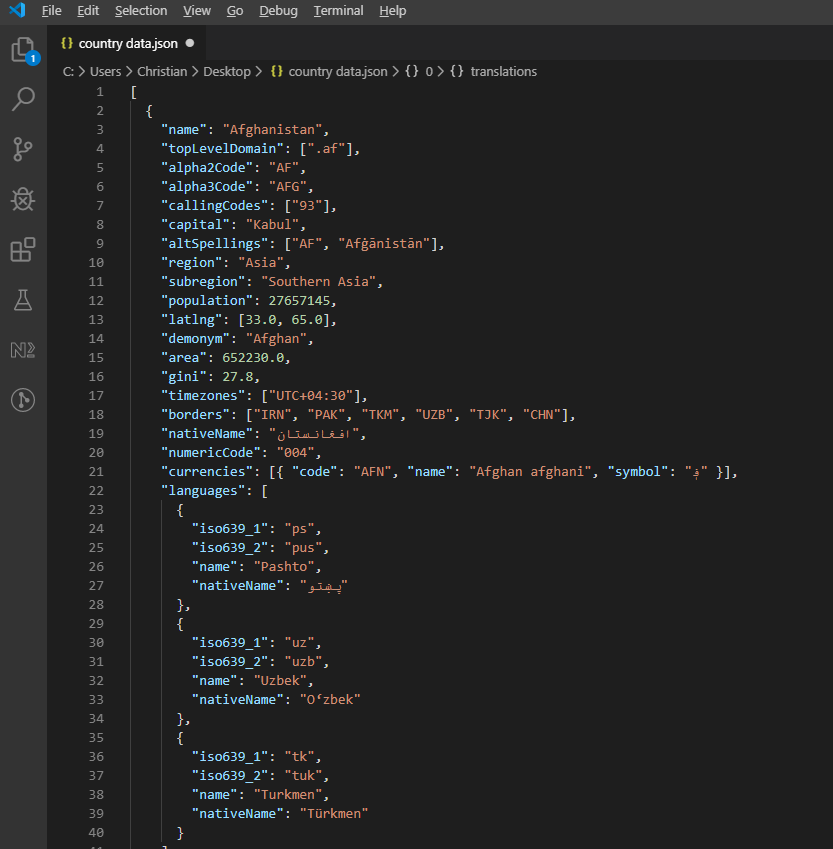 계층적 국가 정보를 보여주는 REST 국가 API의 JSON 응답 예시입니다.
API 데이터를 처리하고 엑셀에 기록합니다.
private async Task ProcessCountryData(List<RestCountry> countries, WorkSheet workSheet)
{
    for (int i = 0; i < countries.Count; i++)
    {
        var country = countries[i];
        int row = i + 1; // Start from row 1 (after headers)

        // Write basic country data
        workSheet[$"A{row}"].Value = country.Name;
        workSheet[$"B{row}"].Value = country.Population;
        workSheet[$"C{row}"].Value = country.Region;
        workSheet[$"D{row}"].Value = country.NumericCode;

        // Format population with thousands separator
        workSheet[$"B{row}"].FormatString = "#,##0";

        // Add up to 3 languages
        for (int langIndex = 0; langIndex < Math.Min(3, country.Languages?.Count ?? 0); langIndex++)
        {
            var language = country.Languages[langIndex];
            string columnLetter = ((char)('E' + langIndex)).ToString();
            workSheet[$"{columnLetter}{row}"].Value = language.Name;
        }

        // Add conditional formatting for regions
        if (country.Region == "Europe")
        {
            workSheet[$"C{row}"].Style.SetBackgroundColor("#E6F3FF");
        }
        else if (country.Region == "Asia")
        {
            workSheet[$"C{row}"].Style.SetBackgroundColor("#FFF2E6");
        }

        // Show progress every 50 countries
        if (i % 50 == 0)
        {
            Console.WriteLine($"Processed {i} of {countries.Count} countries");
        }
    }

    // Auto-size all columns
    for (int col = 0; col < 7; col++)
    {
        workSheet.AutoSizeColumn(col);
    }
}
private async Task ProcessCountryData(List<RestCountry> countries, WorkSheet workSheet)
{
for (int i = 0; i < countries.Count; i++)
{
var country = countries[i];
int row = i + 1; // Start from row 1 (after headers)
// Write basic country data
workSheet[$"A{row}"].Value = country.Name;
workSheet[$"B{row}"].Value = country.Population;
workSheet[$"C{row}"].Value = country.Region;
workSheet[$"D{row}"].Value = country.NumericCode;
// Format population with thousands separator
workSheet[$"B{row}"].FormatString = "#,##0";
// Add up to 3 languages
for (int langIndex = 0; langIndex < Math.Min(3, country.Languages?.Count ?? 0); langIndex++)
{
var language = country.Languages[langIndex];
string columnLetter = ((char)('E' + langIndex)).ToString();
workSheet[$"{columnLetter}{row}"].Value = language.Name;
}
// Add conditional formatting for regions
if (country.Region == "Europe")
{
workSheet[$"C{row}"].Style.SetBackgroundColor("#E6F3FF");
}
else if (country.Region == "Asia")
{
workSheet[$"C{row}"].Style.SetBackgroundColor("#FFF2E6");
}
// Show progress every 50 countries
if (i % 50 == 0)
{
Console.WriteLine($"Processed {i} of {countries.Count} countries");
}
}
// Auto-size all columns
for (int col = 0; col < 7; col++)
{
workSheet.AutoSizeColumn(col);
}
}Private Async Function ProcessCountryData(ByVal countries As List(Of RestCountry), ByVal workSheet As WorkSheet) As Task
For i As Integer = 0 To countries.Count - 1
Dim country = countries(i)
Dim row As Integer = i + 1 ' Start from row 1 (after headers)
' Write basic country data
workSheet($"A{row}").Value = country.Name
workSheet($"B{row}").Value = country.Population
workSheet($"C{row}").Value = country.Region
workSheet($"D{row}").Value = country.NumericCode
' Format population with thousands separator
workSheet($"B{row}").FormatString = "#,##0"
' Add up to 3 languages
For langIndex As Integer = 0 To Math.Min(3, If(country.Languages?.Count, 0)) - 1
Dim language = country.Languages(langIndex)
Dim columnLetter As String = (ChrW(AscW("E"c) + langIndex)).ToString()
workSheet($"{columnLetter}{row}").Value = language.Name
Next langIndex
' Add conditional formatting for regions
If country.Region = "Europe" Then
workSheet($"C{row}").Style.SetBackgroundColor("#E6F3FF")
ElseIf country.Region = "Asia" Then
workSheet($"C{row}").Style.SetBackgroundColor("#FFF2E6")
End If
' Show progress every 50 countries
If i Mod 50 = 0 Then
Console.WriteLine($"Processed {i} of {countries.Count} countries")
End If
Next i
' Auto-size all columns
For col As Integer = 0 To 6
workSheet.AutoSizeColumn(col)
Next col
End Function일반적인 문제
몇 가지는 사람들을 자주 물어볼 정도로 자주 발생하여 별도의 섹션이 필요합니다.
빈 셀은 null이 아닌 0을 반환
이것은 초기에 저를 곤란하게 했습니다. 비어 있는 셀에 대해 0가 반환되고 null가 반환되지 않는 sheet["A1"].IntValue, DecimalValue 또는 DoubleValue 호출. 열에서 누락된 부분이 있는 데이터를 합산하거나 평균을 구하는 경우, 빈 칸이 자동으로 0으로 처리되어 결과가 왜곡될 수 있습니다. 이제 값이 누락될 가능성이 있는 모든 시트에서 읽기를 보호합니다:
var cell = sheet["B5"];
if (!cell.IsEmpty)
{
    total += cell.DecimalValue;
}
var cell = sheet["B5"];
if (!cell.IsEmpty)
{
total += cell.DecimalValue;
}Dim cell = sheet("B5")
If Not cell.IsEmpty Then
total += cell.DecimalValue
End IfCell.IsEmpty는 저렴하므로 스프레드시트가 기계로 생성된 것이 아닌 경우 기본값으로 사용합니다.
잘못된 유형을 요청하면 날짜가 일련 번호로 반환됩니다
Excel은 날짜를 내부적으로 일련 번호로 저장합니다 (예를 들어, 45292는 2024-01-01을 의미합니다). 지원 인박스에서 가장 흔한 날짜 처리 질문은 '왜 내 날짜가 45292으로 나오나요?' 입니다. 답은 거의 항상 셀이 StringValue 또는 IntValue로 읽혀졌기 때문입니다.
// What you probably want:
DateTime birthday = sheet["E2"].DateTimeValue;

// What gives you "45292":
string birthday = sheet["E2"].StringValue;
// What you probably want:
DateTime birthday = sheet["E2"].DateTimeValue;
// What gives you "45292":
string birthday = sheet["E2"].StringValue;' What you probably want:
Dim birthday As DateTime = sheet("E2").DateTimeValue
' What gives you "45292":
Dim birthday As String = sheet("E2").StringValueCell.IsDateTime는 셀이 첫째로 날짜로 작성되었는지 여부를 알려 줍니다. 이를 통해 입력 형식이 보장되지 않는 검증 파이프라인에 유용합니다.
셀 인덱스 숫자는 0부터 시작하지만 A1 문자열은 1부터 시작합니다
Interop 마이그레이션 단락에서 다루었지만, 단 한 번도 COM을 접해보지 않은 사람조차 혼동할 수 있기 때문에 재차 언급할 가치가 있습니다. sheet[0, 0]는 sheet["A1"]과 동일한 셀입니다. 같은 반복문에서 두 스타일을 혼합하는 것이 오프바이원 버그가 생기는 원인입니다. 파일마다 하나의 모양을 선택하고 그것을 고수합니다; 기본적으로 사용하는 ["A1"] 문자열 형식은 스프레드시트에서 실제로 보는 것과 일치하기 때문입니다.
벤치마크 숫자를 위한 샘플 프로젝트
이전의 타이밍 숫자를 재현하고 싶다면, 하네스는 작은 .NET 9 콘솔 앱입니다:
:path=/static-assets/excel/content-code-examples/tutorials/how-to-read-excel-file-csharp-22.cs// ReadExcelBenchmark/Program.cs (excerpt)
IronXL.License.LicenseKey = Environment.GetEnvironmentVariable("IRONXL_LICENSE_KEY");
var sw = Stopwatch.StartNew();
var workbook = WorkBook.Load("GDP.xlsx");
decimal sum = workbook.WorkSheets.First()["B2:B214"].Sum();
sw.Stop();
Console.WriteLine($"cold: {sw.Elapsed.TotalMilliseconds:F1} ms");
Imports System
Imports System.Diagnostics
Imports IronXL

License.LicenseKey = Environment.GetEnvironmentVariable("IRONXL_LICENSE_KEY")

Dim sw As Stopwatch = Stopwatch.StartNew()
Dim workbook = WorkBook.Load("GDP.xlsx")
Dim sum As Decimal = workbook.WorkSheets.First()("B2:B214").Sum()
sw.Stop()
Console.WriteLine($"cold: {sw.Elapsed.TotalMilliseconds:F1} ms")dotnet run -c Release 아래에서 실행하고, 첫 실행 시 두 개의 샘플 작업 책을 생성한 후, 자신의 파일을 대체하여 파일 크기 및 복잡도에 따라 숫자가 어떻게 변하는지 확인할 수 있습니다.
객체 참조 및 리소스
IronXL API 레퍼런스는 이 튜토리얼에서 다루지 않는 것들을 포함하여 모든 클래스와 메서드를 다룹니다.
엑셀 작업에 대한 추가 튜토리얼:
요약
IronXL.Excel은 XLS, XLSX, CSV 및 TSV 형식을 가로질러 Excel 파일을 읽고 조작합니다. 호스트 컴퓨터에서 Microsoft Excel 또는 Interop 없이 실행됩니다.
클라우드 기반 스프레드시트 조작을 위해서는 IronXL의 로컬 파일 기능을 보완하는 .NET용 Google Sheets API 클라이언트 라이브러리 도 살펴보는 것이 좋습니다.
C# 프로젝트에 Excel 자동화 기능을 구현할 준비가 되셨나요? IronXL을 다운로드 하거나 프로덕션 사용을 위한 라이선스 옵션을 살펴보세요.
자주 묻는 질문
Microsoft Office를 사용하지 않고 C#에서 Excel 파일을 읽는 방법은 무엇인가요?
IronXL을 사용하면 Microsoft Office 없이도 C#에서 Excel 파일을 읽을 수 있습니다. IronXL은 WorkBook.Load() 와 같은 메서드를 제공하여 Excel 파일을 열고 직관적인 구문을 사용하여 데이터에 접근하고 조작할 수 있도록 해줍니다.
C#에서 읽을 수 있는 Excel 파일 형식은 무엇인가요?
IronXL을 사용하면 C#에서 XLS 및 XLSX 파일 형식을 모두 읽을 수 있습니다. 이 라이브러리는 파일 형식을 자동으로 감지하고 WorkBook.Load() 메서드를 사용하여 적절하게 처리합니다.
C#에서 Excel 데이터의 유효성을 검사하는 방법은 무엇인가요?
IronXL을 사용하면 셀을 반복하고 이메일에 대한 정규 표현식이나 사용자 지정 유효성 검사 함수와 같은 논리를 적용하여 C#에서 Excel 데이터를 프로그래밍 방식으로 검증할 수 있습니다. CreateWorkSheet() 함수를 사용하여 보고서를 생성할 수 있습니다.
C#을 사용하여 Excel의 데이터를 SQL 데이터베이스로 내보내는 방법은 무엇입니까?
Excel에서 SQL 데이터베이스로 데이터를 내보내려면 IronXL을 사용하여 WorkBook.Load() 및 GetWorkSheet() 메서드로 Excel 데이터를 읽은 다음 Entity Framework를 사용하여 셀을 반복하면서 데이터를 데이터베이스로 전송합니다.
Excel 기능을 ASP.NET Core 애플리케이션과 통합할 수 있을까요?
네, IronXL은 ASP.NET Core 애플리케이션과의 통합을 지원합니다. 컨트롤러에서 WorkBook 및 WorkSheet 클래스를 사용하여 Excel 파일 업로드, 보고서 생성 등을 처리할 수 있습니다.
C#을 사용하여 엑셀 스프레드시트에 수식을 추가하는 것이 가능할까요?
IronXL을 사용하면 Excel 스프레드시트에 수식을 프로그래밍 방식으로 추가할 수 있습니다. Formula 속성을 사용하여 cell.Formula = "=SUM(A1:A10)" 과 같이 수식을 설정하고 workBook.EvaluateAll() 사용하여 결과를 계산할 수 있습니다.
REST API에서 가져온 데이터로 엑셀 파일을 채우는 방법은 무엇인가요?
REST API에서 가져온 데이터로 Excel 파일을 채우려면 IronXL을 HTTP 클라이언트와 함께 사용하여 API 데이터를 가져온 다음 sheet["A1"].Value 같은 메서드를 사용하여 Excel에 씁니다. IronXL은 Excel 서식과 구조를 관리합니다.
실제 운영 환경에서 Excel 라이브러리를 사용하기 위한 라이선스 옵션은 무엇인가요?
IronXL은 개발 목적으로 무료 평가판을 제공하며, 상용 라이선스는 749달러부터 시작합니다. 이 라이선스에는 전용 기술 지원이 포함되며, 추가 Office 라이선스 없이 다양한 환경에 배포할 수 있습니다.


아직도 스크롤하고 계신가요?
빠른 증거를 원하시나요? PM > Install-Package IronXL.Excel
샘플을 실행하세요 데이터가 스프레드시트로 변환되는 것을 지켜보세요.








 무료로 시작하세요
 무료로 시작하세요
 무료 라이브 데모 예약하기
















