
C# Barcode Scanner: Read Barcodes & QR Codes in .NET Applications

.NET 응용 프로그램에서 신속하게 바코드 또는 QR 코드를 스캔해야 하나요? IronBarcode는 완벽한 디지털 이미지 또는 도전적인 실제 사진을 처리하든 바코드 읽기를 간단하고 신뢰할 수 있게 만듭니다. 이 가이드는 즉시 사용할 수 있는 실용적인 예제를 통해 C#에서 바코드 스캐닝을 구현하는 방법을 정확히 보여줍니다.
빠른 시작: 파일에서 즉시 바코드 읽기이 간단한 예제는 IronBarcode를 사용하여 시작하는 것이 얼마나 쉬운지를 보여줍니다. 단 한 줄의 코드로 복잡한 설정 없이 이미지 파일에서 바코드를 읽을 수 있습니다.
-
1Install IronBarcode with NuGet Package Manager
-
2다음 코드 조각을 복사하여 실행하세요.
var results = IronBarCode.BarcodeReader.Read("path/to/barcode.png");C# -
3실제 운영 환경에서 테스트할 수 있도록 배포하세요.
무료 체험판으로 오늘 프로젝트에서 IronBarcode 사용 시작하기
최소 워크플로우(5단계)
- NuGet 또는 DLL 다운로드를 통해 IronBarcode 설치
BarcodeReader.Read메서드를 사용하여 바코드 또는 QR 코드를 스캔합니다.- 단일 스캔, PDF 또는 다중 프레임 TIFF 파일에서 여러 개의 바코드 또는 QR 코드를 읽을 수 있습니다.
- IronBarcode를 사용하여 고급 필터로 불완전한 스캔과 사진을 디코딩할 수 있습니다.
- 튜토리얼 프로젝트를 다운로드하고 즉시 스캔을 시작하세요.
내 .NET 프로젝트에 IronBarcode를 어떻게 설치하나요?
IronBarcode는 NuGet 패키지 관리자 또는 DLL을 직접 다운로드하여 쉽게 설치할 수 있습니다. NuGet 설치는 종속성과 업데이트를 자동으로 관리하기 때문에 권장 방법입니다.
설치 후, 바코드 스캔 기능에 접근하려면 C# 파일에 using IronBarCode;을 추가하세요. 다양한 개발 환경에 대한 자세한 설치 지침은 설치 가이드를 참조하세요.
C#을 사용하여 첫 번째 바코드를 어떻게 읽을 수 있습니까?
IronBarcode로 바코드를 읽으려면 단 한 줄의 코드만 필요합니다. 라이브러리는 자동으로 바코드 형식을 감지하고 모든 인코딩된 데이터를 추출합니다.
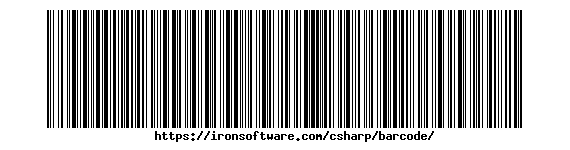 IronBarcode가 즉시 읽을 수 있는 표준 Code128 바코드
using IronBarCode;
BarcodeReaderOptions options = new BarcodeReaderOptions()
{
// Choose which filters are to be applied (in order)
ImageFilters = new ImageFilterCollection() {
new AdaptiveThresholdFilter(),
},
// Uses machine learning to auto rotate the barcode
AutoRotate = true,
};
// Read barcode
BarcodeResults results = BarcodeReader.Read("TryHarderQR.png", options);Imports IronBarCode
Private options As New BarcodeReaderOptions() With {
.ImageFilters = New ImageFilterCollection() From {New AdaptiveThresholdFilter()},
.AutoRotate = True
}
' Read barcode
Private results As BarcodeResults = BarcodeReader.Read("TryHarderQR.png", options)BarcodeReader.Read 메서드는 모든 감지된 바코드를 포함하는 BarcodeResults 컬렉션을 반환합니다. 각 BarcodeResult은 바코드의 텍스트 값, 형식 유형, 위치 좌표, 이진 데이터를 접근할 수 있게 합니다. 이 접근 방식은 Code128, Code39, QR 코드, 및 데이터 매트릭스 코드와 같은 일반적인 바코드 형식과 원활하게 작동합니다.
어려운 바코드나 손상된 바코드를 읽는 데 도움이 되는 옵션은 무엇인가요?
실제 바코드 스캔은 종종 비뚤어진 각도, 조명이 좋지 않거나 부분적으로 손상된 이미지를 포함합니다. IronBarcode의 고급 옵션은 이러한 문제를 효과적으로 처리합니다.
using IronBarCode;
using System;

// Multiple barcodes may be scanned up from a single document or image. A PDF document may also used as the input image
BarcodeResults results = BarcodeReader.ReadPdf("MultipleBarcodes.pdf");

// Work with the results
foreach (var pageResult in results)
{
    string Value = pageResult.Value;
    int PageNum = pageResult.PageNumber;
    System.Drawing.Bitmap Img = pageResult.BarcodeImage;
    BarcodeEncoding BarcodeType = pageResult.BarcodeType;
    byte[] Binary = pageResult.BinaryValue;
    Console.WriteLine(pageResult.Value + " on page " + PageNum);
}Imports IronBarCode
Imports System
' Multiple barcodes may be scanned up from a single document or image. A PDF document may also used as the input image
Private results As BarcodeResults = BarcodeReader.ReadPdf("MultipleBarcodes.pdf")
' Work with the results
For Each pageResult In results
Dim Value As String = pageResult.Value
Dim PageNum As Integer = pageResult.PageNumber
Dim Img As System.Drawing.Bitmap = pageResult.BarcodeImage
Dim BarcodeType As BarcodeEncoding = pageResult.BarcodeType
Dim Binary() As Byte = pageResult.BinaryValue
Console.WriteLine(pageResult.Value & " on page " & PageNum)
Next pageResult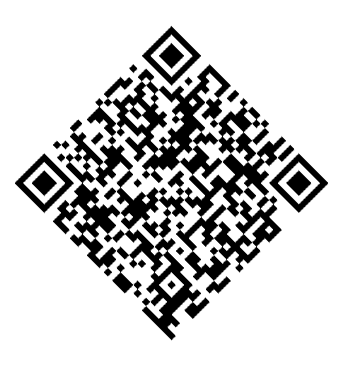 IronBarcode가 고급 옵션을 사용하여 성공적으로 읽는 회전된 QR 코드
ExpectBarcodeTypes 속성은 특정 형식으로 검색을 제한하여 성능을 크게 향상시킵니다. 문제가 있는 이미지에 최대 정확도를 위해 이미지 필터와 자동 회전을 결합합니다:
using IronBarCode;

// Multi frame TIFF and GIF images can also be scanned
BarcodeResults multiFrameResults = BarcodeReader.Read("Multiframe.tiff");

foreach (var pageResult in multiFrameResults)
{
    //...
}Imports IronBarCode
' Multi frame TIFF and GIF images can also be scanned
Private multiFrameResults As BarcodeResults = BarcodeReader.Read("Multiframe.tiff")
For Each pageResult In multiFrameResults
'...
Next pageResult이러한 고급 기능은 IronBarcode를 다양한 이미지 품질을 가지는 사진, 보안 카메라 또는 모바일 기기 캡처에서 바코드를 스캔하는 데 이상적으로 만듭니다.
PDF 문서에서 여러 바코드를 어떻게 스캔하나요?
PDF 바코드 스캔은 인보이스, 발송 라벨 및 인벤토리 문서를 처리하는 데 필수적입니다. IronBarcode는 모든 페이지에서 모든 바코드를 효율적으로 읽습니다.
PDF 파일에서 바코드 읽기
using IronBarCode;

// The Multithreaded property allows for faster barcode scanning across multiple images or PDFs. All threads are automatically managed by IronBarCode.
var ListOfDocuments = new[] { "image1.png", "image2.JPG", "image3.pdf" };

BarcodeReaderOptions options = new BarcodeReaderOptions()
{
    // Enable multithreading
    Multithreaded = true,
};

BarcodeResults batchResults = BarcodeReader.Read(ListOfDocuments, options);Imports IronBarCode
' The Multithreaded property allows for faster barcode scanning across multiple images or PDFs. All threads are automatically managed by IronBarCode.
Private ListOfDocuments = { "image1.png", "image2.JPG", "image3.pdf" }
Private options As New BarcodeReaderOptions() With {.Multithreaded = True}
Private batchResults As BarcodeResults = BarcodeReader.Read(ListOfDocuments, options)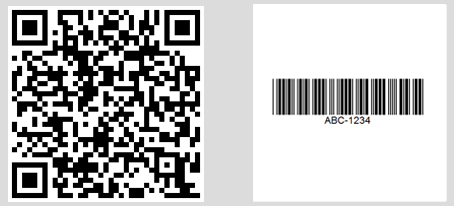 다른 PDF 페이지에서 발견된 여러 바코드를 나타내는 콘솔 출력
특정 페이지 범위나 고급 PDF 처리를 위해서 BarcodeReaderOptions을 사용하세요:
// Read only specific pages to improve performance
PdfBarcodeReaderOptions pdfOptions = new PdfBarcodeReaderOptions
{
    // Scan pages 1-5 only
    PageNumbers = new[] { 1, 2, 3, 4, 5 },

    // PDF-specific settings
    DPI = 300 // Higher DPI for better accuracy
};

BarcodeResults results = BarcodeReader.ReadPdf("document.pdf", pdfOptions);다중 프레임 TIFF 이미지를 어떻게 처리할 수 있나요?
문서 스캔 및 팩스 시스템에서 일반적인 다중 프레임 TIFF 파일은 PDF와 동일한 포괄적인 지원을 받습니다.
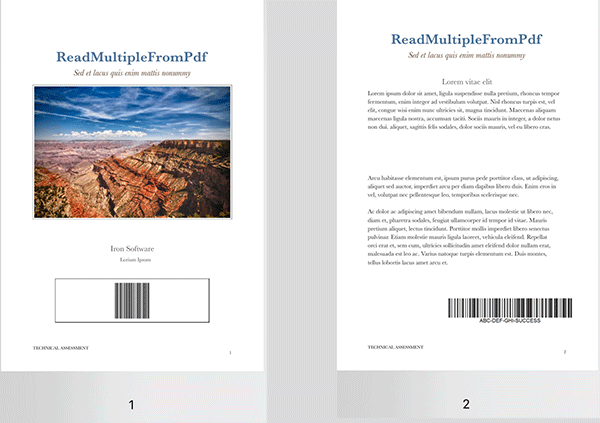 다른 프레임에 바코드를 포함한 다중 프레임 TIFF 파일
using IronBarCode;

// TIFF files are processed similarly to regular images
// Each frame is scanned automatically
BarcodeResults multiFrameResults = BarcodeReader.Read("Multiframe.tiff");

foreach (var result in multiFrameResults)
{
    // Access frame-specific information
    int frameNumber = result.PageNumber; // Frame number in TIFF
    string barcodeValue = result.Text;

    Console.WriteLine($"Frame {frameNumber}: {barcodeValue}");

    // Save individual barcode images if needed
    result.BarcodeImage?.Save($"barcode_frame_{frameNumber}.png");
}Imports IronBarCode
' TIFF files are processed similarly to regular images
' Each frame is scanned automatically
Dim multiFrameResults As BarcodeResults = BarcodeReader.Read("Multiframe.tiff")
For Each result In multiFrameResults
' Access frame-specific information
Dim frameNumber As Integer = result.PageNumber ' Frame number in TIFF
Dim barcodeValue As String = result.Text
Console.WriteLine($"Frame {frameNumber}: {barcodeValue}")
' Save individual barcode images if needed
result.BarcodeImage?.Save($"barcode_frame_{frameNumber}.png")
Next같은 BarcodeReaderOptions이 TIFF 처리에 적용되며, 이미지 필터와 회전 설정을 포함합니다. 자세한 TIFF 처리 시나리오는 우리의 이미지 처리 튜토리얼을 참조하세요.
멀티스레딩으로 처리를 가속화할 수 있나요?
여러 문서 처리는 병렬 처리로 인해 크게 이점이 있습니다. IronBarcode는 최적의 성능을 위해 사용 가능한 CPU 코어를 자동으로 활용합니다.
using IronBarCode;

// List of documents to process - mix of formats supported
var documentBatch = new[]
{
    "invoice1.pdf",
    "shipping_label.png",
    "inventory_sheet.tiff",
    "product_catalog.pdf"
};

// Configure for batch processing
BarcodeReaderOptions batchOptions = new BarcodeReaderOptions
{
    // Enable parallel processing across documents
    Multithreaded = true,

    // Limit threads if needed (0 = use all cores)
    MaxParallelThreads = Environment.ProcessorCount,

    // Apply consistent settings to all documents
    Speed = ReadingSpeed.Balanced,
    ExpectBarcodeTypes = BarcodeEncoding.All
};

// Process each document, tracking the source path externally
foreach (var document in documentBatch)
{
    BarcodeResults results = BarcodeReader.Read(document, batchOptions);

    Console.WriteLine($"\nDocument: {document}");
    foreach (var barcode in results)
    {
        Console.WriteLine($"  - {barcode.BarcodeType}: {barcode.Text}");
    }
}이 병렬 접근 방식은 문서를 동시에 처리하여 멀티코어 시스템에서 전체 스캔 시간을 최대 75%까지 줄입니다. 기업 규모의 바코드 처리의 경우 우리의 성능 최적화 가이드를 탐색하세요.
요약
IronBarcode는 복잡한 바코드 스캔을 단순한 C# 코드로 변환합니다. 인벤토리 시스템, 문서 프로세서 또는 모바일 애플리케이션을 구축하든 라이브러리는 우수한 디지털 바코드에서 도전적인 실제 캡처까지 모든 것을 처리합니다.
핵심 기능 포함:
- 이미지에서 단일 행 바코드 읽기
- 손상되거나 회전된 바코드를 위한 고급 옵션
- 포괄적인 PDF 및 TIFF 문서 스캔
- 멀티스레딩을 사용한 고성능 배치 처리
- 모든 주요 바코드 형식 지원
추가 자료
이러한 리소스로 바코드 처리 기능을 확장하세요:
- 바코드 생성 튜토리얼 - 사용자 정의 바코드 생성
- QR Code Guide - 전문화된 QR 코드 기능
BarcodeReader클래스 참조 - 전체 API 문서- 문제 해결 가이드 - 일반적인 문제 및 해결 방법
소스 코드 다운로드
이 예제를 직접 실행해 보세요:
애플리케이션에 바코드 스캐닝을 구현할 준비가 되셨나요? 무료 체험판을 시작하세요 그리고 오늘 .NET 프로젝트에 전문 바코드 읽기를 추가하세요.
자주 묻는 질문
.NET 프로젝트에 바코드 판독 라이브러리를 설치하려면 어떻게 해야 하나요?
IronBarcode 라이브러리는 NuGet 패키지 관리자에서 dotnet add package BarCode 명령어를 사용하거나 Visual Studio의 NuGet 인터페이스를 통해 설치할 수 있습니다. 또는 DLL 파일을 다운로드하여 수동으로 설치할 수도 있습니다.
C#을 사용하여 이미지에서 바코드를 읽는 방법은 무엇입니까?
IronBarcode의 BarcodeReader.Read 메서드를 단 한 줄의 코드로 사용할 수 있습니다. 예: var results = BarcodeReader.Read('image.png'); 이 메서드는 이미지에 있는 모든 바코드 형식을 감지하고 읽습니다.
하나의 이미지나 문서에서 여러 개의 바코드를 감지하는 것이 가능할까요?
예, IronBarcode는 이미지, PDF 또는 멀티프레임 TIFF 파일에서 여러 바코드를 자동으로 감지하고 읽어 각 바코드의 값, 유형 및 위치를 BarcodeResults 컬렉션에 반환합니다.
C#을 사용하여 PDF에서 바코드를 읽는 방법은 무엇인가요?
IronBarcode의 BarcodeReader.ReadPdf 메서드를 사용하여 PDF 문서의 모든 페이지를 스캔할 수 있습니다. 예: var results = BarcodeReader.ReadPdf('document.pdf'); 각 결과에는 바코드가 발견된 페이지 번호가 포함됩니다.
바코드 이미지가 흐릿하거나 회전되어 있으면 어떻게 해야 하나요?
까다로운 이미지를 처리하려면 AutoRotate = true 로 설정하고 SharpenFilter 또는 AdaptiveThresholdFilter 와 같은 이미지 필터를 적용하여 BarcodeReaderOptions 구성하십시오. 정확도를 높이려면 Speed = ExtremeDetail 사용하십시오.
.NET 애플리케이션에서 지원되는 바코드 형식은 무엇입니까?
IronBarcode는 QR 코드, Code 128, Code 39, EAN-13, UPC-A, Data Matrix, PDF417 등 모든 주요 바코드 형식을 지원합니다. BarcodeEncoding.All 사용하여 지원되는 모든 형식의 바코드를 스캔할 수 있습니다.
C# 애플리케이션에서 바코드 스캔 성능을 향상시키려면 어떻게 해야 할까요?
ExpectBarcodeTypes 사용하여 예상되는 바코드 유형을 지정하고, 멀티스레드 처리를 활성화하고, 적절한 Speed 설정을 선택하면 성능을 향상시킬 수 있습니다. 일괄 작업의 경우 파일 경로와 함께 BarcodeReader.Read 사용하십시오.
바코드 판독 오류 처리에 권장되는 접근 방식은 무엇입니까?
바코드 판독 로직을 try-catch 블록으로 감싸고 결과가 null 또는 비어 있는지 확인하십시오. IronBarcode는 자세한 오류 메시지와 검출 신뢰도를 나타내는 Confidence 속성을 제공합니다.
바코드를 스캔한 후 이미지를 추출할 수 있나요?
예, IronBarcode의 BarcodeResult 감지된 바코드의 비트맵을 포함하는 BarcodeImage 속성이 있으며, 이 속성은 저장하거나 별도로 처리할 수 있습니다.
PDF 문서 내 특정 페이지에서 바코드를 읽는 방법은 무엇인가요?
BarcodeReaderOptions 의 PageNumbers 속성을 설정하여 페이지를 지정하세요. 예: options.PageNumbers = new[] {1, 2, 3}; 이렇게 하면 지정된 페이지만 스캔하여 성능이 최적화됩니다.
.NET에서 바코드 스캔과 호환되는 이미지 형식은 무엇입니까?
IronBarcode는 PNG, JPEG, BMP, GIF, TIFF(멀티프레임 포함) 및 PDF와 같은 형식의 스캔을 지원합니다. 파일 경로, 스트림 또는 바이트 배열에서 이미지를 불러올 수 있습니다.
C#에서 스캔한 바코드의 바이너리 데이터에 어떻게 접근할 수 있나요?
BarcodeResult 의 BinaryValue 속성을 활용하여 원시 바이너리 데이터를 얻을 수 있습니다. 특히 압축 정보나 바이너리 프로토콜과 같은 텍스트 이외의 데이터가 포함된 바코드에 유용합니다.

제이콥 멜러는 Iron Software의 최고 기술 책임자(CTO)이자 C# PDF 기술을 개척한 선구적인 엔지니어입니다. Iron Software의 핵심 코드베이스를 최초로 개발한 그는 창립 초기부터 회사의 제품 아키텍처를 설계해 왔으며, CEO인 캐머런 리밍턴과 함께 회사를 NASA, 테슬라, 그리고 전 세계 정부 기관에 서비스를 제공하는 50명 이상의 직원을 보유한 기업으로 성장시켰습니다.













