


C# Barcode Scanner: Read Barcodes & QR Codes in .NET Applications

需要在 .NET 应用程序中快速扫描条形码或二维码吗? 无论您是处理完美的数字图像还是具有挑战性的真实世界照片,IronBarcode 都能让条形码读取变得简单可靠。 本指南将通过您可以立即使用的实际示例,向您展示如何在 C# 中实现条形码扫描。
快速入门:立即从文件读取条形码
这个简单的示例向您展示了IronBarcode入门是多么容易。 只需一行代码,即可从图像文件中读取条形码——无需复杂的设置。

最小工作流程(5 个步骤)
- 从 NuGet 或通过 DLL 下载安装 IronBarcode
- 使用
BarcodeReader.Read方法扫描任何条形码或二维码 - 在单个扫描件、PDF 或多帧 TIFF 文件中读取多个条形码或二维码
- 启用 IronBarcode,利用高级滤镜解码不完美的扫描件和照片。
- 下载教程项目并立即开始扫描
如何在我的.NET项目中安装IronBarcode?
IronBarcode 可以通过 NuGet 包管理器轻松安装,也可以直接下载 DLL 文件进行安装。 建议使用 NuGet 安装,因为它能够自动管理依赖项和更新。
Install-Package BarCode
安装后,将using IronBarCode;添加到您的C#文件中以访问条码扫描功能。 有关不同开发环境下的详细安装说明,请查看我们的安装指南。
如何使用 C# 读取我的第一个条形码?
using IronBarcode 读取条形码只需要一行代码。 该库可自动检测条形码格式并提取所有编码数据。
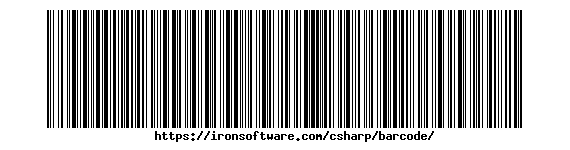 IronBarcode 可以立即读取的标准 Code128 条形码
:path=/static-assets/barcode/content-code-examples/tutorials/reading-barcodes-3.csusing IronBarCode;
BarcodeReaderOptions options = new BarcodeReaderOptions()
{
// Choose which filters are to be applied (in order)
ImageFilters = new ImageFilterCollection() {
new AdaptiveThresholdFilter(),
},
// Uses machine learning to auto rotate the barcode
AutoRotate = true,
};
// Read barcode
BarcodeResults results = BarcodeReader.Read("TryHarderQR.png", options);Imports IronBarCode
Private options As New BarcodeReaderOptions() With {
.ImageFilters = New ImageFilterCollection() From {New AdaptiveThresholdFilter()},
.AutoRotate = True
}
' Read barcode
Private results As BarcodeResults = BarcodeReader.Read("TryHarderQR.png", options)BarcodeResults集合。 每个BarcodeResult提供对条码文本值、格式类型、位置坐标和二进制数据的访问。 这种方法可以与常见的条形码格式无缝配合,包括 Code128、Code39、QR 码和 Data Matrix 码。
哪些方法可以帮助读取难以辨认或损坏的条形码?
现实世界中的条形码扫描经常会遇到图像不完美的情况——角度倾斜、光线不足或部分损坏。 IronBarcode 的高级选项可以有效应对这些挑战。
:path=/static-assets/barcode/content-code-examples/tutorials/reading-barcodes-4.csusing IronBarCode;
using System;
// Multiple barcodes may be scanned up from a single document or image. A PDF document may also used as the input image
BarcodeResults results = BarcodeReader.ReadPdf("MultipleBarcodes.pdf");
// Work with the results
foreach (var pageResult in results)
{
string Value = pageResult.Value;
int PageNum = pageResult.PageNumber;
System.Drawing.Bitmap Img = pageResult.BarcodeImage;
BarcodeEncoding BarcodeType = pageResult.BarcodeType;
byte[] Binary = pageResult.BinaryValue;
Console.WriteLine(pageResult.Value + " on page " + PageNum);
}Imports IronBarCode
Imports System
' Multiple barcodes may be scanned up from a single document or image. A PDF document may also used as the input image
Private results As BarcodeResults = BarcodeReader.ReadPdf("MultipleBarcodes.pdf")
' Work with the results
For Each pageResult In results
Dim Value As String = pageResult.Value
Dim PageNum As Integer = pageResult.PageNumber
Dim Img As System.Drawing.Bitmap = pageResult.BarcodeImage
Dim BarcodeType As BarcodeEncoding = pageResult.BarcodeType
Dim Binary() As Byte = pageResult.BinaryValue
Console.WriteLine(pageResult.Value & " on page " & PageNum)
Next pageResult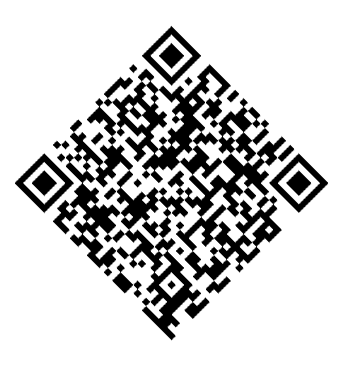 IronBarcode 使用高级选项成功读取了旋转后的二维码
ExpectBarcodeTypes属性通过将搜索限定为特定格式显著提高性能。 为了最大限度地提高处理问题图像的精度,请将图像滤波器与自动旋转功能结合使用:
:path=/static-assets/barcode/content-code-examples/tutorials/reading-barcodes-5.csusing IronBarCode;
// Multi frame TIFF and GIF images can also be scanned
BarcodeResults multiFrameResults = BarcodeReader.Read("Multiframe.tiff");
foreach (var pageResult in multiFrameResults)
{
//...
}Imports IronBarCode
' Multi frame TIFF and GIF images can also be scanned
Private multiFrameResults As BarcodeResults = BarcodeReader.Read("Multiframe.tiff")
For Each pageResult In multiFrameResults
'...
Next pageResultIronBarcode 的这些高级功能使其成为扫描照片、监控摄像头或移动设备拍摄的图像中条形码的理想选择,尤其适用于图像质量差异很大的情况。
如何扫描PDF文档中的多个条形码?
PDF条形码扫描对于处理发票、发货标签和库存文件至关重要。 IronBarcode 可以高效读取每一页上的所有条形码。
从PDF文件中读取条形码
:path=/static-assets/barcode/content-code-examples/tutorials/reading-barcodes-6.csusing IronBarCode;
// The Multithreaded property allows for faster barcode scanning across multiple images or PDFs. All threads are automatically managed by IronBarCode.
var ListOfDocuments = new[] { "image1.png", "image2.JPG", "image3.pdf" };
BarcodeReaderOptions options = new BarcodeReaderOptions()
{
// Enable multithreading
Multithreaded = true,
};
BarcodeResults batchResults = BarcodeReader.Read(ListOfDocuments, options);Imports IronBarCode
' The Multithreaded property allows for faster barcode scanning across multiple images or PDFs. All threads are automatically managed by IronBarCode.
Private ListOfDocuments = { "image1.png", "image2.JPG", "image3.pdf" }
Private options As New BarcodeReaderOptions() With {.Multithreaded = True}
Private batchResults As BarcodeResults = BarcodeReader.Read(ListOfDocuments, options)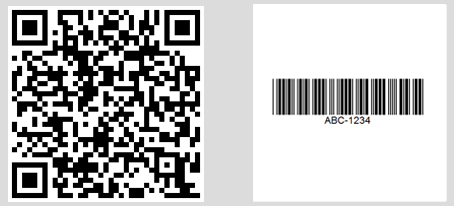 控制台输出显示在不同的 PDF 页面中发现了多个条形码
对于特定页面范围或高级PDF处理,使用BarcodeReaderOptions:
:path=/static-assets/barcode/content-code-examples/tutorials/reading-barcodes-7.cs// Read only specific pages to improve performance
PdfBarcodeReaderOptions pdfOptions = new PdfBarcodeReaderOptions
{
// Scan pages 1-5 only
PageNumbers = new[] { 1, 2, 3, 4, 5 },
// PDF-specific settings
DPI = 300 // Higher DPI for better accuracy
};
BarcodeResults results = BarcodeReader.ReadPdf("document.pdf", pdfOptions);
Imports System

' Read only specific pages to improve performance
Dim pdfOptions As New PdfBarcodeReaderOptions With {
    ' Scan pages 1-5 only
    .PageNumbers = New Integer() {1, 2, 3, 4, 5},

    ' PDF-specific settings
    .DPI = 300 ' Higher DPI for better accuracy
}

Dim results As BarcodeResults = BarcodeReader.ReadPdf("document.pdf", pdfOptions)如何处理多帧TIFF图像?
多帧 TIFF 文件(常见于文档扫描和传真系统)与 PDF 文件一样,都得到了全面的支持。
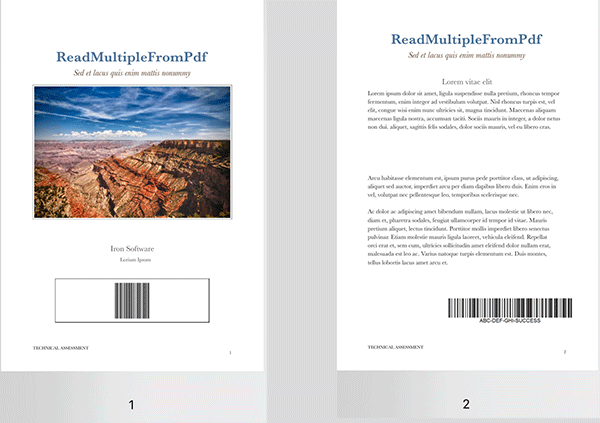 一个多帧 TIFF 文件,不同帧上带有条形码。
:path=/static-assets/barcode/content-code-examples/tutorials/reading-barcodes-8.csusing IronBarCode;
// TIFF files are processed similarly to regular images
// Each frame is scanned automatically
BarcodeResults multiFrameResults = BarcodeReader.Read("Multiframe.tiff");
foreach (var result in multiFrameResults)
{
// Access frame-specific information
int frameNumber = result.PageNumber; // Frame number in TIFF
string barcodeValue = result.Text;
Console.WriteLine($"Frame {frameNumber}: {barcodeValue}");
// Save individual barcode images if needed
result.BarcodeImage?.Save($"barcode_frame_{frameNumber}.png");
}
Imports IronBarCode

' TIFF files are processed similarly to regular images
' Each frame is scanned automatically
Dim multiFrameResults As BarcodeResults = BarcodeReader.Read("Multiframe.tiff")

For Each result In multiFrameResults
    ' Access frame-specific information
    Dim frameNumber As Integer = result.PageNumber ' Frame number in TIFF
    Dim barcodeValue As String = result.Text

    Console.WriteLine($"Frame {frameNumber}: {barcodeValue}")

    ' Save individual barcode images if needed
    result.BarcodeImage?.Save($"barcode_frame_{frameNumber}.png")
Next相同的BarcodeReaderOptions适用于TIFF处理,包括图像滤镜和旋转设置。 有关 TIFF 处理场景的详细说明,请参阅我们的图像处理教程。
我能否利用多线程来加快处理速度?
并行处理能极大地提高多文档处理效率。 IronBarcode 会自动利用可用的 CPU 核心,以实现最佳性能。
:path=/static-assets/barcode/content-code-examples/tutorials/reading-barcodes-9.csusing IronBarCode;
// List of documents to process - mix of formats supported
var documentBatch = new[]
{
"invoice1.pdf",
"shipping_label.png",
"inventory_sheet.tiff",
"product_catalog.pdf"
};
// Configure for batch processing
BarcodeReaderOptions batchOptions = new BarcodeReaderOptions
{
// Enable parallel processing across documents
Multithreaded = true,
// Limit threads if needed (0 = use all cores)
MaxParallelThreads = Environment.ProcessorCount,
// Apply consistent settings to all documents
Speed = ReadingSpeed.Balanced,
ExpectBarcodeTypes = BarcodeEncoding.All
};
// Process each document, tracking the source path externally
foreach (var document in documentBatch)
{
BarcodeResults results = BarcodeReader.Read(document, batchOptions);
Console.WriteLine($"\nDocument: {document}");
foreach (var barcode in results)
{
Console.WriteLine($" - {barcode.BarcodeType}: {barcode.Text}");
}
}
Imports IronBarCode

' List of documents to process - mix of formats supported
Dim documentBatch = New String() {
    "invoice1.pdf",
    "shipping_label.png",
    "inventory_sheet.tiff",
    "product_catalog.pdf"
}

' Configure for batch processing
Dim batchOptions As New BarcodeReaderOptions With {
    ' Enable parallel processing across documents
    .Multithreaded = True,

    ' Limit threads if needed (0 = use all cores)
    .MaxParallelThreads = Environment.ProcessorCount,

    ' Apply consistent settings to all documents
    .Speed = ReadingSpeed.Balanced,
    .ExpectBarcodeTypes = BarcodeEncoding.All
}

' Process each document, tracking the source path externally
For Each document In documentBatch
    Dim results As BarcodeResults = BarcodeReader.Read(document, batchOptions)

    Console.WriteLine(vbCrLf & "Document: " & document)
    For Each barcode In results
        Console.WriteLine($"  - {barcode.BarcodeType}: {barcode.Text}")
    Next
Next这种并行方法可以同时处理文档,在多核系统上可将总扫描时间缩短高达 75%。 对于企业级条码处理,请查阅我们的性能优化指南。
摘要
IronBarcode 将复杂的条形码扫描转换为简单的 C# 代码。 无论您是构建库存系统、文档处理器还是移动应用程序,该库都能处理从完美的数字条形码到具有挑战性的现实世界采集的一切。
主要功能涵盖:
- 从图像中读取单行条形码
- 针对损坏或旋转条形码的高级选项
- 全面扫描 PDF 和 TIFF 文档
- 高性能多线程批处理 支持所有主流条形码格式
进一步阅读
利用以下资源扩展您的条形码处理能力:
条形码生成教程- 创建自定义条形码
- QR 码指南 - 专业化的 QR 码功能
BarcodeReader类参考 - 完整的API文档 故障排除指南- 常见问题及解决方案
源代码下载
请自行运行以下示例:
准备好在您的应用程序中实现条形码扫描了吗? 立即开始免费试用,并将专业的条形码读取功能添加到您的.NET项目中。
常见问题解答
.NET 项目中如何安装条形码读取库?
您可以通过 NuGet 包管理器使用命令 dotnet add package BarCode 或通过 Visual Studio 的 NuGet 接口安装 IronBarcode 库。或者,下载 DLL 手动安装。
using C# 从图像读取条形码的方法是什么?
using IronBarcode 的 BarcodeReader.Read 方法只需一行代码:var results = BarcodeReader.Read('image.png'); 该方法检测并读取图像中存在的所有条形码格式。
是否可以在单个图像或文档中检测多个条形码?
是的,IronBarcode 可以自动检测并读取图像、PDF 或多帧 TIFF 中的多个条形码,返回每个条形码的值、类型和在 BarcodeResults 集合中的位置。
如何使用 C# 从 PDF 读取条形码?
using IronBarcode 的 BarcodeReader.ReadPdf 方法扫描 PDF 文档的所有页面:var results = BarcodeReader.ReadPdf('document.pdf'); 每个结果包括找到条形码的页码。
如果条形码图像模糊或旋转,我该怎么办?
通过设置 AutoRotate = true 配置 BarcodeReaderOptions 来处理具有挑战性的图像,并应用 SharpenFilter 或 AdaptiveThresholdFilter 等图像过滤器。使用 Speed = ExtremeDetail 以提高精度。
.NET 应用程序支持哪些条形码格式?
IronBarcode 支持所有主要的条形码格式,例如 QR 码、Code 128、Code 39、EAN-13、UPC-A、Data Matrix、PDF417 等。利用 BarcodeEncoding.All 扫描任何支持的格式。
如何提高 C# 应用程序中的条形码扫描性能?
通过指定预期的条形码类型、启用多线程处理和选择合适的 Speed 设置来提高性能。对于批处理任务,利用 BarcodeReader.Read 使用文件路径。
处理条形码读取错误的推荐方法是什么?
将条形码读取封装在 try-catch 块中,并验证结果是否为空或为空。IronBarcode 提供详细的错误信息和一个 Confidence 属性以指示检测可靠性。
在扫描后我可以提取条形码图像吗?
是的,IronBarcode 的 BarcodeResult 包括一个 BarcodeImage 属性,其中包含检测到的条形码的位图,可以单独保存或处理。
如何从 PDF 文档的特定页面读取条形码?
在 BarcodeReaderOptions 中设置 PageNumbers 属性指定页面:options.PageNumbers = new[] {1, 2, 3}; 这通过仅扫描指定页面来优化性能。
在 .NET 中兼容哪些图像格式用于条形码扫描?
IronBarcode 支持扫描 PNG、JPEG、BMP、GIF、TIFF(包括多帧)和 PDF 格式。您可以从文件路径、流或字节数组加载图像。
如何在 C# 中访问扫描条形码的二进制数据?
利用 BarcodeResult 的 BinaryValue 属性获取原始二进制数据,对于包含非文本数据如压缩信息或二进制协议的条形码特别有用。


还在滚动吗?
想快速获得证据? PM > Install-Package BarCode
运行示例 观看您的字符串变成 BarCode。








 免费开始
免费开始 免费开始
免费开始 预定免费现场演示
















