


C# Barcode Scanner: Read Barcodes & QR Codes in .NET Applications

.NETアプリケーションでバーコードやQRコードを素早くスキャンする必要がありますか? IronBarcodeは、完璧なデジタル画像でも、挑戦的な実世界の写真でも、バーコードの読み取りを簡単で信頼できるものにします。 このガイドでは、C#でのバーコードスキャンの実装方法を実際にすぐ使える実例と共に示しています。
クイックスタート: ファイルからバーコードを瞬時に読み取る
この短い例は、IronBarcodeを使い始めるのがどれだけ簡単かを示しています。 コード1行で、画像ファイルからバーコードを読み取ることができ、複雑なセットアップは不要です。

最小限のワークフロー(5ステップ)
- NuGet または DLL ダウンロードから IronBarcode をインストールします。
BarcodeReader.Readメソッドを使用して、任意のバーコードまたは QR コードをスキャンします。- 1 回のスキャン、PDF、またはマルチフレーム TIFF ファイルで複数のバーコードまたは QR コードを読み取ります
- IronBarcode を有効にして、高度なフィルターを使用して不完全なスキャンや写真をデコードします
- チュートリアルプロジェクトをダウンロードしてすぐにスキャンを開始してください
どうやって.NETプロジェクトにIronBarcodeをインストールしますか?
IronBarcodeは、NuGetパッケージマネージャーまたはDLLを直接ダウンロードすることで簡単にインストールできます。 NuGetによるインストールは依存関係と更新を自動で管理するため推奨される方法です。
Install-Package BarCode
インストール後、バーコードスキャン機能にアクセスするために、C#ファイルにusing IronBarCode;を追加してください。 さまざまな開発環境での詳細なインストール手順については、インストールガイドを確認してください。
C#で最初のバーコードをどのようにして読むことができますか?
IronBarcodeでバーコードを読むのに必要なのは、コード1行だけです。 ライブラリは自動的にバーコードフォーマットを検出し、すべてのエンコードされたデータを抽出します。
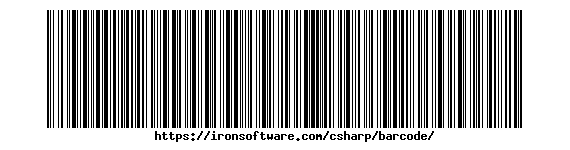 IronBarcodeが瞬時に読み取れる標準のCode128バーコード
:path=/static-assets/barcode/content-code-examples/tutorials/reading-barcodes-3.csusing IronBarCode;
BarcodeReaderOptions options = new BarcodeReaderOptions()
{
// Choose which filters are to be applied (in order)
ImageFilters = new ImageFilterCollection() {
new AdaptiveThresholdFilter(),
},
// Uses machine learning to auto rotate the barcode
AutoRotate = true,
};
// Read barcode
BarcodeResults results = BarcodeReader.Read("TryHarderQR.png", options);Imports IronBarCode
Private options As New BarcodeReaderOptions() With {
.ImageFilters = New ImageFilterCollection() From {New AdaptiveThresholdFilter()},
.AutoRotate = True
}
' Read barcode
Private results As BarcodeResults = BarcodeReader.Read("TryHarderQR.png", options)BarcodeReader.Read メソッドは、検出されたすべてのバーコードを含む BarcodeResults コレクションを返します。 各BarcodeResult は、バーコードのテキスト値、フォーマットタイプ、位置座標、およびバイナリデータへのアクセスを提供します。 このアプローチは、Code128、Code39、QRコード、Data Matrixコードを含む一般的なバーコードフォーマットとシームレスに動作します。
難しいまたは損傷したバーコードを読むのに役立つオプションは何ですか?
実世界でのバーコードスキャンは、しばしば不完全な画像 - 傾いた角度、悪い照明、または部分的な損傷を伴います。 IronBarcodeの高度なオプションは、これらの課題を効果的に処理します。
:path=/static-assets/barcode/content-code-examples/tutorials/reading-barcodes-4.csusing IronBarCode;
using System;
// Multiple barcodes may be scanned up from a single document or image. A PDF document may also used as the input image
BarcodeResults results = BarcodeReader.ReadPdf("MultipleBarcodes.pdf");
// Work with the results
foreach (var pageResult in results)
{
string Value = pageResult.Value;
int PageNum = pageResult.PageNumber;
System.Drawing.Bitmap Img = pageResult.BarcodeImage;
BarcodeEncoding BarcodeType = pageResult.BarcodeType;
byte[] Binary = pageResult.BinaryValue;
Console.WriteLine(pageResult.Value + " on page " + PageNum);
}Imports IronBarCode
Imports System
' Multiple barcodes may be scanned up from a single document or image. A PDF document may also used as the input image
Private results As BarcodeResults = BarcodeReader.ReadPdf("MultipleBarcodes.pdf")
' Work with the results
For Each pageResult In results
Dim Value As String = pageResult.Value
Dim PageNum As Integer = pageResult.PageNumber
Dim Img As System.Drawing.Bitmap = pageResult.BarcodeImage
Dim BarcodeType As BarcodeEncoding = pageResult.BarcodeType
Dim Binary() As Byte = pageResult.BinaryValue
Console.WriteLine(pageResult.Value & " on page " & PageNum)
Next pageResult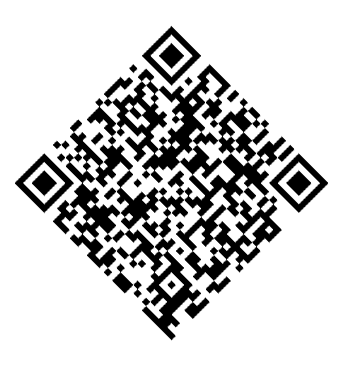 IronBarcode が高度なオプションを使用して正常に読み取った回転した QR コード
ExpectBarcodeTypesプロパティは特定のフォーマットに検索を制限することにより、パフォーマンスを大幅に改善します。 問題のある画像で最大の精度を得るためには、画像フィルターを自動回転と組み合わせて使用します:
:path=/static-assets/barcode/content-code-examples/tutorials/reading-barcodes-5.csusing IronBarCode;
// Multi frame TIFF and GIF images can also be scanned
BarcodeResults multiFrameResults = BarcodeReader.Read("Multiframe.tiff");
foreach (var pageResult in multiFrameResults)
{
//...
}Imports IronBarCode
' Multi frame TIFF and GIF images can also be scanned
Private multiFrameResults As BarcodeResults = BarcodeReader.Read("Multiframe.tiff")
For Each pageResult In multiFrameResults
'...
Next pageResultこれらの高度な機能により、IronBarcodeは写真からのバーコードスキャン、セキュリティカメラ、または画像品質が大きく異なるモバイルデバイスのキャプチャに最適です。
PDFドキュメントから複数のバーコードをスキャンする方法は?
PDFバーコードスキャンは、請求書、出荷ラベル、在庫ドキュメントの処理に不可欠です。 IronBarcodeは、すべてのページのバーコードを効率的に読み取ります。
PDFファイルからのバーコード読み取り
:path=/static-assets/barcode/content-code-examples/tutorials/reading-barcodes-6.csusing IronBarCode;
// The Multithreaded property allows for faster barcode scanning across multiple images or PDFs. All threads are automatically managed by IronBarCode.
var ListOfDocuments = new[] { "image1.png", "image2.JPG", "image3.pdf" };
BarcodeReaderOptions options = new BarcodeReaderOptions()
{
// Enable multithreading
Multithreaded = true,
};
BarcodeResults batchResults = BarcodeReader.Read(ListOfDocuments, options);Imports IronBarCode
' The Multithreaded property allows for faster barcode scanning across multiple images or PDFs. All threads are automatically managed by IronBarCode.
Private ListOfDocuments = { "image1.png", "image2.JPG", "image3.pdf" }
Private options As New BarcodeReaderOptions() With {.Multithreaded = True}
Private batchResults As BarcodeResults = BarcodeReader.Read(ListOfDocuments, options)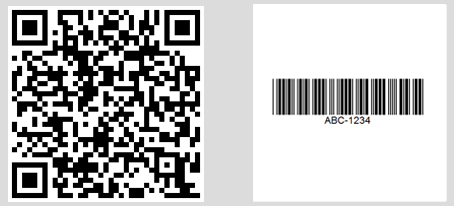 異なるPDFページで見つかった複数バーコードを示すコンソール出力
特定のページ範囲や高度なPDF処理のために、BarcodeReaderOptionsを使用してください。
:path=/static-assets/barcode/content-code-examples/tutorials/reading-barcodes-7.cs// Read only specific pages to improve performance
PdfBarcodeReaderOptions pdfOptions = new PdfBarcodeReaderOptions
{
// Scan pages 1-5 only
PageNumbers = new[] { 1, 2, 3, 4, 5 },
// PDF-specific settings
DPI = 300 // Higher DPI for better accuracy
};
BarcodeResults results = BarcodeReader.ReadPdf("document.pdf", pdfOptions);
Imports System

' Read only specific pages to improve performance
Dim pdfOptions As New PdfBarcodeReaderOptions With {
    ' Scan pages 1-5 only
    .PageNumbers = New Integer() {1, 2, 3, 4, 5},

    ' PDF-specific settings
    .DPI = 300 ' Higher DPI for better accuracy
}

Dim results As BarcodeResults = BarcodeReader.ReadPdf("document.pdf", pdfOptions)マルチフレームTIFF画像を処理する方法は?
ドキュメント スキャニングやファクシミリ システムで一般的なマルチフレームTIFFファイルは、PDFと同様の包括的なサポートを受けます。
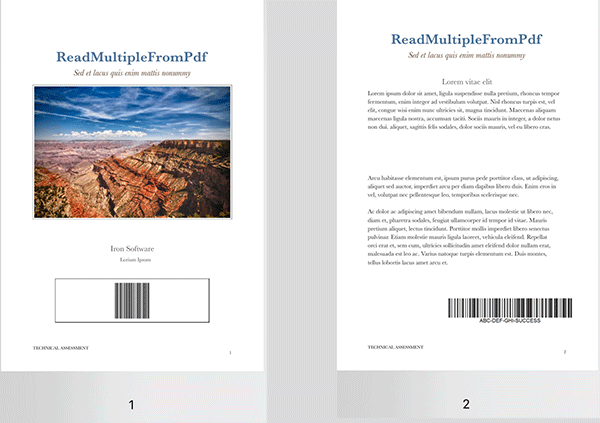 異なるフレームにバーコードを持つマルチフレームTIFFファイル
:path=/static-assets/barcode/content-code-examples/tutorials/reading-barcodes-8.csusing IronBarCode;
// TIFF files are processed similarly to regular images
// Each frame is scanned automatically
BarcodeResults multiFrameResults = BarcodeReader.Read("Multiframe.tiff");
foreach (var result in multiFrameResults)
{
// Access frame-specific information
int frameNumber = result.PageNumber; // Frame number in TIFF
string barcodeValue = result.Text;
Console.WriteLine($"Frame {frameNumber}: {barcodeValue}");
// Save individual barcode images if needed
result.BarcodeImage?.Save($"barcode_frame_{frameNumber}.png");
}
Imports IronBarCode

' TIFF files are processed similarly to regular images
' Each frame is scanned automatically
Dim multiFrameResults As BarcodeResults = BarcodeReader.Read("Multiframe.tiff")

For Each result In multiFrameResults
    ' Access frame-specific information
    Dim frameNumber As Integer = result.PageNumber ' Frame number in TIFF
    Dim barcodeValue As String = result.Text

    Console.WriteLine($"Frame {frameNumber}: {barcodeValue}")

    ' Save individual barcode images if needed
    result.BarcodeImage?.Save($"barcode_frame_{frameNumber}.png")
NextTIFF処理には同じBarcodeReaderOptionsが適用され、イメージフィルターや回転設定を含みます。 詳細なTIFF処理シナリオについては、画像処理チュートリアルを参照してください。
マルチスレッド処理で処理速度を上げることができますか?
複数のドキュメントを処理することで並列処理から大きな利点を得られます。 IronBarcodeは最適なパフォーマンスのために利用可能なCPUコアを自動的に利用します。
:path=/static-assets/barcode/content-code-examples/tutorials/reading-barcodes-9.csusing IronBarCode;
// List of documents to process - mix of formats supported
var documentBatch = new[]
{
"invoice1.pdf",
"shipping_label.png",
"inventory_sheet.tiff",
"product_catalog.pdf"
};
// Configure for batch processing
BarcodeReaderOptions batchOptions = new BarcodeReaderOptions
{
// Enable parallel processing across documents
Multithreaded = true,
// Limit threads if needed (0 = use all cores)
MaxParallelThreads = Environment.ProcessorCount,
// Apply consistent settings to all documents
Speed = ReadingSpeed.Balanced,
ExpectBarcodeTypes = BarcodeEncoding.All
};
// Process each document, tracking the source path externally
foreach (var document in documentBatch)
{
BarcodeResults results = BarcodeReader.Read(document, batchOptions);
Console.WriteLine($"\nDocument: {document}");
foreach (var barcode in results)
{
Console.WriteLine($" - {barcode.BarcodeType}: {barcode.Text}");
}
}
Imports IronBarCode

' List of documents to process - mix of formats supported
Dim documentBatch = New String() {
    "invoice1.pdf",
    "shipping_label.png",
    "inventory_sheet.tiff",
    "product_catalog.pdf"
}

' Configure for batch processing
Dim batchOptions As New BarcodeReaderOptions With {
    ' Enable parallel processing across documents
    .Multithreaded = True,

    ' Limit threads if needed (0 = use all cores)
    .MaxParallelThreads = Environment.ProcessorCount,

    ' Apply consistent settings to all documents
    .Speed = ReadingSpeed.Balanced,
    .ExpectBarcodeTypes = BarcodeEncoding.All
}

' Process each document, tracking the source path externally
For Each document In documentBatch
    Dim results As BarcodeResults = BarcodeReader.Read(document, batchOptions)

    Console.WriteLine(vbCrLf & "Document: " & document)
    For Each barcode In results
        Console.WriteLine($"  - {barcode.BarcodeType}: {barcode.Text}")
    Next
Nextこの並列アプローチはドキュメントを同時に処理し、マルチコアシステムでスキャン時間を最大75%短縮します。 企業規模のバーコード処理には、パフォーマンス最適化ガイドを探求してください。
まとめ
IronBarcodeは複雑なバーコードスキャンを単純なC#コードに変換します。 在庫システム、ドキュメントプロセッサ、またはモバイルアプリケーションを構築しようとしているか否かにかかわらず、ライブラリは完璧なデジタルバーコードから困難な実世界のキャプチャまでを処理します。
カバーされている主な機能:
- 画像からの1行バーコード読み取り
- 損傷または回転したバーコードのための高度なオプション
- 包括的なPDFとTIFF文書のスキャン
- マルチスレッドによる高性能バッチ処理
- すべての主要なバーコードフォーマットのサポート
さらなる読み物
これらのリソースでバーコード処理機能を拡張:
- バーコード生成チュートリアル - カスタムバーコードを作成
- QRコードガイド - 特殊なQRコード機能
BarcodeReaderクラスリファレンス - 完全なAPIドキュメント- トラブルシューティングガイド - 一般的な問題と解決策
ソースコードダウンロード
これらの例を自分で実行:
あなたのアプリケーションでバーコードスキャンを実装する準備は整いましたか? 無料トライアルを開始して、.NETプロジェクトにプロフェッショナルなバーコード読み取りを追加してください。
よくある質問
.NETプロジェクトにバーコード読み取りライブラリをインストールするにはどうすればよいですか?
dotnet add package BarCodeというコマンドを使用してNuGetパッケージマネージャーを通じてIronBarcodeライブラリをインストールすることができます。または、Visual StudioのNuGetインターフェースを使用することもできます。手動インストールのためにDLLをダウンロードするという方法もあります。
C#を使用して画像からバーコードを読み取る方法は何ですか?
IronBarcodeからBarcodeReader.Readメソッドを1行のコードで使用します: var results = BarcodeReader.Read('image.png'); このメソッドは画像内のすべてのバーコード形式を検出して読み取ります。
単一の画像またはドキュメントで複数のバーコードを検出することは可能ですか?
はい、IronBarcodeは画像、PDF、またはマルチフレームTIFF内の複数のバーコードを自動的に検出して読み取り、各バーコードの値、タイプ、および位置をBarcodeResultsコレクションで返します。
C#を使用してPDFからバーコードを読む方法は何ですか?
IronBarcodeのBarcodeReader.ReadPdfメソッドを使用して、PDFドキュメントのすべてのページをスキャンします: var results = BarcodeReader.ReadPdf('document.pdf'); 各結果にはバーコードが発見されたページ番号が含まれます。
バーコード画像がぼやけていたり回転している場合はどうすればよいですか?
画像フィルタ SharpenFilter または AdaptiveThresholdFilter を適用し、AutoRotate = true を設定して難しい画像を処理するためにBarcodeReaderOptionsを設定します。より良い精度のためにSpeed = ExtremeDetailを使用します。
.NETアプリケーションでサポートされているバーコード形式はどれですか?
IronBarcodeは、QRコード、Code 128、Code 39、EAN-13、UPC-A、Data Matrix、PDF417、その他の主要なバーコード形式をすべてサポートしています。BarcodeEncoding.Allを使用して任意のサポートされた形式をスキャンします。
C#アプリケーションでバーコードスキャンのパフォーマンスをどのように向上させることができますか?
ExpectBarcodeTypesを使用して予想されるバーコードタイプを指定し、マルチスレッド処理を有効にし、適切なSpeed設定を選択してパフォーマンスを向上させます。バッチタスクの場合、ファイルパス付きのBarcodeReader.Readを使用します。
バーコード読み取りエラーを処理するための推奨アプローチは何ですか?
try-catchブロックでバーコード読み取りをカプセル化し、結果がnullまたは空であるかを確認します。IronBarcodeは、検出の信頼性を示す詳細なエラーメッセージとConfidenceプロパティを提供します。
スキャン後にバーコード画像を抽出できますか?
はい、IronBarcodeのBarcodeResultには、検出されたバーコードのBitmapを含むBarcodeImageプロパティが含まれており、それを保存したり別に処理したりできます。
PDFドキュメント内の特定のページからバーコードを読む方法は何ですか?
BarcodeReaderOptionsのPageNumbersプロパティを設定してページを指定します: options.PageNumbers = new[] {1, 2, 3}; これにより指定されたページでのみスキャンすることでパフォーマンスが最適化されます。
.NETでのバーコードスキャンに対応した画像形式は何ですか?
IronBarcodeは、PNG、JPEG、BMP、GIF、TIFF(マルチフレームを含む)、PDFの形式でのスキャンをサポートしています。ファイルパス、ストリーム、またはバイト配列から画像をロードできます。
C#でスキャンされたバーコードからバイナリデータにアクセスする方法は何ですか?
特に圧縮情報やバイナリプロトコルなど、非テキストデータを含むバーコードの生のバイナリデータを取得するには、BarcodeResultのBinaryValueプロパティを使用します。


まだスクロールしていますか?
すぐに証拠が欲しいですか? PM > Install-Package BarCode
サンプルを実行する 文字列が BarCode になるのを見る。








 無料で始めましょう
 無料で始めましょう
 無料ライブデモを予約
















