
C# Barcode Scanner: Read Barcodes & QR Codes in .NET Applications

需要在您的 .NET 應用程式中快速掃描條碼或 QR 碼嗎? IronBarcode 讓條碼讀取變得簡單且可靠,無論您是處理完美的數位影像還是具有挑戰性的實際照片。 本指南向您展示如何用 C# 實作條碼掃描,並提供可以立即使用的實際範例。
快速入門:即時從檔案讀取條碼這個快速範例向您展示如何輕鬆開始使用 IronBarcode。 只需一行程式碼,您就可以從影像檔案中讀取條碼——不需要複雜的設定。
-
1Install IronBarcode with NuGet Package Manager
-
2複製並運行這段程式碼片段。
var results = IronBarCode.BarcodeReader.Read("path/to/barcode.png");C# -
3部署以在您的實時環境中測試
今天就開始在您的專案中使用IronBarcode,透過免費試用
最小化工作流程(5步驟)
- 從 NuGet 或透過 DLL 下載安裝 IronBarcode
- 使用
BarcodeReader.Read方法來掃描任何條碼或 QR 碼 - 在一次掃描中讀取多個條碼或 QR 碼、PDF 或多幀 TIFF 檔案
- 啟用 IronBarcode 以透過先進的濾鏡解碼不完美的掃描和照片
- 下載教程專案,立即開始掃描
如何在我的 .NET 專案中安裝 IronBarcode?
通過 NuGet 套件管理器或直接下載 DLL,可以輕鬆安裝 IronBarcode。 建議使用 NuGet 安裝,因為它能自動管理相依性和更新。
安裝後,將 using IronBarCode; 新增到您的 C# 檔案中,以存取條碼掃描功能。 如需在不同開發環境中的詳細安裝說明,請查看我們的 安裝指南。
如何使用 C# 讀取我的第一個條碼?
using IronBarcode 讀取條碼只需一行程式碼。 該程式庫會自動檢測條碼格式並提取所有編碼資料。
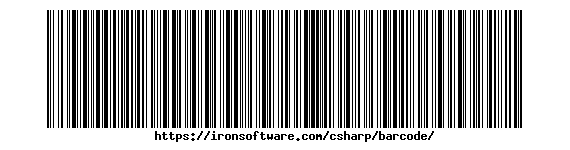 IronBarcode 可以即時讀取的標準 Code128 條碼
using IronBarCode;
BarcodeReaderOptions options = new BarcodeReaderOptions()
{
// Choose which filters are to be applied (in order)
ImageFilters = new ImageFilterCollection() {
new AdaptiveThresholdFilter(),
},
// Uses machine learning to auto rotate the barcode
AutoRotate = true,
};
// Read barcode
BarcodeResults results = BarcodeReader.Read("TryHarderQR.png", options);Imports IronBarCode
Private options As New BarcodeReaderOptions() With {
.ImageFilters = New ImageFilterCollection() From {New AdaptiveThresholdFilter()},
.AutoRotate = True
}
' Read barcode
Private results As BarcodeResults = BarcodeReader.Read("TryHarderQR.png", options)BarcodeReader.Read 方法返回包含所有檢測到的條碼的 BarcodeResults 集合。 每個 BarcodeResult 提供對條碼文字值、格式型別、位置坐標和二進位資料的存取。 這種方法可以無縫處理常見的條碼格式,包括 Code128、Code39、QR 碼和二維資料矩陣碼。
哪些選項有助於讀取困難或受損的條碼?
現實世界的條碼掃描通常涉及不完美的影像 - 偏斜角度、照明不足或局部損壞。 IronBarcode 的高級選項可有效處理這些挑戰。
using IronBarCode;
using System;

// Multiple barcodes may be scanned up from a single document or image. A PDF document may also used as the input image
BarcodeResults results = BarcodeReader.ReadPdf("MultipleBarcodes.pdf");

// Work with the results
foreach (var pageResult in results)
{
    string Value = pageResult.Value;
    int PageNum = pageResult.PageNumber;
    System.Drawing.Bitmap Img = pageResult.BarcodeImage;
    BarcodeEncoding BarcodeType = pageResult.BarcodeType;
    byte[] Binary = pageResult.BinaryValue;
    Console.WriteLine(pageResult.Value + " on page " + PageNum);
}Imports IronBarCode
Imports System
' Multiple barcodes may be scanned up from a single document or image. A PDF document may also used as the input image
Private results As BarcodeResults = BarcodeReader.ReadPdf("MultipleBarcodes.pdf")
' Work with the results
For Each pageResult In results
Dim Value As String = pageResult.Value
Dim PageNum As Integer = pageResult.PageNumber
Dim Img As System.Drawing.Bitmap = pageResult.BarcodeImage
Dim BarcodeType As BarcodeEncoding = pageResult.BarcodeType
Dim Binary() As Byte = pageResult.BinaryValue
Console.WriteLine(pageResult.Value & " on page " & PageNum)
Next pageResult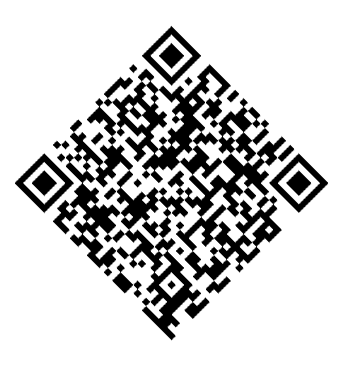 IronBarcode 使用高級選項成功讀取的旋轉 QR 碼
ExpectBarcodeTypes 屬性通過將搜索限制為特定格式大大提高了性能。 為了最大限度地提高有問題影像的準確性,將影像濾鏡與自動旋轉結合使用:
using IronBarCode;

// Multi frame TIFF and GIF images can also be scanned
BarcodeResults multiFrameResults = BarcodeReader.Read("Multiframe.tiff");

foreach (var pageResult in multiFrameResults)
{
    //...
}Imports IronBarCode
' Multi frame TIFF and GIF images can also be scanned
Private multiFrameResults As BarcodeResults = BarcodeReader.Read("Multiframe.tiff")
For Each pageResult In multiFrameResults
'...
Next pageResult這些高級功能使 IronBarcode 成為從照片、安全攝像頭或移動裝置捕獲影像進行掃描的理想選擇,這些影像的質量差異很大。
如何從 PDF 檔案中掃描多個條碼?
PDF 條碼掃描對處理發票、運單和庫存文件至關重要。 IronBarcode 能夠高效地讀取每頁上的所有條碼。
從 PDF 文件中讀取條碼
using IronBarCode;

// The Multithreaded property allows for faster barcode scanning across multiple images or PDFs. All threads are automatically managed by IronBarCode.
var ListOfDocuments = new[] { "image1.png", "image2.JPG", "image3.pdf" };

BarcodeReaderOptions options = new BarcodeReaderOptions()
{
    // Enable multithreading
    Multithreaded = true,
};

BarcodeResults batchResults = BarcodeReader.Read(ListOfDocuments, options);Imports IronBarCode
' The Multithreaded property allows for faster barcode scanning across multiple images or PDFs. All threads are automatically managed by IronBarCode.
Private ListOfDocuments = { "image1.png", "image2.JPG", "image3.pdf" }
Private options As New BarcodeReaderOptions() With {.Multithreaded = True}
Private batchResults As BarcodeResults = BarcodeReader.Read(ListOfDocuments, options)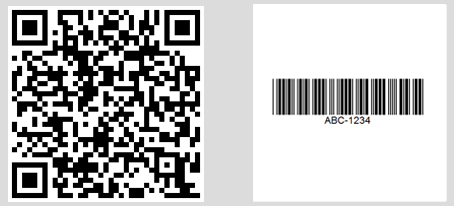 顯示在不同 PDF 頁面上找到的多個條碼的控制台輸出
對於特定的頁範圍或高級 PDF 處理,使用 BarcodeReaderOptions:
// Read only specific pages to improve performance
PdfBarcodeReaderOptions pdfOptions = new PdfBarcodeReaderOptions
{
    // Scan pages 1-5 only
    PageNumbers = new[] { 1, 2, 3, 4, 5 },

    // PDF-specific settings
    DPI = 300 // Higher DPI for better accuracy
};

BarcodeResults results = BarcodeReader.ReadPdf("document.pdf", pdfOptions);如何處理多幀 TIFF 圖像?
多幀 TIFF 文件在文件掃描和傳真系統中很常見,與 PDF 一樣得到全面支持。
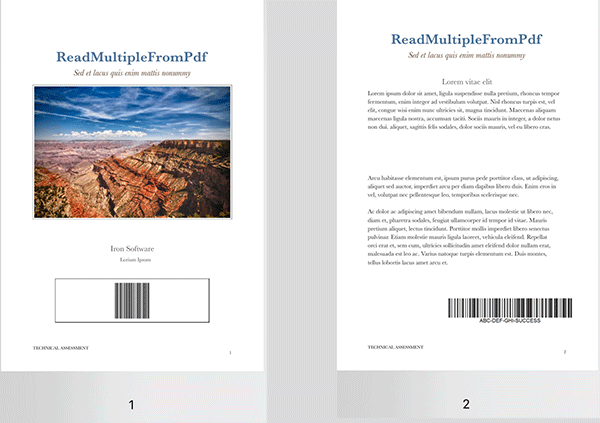 在不同幀上具有條碼的多幀 TIFF 文件
using IronBarCode;

// TIFF files are processed similarly to regular images
// Each frame is scanned automatically
BarcodeResults multiFrameResults = BarcodeReader.Read("Multiframe.tiff");

foreach (var result in multiFrameResults)
{
    // Access frame-specific information
    int frameNumber = result.PageNumber; // Frame number in TIFF
    string barcodeValue = result.Text;

    Console.WriteLine($"Frame {frameNumber}: {barcodeValue}");

    // Save individual barcode images if needed
    result.BarcodeImage?.Save($"barcode_frame_{frameNumber}.png");
}Imports IronBarCode
' TIFF files are processed similarly to regular images
' Each frame is scanned automatically
Dim multiFrameResults As BarcodeResults = BarcodeReader.Read("Multiframe.tiff")
For Each result In multiFrameResults
' Access frame-specific information
Dim frameNumber As Integer = result.PageNumber ' Frame number in TIFF
Dim barcodeValue As String = result.Text
Console.WriteLine($"Frame {frameNumber}: {barcodeValue}")
' Save individual barcode images if needed
result.BarcodeImage?.Save($"barcode_frame_{frameNumber}.png")
Next相同的 BarcodeReaderOptions 適用於 TIFF 處理,包括圖像濾鏡和旋轉設定。 如需詳細的 TIFF 處理情況,請參閱我們的 圖像處理教程。
我可以使用多執行緒加速處理嗎?
處理多個文件通過平行處理獲得顯著收益。 IronBarcode 自動利用可用的 CPU 核心以獲得最佳性能。
using IronBarCode;

// List of documents to process - mix of formats supported
var documentBatch = new[]
{
    "invoice1.pdf",
    "shipping_label.png",
    "inventory_sheet.tiff",
    "product_catalog.pdf"
};

// Configure for batch processing
BarcodeReaderOptions batchOptions = new BarcodeReaderOptions
{
    // Enable parallel processing across documents
    Multithreaded = true,

    // Limit threads if needed (0 = use all cores)
    MaxParallelThreads = Environment.ProcessorCount,

    // Apply consistent settings to all documents
    Speed = ReadingSpeed.Balanced,
    ExpectBarcodeTypes = BarcodeEncoding.All
};

// Process each document, tracking the source path externally
foreach (var document in documentBatch)
{
    BarcodeResults results = BarcodeReader.Read(document, batchOptions);

    Console.WriteLine($"\nDocument: {document}");
    foreach (var barcode in results)
    {
        Console.WriteLine($"  - {barcode.BarcodeType}: {barcode.Text}");
    }
}這種平行方法同時處理檔案,將多核系統上的總掃描時間減少高達 75%。 如需企業級條碼處理,請探索我們的 性能優化指南。
總結
IronBarcode 將複雜的條碼掃描轉變為簡單的 C# 程式碼。 無論您是在構建庫存系統、文件處理器還是移動應用程式,該程式庫都能處理從完美的數位條碼到具有挑戰性的實際捕捉影像的一切。
涵蓋的關鍵功能:
- 從影像中單行讀取條碼
- 損壞或旋轉條碼的高級選項
- 全面的 PDF 和 TIFF 文件掃描
- 使用多執行緒的高效的批處理
- 支持所有主要的條碼格式
進一步閱讀
通過這些資源擴展您的條碼處理能力:
- 條碼生成教程 - 建立自定義條碼
- QR 碼指南 - 專業的 QR 碼功能
BarcodeReader類引用 - 完整的 API 說明- 故障排除指南 - 常見問題和解決方案
源程式碼下載
自行運行這些範例:
準備在您的應用程式中實施條碼掃描了嗎? 開始免費試用,今天就為您的 .NET 專案新增專業條碼讀取。
常見問題
如何在 .NET 專案中安裝條碼讀取程式庫?
您可以透過使用命令 dotnet add package BarCode 的 NuGet 套件管理器或 Visual Studio 的 NuGet 介面來安裝 IronBarcode 程式庫。或者,下載 DLL 進行手動安裝。
using C# 從圖片中讀取條碼的方法是什麼?
using IronBarcode 的 BarcodeReader.Read 方法,只需一行程式碼:var results = BarcodeReader.Read('image.png'); 此方法檢測並讀取圖片中存在的所有條碼格式。
是否可以在單一圖片或文件中檢測多個條碼?
可以,IronBarcode 能自動檢測並讀取圖片、PDF 或多帧 TIFF 中的多個條碼,並在 BarcodeResults 集合中返回每個條碼的數值、型別及位置。
如何使用 C# 從 PDF 中讀取條碼?
using IronBarcode 的 BarcodeReader.ReadPdf 方法掃描 PDF 文件的所有頁面:var results = BarcodeReader.ReadPdf('document.pdf'); 每個結果都包含發現條碼的頁碼。
如果條碼圖像不清楚或旋轉,應該怎麼辦?
設定 BarcodeReaderOptions 來處理具有挑戰性的圖像,通過將 AutoRotate = true 和應用如 SharpenFilter 或 AdaptiveThresholdFilter 的影像過濾器。使用 Speed = ExtremeDetail 以提高準確性。
在 .NET 應用程式中支援哪些條碼格式?
IronBarcode 支援所有主要條碼格式,如 QR 碼、Code 128、Code 39、EAN-13、UPC-A、Data Matrix、PDF417 等。利用 BarcodeEncoding.All 掃描任何支援的格式。
如何在 C# 應用程式中提高條碼掃描性能?
通過指定預期的條碼型別 ExpectBarcodeTypes,啟用多執行緒處理,並選擇適當的 Speed 設定來提升性能。對於批量任務,使用帶有檔案路徑的 BarcodeReader.Read。
處理條碼讀取錯誤的建議方法是什麼?
將條碼讀取封裝在 try-catch 塊中,並驗證結果是否為 null 或空。IronBarcode 提供詳細的錯誤資訊和一個 Confidence 屬性來指示檢測的可靠性。
掃描後可以提取條碼圖像嗎?
可以,IronBarcode 的 BarcodeResult 包含一個含有已檢測條碼的 Bitmap 的 BarcodeImage 屬性,可以單獨保存或處理。
如何從 PDF 文件的特定頁面讀取條碼?
設定 BarcodeReaderOptions 中的 PageNumbers 屬性來指定頁面:options.PageNumbers = new[] {1, 2, 3}; 這通過僅掃描指定的頁面來優化性能。
哪些圖片格式可以在 .NET 中用於條碼掃描?
IronBarcode 支援格式如 PNG、JPEG、BMP、GIF、TIFF(包括多帧)和 PDF 的掃描。您可以從檔案路徑、流或字節陣列載入圖像。
如何在 C# 中從掃描的條碼中存取二進位資料?
利用 BarcodeResult 的 BinaryValue 屬性獲取原始二進位資料,這對於包含如壓縮資訊或二進位協議的非文字資料的條碼特別有用。

Jacob Mellor是Iron Software的首席技術官,一位在C# PDF技術上開創先河的遠見工程師。作為Iron Software核心程式碼庫的原開發者,他從創立以來就一直在塑造公司的產品架構,與首席執行官Cameron Rimington一起將公司轉變為服務於NASA、特斯拉和全球政府公司的50多名人員的公司。













