


How to Generate Barcode Images in C# .NET Applications

需要快速生成專業的條碼圖像於您的.NET應用程式中嗎? 本教學示範了如何使用IronBarcode從簡單單行實現到高階樣式技術來建立、定制和匯出條碼,讓您完全掌控條碼外觀。
快速入門:立即建立並儲存一個條碼圖像
使用IronBarcode,您只需一次簡單的調用即可生成並匯出條碼圖像。 使用SaveAsPng — 無需複雜的設置。

最小化工作流程(5步驟)
- 通過NuGet套件管理器安裝IronBarcode
- 用一行程式碼生成一個簡單條碼
- 將自訂樣式和註解應用到您的條碼
- 以圖像、PDF或HTML格式匯出條碼
- 使用流暢API來高效生成條碼
How Do I Install a Barcode Generator Library in C#?
使用NuGet套件管理器安裝IronBarcode僅需數秒鐘。 您可以直接通過套件管理器控制台安裝或手動下載DLL。
Install-Package BarCode
 IronBarcode為.NET開發者提供全面的條碼生成功能
How Can I Generate a Simple Barcode Using C#?
建立您的第一個條碼僅需兩行程式碼。 以下範例展示了生成一個標準Code128條碼並將其儲存為圖像文件。
:path=/static-assets/barcode/content-code-examples/tutorials/csharp-barcode-image-generator-3.csusing IronBarCode;
using IronSoftware.Drawing;
// Fluent API for Barcode Image generation.
string value = "https://ironsoftware.com/csharp/barcode";
AnyBitmap barcodeBitmap = BarcodeWriter.CreateBarcode(value, BarcodeEncoding.PDF417).ResizeTo(300, 200).SetMargins(100).ToBitmap();
System.Drawing.Bitmap barcodeLegacyBitmap = (System.Drawing.Bitmap)barcodeBitmap;Imports IronBarCode
Imports IronSoftware.Drawing
' Fluent API for Barcode Image generation.
Private value As String = "https://ironsoftware.com/csharp/barcode"
Private barcodeBitmap As AnyBitmap = BarcodeWriter.CreateBarcode(value, BarcodeEncoding.PDF417).ResizeTo(300, 200).SetMargins(100).ToBitmap()
Private barcodeLegacyBitmap As System.Drawing.Bitmap = CType(barcodeBitmap, System.Drawing.Bitmap)BarcodeWriter.CreateBarcode()方法是您進行條碼生成的入口。 它接受兩個參數:您想要編碼的資料和來自BarcodeWriterEncoding枚舉的條碼格式。 IronBarcode支持所有主要的條碼格式,包括QRCode碼。
生成後,GeneratedBarcode物件提供多種匯出選項。 您可以將其儲存為各種圖像格式(PNG, JPEG, GIF, TIFF),匯出為PDF,甚至可檢索為System.Drawing.Bitmap以便在您的應用程式中進一步處理。
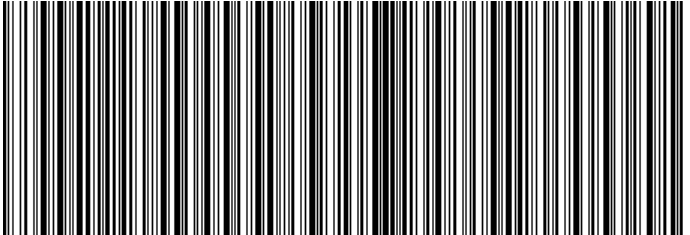 *A Code128 barcode generated with IronBarcode displaying a URL*
我可以自訂生成條碼的外觀嗎?
IronBarcode提供了廣泛的自訂選項,遠超出基本條碼生成。 您可以新增註解、調整顏色、設置邊距,並控制條碼外觀的各個方面。
:path=/static-assets/barcode/content-code-examples/tutorials/csharp-barcode-image-generator-4.csusing IronBarCode;
using IronSoftware.Drawing;
// Create a QR code with advanced styling options
GeneratedBarcode myBarCode = BarcodeWriter.CreateBarcode(
"https://ironsoftware.com/csharp/barcode",
BarcodeWriterEncoding.QRCode
);
// Add descriptive text above the barcode
myBarCode.AddAnnotationTextAboveBarcode("Product URL:");
// Display the encoded value below the barcode
myBarCode.AddBarcodeValueTextBelowBarcode();
// Set consistent margins around the barcode
myBarCode.SetMargins(100);
// Customize the barcode color (purple in this example)
myBarCode.ChangeBarCodeColor(Color.Purple);
// Export as an HTML file for web integration
myBarCode.SaveAsHtmlFile("MyBarCode.html");
Imports IronBarCode
Imports IronSoftware.Drawing

' Create a QR code with advanced styling options
Dim myBarCode As GeneratedBarcode = BarcodeWriter.CreateBarcode("https://ironsoftware.com/csharp/barcode", BarcodeWriterEncoding.QRCode)

' Add descriptive text above the barcode
myBarCode.AddAnnotationTextAboveBarcode("Product URL:")

' Display the encoded value below the barcode
myBarCode.AddBarcodeValueTextBelowBarcode()

' Set consistent margins around the barcode
myBarCode.SetMargins(100)

' Customize the barcode color (purple in this example)
myBarCode.ChangeBarCodeColor(Color.Purple)

' Export as an HTML file for web integration
myBarCode.SaveAsHtmlFile("MyBarCode.html")GeneratedBarcode類提供了一整套豐富的方法用於自訂:
- 註解:使用
AddAnnotationTextBelowBarcode()新增自訂標籤或指示於您的條碼周圍 - 數值顯示:
AddBarcodeValueTextBelowBarcode()方法會自動以人類可讀形式顯示編碼的資料 - 間距:使用
SetMargins()控制空白以確保正確的掃描和視覺吸引力 - 顏色:運用
ChangeBackgroundColor()改變前景和背景顏色 - 匯出選項:保存為圖像文件、PDF或自包含的HTML文件
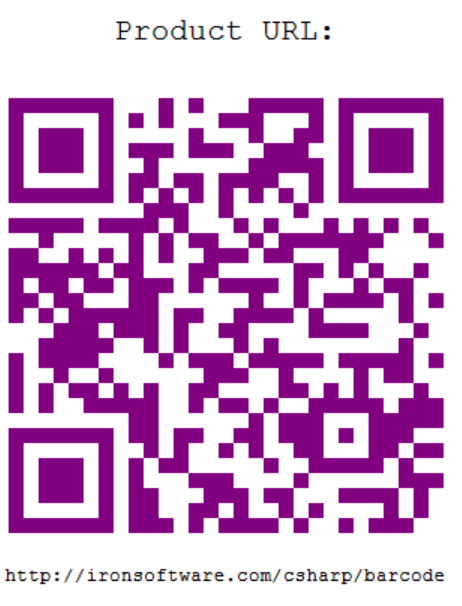 *具有自訂顏色和註解文字的樣式化QR碼*
關於詳細的自訂選項,請參閱GeneratedBarcode類文件,其中涵蓋所有可用的樣式化方法與屬性。
如何用一行程式碼建立並匯出條碼?
IronBarcode實施了一種流暢的API設計模式,允許方法連結以便程式碼更簡潔且易於讀取。 此方法在對條碼進行多重轉換時尤為有用。
:path=/static-assets/barcode/content-code-examples/tutorials/csharp-barcode-image-generator-5.csusing IronBarCode;
using IronSoftware.Drawing;
// Generate, style, and convert a barcode in a single statement
string value = "https://ironsoftware.com/csharp/barcode";
// Create PDF417 barcode with chained operations
AnyBitmap barcodeBitmap = BarcodeWriter
.CreateBarcode(value, BarcodeWriterEncoding.PDF417) // Create PDF417 barcode
.ResizeTo(300, 200) // Set specific dimensions
.SetMargins(10) // Add 10px margins
.ToBitmap(); // Convert to bitmap
// Convert to System.Drawing.Bitmap for legacy compatibility
System.Drawing.Bitmap legacyBitmap = barcodeBitmap;
Imports IronBarCode
Imports IronSoftware.Drawing

' Generate, style, and convert a barcode in a single statement
Dim value As String = "https://ironsoftware.com/csharp/barcode"

' Create PDF417 barcode with chained operations
Dim barcodeBitmap As AnyBitmap = BarcodeWriter _
    .CreateBarcode(value, BarcodeWriterEncoding.PDF417) _  ' Create PDF417 barcode
    .ResizeTo(300, 200) _                                  ' Set specific dimensions
    .SetMargins(10) _                                      ' Add 10px margins
    .ToBitmap()                                            ' Convert to bitmap

' Convert to System.Drawing.Bitmap for legacy compatibility
Dim legacyBitmap As System.Drawing.Bitmap = barcodeBitmap流暢API模式提供了幾個優勢:
- 可讀性:以邏輯序列連結操作,像自然語言一樣易於閱讀
- 效率:減少變數宣告和中間步驟
- 靈活性:輕鬆新增或移除操作而無需重構程式碼
常見的流暢操作包括:
ResizeTo():精確控制條碼尺寸SetMargins():新增一致的間距ChangeBarCodeColor():修改外觀AddAnnotationTextAboveBarcode():包含描述性文字SaveAsPdf():以多種格式匯出
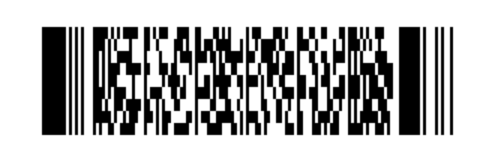 *A PDF417 barcode generated using fluent method chaining*
IronBarcode支持哪些條碼格式?
IronBarcode通過BarcodeWriterEncoding枚舉提供全面的條碼格式生成。 支持的格式包括:
1D條碼:EAN13
2D條碼:MaxiCode
專用格式:DataBarExpanded,以及各類GS1標準
每種格式都有其特定的特徵和使用場合。 例如,EAN13是零售產品標準。 了解有關選擇適合您應用的條碼格式的更多資訊。
我怎樣才能確認生成的條碼是可讀的?
質量保證對於條碼實施至關重要。 IronBarcode內建的驗證功能可確保您生成的條碼保持可掃描:
:path=/static-assets/barcode/content-code-examples/tutorials/csharp-barcode-image-generator-6.cs// Generate and verify a barcode
GeneratedBarcode myBarcode = BarcodeWriter
.CreateBarcode("TEST123", BarcodeWriterEncoding.Code128)
.ResizeTo(200, 100)
.ChangeBarCodeColor(Color.DarkBlue);
// Verify the barcode is still readable after modifications
bool isReadable = myBarcode.Verify("TEST123");
Console.WriteLine($"Barcode verification: {(isReadable ? "PASS" : "FAIL")}");
Imports System.Drawing

' Generate and verify a barcode
Dim myBarcode As GeneratedBarcode = BarcodeWriter _
    .CreateBarcode("TEST123", BarcodeWriterEncoding.Code128) _
    .ResizeTo(200, 100) _
    .ChangeBarCodeColor(Color.DarkBlue)

' Verify the barcode is still readable after modifications
Dim isReadable As Boolean = myBarcode.Verify("TEST123")
Console.WriteLine($"Barcode verification: {(If(isReadable, "PASS", "FAIL"))}")Verify()方法檢查您的條碼在應用變化如調整大小或重新著色後是否仍然能被機器讀取。 這在使用非標準顏色或非常小的尺寸時尤其重要。
我在哪裡可以找到更多條碼生成的範例?
若要擴展您的條碼生成能力,請探索這些額外資源:
程式碼和範例
下載本教學的完整原始碼:
高級主題
- 生成帶有標誌的QR碼 - 為您的QR碼新增品牌標識
- 條碼樣式指南 - 掌握高級自訂技術
- 從圖像中讀取條碼 - 通過條碼掃描完成迴圈
- 批量條碼生成 - 高效地生成多個條碼
API文件
BarcodeWriter類參考 - 完整的方法文件GeneratedBarcode類參考 - 所有自訂選項BarcodeWriterEncoding枚舉 - 支持的條碼格式
準備在您的應用程式中生成專業條碼了嗎?
IronBarcode使條碼生成變得簡單,同時提供專業應用所需的靈活性。 無論您需要簡單的產品碼還是具備自訂樣式的複雜2D條碼,IronBarcode可以以最少的程式碼完成所有工作。
立即下載IronBarcode,開始在幾分鐘內生成條碼。 需要幫助選擇合適的授權嗎? 查看我們的授權選項或申請免費試用金鑰,以便在您的生產環境中測試IronBarcode。
常見問題
如何在C#中建立條碼圖像?
要在C#中建立條碼圖像,您可以使用IronBarcode的BarcodeWriter.CreateBarcode()方法。這使您可以指定資料和條碼格式,然後使用例如SaveAsPng()的方法以PNG或JPEG格式保存圖像。
在.NET專案中安裝IronBarcode的步驟是什麼?
您可以在您的.NET專案中使用Visual Studio中的NuGet Package Manager來安裝IronBarcode。或者,您可以從IronBarcode網站下載DLL並將其新增到專案引用中。
如何在C#中將條碼匯出為PDF?
IronBarcode允許使用GeneratedBarcode類中的SaveAsPdf()方法將條碼匯出為PDF,提供了將您的條碼保存為PDF格式的簡單方法。
在C#中條碼有哪些自訂選項?
IronBarcode提供廣泛的自訂選項,例如使用ChangeBarCodeColor()更改條碼顏色,使用AddAnnotationTextAboveBarcode()新增文字註釋,以及使用SetMargins()設定邊距。
如何在一行程式碼中快速建立和樣式化條碼?
使用IronBarcode的Fluent API,您可以通過方法鏈在一行中建立和樣式化條碼:BarcodeWriter.CreateBarcode(data, encoding).ResizeTo(300, 200).SetMargins(10).SaveAsPng(path)。
如何確保我的條碼在修改後仍可掃描?
要驗證條碼在樣式化或調整大小後的可掃描性,請對GeneratedBarcode物件使用Verify()方法以檢查其機器可讀性。
我可以在C#中生成帶有標誌的QR碼嗎?
是的,IronBarcode支持使用QRCodeWriter類生成帶有嵌入標誌的QR碼,該類包含用於標誌插入和增強錯誤校正級等功能。
在C#中高效生成多個條碼的過程是什麼?
您可以在C#中使用IronBarcode高效生成多個條碼,它支持批量處理並允許使用迴圈或平行處理來處理高容量條碼生成。
我可以在哪些文件格式中匯出條碼在C#中?
IronBarcode支持將條碼匯出為各種格式,包括PNG、JPEG、GIF、TIFF、BMP、PDF和HTML,為不同的應用需求提供靈活性。
如何在條碼下面新增人類可讀的文字在C#中?
要在條碼下面新增人類可讀的文字在C#中,請使用AddBarcodeValueTextBelowBarcode()方法,它會自動在條碼圖像下顯示編碼值的文字格式。


還在滾動嗎?
想快速驗證嗎? PM > Install-Package BarCode
運行範例觀看您的字串成為條碼。








 免費開始
免費開始 免費開始
免費開始 預訂免費直播演示
















