



Updated August 1, 2026
How to Zip Archive Extract To Directory in C#
ZIP files serve as a convenient way to bundle multiple files and directories into a single archive.
Read More

In the ever-growing field of software development, efficient file management is of utmost importance while sending and receiving files in large numbers. The need to compress, bundle, and extract large files is a common requirement, and ZIP archives serve as a versatile solution.
Microsoft .NET simplifies working with ZipArchive files through its dedicated class. For a comprehensive guide on utilizing this functionality, refer to the official Microsoft documentation on the ZipArchive Class.
In this article, we will take you beyond the .NET ecosystem and explore how IronZIP, as a robust C# ZIP archive library, simplifies archive management and provides developers with a user-friendly API for creating, reading, and extracting archives seamlessly.
IronZIP stands out as a leading C# ZIP archive library designed to meet the demands of .NET developers. Prioritizing accuracy, ease of use, and speed, IronZIP offers a comprehensive set of features that make it a go-to solution for archive-related tasks.
Whether you're working on desktop, mobile, or cloud applications, IronZIP's cross-platform support ensures consistent performance across various environments.
Key Features of IronZIP:
Before moving on to the implementation, ensure the following prerequisites are in place:
Open Visual Studio and create a new C# console project.
Configure the project name and location.

Choose the appropriate .NET version based on your project requirements. IronZIP supports the latest version and older versions of .NET and .NET Core, so you can choose any version from the available list.

Integrating IronZIP into the project is a very straightforward process. You can install the IronZIP library as follows:
Open the Manage NuGet Packages for Solution by right-clicking the Solution Explorer.

In the NuGet browse tab, search for IronZIP and click install.

Alternatively, you can use the NuGet Package Manager Console and run the command:
That's it! We have set up everything, and we can proceed to create Zip files in our application.
First, we need to include the IronZIP namespace in our source code main file by using the statement:
using IronZIP;Imports IronZIPImports IronZIPCreating a zip file becomes remarkably easy with IronZIP, thanks to its user-friendly API and straightforward syntax. Follow these steps to create a C# zip archive file system.
Code Example:
class Program
{
    public static void Main(string[] args)
    {
        var file = "output.zip";

        // Create an empty ZIP archive
        using (var archive = new IronArchive(file))
        {
            // Add files to the ZIP
            archive.Add("./assets/image1.jpg");
            archive.Add("./assets/image2.jpg");
            archive.Add("./assets/image3.jpg");
        }
        Console.WriteLine("Zip file generated successfully!");
    }
}
class Program
{
public static void Main(string[] args)
{
var file = "output.zip";
// Create an empty ZIP archive
using (var archive = new IronArchive(file))
{
// Add files to the ZIP
archive.Add("./assets/image1.jpg");
archive.Add("./assets/image2.jpg");
archive.Add("./assets/image3.jpg");
}
Console.WriteLine("Zip file generated successfully!");
}
}Friend Class Program
Public Shared Sub Main(ByVal args() As String)
Dim file = "output.zip"
' Create an empty ZIP archive
Using archive = New IronArchive(file)
' Add files to the ZIP
archive.Add("./assets/image1.jpg")
archive.Add("./assets/image2.jpg")
archive.Add("./assets/image3.jpg")
End Using
Console.WriteLine("Zip file generated successfully!")
End Sub
End ClassFriend Class Program
Public Shared Sub Main(ByVal args() As String)
Dim file = "output.zip"
' Create an empty ZIP archive
Using archive = New IronArchive(file)
' Add files to the ZIP
archive.Add("./assets/image1.jpg")
archive.Add("./assets/image2.jpg")
archive.Add("./assets/image3.jpg")
End Using
Console.WriteLine("Zip file generated successfully!")
End Sub
End ClassExplanation:
Extracting the archive contents from zip files with an application is another handy feature to have. IronZIP with its one-line code helps to extract data from the ZipArchive archive file system effortlessly. Write the sample code to achieve this task:
using IronZIP;

// Extract ZIP
IronArchive.ExtractArchiveToDirectory("output.zip", "extracted");
using IronZIP;
// Extract ZIP
IronArchive.ExtractArchiveToDirectory("output.zip", "extracted");Imports IronZIP
' Extract ZIP
IronArchive.ExtractArchiveToDirectory("output.zip", "extracted")Imports IronZIP
' Extract ZIP
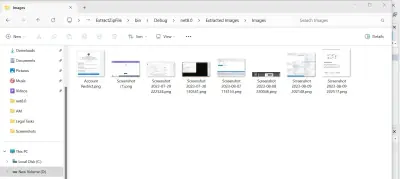
IronArchive.ExtractArchiveToDirectory("output.zip", "extracted")That's it! Zip file extracted. IronZIP also offers aid with adding files to the existing file system of ZipArchive. For more detailed information, please visit this tutorial on create, read, and extract Zip on the IronZIP website.
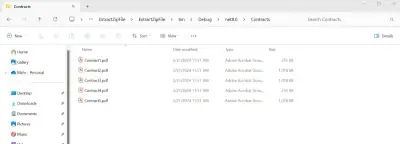
Build and run the Zip archive application. After successful execution, check your project directory with the specified entry name in the program for the resulting Zip file: "output.zip" containing the specified image files. Here is the output Zip file content-disposition:

In conclusion, IronZIP emerges as a powerful and versatile solution for handling zip archives in C#. Its cross-platform support, compatibility with various .NET versions, and straightforward integration make it a valuable tool for developers.
IronZIP simplifies the creation, reading, and extraction of zip archives in your C# projects and enhances the efficiency of file management processes.
To learn more about IronZIP and its capabilities, please visit this documentation page.
IronZIP is a commercial product, and for use in commercial projects, a license is required. The lite package starts from $999, and detailed licensing information is available on the IronZIP license page. A trial version of IronZIP is also available, allowing developers to explore its features before making a purchase decision. Download the IronZIP library from here.

Curtis Chau holds a Bachelor’s degree in Computer Science (Carleton University) and specializes in front-end development with expertise in Node.js, TypeScript, JavaScript, and React. Passionate about crafting intuitive and aesthetically pleasing user interfaces, Curtis enjoys working with modern frameworks and creating well-structured, visually appealing manuals.

IronZIP is a part of IRONSUITE
10 .NET API products for your office documents

When you need to zip and unzip archives, fast.


