



Updated August 1, 2026
How to Zip Archive Extract To Directory in C#
ZIP files serve as a convenient way to bundle multiple files and directories into a single archive.
Read More

Unzipping files programmatically is a common task in software development, especially when dealing with compressed archives. In this article, we'll explore how to extract files from ZIP archives in C# using the IronZIP library.
Whether you're working on a Windows application or a .NET project, understanding the process of unzipping files can be invaluable. Let's dive in and learn how to efficiently handle ZIP files within your C# codebase.
What this Article will Explain:
ZIP files, also known as ZIP archives, are bundles of multiple files into a single compressed container. Unzipping these files involves extracting the compressed data and restoring it to its original state. This process is essential when you need to access or manipulate data within a C# application. IronZIP streamlines this task by providing simple methods for managing compressed data.
IronZIP is a powerful C# ZIP archive library that facilitates creating, reading, and extracting archives in .NET applications. Whether you need to compress files, extract data from existing archives, or manage your ZIP files, IronZIP provides a user-friendly API for achieving these tasks efficiently. IronZIP simplifies working with ZIP archives in your .NET applications.
It supports various archive formats, including ZIP, TAR, GZIP, and BZIP2. IronZIP is cross-platform, compatible with .NET Core, .NET Standard, and .NET Framework. And it offers advanced features like password-protected archives, customizable compression levels, and file entry management.
Now, I will discuss some examples for extracting from ZIP files in C#. Start by creating a new C# project in Visual Studio. Choose the appropriate project type (e.g., Console Application, Windows Forms, ASP.NET Core, etc.). Next, we need to install the IronZIP NuGet Package.
To install the IronZIP NuGet package, you can use the following command in the Package Manager Console:
Alternatively, you can use the Package Manager UI in Visual Studio to search for and install the IronZIP package.
In your C# code, import the IronZIP namespace to access its classes and methods.
using IronZip;Imports IronZipImports IronZipThe following code will unzip files to the specified directory in C#.
// This line extracts the "Images.zip" archive to the "Extracted Images" directory
IronZipArchive.ExtractArchiveToDirectory(@"E:\Images.zip", "Extracted Images");
// This line extracts the "Images.zip" archive to the "Extracted Images" directory
IronZipArchive.ExtractArchiveToDirectory(@"E:\Images.zip", "Extracted Images");' This line extracts the "Images.zip" archive to the "Extracted Images" directory
IronZipArchive.ExtractArchiveToDirectory("E:\Images.zip", "Extracted Images")' This line extracts the "Images.zip" archive to the "Extracted Images" directory
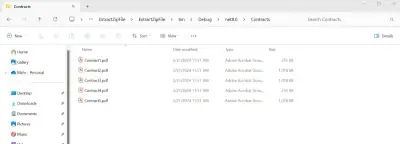
IronZipArchive.ExtractArchiveToDirectory("E:\Images.zip", "Extracted Images")The above code reads the specified ZIP file ("E:\Images.zip"), decompresses its contents, and places the extracted files into the directory named "Extracted Images".
IronZipArchive refers to the class provided by the IronZIP library. It's the main entry point for working with ZIP archives in your C# code. ExtractArchiveToDirectory(...) is a method (or function) that the IronZipArchive class provides. It allows you to extract the contents of a ZIP archive (in this case, the file "E:\Images.zip") to a specified directory (in this case, the directory named "Extracted Images").
The method takes two parameters:
@"E:\Images.zip") is the path to the ZIP file you want to extract."Extracted Images") is the directory where you want to extract the files from the ZIP archive.Output:

IronZIP provides a simple method to extract encrypted ZIP files. The following code demonstrates how to extract all files from a password-protected ZIP file.
// This line extracts the "EncryptedImages.zip" archive to the "ExtractedImages" directory with the given password
IronZipArchive.ExtractArchiveToDirectory(@"EncryptedImages.zip", "ExtractedImages", "zipP@55w0rd");
// This line extracts the "EncryptedImages.zip" archive to the "ExtractedImages" directory with the given password
IronZipArchive.ExtractArchiveToDirectory(@"EncryptedImages.zip", "ExtractedImages", "zipP@55w0rd");' This line extracts the "EncryptedImages.zip" archive to the "ExtractedImages" directory with the given password
IronZipArchive.ExtractArchiveToDirectory("EncryptedImages.zip", "ExtractedImages", "zipP@55w0rd")' This line extracts the "EncryptedImages.zip" archive to the "ExtractedImages" directory with the given password
IronZipArchive.ExtractArchiveToDirectory("EncryptedImages.zip", "ExtractedImages", "zipP@55w0rd")The above code extracts the contents of the "EncryptedImages.zip" archive to the "ExtractedImages" directory using IronZIP. It also specifies the password "zipP@55w0rd" for decryption, indicating that the ZIP file is encrypted and requires the provided password for extraction. It will overwrite existing files.
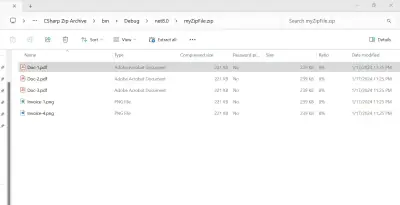
Output:

In C# with IronZIP, unzipping a file to a directory involves leveraging the IronZIP library's capabilities to their fullest. By employing functions like IronZipArchive.ExtractArchiveToDirectory, developers can easily extract compressed files, providing a straightforward mechanism for handling the local file header. It provides an efficient way to update zip files and RAR files in their applications.
IronZIP also provides methods to create ZIP files in C# and .NET applications. Let's create a ZIP archive in C#.
The following code example will create a ZIP archive.
static void Main(string[] args)
{
    // Create a new ZIP archive with a high compression level (9)
    using (var archive = new IronZipArchive(9))
    {
        // Add image files to the archive
        archive.Add(@"E:\Images\image1.png");
        archive.Add(@"E:\Images\image2.png");
        archive.Add(@"E:\Images\image3.png");
        archive.Add(@"E:\Images\image4.png");

        // Export the ZIP archive to the file "MyImages.zip"
        archive.SaveAs("MyImages.zip");
    }
}
static void Main(string[] args)
{
// Create a new ZIP archive with a high compression level (9)
using (var archive = new IronZipArchive(9))
{
// Add image files to the archive
archive.Add(@"E:\Images\image1.png");
archive.Add(@"E:\Images\image2.png");
archive.Add(@"E:\Images\image3.png");
archive.Add(@"E:\Images\image4.png");
// Export the ZIP archive to the file "MyImages.zip"
archive.SaveAs("MyImages.zip");
}
}Sub Main(args As String())
' Create a new ZIP archive with a high compression level (9)
Using archive As New IronZipArchive(9)
' Add image files to the archive
archive.Add("E:\Images\image1.png")
archive.Add("E:\Images\image2.png")
archive.Add("E:\Images\image3.png")
archive.Add("E:\Images\image4.png")
' Export the ZIP archive to the file "MyImages.zip"
archive.SaveAs("MyImages.zip")
End Using
End SubSub Main(args As String())
' Create a new ZIP archive with a high compression level (9)
Using archive As New IronZipArchive(9)
' Add image files to the archive
archive.Add("E:\Images\image1.png")
archive.Add("E:\Images\image2.png")
archive.Add("E:\Images\image3.png")
archive.Add("E:\Images\image4.png")
' Export the ZIP archive to the file "MyImages.zip"
archive.SaveAs("MyImages.zip")
End Using
End SubThe above code demonstrates the usage of IronZIP to create a new ZIP archive (with compression level 9) and add multiple entries, each representing an image file (image1.png, image2.png, image3.png, and image4.png) from the specified file paths.
Finally, the SaveAs method is used to export the created ZIP archive as "MyImages.zip" in the specified directory. The compression level 9 indicates maximum compression, resulting in smaller file sizes but potentially longer processing times.

The following code will create a password-protected ZIP file.
// Create a new ZIP archive with a high compression level (9)
using (var archive = new IronZipArchive(9))
{
    // Password protect the ZIP archive (Support AES128 & AES256)
    archive.Encrypt("miPassw0rd", EncryptionMethods.AES256);

    // Add image files to the archive
    archive.Add(@"E:\Images\image1.png");
    archive.Add(@"E:\Images\image2.png");

    // Export the ZIP archive as "PasswordProtectedImages.zip"
    archive.SaveAs("PasswordProtectedImages.zip");
}
// Create a new ZIP archive with a high compression level (9)
using (var archive = new IronZipArchive(9))
{
// Password protect the ZIP archive (Support AES128 & AES256)
archive.Encrypt("miPassw0rd", EncryptionMethods.AES256);
// Add image files to the archive
archive.Add(@"E:\Images\image1.png");
archive.Add(@"E:\Images\image2.png");
// Export the ZIP archive as "PasswordProtectedImages.zip"
archive.SaveAs("PasswordProtectedImages.zip");
}' Create a new ZIP archive with a high compression level (9)
Using archive As New IronZipArchive(9)
' Password protect the ZIP archive (Support AES128 & AES256)
archive.Encrypt("miPassw0rd", EncryptionMethods.AES256)
' Add image files to the archive
archive.Add("E:\Images\image1.png")
archive.Add("E:\Images\image2.png")
' Export the ZIP archive as "PasswordProtectedImages.zip"
archive.SaveAs("PasswordProtectedImages.zip")
End Using' Create a new ZIP archive with a high compression level (9)
Using archive As New IronZipArchive(9)
' Password protect the ZIP archive (Support AES128 & AES256)
archive.Encrypt("miPassw0rd", EncryptionMethods.AES256)
' Add image files to the archive
archive.Add("E:\Images\image1.png")
archive.Add("E:\Images\image2.png")
' Export the ZIP archive as "PasswordProtectedImages.zip"
archive.SaveAs("PasswordProtectedImages.zip")
End UsingThe above code demonstrates the use of IronZIP to create a password-protected ZIP archive with a specified encryption method (AES256 in this case). The password "miPassw0rd" is set to secure the ZIP file. The code then adds two image files (image1.png and image2.png) from the specified file paths to the archive.
Finally, the SaveAs method is utilized to export the password-protected ZIP archive as "PasswordProtectedImages.zip.". This ensures the security of the contents with the specified password and encryption method. IronZIP supports AES128, AES256, and traditional methods.
In summary, this article has covered the essential aspects of programmatically handling compressed files in C# using the IronZIP library. From the installation process to practical examples of extracting, creating, and securing ZIP archives, developers have been provided with valuable insights. IronZIP's user-friendly API, cross-platform compatibility, and support for encryption methods make it a versatile solution for efficiently managing ZIP files in various C# applications.
Whether updating existing files or working with password-protected archives, IronZIP streamlines the process, offering a robust toolset for developers seeking effective file manipulation capabilities in their C# projects.
IronZIP offers flexible licensing options, including a free trial for long-term usage. Developers can choose the licensing model that best fits their project requirements, ensuring both versatility and convenience in implementing IronZIP in their C# applications.

Curtis Chau holds a Bachelor’s degree in Computer Science (Carleton University) and specializes in front-end development with expertise in Node.js, TypeScript, JavaScript, and React. Passionate about crafting intuitive and aesthetically pleasing user interfaces, Curtis enjoys working with modern frameworks and creating well-structured, visually appealing manuals.


IronZIP is a part of IRONSUITE
10 .NET API products for your office documents

When you need to zip and unzip archives, fast.


