











在實際環境中測試
在生產環境中測試而不帶水印。
適用於您所需的任何地方。


 條碼快速入門
using IronBarCode;
using System.Drawing;

// Reading a barcode is easy with IronBarcode!
var resultFromFile = BarcodeReader.Read(@"file/barcode.png"); // From a file
var resultFromBitMap = BarcodeReader.Read(new Bitmap("barcode.bmp")); // From a bitmap
var resultFromImage = BarcodeReader.Read(Image.FromFile("barcode.jpg")); // From an image file
var resultFromPdf = BarcodeReader.ReadPdf(@"file/mydocument.pdf"); // From PDF use ReadPdf

// To configure and fine-tune barcode reading, utilize the BarcodeReaderOptions class
var myOptionsExample = new BarcodeReaderOptions
{
    // Choose a reading speed from: Faster, Balanced, Detailed, ExtremeDetail
    // There is a tradeoff in performance as more detail is set
    Speed = ReadingSpeed.Balanced,

    // Reader will stop scanning once a single barcode is found (if set to true)
    ExpectMultipleBarcodes = true,

    // By default, all barcode formats are scanned for
    // Specifying a subset of barcode types to search for would improve performance
    ExpectBarcodeTypes = BarcodeEncoding.AllOneDimensional,

    // Utilize multiple threads to read barcodes from multiple images in parallel
    Multithreaded = true,

    // Maximum threads for parallelized barcode reading
    // Default is 4
    MaxParallelThreads = 2,

    // The area of each image frame in which to scan for barcodes
    // Specifying a crop area will significantly improve performance and avoid noisy parts of the image
    CropArea = new Rectangle(),

    // Special setting for Code39 barcodes
    // If a Code39 barcode is detected, try to read with both the base and extended ASCII character sets
    UseCode39ExtendedMode = true
};

// Read with the options applied
var results = BarcodeReader.Read("barcode.png", myOptionsExample);

// Create a barcode with one line of code
var myBarcode = BarcodeWriter.CreateBarcode("12345", BarcodeWriterEncoding.EAN8);

// After creating a barcode, we may choose to resize
myBarcode.ResizeTo(400, 100);

// Save our newly-created barcode as an image
myBarcode.SaveAsImage("EAN8.jpeg");

// Get the barcode as an image for further processing
var myBarcodeImage = myBarcode.Image;
Imports IronBarCode
Imports System.Drawing
' Reading a barcode is easy with IronBarcode!
Dim resultFromFile = BarcodeReader.Read("file/barcode.png") ' From a file
Dim resultFromBitMap = BarcodeReader.Read(New Bitmap("barcode.bmp")) ' From a bitmap
Dim resultFromImage = BarcodeReader.Read(Image.FromFile("barcode.jpg")) ' From an image file
Dim resultFromPdf = BarcodeReader.ReadPdf("file/mydocument.pdf") ' From PDF use ReadPdf
' To configure and fine-tune barcode reading, utilize the BarcodeReaderOptions class
Dim myOptionsExample As New BarcodeReaderOptions With {
' Choose a reading speed from: Faster, Balanced, Detailed, ExtremeDetail
' There is a tradeoff in performance as more detail is set
.Speed = ReadingSpeed.Balanced,
' Reader will stop scanning once a single barcode is found (if set to true)
.ExpectMultipleBarcodes = True,
' By default, all barcode formats are scanned for
' Specifying a subset of barcode types to search for would improve performance
.ExpectBarcodeTypes = BarcodeEncoding.AllOneDimensional,
' Utilize multiple threads to read barcodes from multiple images in parallel
.Multithreaded = True,
' Maximum threads for parallelized barcode reading
' Default is 4
.MaxParallelThreads = 2,
' The area of each image frame in which to scan for barcodes
' Specifying a crop area will significantly improve performance and avoid noisy parts of the image
.CropArea = New Rectangle(),
' Special setting for Code39 barcodes
' If a Code39 barcode is detected, try to read with both the base and extended ASCII character sets
.UseCode39ExtendedMode = True
}
' Read with the options applied
Dim results = BarcodeReader.Read("barcode.png", myOptionsExample)
' Create a barcode with one line of code
Dim myBarcode = BarcodeWriter.CreateBarcode("12345", BarcodeWriterEncoding.EAN8)
' After creating a barcode, we may choose to resize
myBarcode.ResizeTo(400, 100)
' Save our newly-created barcode as an image
myBarcode.SaveAsImage("EAN8.jpeg")
' Get the barcode as an image for further processing
Dim myBarcodeImage = myBarcode.Image
Install-Package BarCode
IronBarcode支援多種標準格式,從圖像文件(jpeg、png和jpg)到更具程式化的格式,例如bitmap,讓您可以在程式中傳遞變數。此外,它還支援如PDF這樣的外部格式,使IronBarcode可以無縫整合到任何程式碼庫中,提供開發者在文件格式和變數上的靈活性。
除了作為所有文件格式的條碼讀取器外,IronBarcode還兼作條碼生成器,支援所有標準編碼和格式,例如Code39。 設置條碼生成器只需兩行程式碼。 憑藉入門門檻低和眾多的自訂選項,IronBarcode是所有與條碼相關情況的首選。
我們首先導入必要的庫,如EAN8。 然後我們將生成的條碼另存為所需格式的圖像。 對此有多種選項,因為IronBarcode支援將條碼建立為Bitmap。
如上所見,使用IronBarcode生成條碼只需兩行程式碼,並將其另存為文件以供日後使用。 IronBarcode進一步擴展,提供開發者大量選項來自訂條碼以符合情況。
我們可以使用ResizeTo方法並傳遞高度和寬度來調整條碼圖像大小。
如上述所示,我們首先實例化Read方法,並將其保存為變數以備日後使用和操作條碼物件。 有指定方法用於讀取如PDF的外部格式,使用ReadPDF; 然而,對於一般圖像格式和bitmap,我們會使用Read。
IronBarcode允許開發者從標準文件格式掃描條碼。 然而,在某些情況下,開發人員希望微調BarcodeReaderOptions方法的行為,特別是在程式中讀取一批條碼文件時。 這時候BarcodeReaderOptions就派上用場了。 IronBarcode讓您可以完全自訂,例如使用ExpectBarcodeTypes知道它們是什麼型別的條碼。 這允許開發者同時運行多個執行緒以並行讀取來自多個圖像的條碼,並控制進行並行讀取時所使用的執行緒數量。
這只是展示IronBarcode力量的一些屬性。 欲查看完整列表,請參閱此處說明文件。
學習如何用我們的詳細指南建立條碼! Read
不完美條碼與圖像校正
using IronBarCode;
using IronSoftware.Drawing;

// Choose which filters are to be applied (in order)
// Set cacheAtEachIteration = true to save the intermediate image data after each filter is applied
var filtersToApply = new ImageFilterCollection(cacheAtEachIteration: true) {
    new SharpenFilter(),
    new InvertFilter(),
    new ContrastFilter(),
    new BrightnessFilter(),
    new AdaptiveThresholdFilter(),
    new BinaryThresholdFilter(),
    new GaussianBlurFilter(),
    new MedianBlurFilter(),
    new BilateralFilter()
};

BarcodeReaderOptions myOptionsExample = new BarcodeReaderOptions()
{
    // Set chosen filters in BarcodeReaderOptions
    ImageFilters = filtersToApply,

    Speed = ReadingSpeed.Balanced,
    ExpectMultipleBarcodes = true,
};

// Read with the options applied
BarcodeResults results = BarcodeReader.Read("screenshot.png", myOptionsExample);

AnyBitmap[] filteredImages = results.FilterImages();

// Export intermediate image files to disk
for (int i = 0 ; i < filteredImages.Length ; i++)
    filteredImages[i].SaveAs($"{i}_barcode.png");

// Or
results.ExportFilterImagesToDisk("filter-result.jpg");
Imports IronBarCode
Imports IronSoftware.Drawing
' Choose which filters are to be applied (in order)
' Set cacheAtEachIteration = true to save the intermediate image data after each filter is applied
Private filtersToApply = New ImageFilterCollection(cacheAtEachIteration:= True) From {
New SharpenFilter(),
New InvertFilter(),
New ContrastFilter(),
New BrightnessFilter(),
New AdaptiveThresholdFilter(),
New BinaryThresholdFilter(),
New GaussianBlurFilter(),
New MedianBlurFilter(),
New BilateralFilter()
}
Private myOptionsExample As New BarcodeReaderOptions() With {
.ImageFilters = filtersToApply,
.Speed = ReadingSpeed.Balanced,
.ExpectMultipleBarcodes = True
}
' Read with the options applied
Private results As BarcodeResults = BarcodeReader.Read("screenshot.png", myOptionsExample)
Private filteredImages() As AnyBitmap = results.FilterImages()
' Export intermediate image files to disk
For i As Integer = 0 To filteredImages.Length - 1
filteredImages(i).SaveAs($"{i}_barcode.png")
Next i
' Or
results.ExportFilterImagesToDisk("filter-result.jpg")Install-Package BarCode
IronBarcode 提供許多影像預處理過濾器可供選擇,並且可以輕鬆地應用在 BarcodeReaderOptions。 選擇可以改善影像讀取的過濾器,例如 Sharpen、二值化閾值 和 Contrast。 請記得您選擇的順序就是他們應用的順序。
有選項可以將應用每個過濾器的中間影像資料儲存下來。 可以使用 SaveAtEachIteration 屬性來切換 ImageFilterCollection。
範例程式碼中的重點:
BarcodeReaderOptions 的實例,並使用各種影像過濾器進行配置:Binary Threshold 和 Contrast。cacheAtEachIteration 設置為 true,程式庫會在每次應用過濾器後儲存中間的影像,這對於除錯和分析很有用。
建立條碼圖像
using IronBarCode;
using System.Drawing;

/*** CREATING BARCODE IMAGES ***/

// Create and save a barcode in a single line of code
BarcodeWriter.CreateBarcode("12345", BarcodeWriterEncoding.EAN8).ResizeTo(400, 100).SaveAsImage("EAN8.jpeg");

/*****  IN-DEPTH BARCODE CREATION OPTIONS *****/

// BarcodeWriter.CreateBarcode creates a GeneratedBarcode which can be styled and exported as an Image object or file
GeneratedBarcode MyBarCode = BarcodeWriter.CreateBarcode("Any Number, String or Binary Value", BarcodeWriterEncoding.Code128);

// Style the Barcode in a fluent LINQ-style fashion
MyBarCode.ResizeTo(300, 150).SetMargins(20).AddAnnotationTextAboveBarcode("Example EAN8 Barcode").AddBarcodeValueTextBelowBarcode();
MyBarCode.ChangeBackgroundColor(Color.LightGoldenrodYellow);

// Save the barcode as an image file
MyBarCode.SaveAsImage("MyBarCode.png");
MyBarCode.SaveAsGif("MyBarCode.gif");
MyBarCode.SaveAsHtmlFile("MyBarCode.html");
MyBarCode.SaveAsJpeg("MyBarCode.jpg");
MyBarCode.SaveAsPdf("MyBarCode.Pdf");
MyBarCode.SaveAsPng("MyBarCode.png");
MyBarCode.SaveAsTiff("MyBarCode.tiff");
MyBarCode.SaveAsWindowsBitmap("MyBarCode.bmp");

// Save the barcode as a .NET native object
Image MyBarCodeImage = MyBarCode.Image;
Bitmap MyBarCodeBitmap = MyBarCode.ToBitmap();

byte[] PngBytes = MyBarCode.ToPngBinaryData();

using (System.IO.Stream PdfStream = MyBarCode.ToPdfStream())
{
    // Stream barcode image output also works for GIF, JPEG, PDF, PNG, BMP and TIFF
}

// Save MyBarCode as an HTML file or tag
MyBarCode.SaveAsHtmlFile("MyBarCode.Html");
string ImgTagForHTML = MyBarCode.ToHtmlTag();
string DataURL = MyBarCode.ToDataUrl();

// Save MyBarCode to a new PDF, or stamp it in any position on any page(s) of an existing document
MyBarCode.SaveAsPdf("MyBarCode.Pdf");
MyBarCode.StampToExistingPdfPage("ExistingPDF.pdf", 200, 50, 1);  // Position (200, 50) on page 1
MyBarCode.StampToExistingPdfPages("ExistingPDF.pdf", 200, 50, new[] { 1, 2, 3 }, "Password123");  // Multiple pages of an encrypted PDF
Imports IronBarCode
Imports System.Drawing
'''* CREATING BARCODE IMAGES **
' Create and save a barcode in a single line of code
BarcodeWriter.CreateBarcode("12345", BarcodeWriterEncoding.EAN8).ResizeTo(400, 100).SaveAsImage("EAN8.jpeg")
'''*** IN-DEPTH BARCODE CREATION OPTIONS ****
' BarcodeWriter.CreateBarcode creates a GeneratedBarcode which can be styled and exported as an Image object or file
Dim MyBarCode As GeneratedBarcode = BarcodeWriter.CreateBarcode("Any Number, String or Binary Value", BarcodeWriterEncoding.Code128)
' Style the Barcode in a fluent LINQ-style fashion
MyBarCode.ResizeTo(300, 150).SetMargins(20).AddAnnotationTextAboveBarcode("Example EAN8 Barcode").AddBarcodeValueTextBelowBarcode()
MyBarCode.ChangeBackgroundColor(Color.LightGoldenrodYellow)
' Save the barcode as an image file
MyBarCode.SaveAsImage("MyBarCode.png")
MyBarCode.SaveAsGif("MyBarCode.gif")
MyBarCode.SaveAsHtmlFile("MyBarCode.html")
MyBarCode.SaveAsJpeg("MyBarCode.jpg")
MyBarCode.SaveAsPdf("MyBarCode.Pdf")
MyBarCode.SaveAsPng("MyBarCode.png")
MyBarCode.SaveAsTiff("MyBarCode.tiff")
MyBarCode.SaveAsWindowsBitmap("MyBarCode.bmp")
' Save the barcode as a .NET native object
Dim MyBarCodeImage As Image = MyBarCode.Image
Dim MyBarCodeBitmap As Bitmap = MyBarCode.ToBitmap()
Dim PngBytes() As Byte = MyBarCode.ToPngBinaryData()
Using PdfStream As System.IO.Stream = MyBarCode.ToPdfStream()
' Stream barcode image output also works for GIF, JPEG, PDF, PNG, BMP and TIFF
End Using
' Save MyBarCode as an HTML file or tag
MyBarCode.SaveAsHtmlFile("MyBarCode.Html")
Dim ImgTagForHTML As String = MyBarCode.ToHtmlTag()
Dim DataURL As String = MyBarCode.ToDataUrl()
' Save MyBarCode to a new PDF, or stamp it in any position on any page(s) of an existing document
MyBarCode.SaveAsPdf("MyBarCode.Pdf")
MyBarCode.StampToExistingPdfPage("ExistingPDF.pdf", 200, 50, 1) ' Position (200, 50) on page 1
MyBarCode.StampToExistingPdfPages("ExistingPDF.pdf", 200, 50, { 1, 2, 3 }, "Password123") ' Multiple pages of an encrypted PDFInstall-Package BarCode
在這個範例中,我們看到可以建立、調整大小和保存許多不同型別和格式的條碼; 甚至可能在一行程式碼中完成。
使用我們的流暢API,生成的barcode類可以用來設定邊距、調整大小和註解條碼。 然後可以將它們保存為圖像,IronBarcode會自動從文件名稱中假設正確的圖像型別:GIFs、HTML文件、HTML標籤、JPEGs、PDFs、PNGs、TIFFs和Windows位圖。
我們還有StampToExistingPdfPage方法,允許生成條碼並將其印在現有的PDF上。 這在編輯通用PDF或透過條碼向文件新增內部識別號時非常有用。
條碼造型與註釋
using IronBarCode;
using System;
using System.Drawing;

/*** STYLING GENERATED BARCODES  ***/

// BarcodeWriter.CreateBarcode creates a GeneratedBarcode object which allows the barcode to be styled and annotated.
GeneratedBarcode MyBarCode = BarcodeWriter.CreateBarcode("Iron Software", BarcodeWriterEncoding.QRCode);

// Any text (or commonly, the value of the barcode) can be added to the image in a default or specified font.
// Text positions are automatically centered, above or below. Fonts that are too large for a given image are automatically scaled down.
MyBarCode.AddBarcodeValueTextBelowBarcode();
MyBarCode.AddAnnotationTextAboveBarcode("This is my barcode");

// Resize, add margins and check final image dimensions
MyBarCode.ResizeTo(300, 300); // Resize in pixels
MyBarCode.SetMargins(0, 20, 0, 20); // Set margins in pixels

int FinalWidth = MyBarCode.Width;
int FinalHeight = MyBarCode.Height;

// Recolor the barcode and its background
MyBarCode.ChangeBackgroundColor(Color.LightGray);
MyBarCode.ChangeBarCodeColor(Color.DarkSlateBlue);
if (!MyBarCode.Verify())
{
    Console.WriteLine("Color contrast should be at least 50% or a barcode may become unreadable. Test using GeneratedBarcode.Verify()");
}

// Finally, save the result
MyBarCode.SaveAsHtmlFile("StyledBarcode.html");

/*** STYLING BARCODES IN A SINGLE LINQ-STYLE EXPRESSION ***/

// Create a barcode in one line of code
BarcodeWriter.CreateBarcode("https://ironsoftware.com", BarcodeWriterEncoding.Aztec).ResizeTo(250, 250).SetMargins(10).AddBarcodeValueTextAboveBarcode().SaveAsImage("StyledBarcode.png");

/*** STYLING QR CODES WITH LOGO IMAGES OR BRANDING ***/

// Use the QRCodeWriter.CreateQrCodeWithLogo Method instead of BarcodeWriter.CreateBarcode
// Logo will automatically be sized appropriately and snapped to the QR grid.

var qrCodeLogo = new QRCodeLogo("ironsoftware_logo.png");
GeneratedBarcode myQRCodeWithLogo = QRCodeWriter.CreateQrCodeWithLogo("https://ironsoftware.com/", qrCodeLogo);
myQRCodeWithLogo.ResizeTo(500, 500).SetMargins(10).ChangeBarCodeColor(Color.DarkGreen);
myQRCodeWithLogo.ResizeTo(500, 500).SetMargins(10).ChangeBarCodeColor(Color.DarkGreen);
myQRCodeWithLogo.SaveAsPng("QRWithLogo.Png").SaveAsPdf("MyVerifiedQR.html"); // Save as 2 different formats
Imports IronBarCode
Imports System
Imports System.Drawing
'*** STYLING GENERATED BARCODES ***
' BarcodeWriter.CreateBarcode creates a GeneratedBarcode object which allows the barcode to be styled and annotated.
Dim MyBarCode As GeneratedBarcode = BarcodeWriter.CreateBarcode("Iron Software", BarcodeWriterEncoding.QRCode)
' Any text (or commonly, the value of the barcode) can be added to the image in a default or specified font.
' Text positions are automatically centered, above or below. Fonts that are too large for a given image are automatically scaled down.
MyBarCode.AddBarcodeValueTextBelowBarcode()
MyBarCode.AddAnnotationTextAboveBarcode("This is my barcode")
' Resize, add margins and check final image dimensions
MyBarCode.ResizeTo(300, 300) ' Resize in pixels
MyBarCode.SetMargins(0, 20, 0, 20) ' Set margins in pixels
Dim FinalWidth As Integer = MyBarCode.Width
Dim FinalHeight As Integer = MyBarCode.Height
' Recolor the barcode and its background
MyBarCode.ChangeBackgroundColor(Color.LightGray)
MyBarCode.ChangeBarCodeColor(Color.DarkSlateBlue)
If Not MyBarCode.Verify() Then
Console.WriteLine("Color contrast should be at least 50% or a barcode may become unreadable. Test using GeneratedBarcode.Verify()")
End If
' Finally, save the result
MyBarCode.SaveAsHtmlFile("StyledBarcode.html")
'*** STYLING BARCODES IN A SINGLE LINQ-STYLE EXPRESSION ***
' Create a barcode in one line of code
BarcodeWriter.CreateBarcode("https://ironsoftware.com", BarcodeWriterEncoding.Aztec).ResizeTo(250, 250).SetMargins(10).AddBarcodeValueTextAboveBarcode().SaveAsImage("StyledBarcode.png")
'*** STYLING QR CODES WITH LOGO IMAGES OR BRANDING ***
' Use the QRCodeWriter.CreateQrCodeWithLogo Method instead of BarcodeWriter.CreateBarcode
' Logo will automatically be sized appropriately and snapped to the QR grid.
Dim qrCodeLogo = New QRCodeLogo("ironsoftware_logo.png")
Dim myQRCodeWithLogo As GeneratedBarcode = QRCodeWriter.CreateQrCodeWithLogo("https://ironsoftware.com/", qrCodeLogo)
myQRCodeWithLogo.ResizeTo(500, 500).SetMargins(10).ChangeBarCodeColor(Color.DarkGreen)
myQRCodeWithLogo.ResizeTo(500, 500).SetMargins(10).ChangeBarCodeColor(Color.DarkGreen)
myQRCodeWithLogo.SaveAsPng("QRWithLogo.Png").SaveAsPdf("MyVerifiedQR.html") ' Save as 2 different formatsInstall-Package BarCode
在此範例中,我們看到條碼可以標註上您選擇的文字或barcode本身的值,可以使用安裝在目標機器上的任何字體。如果該字體不可用,將選擇一個合適的相似字體。 條碼可以調整大小、增加邊距,並且barcode和背景都可以重新著色。 然後可以將其儲存為適當的格式。
在程式碼的最後幾行中,您可以看到使用我們的流暢風格運算子,可以在幾行程式碼內建立和設計一個System.Linq。
將條碼匯出為HTML
using IronBarCode;

GeneratedBarcode MyBarCode = BarcodeWriter.CreateBarcode("1234567890", BarcodeWriterEncoding.Code128);

// Save as a stand-alone HTML file without any image assets
MyBarCode.SaveAsHtmlFile("MyBarCode.html");

// Save as a stand-alone HTML image tag which can be served in HTML files, ASPX or MVC Views. No image assets required, the tag embeds the entire image in its source content
string ImgTag = MyBarCode.ToHtmlTag();

// Turn the image into a HTML/CSS Data URI.
string DataURI = MyBarCode.ToDataUrl();
Imports IronBarCode
Private MyBarCode As GeneratedBarcode = BarcodeWriter.CreateBarcode("1234567890", BarcodeWriterEncoding.Code128)
' Save as a stand-alone HTML file without any image assets
MyBarCode.SaveAsHtmlFile("MyBarCode.html")
' Save as a stand-alone HTML image tag which can be served in HTML files, ASPX or MVC Views. No image assets required, the tag embeds the entire image in its source content
Dim ImgTag As String = MyBarCode.ToHtmlTag()
' Turn the image into a HTML/CSS Data URI.
Dim DataURI As String = MyBarCode.ToDataUrl()Install-Package BarCode
IronBarcode 擁有一個非常有用的功能,允許條碼以自包含的 HTML 形式匯出,因此不需要關聯的圖像資源。 所有內容都包含在 HTML 文件中。
我們可以匯出為HTML 文件、HTML 圖像標籤或資料 URI。
在這個範例中:
BarcodeWriter.CreateBarcode 建立一個條碼,指定輸入資料和編碼型別。ToHtmlTag() 生成一個可以嵌入到網頁中的 HTML <img> 標籤。ToDataUri() 建立一個資料 URI 字串,可以用作 <img> 標籤的來源,或任何需要圖像 URL 的地方。SaveAsHtmlFile() 將條碼儲存為獨立的 HTML 檔案,包含所有圖像資料內嵌,使其便攜且易於分享。
IronBarcode 讀取和生成大部分的條碼和 QR 標準,包括 UPC A/E、EAN 8/13、Code 39、Code 93、Code 128、ITF、MSI、RSS 14/Expanded、Databar、CodaBar、QR、Styled QR、Data Matrix、MaxiCode、PDF417、Plessey 和 Aztec。結果提供條碼資料、型別、頁面、文字和條碼影象;理想用於歸檔或索引系統。
查看更多功能列表
IronBarcode 自動預處理條碼影像以提高速度和准確度。修正旋轉、噪音、失真和傾斜以讀取掃描或即時影片幀。多核、多執行緒已準備好批量處理伺服器應用程式。在單頁和多頁文件中自動尋找一或多個條碼。在不需要複雜的 API 情況下,搜索特定的條碼型別或文件位置。
了解更多
保存或列印到文件或串流,作為 PDF、JPG、TIFF、GIF、BMP、PNG 或 HTML 格式。設置顏色、質量、旋轉、大小和文字。使用 C# 條碼編程工具箱以及 IronPDF 和 IronOCR 完整 .NET 文件程式庫。
了解更多





C# .NET 條碼 QR

查看 Frank 如何使用 IronBarcode 從其 C# .NET 條碼應用程式中的掃描、照片和 PDF 文件讀取條碼...
查看 Frank 的條碼讀取教程
C# .NET 條碼

Francesca 分享了一些在 C# 或 VB 應用程式中將條碼寫入影像的技巧和竅門。查看如何寫條碼以及 IronBarcode 提供給您的所有選項...
查看 Francesca 的條碼教程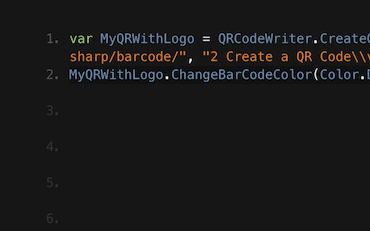
QR .NET C# VB

Jenny 的團隊每天使用 IronBarcode 寫數以千計的 QR 碼。查看他們的教程以充分利用 IronBarcode...
Jenny 團隊的 QR 編寫教程





Iron 團隊在 .NET 軟體元件市場擁有超過 10 年的經驗。










不需要信用卡

您的試用授權金鑰應在電子郵件中。如果沒有,請聯絡試用表單已成功提交
。
support@ironsoftware.com
不需要信用卡

 免費開始
免費開始在生產環境中測試而不帶水印。
適用於您所需的任何地方。
獲得 30 天完整功能產品。
幾分鐘內即可運行。
在您的產品試用期間全面訪問我們的支援技術團隊
 免費開始
免費開始 預訂免費直播演示
產品與其關鍵功能的即時展示
獲取項目特定的功能建議
我們會回答您所有的問題,以確保您掌握所有需要的資訊。(絕無承諾)。
預訂免費直播演示



無任何限制。100% 解鎖。無需信用卡。
 無需信用卡或建立帳號無任何限制。100% 解鎖。無需信用卡。




預訂無義務諮詢

預訂30分鐘的個人演示。
無合約,無卡資訊,無承諾。







