









ライブ環境でテストする
ウォーターマークなしで本番環境でテスト。
必要な場所で動作します。


 バーコードクイックスタート
using IronBarCode;
using System.Drawing;

// Reading a barcode is easy with IronBarcode!
var resultFromFile = BarcodeReader.Read(@"file/barcode.png"); // From a file
var resultFromBitMap = BarcodeReader.Read(new Bitmap("barcode.bmp")); // From a bitmap
var resultFromImage = BarcodeReader.Read(Image.FromFile("barcode.jpg")); // From an image file
var resultFromPdf = BarcodeReader.ReadPdf(@"file/mydocument.pdf"); // From PDF use ReadPdf

// To configure and fine-tune barcode reading, utilize the BarcodeReaderOptions class
var myOptionsExample = new BarcodeReaderOptions
{
    // Choose a reading speed from: Faster, Balanced, Detailed, ExtremeDetail
    // There is a tradeoff in performance as more detail is set
    Speed = ReadingSpeed.Balanced,

    // Reader will stop scanning once a single barcode is found (if set to true)
    ExpectMultipleBarcodes = true,

    // By default, all barcode formats are scanned for
    // Specifying a subset of barcode types to search for would improve performance
    ExpectBarcodeTypes = BarcodeEncoding.AllOneDimensional,

    // Utilize multiple threads to read barcodes from multiple images in parallel
    Multithreaded = true,

    // Maximum threads for parallelized barcode reading
    // Default is 4
    MaxParallelThreads = 2,

    // The area of each image frame in which to scan for barcodes
    // Specifying a crop area will significantly improve performance and avoid noisy parts of the image
    CropArea = new Rectangle(),

    // Special setting for Code39 barcodes
    // If a Code39 barcode is detected, try to read with both the base and extended ASCII character sets
    UseCode39ExtendedMode = true
};

// Read with the options applied
var results = BarcodeReader.Read("barcode.png", myOptionsExample);

// Create a barcode with one line of code
var myBarcode = BarcodeWriter.CreateBarcode("12345", BarcodeWriterEncoding.EAN8);

// After creating a barcode, we may choose to resize
myBarcode.ResizeTo(400, 100);

// Save our newly-created barcode as an image
myBarcode.SaveAsImage("EAN8.jpeg");

// Get the barcode as an image for further processing
var myBarcodeImage = myBarcode.Image;
Imports IronBarCode
Imports System.Drawing
' Reading a barcode is easy with IronBarcode!
Dim resultFromFile = BarcodeReader.Read("file/barcode.png") ' From a file
Dim resultFromBitMap = BarcodeReader.Read(New Bitmap("barcode.bmp")) ' From a bitmap
Dim resultFromImage = BarcodeReader.Read(Image.FromFile("barcode.jpg")) ' From an image file
Dim resultFromPdf = BarcodeReader.ReadPdf("file/mydocument.pdf") ' From PDF use ReadPdf
' To configure and fine-tune barcode reading, utilize the BarcodeReaderOptions class
Dim myOptionsExample As New BarcodeReaderOptions With {
' Choose a reading speed from: Faster, Balanced, Detailed, ExtremeDetail
' There is a tradeoff in performance as more detail is set
.Speed = ReadingSpeed.Balanced,
' Reader will stop scanning once a single barcode is found (if set to true)
.ExpectMultipleBarcodes = True,
' By default, all barcode formats are scanned for
' Specifying a subset of barcode types to search for would improve performance
.ExpectBarcodeTypes = BarcodeEncoding.AllOneDimensional,
' Utilize multiple threads to read barcodes from multiple images in parallel
.Multithreaded = True,
' Maximum threads for parallelized barcode reading
' Default is 4
.MaxParallelThreads = 2,
' The area of each image frame in which to scan for barcodes
' Specifying a crop area will significantly improve performance and avoid noisy parts of the image
.CropArea = New Rectangle(),
' Special setting for Code39 barcodes
' If a Code39 barcode is detected, try to read with both the base and extended ASCII character sets
.UseCode39ExtendedMode = True
}
' Read with the options applied
Dim results = BarcodeReader.Read("barcode.png", myOptionsExample)
' Create a barcode with one line of code
Dim myBarcode = BarcodeWriter.CreateBarcode("12345", BarcodeWriterEncoding.EAN8)
' After creating a barcode, we may choose to resize
myBarcode.ResizeTo(400, 100)
' Save our newly-created barcode as an image
myBarcode.SaveAsImage("EAN8.jpeg")
' Get the barcode as an image for further processing
Dim myBarcodeImage = myBarcode.Image
Install-Package BarCode
IronBarcodeは、画像ファイル(jpeg、png、jpg)から、変数を渡したいプログラム的なフォーマットまで、さまざまな標準フォーマットをサポートしています。さらに、PDFなどの外部形式もサポートしており、IronBarcodeをあらゆるコードベースにシームレスに統合し、開発者にファイル形式と変数の柔軟性を提供します。
IronBarcodeはすべてのファイル形式に対応したバーコードリーダーとしてだけでなく、Code39などの標準エンコーディングとフォーマットをサポートするバーコード生成機能も兼ねています。 バーコードジェネレータのセットアップには、わずか2行のコードを必要とします。 参加のバリアが低く、多くのカスタマイズオプションを開発者に提供するIronBarcodeは、バーコードに関連するすべての状況においてナンバーワンの選択肢です。
まず、必要なライブラリ、例えば12345を持つバーコードを作成します。 その後、生成されたバーコードを希望するフォーマットで画像として保存します。 IronBarcodeは、バーコードをBitmapとして作成することをサポートしているため、さまざまなオプションがあります。
上記の通り、IronBarcodeを使用してバーコードを生成するには、たった2行のコードで、後で利用するためにファイルとして保存します。 IronBarcodeはさらに、状況に応じてカスタマイズできるオプションの数々を開発者に提供します。
ResizeToメソッドを使用し、高さと幅を渡してバーコード画像のサイズを変更できます。
上記と同様に、まずReadメソッドにファイルパスを渡して、後で使用するためにバリアブルとして保存し、バーコードオブジェクトを操作します。 PDFのような外部形式を読み取るための指定されたメソッドがあります。ReadPDF しかし、一般的な画像形式やビットマップにはReadを使用します。
IronBarcodeは、標準ファイル形式からバーコードをスキャンすることを開発者に可能にします。 しかし、開発者がBarcodeReaderOptionsメソッドの動作を微調整したい状況があり、特にプログラムでバーコードファイルのバッチを読み取る場合です。 このときBarcodeReaderOptionsが登場します。 IronBarcodeは、ExpectBarcodeTypesで完全にカスタマイズすることができます。 これにより、開発者は複数のスレッドを使用して複数の画像からバーコードを並行して読み取ることができ、並行読み取り時に使用するスレッドの数を制御することができます。
これらは、IronBarcodeの力を示すプロパティのいくつかに過ぎません。 完全なリストについては、ドキュメントを参照してください。
不完全なバーコードと画像補正
using IronBarCode;
using IronSoftware.Drawing;

// Choose which filters are to be applied (in order)
// Set cacheAtEachIteration = true to save the intermediate image data after each filter is applied
var filtersToApply = new ImageFilterCollection(cacheAtEachIteration: true) {
    new SharpenFilter(),
    new InvertFilter(),
    new ContrastFilter(),
    new BrightnessFilter(),
    new AdaptiveThresholdFilter(),
    new BinaryThresholdFilter(),
    new GaussianBlurFilter(),
    new MedianBlurFilter(),
    new BilateralFilter()
};

BarcodeReaderOptions myOptionsExample = new BarcodeReaderOptions()
{
    // Set chosen filters in BarcodeReaderOptions
    ImageFilters = filtersToApply,

    Speed = ReadingSpeed.Balanced,
    ExpectMultipleBarcodes = true,
};

// Read with the options applied
BarcodeResults results = BarcodeReader.Read("screenshot.png", myOptionsExample);

AnyBitmap[] filteredImages = results.FilterImages();

// Export intermediate image files to disk
for (int i = 0 ; i < filteredImages.Length ; i++)
    filteredImages[i].SaveAs($"{i}_barcode.png");

// Or
results.ExportFilterImagesToDisk("filter-result.jpg");
Imports IronBarCode
Imports IronSoftware.Drawing
' Choose which filters are to be applied (in order)
' Set cacheAtEachIteration = true to save the intermediate image data after each filter is applied
Private filtersToApply = New ImageFilterCollection(cacheAtEachIteration:= True) From {
New SharpenFilter(),
New InvertFilter(),
New ContrastFilter(),
New BrightnessFilter(),
New AdaptiveThresholdFilter(),
New BinaryThresholdFilter(),
New GaussianBlurFilter(),
New MedianBlurFilter(),
New BilateralFilter()
}
Private myOptionsExample As New BarcodeReaderOptions() With {
.ImageFilters = filtersToApply,
.Speed = ReadingSpeed.Balanced,
.ExpectMultipleBarcodes = True
}
' Read with the options applied
Private results As BarcodeResults = BarcodeReader.Read("screenshot.png", myOptionsExample)
Private filteredImages() As AnyBitmap = results.FilterImages()
' Export intermediate image files to disk
For i As Integer = 0 To filteredImages.Length - 1
filteredImages(i).SaveAs($"{i}_barcode.png")
Next i
' Or
results.ExportFilterImagesToDisk("filter-result.jpg")Install-Package BarCode
IronBarcodeは、BarcodeReaderOptions内で簡単に適用できる多くの画像前処理フィルターを提供しています。 例えば、Contrastのようなフィルターを選択すると、画像の読み取りが改善されるかもしれません。 選択した順序が適用される順序であることに注意してください。
各フィルター適用後の中間画像データを保存するオプションがあります。 これはSaveAtEachIterationプロパティで切り替えることができます。
コード例の主要ポイント:
Contrastなどのさまざまな画像フィルターで設定します。trueに設定することで、ライブラリは各フィルター適用後に中間画像を保存し、デバッグや分析に役立ちます。
バーコード画像の作成
using IronBarCode;
using System.Drawing;

/*** CREATING BARCODE IMAGES ***/

// Create and save a barcode in a single line of code
BarcodeWriter.CreateBarcode("12345", BarcodeWriterEncoding.EAN8).ResizeTo(400, 100).SaveAsImage("EAN8.jpeg");

/*****  IN-DEPTH BARCODE CREATION OPTIONS *****/

// BarcodeWriter.CreateBarcode creates a GeneratedBarcode which can be styled and exported as an Image object or file
GeneratedBarcode MyBarCode = BarcodeWriter.CreateBarcode("Any Number, String or Binary Value", BarcodeWriterEncoding.Code128);

// Style the Barcode in a fluent LINQ-style fashion
MyBarCode.ResizeTo(300, 150).SetMargins(20).AddAnnotationTextAboveBarcode("Example EAN8 Barcode").AddBarcodeValueTextBelowBarcode();
MyBarCode.ChangeBackgroundColor(Color.LightGoldenrodYellow);

// Save the barcode as an image file
MyBarCode.SaveAsImage("MyBarCode.png");
MyBarCode.SaveAsGif("MyBarCode.gif");
MyBarCode.SaveAsHtmlFile("MyBarCode.html");
MyBarCode.SaveAsJpeg("MyBarCode.jpg");
MyBarCode.SaveAsPdf("MyBarCode.Pdf");
MyBarCode.SaveAsPng("MyBarCode.png");
MyBarCode.SaveAsTiff("MyBarCode.tiff");
MyBarCode.SaveAsWindowsBitmap("MyBarCode.bmp");

// Save the barcode as a .NET native object
Image MyBarCodeImage = MyBarCode.Image;
Bitmap MyBarCodeBitmap = MyBarCode.ToBitmap();

byte[] PngBytes = MyBarCode.ToPngBinaryData();

using (System.IO.Stream PdfStream = MyBarCode.ToPdfStream())
{
    // Stream barcode image output also works for GIF, JPEG, PDF, PNG, BMP and TIFF
}

// Save MyBarCode as an HTML file or tag
MyBarCode.SaveAsHtmlFile("MyBarCode.Html");
string ImgTagForHTML = MyBarCode.ToHtmlTag();
string DataURL = MyBarCode.ToDataUrl();

// Save MyBarCode to a new PDF, or stamp it in any position on any page(s) of an existing document
MyBarCode.SaveAsPdf("MyBarCode.Pdf");
MyBarCode.StampToExistingPdfPage("ExistingPDF.pdf", 200, 50, 1);  // Position (200, 50) on page 1
MyBarCode.StampToExistingPdfPages("ExistingPDF.pdf", 200, 50, new[] { 1, 2, 3 }, "Password123");  // Multiple pages of an encrypted PDF
Imports IronBarCode
Imports System.Drawing
'''* CREATING BARCODE IMAGES **
' Create and save a barcode in a single line of code
BarcodeWriter.CreateBarcode("12345", BarcodeWriterEncoding.EAN8).ResizeTo(400, 100).SaveAsImage("EAN8.jpeg")
'''*** IN-DEPTH BARCODE CREATION OPTIONS ****
' BarcodeWriter.CreateBarcode creates a GeneratedBarcode which can be styled and exported as an Image object or file
Dim MyBarCode As GeneratedBarcode = BarcodeWriter.CreateBarcode("Any Number, String or Binary Value", BarcodeWriterEncoding.Code128)
' Style the Barcode in a fluent LINQ-style fashion
MyBarCode.ResizeTo(300, 150).SetMargins(20).AddAnnotationTextAboveBarcode("Example EAN8 Barcode").AddBarcodeValueTextBelowBarcode()
MyBarCode.ChangeBackgroundColor(Color.LightGoldenrodYellow)
' Save the barcode as an image file
MyBarCode.SaveAsImage("MyBarCode.png")
MyBarCode.SaveAsGif("MyBarCode.gif")
MyBarCode.SaveAsHtmlFile("MyBarCode.html")
MyBarCode.SaveAsJpeg("MyBarCode.jpg")
MyBarCode.SaveAsPdf("MyBarCode.Pdf")
MyBarCode.SaveAsPng("MyBarCode.png")
MyBarCode.SaveAsTiff("MyBarCode.tiff")
MyBarCode.SaveAsWindowsBitmap("MyBarCode.bmp")
' Save the barcode as a .NET native object
Dim MyBarCodeImage As Image = MyBarCode.Image
Dim MyBarCodeBitmap As Bitmap = MyBarCode.ToBitmap()
Dim PngBytes() As Byte = MyBarCode.ToPngBinaryData()
Using PdfStream As System.IO.Stream = MyBarCode.ToPdfStream()
' Stream barcode image output also works for GIF, JPEG, PDF, PNG, BMP and TIFF
End Using
' Save MyBarCode as an HTML file or tag
MyBarCode.SaveAsHtmlFile("MyBarCode.Html")
Dim ImgTagForHTML As String = MyBarCode.ToHtmlTag()
Dim DataURL As String = MyBarCode.ToDataUrl()
' Save MyBarCode to a new PDF, or stamp it in any position on any page(s) of an existing document
MyBarCode.SaveAsPdf("MyBarCode.Pdf")
MyBarCode.StampToExistingPdfPage("ExistingPDF.pdf", 200, 50, 1) ' Position (200, 50) on page 1
MyBarCode.StampToExistingPdfPages("ExistingPDF.pdf", 200, 50, { 1, 2, 3 }, "Password123") ' Multiple pages of an encrypted PDFInstall-Package BarCode
この例では、さまざまな種類と形式のバーコードが作成、サイズ変更、保存できることがわかります。 おそらく、一行のコードで。
流暢なAPIを使用することで、生成されたbarcodeクラスは、マージンの設定、サイズ変更、バーコードへの注釈を追加するために使用できます。 その後、これらは画像として保存され、IronBarcodeがファイル名から自動的に適切な画像タイプを仮定します:GIF、HTMLファイル、HTMLタグ、JPEG、PDF、PNG、TIFF、およびWindowsビットマップ。
また、既存のPDFにバ―コードを生成しスタンプすることを可能にするStampToExistingPdfPageメソッドもあります。 これは、一般的なPDFを編集したり、バーコードを介してドキュメントに内部識別番号を追加したりする場合に便利です。
バーコードスタイリング & アノテーション
using IronBarCode;
using System;
using System.Drawing;

/*** STYLING GENERATED BARCODES  ***/

// BarcodeWriter.CreateBarcode creates a GeneratedBarcode object which allows the barcode to be styled and annotated.
GeneratedBarcode MyBarCode = BarcodeWriter.CreateBarcode("Iron Software", BarcodeWriterEncoding.QRCode);

// Any text (or commonly, the value of the barcode) can be added to the image in a default or specified font.
// Text positions are automatically centered, above or below. Fonts that are too large for a given image are automatically scaled down.
MyBarCode.AddBarcodeValueTextBelowBarcode();
MyBarCode.AddAnnotationTextAboveBarcode("This is my barcode");

// Resize, add margins and check final image dimensions
MyBarCode.ResizeTo(300, 300); // Resize in pixels
MyBarCode.SetMargins(0, 20, 0, 20); // Set margins in pixels

int FinalWidth = MyBarCode.Width;
int FinalHeight = MyBarCode.Height;

// Recolor the barcode and its background
MyBarCode.ChangeBackgroundColor(Color.LightGray);
MyBarCode.ChangeBarCodeColor(Color.DarkSlateBlue);
if (!MyBarCode.Verify())
{
    Console.WriteLine("Color contrast should be at least 50% or a barcode may become unreadable. Test using GeneratedBarcode.Verify()");
}

// Finally, save the result
MyBarCode.SaveAsHtmlFile("StyledBarcode.html");

/*** STYLING BARCODES IN A SINGLE LINQ-STYLE EXPRESSION ***/

// Create a barcode in one line of code
BarcodeWriter.CreateBarcode("https://ironsoftware.com", BarcodeWriterEncoding.Aztec).ResizeTo(250, 250).SetMargins(10).AddBarcodeValueTextAboveBarcode().SaveAsImage("StyledBarcode.png");

/*** STYLING QR CODES WITH LOGO IMAGES OR BRANDING ***/

// Use the QRCodeWriter.CreateQrCodeWithLogo Method instead of BarcodeWriter.CreateBarcode
// Logo will automatically be sized appropriately and snapped to the QR grid.

var qrCodeLogo = new QRCodeLogo("ironsoftware_logo.png");
GeneratedBarcode myQRCodeWithLogo = QRCodeWriter.CreateQrCodeWithLogo("https://ironsoftware.com/", qrCodeLogo);
myQRCodeWithLogo.ResizeTo(500, 500).SetMargins(10).ChangeBarCodeColor(Color.DarkGreen);
myQRCodeWithLogo.ResizeTo(500, 500).SetMargins(10).ChangeBarCodeColor(Color.DarkGreen);
myQRCodeWithLogo.SaveAsPng("QRWithLogo.Png").SaveAsPdf("MyVerifiedQR.html"); // Save as 2 different formats
Imports IronBarCode
Imports System
Imports System.Drawing
'*** STYLING GENERATED BARCODES ***
' BarcodeWriter.CreateBarcode creates a GeneratedBarcode object which allows the barcode to be styled and annotated.
Dim MyBarCode As GeneratedBarcode = BarcodeWriter.CreateBarcode("Iron Software", BarcodeWriterEncoding.QRCode)
' Any text (or commonly, the value of the barcode) can be added to the image in a default or specified font.
' Text positions are automatically centered, above or below. Fonts that are too large for a given image are automatically scaled down.
MyBarCode.AddBarcodeValueTextBelowBarcode()
MyBarCode.AddAnnotationTextAboveBarcode("This is my barcode")
' Resize, add margins and check final image dimensions
MyBarCode.ResizeTo(300, 300) ' Resize in pixels
MyBarCode.SetMargins(0, 20, 0, 20) ' Set margins in pixels
Dim FinalWidth As Integer = MyBarCode.Width
Dim FinalHeight As Integer = MyBarCode.Height
' Recolor the barcode and its background
MyBarCode.ChangeBackgroundColor(Color.LightGray)
MyBarCode.ChangeBarCodeColor(Color.DarkSlateBlue)
If Not MyBarCode.Verify() Then
Console.WriteLine("Color contrast should be at least 50% or a barcode may become unreadable. Test using GeneratedBarcode.Verify()")
End If
' Finally, save the result
MyBarCode.SaveAsHtmlFile("StyledBarcode.html")
'*** STYLING BARCODES IN A SINGLE LINQ-STYLE EXPRESSION ***
' Create a barcode in one line of code
BarcodeWriter.CreateBarcode("https://ironsoftware.com", BarcodeWriterEncoding.Aztec).ResizeTo(250, 250).SetMargins(10).AddBarcodeValueTextAboveBarcode().SaveAsImage("StyledBarcode.png")
'*** STYLING QR CODES WITH LOGO IMAGES OR BRANDING ***
' Use the QRCodeWriter.CreateQrCodeWithLogo Method instead of BarcodeWriter.CreateBarcode
' Logo will automatically be sized appropriately and snapped to the QR grid.
Dim qrCodeLogo = New QRCodeLogo("ironsoftware_logo.png")
Dim myQRCodeWithLogo As GeneratedBarcode = QRCodeWriter.CreateQrCodeWithLogo("https://ironsoftware.com/", qrCodeLogo)
myQRCodeWithLogo.ResizeTo(500, 500).SetMargins(10).ChangeBarCodeColor(Color.DarkGreen)
myQRCodeWithLogo.ResizeTo(500, 500).SetMargins(10).ChangeBarCodeColor(Color.DarkGreen)
myQRCodeWithLogo.SaveAsPng("QRWithLogo.Png").SaveAsPdf("MyVerifiedQR.html") ' Save as 2 different formatsInstall-Package BarCode
このサンプルでは、バーコードが選択したテキストやbarcode自身の値で注釈を付けることができ、ターゲットマシンにインストールされている任意の書体を使用できます。その書体が利用できない場合、適切な類似書体が選ばれます。 バーコードはサイズ変更可能で、余白を追加したり、barcodeと背景の色を変更することができます。 その後、適切な形式で保存できます。
コードの最後の数行で、当社の流暢なスタイルオペレーターを使用して、System.Linqに似て確認できます。
バーコードをHTMLとしてエクスポート
using IronBarCode;

GeneratedBarcode MyBarCode = BarcodeWriter.CreateBarcode("1234567890", BarcodeWriterEncoding.Code128);

// Save as a stand-alone HTML file without any image assets
MyBarCode.SaveAsHtmlFile("MyBarCode.html");

// Save as a stand-alone HTML image tag which can be served in HTML files, ASPX or MVC Views. No image assets required, the tag embeds the entire image in its source content
string ImgTag = MyBarCode.ToHtmlTag();

// Turn the image into a HTML/CSS Data URI.
string DataURI = MyBarCode.ToDataUrl();
Imports IronBarCode
Private MyBarCode As GeneratedBarcode = BarcodeWriter.CreateBarcode("1234567890", BarcodeWriterEncoding.Code128)
' Save as a stand-alone HTML file without any image assets
MyBarCode.SaveAsHtmlFile("MyBarCode.html")
' Save as a stand-alone HTML image tag which can be served in HTML files, ASPX or MVC Views. No image assets required, the tag embeds the entire image in its source content
Dim ImgTag As String = MyBarCode.ToHtmlTag()
' Turn the image into a HTML/CSS Data URI.
Dim DataURI As String = MyBarCode.ToDataUrl()Install-Package BarCode
IronBarcodeには非常に便利な機能があり、自己完結型のHTMLとしてバーコードをエクスポートできます。このため、関連する画像アセットは必要ありません。 すべてがHTMLファイル内に含まれています。
私たちはHTMLファイル、HTML画像タグ、またはデータURIとしてエクスポートすることができます。
この例では:
BarcodeWriter.CreateBarcodeを使用してバーコードを作成します。ToHtmlTag()は、ウェブページに埋め込むことができるHTML <img> タグを生成します。<img> タグや画像URLが必要なほぼどこでも使用できるデータURI文字列を作成します。SaveAsHtmlFile()は、すべての画像データをインラインで含むスタンドアロンのHTMLファイルとしてバーコードを保存し、持ち運びや共有が簡単です。
製品、統合、またはライセンスの問い合わせであろうと、Ironの製品開発チームはすべての質問に対応します。Ironと対話を始め、このライブラリをプロジェクトで最大限に活用してください。
質問をする
IronBarcode は、UPC A/E、EAN 8/13、Code 39、Code 93、Code 128、ITF、MSI、RSS 14/Expanded、Databar、CodaBar、QR、Styled QR、Data Matrix、MaxiCode、PDF417、Plessey、および Aztec などの大多数のバーコードおよび QR 規格を読み取り、生成します。結果はバーコードデータ、種類、ページ、テキスト、およびバーコード画像を提供し、アーカイブまたはインデックスシステムに最適です。
完全な機能一覧を見る
IronBarcode は自動的にバーコード画像を事前処理して速度と精度を向上させます。回転、ノイズ、歪み、傾きを補正して、スキャンまたはライブビデオフレームを読み取ります。バッチ処理サーバーアプリケーションに対応したマルチコア、マルチスレッドに準備ができています。単一および複数ページのドキュメントで1つまたは複数のバーコードを自動的に見つけます。複雑なAPIを必要とせずに特定のバーコードタイプまたはドキュメントの場所を検索します。
さらに詳しく知る
PDF、JPG、TIFF、GIF、BMP、PNG、HTML 形式としてファイルまたはストリームに保存または印刷します。色、品質、回転、サイズ、テキストを設定します。C# バーコードプログラミング ツールボックスを IronPDF および IronOCR と一緒に使用して、完全な.NET ドキュメントライブラリを利用します。
さらに詳しく知る





C# .NET バーコード QR

Frank が C# .NET バーコードアプリケーション内で IronBarcode を使用してスキャン、写真、PDF ドキュメントからバーコードを読む方法をご覧ください…
Frank のバーコード読み取りチュートリアルを見る
C# .NET バーコード

Francesca は C# または VB アプリケーションで画像にバーコードを書き込むためのいくつかのヒントとコツを共有します。IronBarcode で利用できるすべてのオプションをどのように活用してバーコードを書くかをご覧ください…
Francesca のバーコードチュートリアルを見る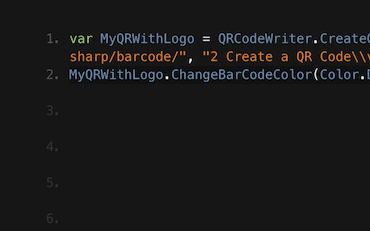
QR .NET C# VB

Jenny のチームは IronBarcode を使って毎日何千もの QR を書いています。IronBarcode を最大限に活用するためのチュートリアルをご覧ください…
Jenny のチームによる QR 書き込みチュートリアル





Ironのチームは、.NETソフトウェアコンポーネント市場で10年以上の経験があります。










Install-Package BarCode


クレジットカード不要

試用キーはメールに届いているはずです。トライアルフォームが正常に
送信されました。
もし届いていない場合は
support@ironsoftware.comにご連絡ください。
クレジットカード不要

 無料で始めましょう
ウォーターマークなしで本番環境でテスト。
必要な場所で動作します。
完全に機能する製品を30日間利用できます。
数分でセットアップして稼働します。
製品試用期間中、サポートエンジニアリングチームへのフルアクセス
 無料で始めましょう
 無料ライブデモを予約
製品とその主要機能のライブデモをご覧いただけます。
NuGetでインストール
あなたが必要なすべての情報を持っていることを確認するために、すべての質問にお答えします。(コミットメントは一切ありません)。
無料ライブデモを予約



制限なし。100% ロック解除済み。クレジットカード不要。
 クレジットカードやアカウントの作成は不要です。制限なし。100% ロック解除済み。クレジットカード不要。




義務のない相談を予約

下記のフォームを記入するか、sales@ironsoftware.comにメールしてください。
あなたの詳細は常に守秘されます。

30分間の個別デモを予約してください。
契約なし、カード詳細なし、コミットメントなし。






