Word application documents are integral to various aspects of professional and personal communication. The ability to manipulate and interact with Microsoft Word document files programmatically is essential for developers looking to automate tasks or integrate document processing into their applications. To be able to work with a Microsoft Word document programmatically in C#, there are many document libraries available. One such library is IronWord, a robust C# Word DOCX library by Iron Software that simplifies working with Word documents in .NET applications.
In this article, we'll explore the robust IronWord - The C# Library, its features, opening Word document collection, and reading data from it.
How to Open Word Documents Collection in C#
- Create a Console Application in Visual Studio
- Install IronWord C# DOCX library
- Open Word document using WordDocument class
- Loop through each paragraph using the Paragraph class
- Run TextRuns on each Paragraph
- Display the contents or Save with SaveAs method
IronWord - The C# DOCX Library
IronWord is a feature-rich C# Word DOCX library developed by Iron Software. It offers a user-friendly API that empowers developers to work with Word documents in their .NET applications with ease. Whether you're creating new Word documents, editing existing ones, or extracting content, IronWord provides a comprehensive set of tools to streamline the process.
Feature Set
IronWord is designed to be versatile, supporting various .NET versions, including .NET 8, 7, 6, Framework, Core, and Azure. Developers can utilize it across different platforms such as Windows, Linux, macOS, iOS, Android, making it adaptable to a wide range of .NET application development scenarios.
2. Document Manipulation
IronWord's capabilities extend beyond simple document creation. It allows for intricate document manipulation, including text and paragraph formatting, image and shape integration, table creation, and much more. This versatility makes IronWord suitable for a variety of applications where precise control over document structure and content is essential.
3. No Dependencies on Microsoft Office
One notable feature of IronWord is its independence from Microsoft Office installations or Word Interop. This means no Word application is required. Developers can harness its functionality without worrying about additional dependencies, ensuring a smoother and more efficient development process.
4. Ease of Use
The library is crafted with a user-friendly API, allowing developers to seamlessly integrate Word document processing functionality into their .NET projects. Moreover, IronWord eliminates the need for installing Microsoft Office or Word Interop, ensuring a hassle-free development experience.
Prerequisites
Before diving into the world of IronWord, make sure you have the following prerequisites in place:
- Visual Studio: Ensure you have a working installation of Visual Studio, a popular integrated development environment for .NET development. You can download it from here.
- IronWord: You need to download the library to use its features. You can download NuGet package directly from here.
Setting Up the Environment
To begin, open Visual Studio, and you'll see the welcome screen.
1. Create a New .NET Framework Console Application
Click on "Create a new project." Search for "Console App (.NET Framework)," select it from the list, and click "Next." Name your project and click "Create." Visual Studio will set up a new .NET Framework console application with a basic template, including a Main method as the entry point.

2. Install IronWord Using the NuGet Package Manager
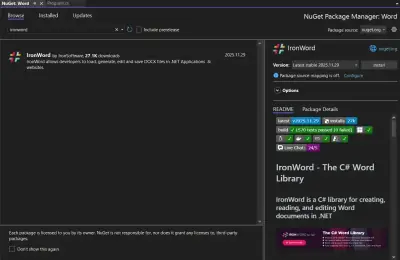
In Visual Studio, navigate to the "Tools" menu, select "NuGet Package Manager," and then "Manage NuGet Packages for Solution." In the NuGet window, go to the "Browse" tab, type "IronWord" in the search box, and hit enter. Select the package from the results, ensure your console application project is checked on the right, and click "Install." This will add the necessary references for using IronWord within your C# application. Now you're ready to begin using IronWord to work with Word documents.

3. Add Reference to IronWord in Code:
In your C# code file, add the following using statement in the Program.cs file to reference IronWord:
using IronWord;
using IronWord;
Imports IronWord
Imports IronWord
Imports IronWord
Steps to Open a Word Document and Read Contents
Now that our project is set up, follow these steps to open a Word document and read its contents using IronWord:
- Load an Existing Document:
// Load an existing Word document file
WordDocument doc = new WordDocument("existing_document.docx");
// Load an existing Word document file
WordDocument doc = new WordDocument("existing_document.docx");
// Load an existing Word document file
WordDocument doc = new WordDocument("existing_document.docx");
' Load an existing Word document file
Dim doc As New WordDocument("existing_document.docx")
' Load an existing Word document file
Dim doc As New WordDocument("existing_document.docx")
' Load an existing Word document file
Dim doc As New WordDocument("existing_document.docx")
In this step, we create an instance of the WordDocument class from the IronWord library. We use the constructor that takes the path to an existing input Word document (existing_document.docx). This initializes the doc object, representing the loaded Word document from the input file.
Input File:

- Read and Manipulate Content:
The following code helps in reading the text content from the opened document file:
// Access paragraphs and text runs
foreach (Paragraph paragraph in doc.Paragraphs)
{
    foreach (TextRun textRun in paragraph.TextRuns)
    {
        // Access the text content of each text run
        string content = textRun.Text;
        // Display content on the console
        Console.WriteLine(content);
    }
}
// Access paragraphs and text runs
foreach (Paragraph paragraph in doc.Paragraphs)
{
    foreach (TextRun textRun in paragraph.TextRuns)
    {
        // Access the text content of each text run
        string content = textRun.Text;
        // Display content on the console
        Console.WriteLine(content);
    }
}
// Access paragraphs and text runs
foreach (Paragraph paragraph in doc.Paragraphs)
{
    foreach (TextRun textRun in paragraph.TextRuns)
    {
        // Access the text content of each text run
        string content = textRun.Text;
        // Display content on the console
        Console.WriteLine(content);
    }
}
' Access paragraphs and text runs
For Each paragraph As Paragraph In doc.Paragraphs
For Each textRun As TextRun In paragraph.TextRuns
' Access the text content of each text run
Dim content As String = textRun.Text
' Display content on the console
Console.WriteLine(content)
Next textRun
Next paragraph
' Access paragraphs and text runs
For Each paragraph As Paragraph In doc.Paragraphs
	For Each textRun As TextRun In paragraph.TextRuns
		' Access the text content of each text run
		Dim content As String = textRun.Text
		' Display content on the console
		Console.WriteLine(content)
	Next textRun
Next paragraph
' Access paragraphs and text runs
For Each paragraph As Paragraph In doc.Paragraphs
	For Each textRun As TextRun In paragraph.TextRuns
		' Access the text content of each text run
		Dim content As String = textRun.Text
		' Display content on the console
		Console.WriteLine(content)
	Next textRun
Next paragraph
Here, we iterate through the paragraphs and text runs within the loaded Word document (doc). The foreach loop allows us to traverse each paragraph, and nested within it, each text run. For each textRun, we can access the text content using textRun.Text. This is the point where you can perform any desired manipulations, such as extracting information or modifying the text content programmatically.
- Displaying Contents and Output:
// Display contents
Console.WriteLine(content);
// Display contents
Console.WriteLine(content);
// Display contents
Console.WriteLine(content);
' Display contents
Console.WriteLine(content)
' Display contents
Console.WriteLine(content)
' Display contents
Console.WriteLine(content)
In the second foreach loop of the previous step, we are displaying the visible word contents on the console output screen. We can also save some part of the opened document as a new document:
// Method to save changes to the document
doc.SaveAs("modified_document.docx");
// Method to save changes to the document
doc.SaveAs("modified_document.docx");
// Method to save changes to the document
doc.SaveAs("modified_document.docx");
' Method to save changes to the document
doc.SaveAs("modified_document.docx")
' Method to save changes to the document
doc.SaveAs("modified_document.docx")
' Method to save changes to the document
doc.SaveAs("modified_document.docx")
The complete program code goes as follows:
using IronWord;
using IronWord.Models;

namespace IronWordExample
{
    // Main program class
    class Program
    {
        // Main method - Entry point of the application
        public static void Main(string[] args)
        {
            // Load existing Word doc file
            WordDocument doc = new WordDocument("existing_document.docx");

            // Access paragraphs and text runs
            foreach (Paragraph paragraph in doc.Paragraphs)
            {
                foreach (TextRun textRun in paragraph.TextRuns)
                {
                    // Access text content
                    string content = textRun.Text;
                    // Display Contents
                    Console.WriteLine(content);
                }
            }

            // Save changes to the document
            doc.SaveAs("modified_document.docx");
        }
    }
}
using IronWord;
using IronWord.Models;

namespace IronWordExample
{
    // Main program class
    class Program
    {
        // Main method - Entry point of the application
        public static void Main(string[] args)
        {
            // Load existing Word doc file
            WordDocument doc = new WordDocument("existing_document.docx");

            // Access paragraphs and text runs
            foreach (Paragraph paragraph in doc.Paragraphs)
            {
                foreach (TextRun textRun in paragraph.TextRuns)
                {
                    // Access text content
                    string content = textRun.Text;
                    // Display Contents
                    Console.WriteLine(content);
                }
            }

            // Save changes to the document
            doc.SaveAs("modified_document.docx");
        }
    }
}
using IronWord;
using IronWord.Models;

namespace IronWordExample
{
    // Main program class
    class Program
    {
        // Main method - Entry point of the application
        public static void Main(string[] args)
        {
            // Load existing Word doc file
            WordDocument doc = new WordDocument("existing_document.docx");

            // Access paragraphs and text runs
            foreach (Paragraph paragraph in doc.Paragraphs)
            {
                foreach (TextRun textRun in paragraph.TextRuns)
                {
                    // Access text content
                    string content = textRun.Text;
                    // Display Contents
                    Console.WriteLine(content);
                }
            }

            // Save changes to the document
            doc.SaveAs("modified_document.docx");
        }
    }
}
Imports IronWord
Imports IronWord.Models
Namespace IronWordExample
' Main program class
Friend Class Program
' Main method - Entry point of the application
Public Shared Sub Main(ByVal args() As String)
' Load existing Word doc file
Dim doc As New WordDocument("existing_document.docx")
' Access paragraphs and text runs
For Each paragraph As Paragraph In doc.Paragraphs
For Each textRun As TextRun In paragraph.TextRuns
' Access text content
Dim content As String = textRun.Text
' Display Contents
Console.WriteLine(content)
Next textRun
Next paragraph
' Save changes to the document
doc.SaveAs("modified_document.docx")
End Sub
End Class
End Namespace
Imports IronWord
Imports IronWord.Models

Namespace IronWordExample
	' Main program class
	Friend Class Program
		' Main method - Entry point of the application
		Public Shared Sub Main(ByVal args() As String)
			' Load existing Word doc file
			Dim doc As New WordDocument("existing_document.docx")

			' Access paragraphs and text runs
			For Each paragraph As Paragraph In doc.Paragraphs
				For Each textRun As TextRun In paragraph.TextRuns
					' Access text content
					Dim content As String = textRun.Text
					' Display Contents
					Console.WriteLine(content)
				Next textRun
			Next paragraph

			' Save changes to the document
			doc.SaveAs("modified_document.docx")
		End Sub
	End Class
End Namespace
Imports IronWord
Imports IronWord.Models

Namespace IronWordExample
	' Main program class
	Friend Class Program
		' Main method - Entry point of the application
		Public Shared Sub Main(ByVal args() As String)
			' Load existing Word doc file
			Dim doc As New WordDocument("existing_document.docx")

			' Access paragraphs and text runs
			For Each paragraph As Paragraph In doc.Paragraphs
				For Each textRun As TextRun In paragraph.TextRuns
					' Access text content
					Dim content As String = textRun.Text
					' Display Contents
					Console.WriteLine(content)
				Next textRun
			Next paragraph

			' Save changes to the document
			doc.SaveAs("modified_document.docx")
		End Sub
	End Class
End Namespace

To explore more functionalities IronWord can perform, please visit this code examples page.
Conclusion
In this article, we explored the capabilities of IronWord, a robust C# Word DOCX library that simplifies the process of opening and manipulating Word documents programmatically. By providing a rich feature set and eliminating dependencies on external software, IronWord empowers developers to seamlessly integrate document processing into their .NET applications. Whether you're automating document-related tasks or enhancing experiences, IronWord proves to be a valuable tool in your .NET toolkit.
To learn more and start incorporating IronWord into your new application projects, visit the documentation page.
IronWord offers a free-trial to test out its complete functionality. This helps you make an informed decision before purchasing it. Its Lite license starts from $999 and further details can be found on this license page.
Try IronWord for free from here.