



Jak odczytywać pliki Excel w C# bez użycia Interop: Kompletny przewodnik dla deweloperów

Opanuj manipulacje plikami Excel w C# za pomocą IronXL—potężnej biblioteki .NET, która czyta, weryfikuje i eksportuje dane z arkuszy kalkulacyjnych bez potrzeby instalacji Microsoft Office. Ten obszerny samouczek pokazuje praktyczne operacje Excel, w tym weryfikacje danych, konwersje do bazy danych i integracje z interfejsem REST API.
Szybki start: Odczyt komórki za pomocą IronXL w jednej linii
W jednej linii można załadować skoroszyt Excel i pobrać wartość komórki za pomocą IronXL. Zaprojektowane z myślą o prostocie—bez Interop, bez skomplikowanej konfiguracji—jedynie szybki dostęp do danych.
-
Install IronXL with NuGet Package Manager
PM > Install-Package IronXl.Excel -
Skopiuj i uruchom ten fragment kodu.
var value = IronXl.WorkBook.Load("file.xlsx").GetWorkSheet(0)["A1"].StringValue; -
Wdrożenie do testowania w środowisku produkcyjnym
Rozpocznij używanie IronXL w swoim projekcie już dziś z darmową wersją próbną

Jak skonfigurować IronXL do odczytu plików Excel w C#?
Konfiguracja IronXL do odczytu plików Excel w projekcie C# zajmuje zaledwie kilka minut. Biblioteka obsługuje zarówno formaty .XLS, jak i .XLSX, czyniąc ją wszechstronną dla każdej pracy związanej z Excelem.
Aby rozpocząć, wykonaj następujące kroki:
- Pobierz bibliotekę C# do odczytu plików Excel
- Załaduj i odczytaj skoroszyty Excel za pomocą
WorkBook.Load() - Uzyskaj dostęp do arkuszy za pomocą metody
GetWorkSheet() - Odczytaj wartości komórek, używając intuicyjnej składni, takiej jak
sheet["A1"].Value - Programowe sprawdzanie poprawności i przetwarzanie danych z arkuszy kalkulacyjnych
- Eksportuj dane do baz danych za pomocą Entity Framework
IronXL doskonale radzi sobie z odczytywaniem i edycją dokumentów Microsoft Excel za pomocą języka C#. Biblioteka działa niezależnie — do działania nie wymaga ani programu Microsoft Excel, ani Interop. W rzeczywistości IronXL zapewnia szybszy i bardziej intuicyjny interfejs API niż Microsoft.Office.Interop.Excel.
IronXL zawiera:
- Dedykowane wsparcie produktówe zapewniane przez naszych inżynierów .NET
- Łatwa instalacja za pośrednictwem Microsoft Visual Studio
- Bezpłatna wersja próbna do celów programistycznych. Licencje z
liteLicense
Odczytywanie i tworzenie plików Excel w językach C# i VB.NET staje się proste dzięki bibliotece oprogramowania IronXL.
Odczytywanie plików Excel w formatach .XLS i .XLSX za pomocą IronXL
Oto podstawowy przebieg pracy przy odczytywaniu plików Excel za pomocą IronXL:
- Zainstaluj bibliotekę IronXL Excel za pomocą pakietu NuGet lub pobierz bibliotekę DLL .NET Excel
- Użyj metody
WorkBook.Load(), aby odczytać dowolny dokument XLS, XLSX lub CSV - Uzyskaj dostęp do wartości komórek, używając intuicyjnej składni:
sheet["A11"].DecimalValue
:path=/static-assets/excel/content-code-examples/tutorials/how-to-read-excel-file-csharp-1.csusing IronXL;
using System;
using System.Linq;
// Load Excel workbook from file path
WorkBook workBook = WorkBook.Load("test.xlsx");
// Access the first worksheet using LINQ
WorkSheet workSheet = workBook.WorkSheets.First();
// Read integer value from cell A2
int cellValue = workSheet["A2"].IntValue;
Console.WriteLine($"Cell A2 value: {cellValue}");
// Iterate through a range of cells
foreach (var cell in workSheet["A2:A10"])
{
Console.WriteLine("Cell {0} has value '{1}'", cell.AddressString, cell.Text);
}
// Advanced Operations with LINQ
// Calculate sum using built_in Sum() method
decimal sum = workSheet["A2:A10"].Sum();
// Find maximum value using LINQ
decimal max = workSheet["A2:A10"].Max(c => c.DecimalValue);
// Output calculated results
Console.WriteLine($"Sum of A2:A10: {sum}");
Console.WriteLine($"Maximum value: {max}");Imports IronXL
Imports System
Imports System.Linq
' Load Excel workbook from file path
Dim workBook As WorkBook = WorkBook.Load("test.xlsx")
' Access the first worksheet using LINQ
Dim workSheet As WorkSheet = workBook.WorkSheets.First()
' Read integer value from cell A2
Dim cellValue As Integer = workSheet("A2").IntValue
Console.WriteLine($"Cell A2 value: {cellValue}")
' Iterate through a range of cells
For Each cell In workSheet("A2:A10")
Console.WriteLine("Cell {0} has value '{1}'", cell.AddressString, cell.Text)
Next
' Advanced Operations with LINQ
' Calculate sum using built_in Sum() method
Dim sum As Decimal = workSheet("A2:A10").Sum()
' Find maximum value using LINQ
Dim max As Decimal = workSheet("A2:A10").Max(Function(c) c.DecimalValue)
' Output calculated results
Console.WriteLine($"Sum of A2:A10: {sum}")
Console.WriteLine($"Maximum value: {max}")Ten kod pokazuje kilka kluczowych funkcji IronXL: ładowanie skoroszytów, dostęp do komórek według adresu, iterowanie przez zakresy oraz wykonywanie obliczeń. Metoda WorkBook.Load() inteligentnie wykrywa formaty plików, podczas gdy składnia zakresu ["A2:A10"] zapewnia wybór komórek podobny do Excela. Integracja z LINQ umożliwia wykonywanie zaawansowanych zapytań i agregacji danych w zbiorach komórek.
Przykłady kodu w tym samouczku wykorzystują trzy przykładowe arkusze kalkulacyjne Excel, które przedstawiają różne scenariusze danych:
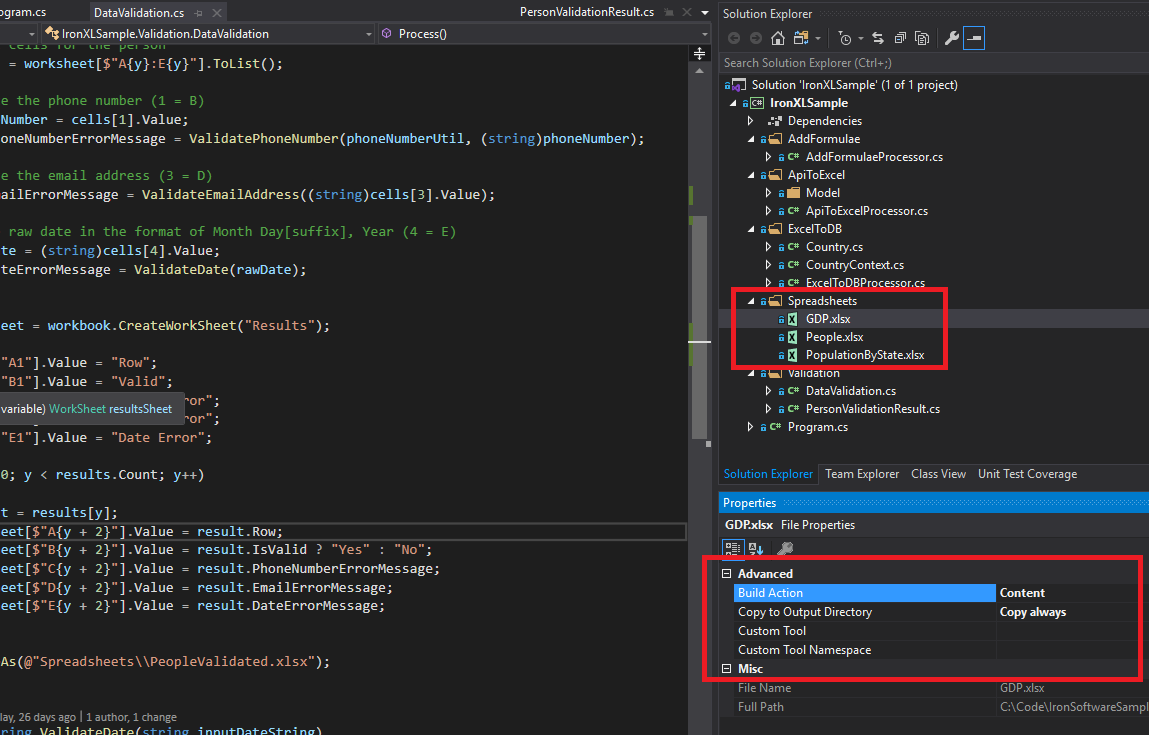 Przykładowe pliki Excel (GDP.xlsx, People.xlsx i PopulationByState.xlsx) wykorzystywane w tym samouczku do demonstracji różnych operacji IronXL.
Jak zainstalować bibliotekę IronXL C#?
Instalacja biblioteki IronXl.Excel dodaje kompleksową funkcjonalność Excela do projektów opartych na .NET framework. Wybierz między instalacją NuGet a ręczną integracją biblioteki DLL.
Instalacja pakietu IronXL NuGet
- W programie Visual Studio kliknij prawym przyciskiem myszy swój projekt i wybierz opcję "Zarządzaj pakietami NuGet...".
- Wyszukaj "IronXl.Excel" w zakładce Przeglądaj
- Kliknij przycisk "Zainstaluj", aby dodać IronXL do swojego projektu
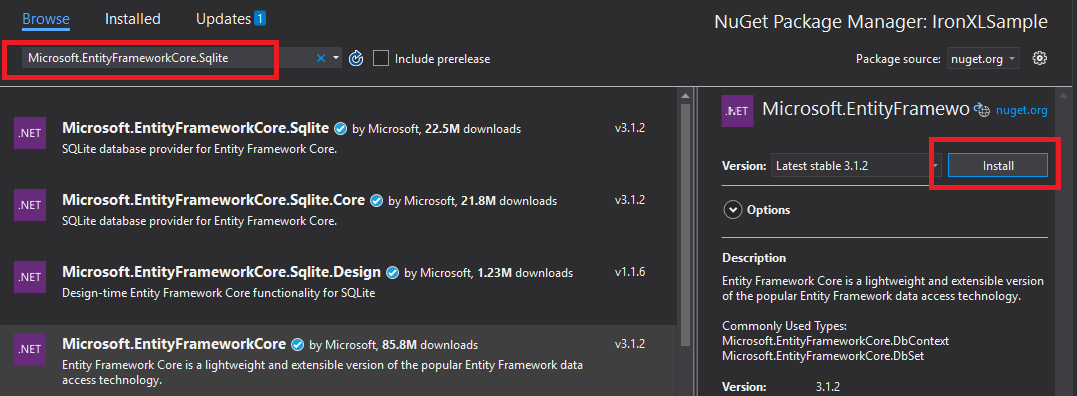 Instalacja IronXL za pośrednictwem menedżera pakietów NuGet w Visual Studio zapewnia automatyczne zarządzanie zależnościami.
Alternatywnie, zainstaluj IronXL za pomocą konsoli menedżera pakietów:
- Otwórz konsolę menedżera pakietów (Narzędzia → Menedżer pakietów NuGet → Konsola menedżera pakietów)
- Uruchom polecenie instalacyjne:
Install-Package IronXl.Excel
Szczegóły pakietu można również sprawdzić na stronie NuGet.
Instalacja ręczna
Aby zainstalować ręcznie, pobierz bibliotekę IronXL.Excel DLL i dodaj do niej odwołanie bezpośrednio w swoim projekcie Visual Studio.
Jak załadować i odczytać skoroszyt programu Excel?
WorkBook klasa reprezentuje cały plik Excel. Ładuj pliki Excel za pomocą metody WorkBook.Load(), która akceptuje ścieżki do plików w formatach XLS, XLSX, CSV i TSV.
:path=/static-assets/excel/content-code-examples/tutorials/how-to-read-excel-file-csharp-2.csusing IronXL;
using System;
using System.Linq;
// Load Excel file from specified path
WorkBook workBook = WorkBook.Load(@"Spreadsheets\GDP.xlsx");
Console.WriteLine("Workbook loaded successfully.");
// Access specific worksheet by name
WorkSheet sheet = workBook.GetWorkSheet("Sheet1");
// Read and display cell value
string cellValue = sheet["A1"].StringValue;
Console.WriteLine($"Cell A1 contains: {cellValue}");
// Perform additional operations
// Count non_empty cells in column A
int rowCount = sheet["A:A"].Count(cell => !cell.IsEmpty);
Console.WriteLine($"Column A has {rowCount} non_empty cells");Imports IronXL
Imports System
Imports System.Linq
' Load Excel file from specified path
Dim workBook As WorkBook = WorkBook.Load("Spreadsheets\GDP.xlsx")
Console.WriteLine("Workbook loaded successfully.")
' Access specific worksheet by name
Dim sheet As WorkSheet = workBook.GetWorkSheet("Sheet1")
' Read and display cell value
Dim cellValue As String = sheet("A1").StringValue
Console.WriteLine($"Cell A1 contains: {cellValue}")
' Perform additional operations
' Count non_empty cells in column A
Dim rowCount As Integer = sheet("A:A").Count(Function(cell) Not cell.IsEmpty)
Console.WriteLine($"Column A has {rowCount} non_empty cells")Każdy WorkBook zawiera wiele obiektów WorkSheet reprezentujących indywidualne arkusze Excela. Uzyskaj dostęp do arkuszy po nazwie używając GetWorkSheet():
:path=/static-assets/excel/content-code-examples/tutorials/how-to-read-excel-file-csharp-3.csusing IronXL;
using System;
// Get worksheet by name
WorkSheet workSheet = workBook.GetWorkSheet("GDPByCountry");
Console.WriteLine("Worksheet 'GDPByCountry' not found");
// List available worksheets
foreach (var sheet in workBook.WorkSheets)
{
Console.WriteLine($"Available: {sheet.Name}");
}Imports IronXL
Imports System
' Get worksheet by name
Dim workSheet As WorkSheet = workBook.GetWorkSheet("GDPByCountry")
Console.WriteLine("Worksheet 'GDPByCountry' not found")
' List available worksheets
For Each sheet In workBook.WorkSheets
Console.WriteLine($"Available: {sheet.Name}")
NextJak utworzyć nowe dokumenty Excel w języku C#?
Twórz nowe dokumenty Excel, konstruując obiekt WorkBook z żądanym formatem pliku. IronXL obsługuje zarówno nowoczesny format XLSX, jak i starszy format XLS.
:path=/static-assets/excel/content-code-examples/tutorials/how-to-read-excel-file-csharp-4.csusing IronXL;
// Create new XLSX workbook (recommended format)
WorkBook workBook = WorkBook.Create(ExcelFileFormat.XLSX);
// Set workbook metadata
workBook.Metadata.Author = "Your Application";
workBook.Metadata.Comments = "Generated by IronXL";
// Create new XLS workbook for legacy support
WorkBook legacyWorkBook = WorkBook.Create(ExcelFileFormat.XLS);
// Save the workbook
workBook.SaveAs("NewDocument.xlsx");Imports IronXL
' Create new XLSX workbook (recommended format)
Private workBook As WorkBook = WorkBook.Create(ExcelFileFormat.XLSX)
' Set workbook metadata
workBook.Metadata.Author = "Your Application"
workBook.Metadata.Comments = "Generated by IronXL"
' Create new XLS workbook for legacy support
Dim legacyWorkBook As WorkBook = WorkBook.Create(ExcelFileFormat.XLS)
' Save the workbook
workBook.SaveAs("NewDocument.xlsx")Uwaga: Używaj ExcelFileFormat.XLS tylko wtedy, gdy wymagana jest kompatybilność z Excela 2003 lub wcześniejszymi wersjami.
Jak dodać arkusze do dokumentu Excel?
Plik IronXL WorkBook zawiera kolekcję arkuszy. Zrozumienie tej struktury pomaga podczas tworzenia wielarkuszowych plików Excel.
 Wizualna reprezentacja struktury WorkBook zawierającej wiele obiektów WorkSheet w IronXL.
Twórz nowe arkusze za pomocą CreateWorkSheet():
:path=/static-assets/excel/content-code-examples/tutorials/how-to-read-excel-file-csharp-5.csusing IronXL;
// Create multiple worksheets with descriptive names
WorkSheet summarySheet = workBook.CreateWorkSheet("Summary");
WorkSheet dataSheet = workBook.CreateWorkSheet("RawData");
WorkSheet chartSheet = workBook.CreateWorkSheet("Charts");
// Set the active worksheet
workBook.SetActiveTab(0); // Makes "Summary" the active sheet
// Access default worksheet (first sheet)
WorkSheet defaultSheet = workBook.DefaultWorkSheet;Imports IronXL
' Create multiple worksheets with descriptive names
Dim summarySheet As WorkSheet = workBook.CreateWorkSheet("Summary")
Dim dataSheet As WorkSheet = workBook.CreateWorkSheet("RawData")
Dim chartSheet As WorkSheet = workBook.CreateWorkSheet("Charts")
' Set the active worksheet
workBook.SetActiveTab(0) ' Makes "Summary" the active sheet
' Access default worksheet (first sheet)
Dim defaultSheet As WorkSheet = workBook.DefaultWorkSheetJak odczytywać i edytować wartości komórek?
Odczyt i edycja pojedynczej komórki
Dostęp do poszczególnych komórek można uzyskać za pomocą właściwości indexer arkusza. Klasa Cell w IronXL dostarcza silnie typowane właściwości wartości.
:path=/static-assets/excel/content-code-examples/tutorials/how-to-read-excel-file-csharp-6.csusing IronXL;
using System;
using System.Linq;
// Load workbook and get worksheet
WorkBook workBook = WorkBook.Load("test.xlsx");
WorkSheet workSheet = workBook.DefaultWorkSheet;
// Access cell B1
IronXL.Cell cell = workSheet["B1"].First();
// Read cell value with type safety
string textValue = cell.StringValue;
int intValue = cell.IntValue;
decimal decimalValue = cell.DecimalValue;
DateTime? dateValue = cell.DateTimeValue;
// Check cell data type
if (cell.IsNumeric)
{
Console.WriteLine($"Numeric value: {cell.DecimalValue}");
}
else if (cell.IsText)
{
Console.WriteLine($"Text value: {cell.StringValue}");
}Imports IronXL
Imports System
Imports System.Linq
' Load workbook and get worksheet
Dim workBook As WorkBook = WorkBook.Load("test.xlsx")
Dim workSheet As WorkSheet = workBook.DefaultWorkSheet
' Access cell B1
Dim cell As IronXL.Cell = workSheet("B1").First()
' Read cell value with type safety
Dim textValue As String = cell.StringValue
Dim intValue As Integer = cell.IntValue
Dim decimalValue As Decimal = cell.DecimalValue
Dim dateValue As DateTime? = cell.DateTimeValue
' Check cell data type
If cell.IsNumeric Then
Console.WriteLine($"Numeric value: {cell.DecimalValue}")
ElseIf cell.IsText Then
Console.WriteLine($"Text value: {cell.StringValue}")
End IfKlasa Cell oferuje wiele właściwości dla różnych typów danych, automatycznie konwertując wartości, gdy to możliwe. Aby uzyskać więcej informacji na temat operacji na komórkach, zapoznaj się z samouczkiem dotyczącym formatowania komórek.
:path=/static-assets/excel/content-code-examples/tutorials/how-to-read-excel-file-csharp-7.cs// Write different data types to cells
workSheet["A1"].Value = "Product Name"; // String
workSheet["B1"].Value = 99.95m; // Decimal
workSheet["C1"].Value = DateTime.Today; // Date
workSheet["D1"].Formula = "=B1*1.2"; // Formula
// Format cells
workSheet["B1"].FormatString = "$#,##0.00"; // Currency format
workSheet["C1"].FormatString = "yyyy-MM-dd";// Date format
// Save changes
workBook.Save();' Write different data types to cells
workSheet("A1").Value = "Product Name" ' String
workSheet("B1").Value = 99.95D ' Decimal
workSheet("C1").Value = DateTime.Today ' Date
workSheet("D1").Formula = "=B1*1.2" ' Formula
' Format cells
workSheet("B1").FormatString = "$#,##0.00" ' Currency format
workSheet("C1").FormatString = "yyyy-MM-dd" ' Date format
' Save changes
workBook.Save()Jak pracować z zakresami komórek?
Klasa Range reprezentuje kolekcję komórek, umożliwiając masowe operacje na danych w Excelu.
:path=/static-assets/excel/content-code-examples/tutorials/how-to-read-excel-file-csharp-8.csusing IronXL;
using Range = IronXL.Range;
// Select range using Excel notation
Range range = workSheet["D2:D101"];
// Alternative: Use Range class for dynamic selection
Range dynamicRange = workSheet.GetRange("D2:D101"); // Row 2_101, Column D
// Perform bulk operations
range.Value = 0; // Set all cells to 0Imports IronXL
' Select range using Excel notation
Dim range As Range = workSheet("D2:D101")
' Alternative: Use Range class for dynamic selection
Dim dynamicRange As Range = workSheet.GetRange("D2:D101") ' Row 2_101, Column D
' Perform bulk operations
range.Value = 0 ' Set all cells to 0Efektywne przetwarzanie zakresów za pomocą pętli, gdy znana jest liczba komórek:
// Data validation example
public class ValidationResult
{
    public int Row { get; set; }
    public string PhoneError { get; set; }
    public string EmailError { get; set; }
    public string DateError { get; set; }
    public bool IsValid => string.IsNullOrEmpty(PhoneError) &&
                           string.IsNullOrEmpty(EmailError) &&
                           string.IsNullOrEmpty(DateError);
}

// Validate data in rows 2-101
var results = new List<ValidationResult>();

for (int row = 2; row <= 101; row++)
{
    var result = new ValidationResult { Row = row };

    // Get row data efficiently
    var phoneCell = workSheet[$"B{row}"];
    var emailCell = workSheet[$"D{row}"];
    var dateCell = workSheet[$"E{row}"];

    // Validate phone number
    if (!IsValidPhoneNumber(phoneCell.StringValue))
        result.PhoneError = "Invalid phone format";

    // Validate email
    if (!IsValidEmail(emailCell.StringValue))
        result.EmailError = "Invalid email format";

    // Validate date
    if (!dateCell.IsDateTime)
        result.DateError = "Invalid date format";

    results.Add(result);
}

// Helper methods
bool IsValidPhoneNumber(string phone) =>
    System.Text.RegularExpressions.Regex.IsMatch(phone, @"^\d{3}-\d{3}-\d{4}$");

bool IsValidEmail(string email) =>
    email.Contains("@") && email.Contains(".");
// Data validation example
public class ValidationResult
{
public int Row { get; set; }
public string PhoneError { get; set; }
public string EmailError { get; set; }
public string DateError { get; set; }
public bool IsValid => string.IsNullOrEmpty(PhoneError) &&
string.IsNullOrEmpty(EmailError) &&
string.IsNullOrEmpty(DateError);
}
// Validate data in rows 2-101
var results = new List<ValidationResult>();
for (int row = 2; row <= 101; row++)
{
var result = new ValidationResult { Row = row };
// Get row data efficiently
var phoneCell = workSheet[$"B{row}"];
var emailCell = workSheet[$"D{row}"];
var dateCell = workSheet[$"E{row}"];
// Validate phone number
if (!IsValidPhoneNumber(phoneCell.StringValue))
result.PhoneError = "Invalid phone format";
// Validate email
if (!IsValidEmail(emailCell.StringValue))
result.EmailError = "Invalid email format";
// Validate date
if (!dateCell.IsDateTime)
result.DateError = "Invalid date format";
results.Add(result);
}
// Helper methods
bool IsValidPhoneNumber(string phone) =>
System.Text.RegularExpressions.Regex.IsMatch(phone, @"^\d{3}-\d{3}-\d{4}$");
bool IsValidEmail(string email) =>
email.Contains("@") && email.Contains(".");' Data validation example
Public Class ValidationResult
Public Property Row() As Integer
Public Property PhoneError() As String
Public Property EmailError() As String
Public Property DateError() As String
Public ReadOnly Property IsValid() As Boolean
Get
Return String.IsNullOrEmpty(PhoneError) AndAlso String.IsNullOrEmpty(EmailError) AndAlso String.IsNullOrEmpty(DateError)
End Get
End Property
End Class
' Validate data in rows 2-101
Private results = New List(Of ValidationResult)()
For row As Integer = 2 To 101
Dim result = New ValidationResult With {.Row = row}
' Get row data efficiently
Dim phoneCell = workSheet($"B{row}")
Dim emailCell = workSheet($"D{row}")
Dim dateCell = workSheet($"E{row}")
' Validate phone number
If Not IsValidPhoneNumber(phoneCell.StringValue) Then
result.PhoneError = "Invalid phone format"
End If
' Validate email
If Not IsValidEmail(emailCell.StringValue) Then
result.EmailError = "Invalid email format"
End If
' Validate date
If Not dateCell.IsDateTime Then
result.DateError = "Invalid date format"
End If
results.Add(result)
Next row
' Helper methods
'INSTANT VB TODO TASK: Local functions are not converted by Instant VB:
'bool IsValidPhoneNumber(string phone)
'{
' Return System.Text.RegularExpressions.Regex.IsMatch(phone, "^\d{3}-\d{3}-\d{4}$");
'}
'INSTANT VB TODO TASK: Local functions are not converted by Instant VB:
'bool IsValidEmail(string email)
'{
' Return email.Contains("@") && email.Contains(".");
'}Jak dodać formuły do arkuszy kalkulacyjnych programu Excel?
Stosuj formuły Excela, używając właściwości Formula. IronXL obsługuje standardową składnię formuł programu Excel.
:path=/static-assets/excel/content-code-examples/tutorials/how-to-read-excel-file-csharp-9.csusing IronXL;
// Add formulas to calculate percentages
int lastRow = 50;
for (int row = 2; row < lastRow; row++)
{
// Calculate percentage: current value / total
workSheet[$"C{row}"].Formula = $"=B{row}/B{lastRow}";
// Format as percentage
workSheet[$"C{row}"].FormatString = "0.00%";
}
// Add summary formulas
workSheet["B52"].Formula = "=SUM(B2:B50)"; // Sum
workSheet["B53"].Formula = "=AVERAGE(B2:B50)"; // Average
workSheet["B54"].Formula = "=MAX(B2:B50)"; // Maximum
workSheet["B55"].Formula = "=MIN(B2:B50)"; // Minimum
// Force formula evaluation
workBook.EvaluateAll();Imports IronXL
' Add formulas to calculate percentages
Dim lastRow As Integer = 50
For row As Integer = 2 To lastRow - 1
' Calculate percentage: current value / total
workSheet($"C{row}").Formula = $"=B{row}/B{lastRow}"
' Format as percentage
workSheet($"C{row}").FormatString = "0.00%"
Next
' Add summary formulas
workSheet("B52").Formula = "=SUM(B2:B50)" ' Sum
workSheet("B53").Formula = "=AVERAGE(B2:B50)" ' Average
workSheet("B54").Formula = "=MAX(B2:B50)" ' Maximum
workSheet("B55").Formula = "=MIN(B2:B50)" ' Minimum
' Force formula evaluation
workBook.EvaluateAll()Aby edytować istniejące formuły, zapoznaj się z samouczkiem dotyczącym formuł w programie Excel.
Jak mogę zweryfikować dane w arkuszu kalkulacyjnym?
IronXL umożliwia kompleksową walidację danych w arkuszach kalkulacyjnych. Ten przykład weryfikuje numery telefonów, adresy e-mail i daty przy użyciu zewnętrznych bibliotek oraz wbudowanych funkcji języka C#.
using System.Text.RegularExpressions;
using IronXL;

// Validation implementation
for (int i = 2; i <= 101; i++)
{
    var result = new PersonValidationResult { Row = i };
    results.Add(result);

    // Get cells for current person
    var cells = workSheet[$"A{i}:E{i}"].ToList();

    // Validate phone (column B)
    string phone = cells[1].StringValue;
    if (!Regex.IsMatch(phone, @"^\+?1?\d{10,14}$"))
    {
        result.PhoneNumberErrorMessage = "Invalid phone format";
    }

    // Validate email (column D)
    string email = cells[3].StringValue;
    if (!Regex.IsMatch(email, @"^[^@\s]+@[^@\s]+\.[^@\s]+$"))
    {
        result.EmailErrorMessage = "Invalid email address";
    }

    // Validate date (column E)
    if (!cells[4].IsDateTime)
    {
        result.DateErrorMessage = "Invalid date format";
    }
}
using System.Text.RegularExpressions;
using IronXL;
// Validation implementation
for (int i = 2; i <= 101; i++)
{
var result = new PersonValidationResult { Row = i };
results.Add(result);
// Get cells for current person
var cells = workSheet[$"A{i}:E{i}"].ToList();
// Validate phone (column B)
string phone = cells[1].StringValue;
if (!Regex.IsMatch(phone, @"^\+?1?\d{10,14}$"))
{
result.PhoneNumberErrorMessage = "Invalid phone format";
}
// Validate email (column D)
string email = cells[3].StringValue;
if (!Regex.IsMatch(email, @"^[^@\s]+@[^@\s]+\.[^@\s]+$"))
{
result.EmailErrorMessage = "Invalid email address";
}
// Validate date (column E)
if (!cells[4].IsDateTime)
{
result.DateErrorMessage = "Invalid date format";
}
}Imports System.Text.RegularExpressions
Imports IronXL
' Validation implementation
For i As Integer = 2 To 101
Dim result = New PersonValidationResult With {.Row = i}
results.Add(result)
' Get cells for current person
Dim cells = workSheet($"A{i}:E{i}").ToList()
' Validate phone (column B)
Dim phone As String = cells(1).StringValue
If Not Regex.IsMatch(phone, "^\+?1?\d{10,14}$") Then
result.PhoneNumberErrorMessage = "Invalid phone format"
End If
' Validate email (column D)
Dim email As String = cells(3).StringValue
If Not Regex.IsMatch(email, "^[^@\s]+@[^@\s]+\.[^@\s]+$") Then
result.EmailErrorMessage = "Invalid email address"
End If
' Validate date (column E)
If Not cells(4).IsDateTime Then
result.DateErrorMessage = "Invalid date format"
End If
Next iZapisz wyniki walidacji w nowym arkuszu:
// Create results worksheet
var resultsSheet = workBook.CreateWorkSheet("ValidationResults");

// Add headers
resultsSheet["A1"].Value = "Row";
resultsSheet["B1"].Value = "Valid";
resultsSheet["C1"].Value = "Phone Error";
resultsSheet["D1"].Value = "Email Error";
resultsSheet["E1"].Value = "Date Error";

// Style headers
resultsSheet["A1:E1"].Style.Font.Bold = true;
resultsSheet["A1:E1"].Style.SetBackgroundColor("#4472C4");
resultsSheet["A1:E1"].Style.Font.Color = "#FFFFFF";

// Output validation results
for (int i = 0; i < results.Count; i++)
{
    var result = results[i];
    int outputRow = i + 2;

    resultsSheet[$"A{outputRow}"].Value = result.Row;
    resultsSheet[$"B{outputRow}"].Value = result.IsValid ? "Yes" : "No";
    resultsSheet[$"C{outputRow}"].Value = result.PhoneNumberErrorMessage ?? "";
    resultsSheet[$"D{outputRow}"].Value = result.EmailErrorMessage ?? "";
    resultsSheet[$"E{outputRow}"].Value = result.DateErrorMessage ?? "";

    // Highlight invalid rows
    if (!result.IsValid)
    {
        resultsSheet[$"A{outputRow}:E{outputRow}"].Style.SetBackgroundColor("#FFE6E6");
    }
}

// Auto-fit columns
for (int col = 0; col < 5; col++)
{
    resultsSheet.AutoSizeColumn(col);
}

// Save validated workbook
workBook.SaveAs(@"Spreadsheets\PeopleValidated.xlsx");
// Create results worksheet
var resultsSheet = workBook.CreateWorkSheet("ValidationResults");
// Add headers
resultsSheet["A1"].Value = "Row";
resultsSheet["B1"].Value = "Valid";
resultsSheet["C1"].Value = "Phone Error";
resultsSheet["D1"].Value = "Email Error";
resultsSheet["E1"].Value = "Date Error";
// Style headers
resultsSheet["A1:E1"].Style.Font.Bold = true;
resultsSheet["A1:E1"].Style.SetBackgroundColor("#4472C4");
resultsSheet["A1:E1"].Style.Font.Color = "#FFFFFF";
// Output validation results
for (int i = 0; i < results.Count; i++)
{
var result = results[i];
int outputRow = i + 2;
resultsSheet[$"A{outputRow}"].Value = result.Row;
resultsSheet[$"B{outputRow}"].Value = result.IsValid ? "Yes" : "No";
resultsSheet[$"C{outputRow}"].Value = result.PhoneNumberErrorMessage ?? "";
resultsSheet[$"D{outputRow}"].Value = result.EmailErrorMessage ?? "";
resultsSheet[$"E{outputRow}"].Value = result.DateErrorMessage ?? "";
// Highlight invalid rows
if (!result.IsValid)
{
resultsSheet[$"A{outputRow}:E{outputRow}"].Style.SetBackgroundColor("#FFE6E6");
}
}
// Auto-fit columns
for (int col = 0; col < 5; col++)
{
resultsSheet.AutoSizeColumn(col);
}
// Save validated workbook
workBook.SaveAs(@"Spreadsheets\PeopleValidated.xlsx");' Create results worksheet
Dim resultsSheet = workBook.CreateWorkSheet("ValidationResults")
' Add headers
resultsSheet("A1").Value = "Row"
resultsSheet("B1").Value = "Valid"
resultsSheet("C1").Value = "Phone Error"
resultsSheet("D1").Value = "Email Error"
resultsSheet("E1").Value = "Date Error"
' Style headers
resultsSheet("A1:E1").Style.Font.Bold = True
resultsSheet("A1:E1").Style.SetBackgroundColor("#4472C4")
resultsSheet("A1:E1").Style.Font.Color = "#FFFFFF"
' Output validation results
For i As Integer = 0 To results.Count - 1
Dim result = results(i)
Dim outputRow As Integer = i + 2
resultsSheet($"A{outputRow}").Value = result.Row
resultsSheet($"B{outputRow}").Value = If(result.IsValid, "Yes", "No")
resultsSheet($"C{outputRow}").Value = If(result.PhoneNumberErrorMessage, "")
resultsSheet($"D{outputRow}").Value = If(result.EmailErrorMessage, "")
resultsSheet($"E{outputRow}").Value = If(result.DateErrorMessage, "")
' Highlight invalid rows
If Not result.IsValid Then
resultsSheet($"A{outputRow}:E{outputRow}").Style.SetBackgroundColor("#FFE6E6")
End If
Next i
' Auto-fit columns
For col As Integer = 0 To 4
resultsSheet.AutoSizeColumn(col)
Next col
' Save validated workbook
workBook.SaveAs("Spreadsheets\PeopleValidated.xlsx")Jak wyeksportować dane z Excela do bazy danych?
Użyj IronXL z Entity Framework, aby eksportować dane z arkuszy kalkulacyjnych bezpośrednio do baz danych. Ten przykład pokazuje eksport danych dotyczących PKB krajów do bazy danych SQLite.
using System;
using System.ComponentModel.DataAnnotations;
using Microsoft.EntityFrameworkCore;
using IronXL;

// Define entity model
public class Country
{
    [Key]
    public Guid Id { get; set; } = Guid.NewGuid();

    [Required]
    [MaxLength(100)]
    public string Name { get; set; }

    [Range(0, double.MaxValue)]
    public decimal GDP { get; set; }

    public DateTime ImportedDate { get; set; } = DateTime.UtcNow;
}
using System;
using System.ComponentModel.DataAnnotations;
using Microsoft.EntityFrameworkCore;
using IronXL;
// Define entity model
public class Country
{
[Key]
public Guid Id { get; set; } = Guid.NewGuid();
[Required]
[MaxLength(100)]
public string Name { get; set; }
[Range(0, double.MaxValue)]
public decimal GDP { get; set; }
public DateTime ImportedDate { get; set; } = DateTime.UtcNow;
}Imports System
Imports System.ComponentModel.DataAnnotations
Imports Microsoft.EntityFrameworkCore
Imports IronXL
' Define entity model
Public Class Country
<Key>
Public Property Id() As Guid = Guid.NewGuid()
<Required>
<MaxLength(100)>
Public Property Name() As String
<Range(0, Double.MaxValue)>
Public Property GDP() As Decimal
Public Property ImportedDate() As DateTime = DateTime.UtcNow
End ClassSkonfiguruj kontekst Entity Framework dla operacji na bazie danych:
public class CountryContext : DbContext
{
    public DbSet<Country> Countries { get; set; }

    protected override void OnConfiguring(DbContextOptionsBuilder optionsBuilder)
    {
        // Configure SQLite connection
        optionsBuilder.UseSqlite("Data Source=CountryGDP.db");

        // Enable sensitive data logging in development
        #if DEBUG
        optionsBuilder.EnableSensitiveDataLogging();
        #endif
    }

    protected override void OnModelCreating(ModelBuilder modelBuilder)
    {
        // Configure decimal precision
        modelBuilder.Entity<Country>()
            .Property(c => c.GDP)
            .HasPrecision(18, 2);
    }
}
public class CountryContext : DbContext
{
public DbSet<Country> Countries { get; set; }
protected override void OnConfiguring(DbContextOptionsBuilder optionsBuilder)
{
// Configure SQLite connection
optionsBuilder.UseSqlite("Data Source=CountryGDP.db");
// Enable sensitive data logging in development
#if DEBUG
optionsBuilder.EnableSensitiveDataLogging();
#endif
}
protected override void OnModelCreating(ModelBuilder modelBuilder)
{
// Configure decimal precision
modelBuilder.Entity<Country>()
.Property(c => c.GDP)
.HasPrecision(18, 2);
}
}Public Class CountryContext
Inherits DbContext
Public Property Countries() As DbSet(Of Country)
Protected Overrides Sub OnConfiguring(ByVal optionsBuilder As DbContextOptionsBuilder)
' Configure SQLite connection
optionsBuilder.UseSqlite("Data Source=CountryGDP.db")
' Enable sensitive data logging in development
#If DEBUG Then
optionsBuilder.EnableSensitiveDataLogging()
#End If
End Sub
Protected Overrides Sub OnModelCreating(ByVal modelBuilder As ModelBuilder)
' Configure decimal precision
modelBuilder.Entity(Of Country)().Property(Function(c) c.GDP).HasPrecision(18, 2)
End Sub
End ClassMicrosoft.EntityFrameworkCore.SqlServer dla SQL Server) i odpowiednio zmodyfikuj konfigurację połączenia.Importowanie danych z Excela do bazy danych:
using System.Threading.Tasks;
using IronXL;
using Microsoft.EntityFrameworkCore;

public async Task ImportGDPDataAsync()
{
    try
    {
        // Load Excel file
        var workBook = WorkBook.Load(@"Spreadsheets\GDP.xlsx");
        var workSheet = workBook.GetWorkSheet("GDPByCountry");

        using (var context = new CountryContext())
        {
            // Ensure database exists
            await context.Database.EnsureCreatedAsync();

            // Clear existing data (optional)
            await context.Database.ExecuteSqlRawAsync("DELETE FROM Countries");

            // Import data with progress tracking
            int totalRows = 213;
            for (int row = 2; row <= totalRows; row++)
            {
                // Read country data
                var countryName = workSheet[$"A{row}"].StringValue;
                var gdpValue = workSheet[$"B{row}"].DecimalValue;

                // Skip empty rows
                if (string.IsNullOrWhiteSpace(countryName))
                    continue;

                // Create and add entity
                var country = new Country
                {
                    Name = countryName.Trim(),
                    GDP = gdpValue * 1_000_000 // Convert to actual value if in millions
                };

                await context.Countries.AddAsync(country);

                // Save in batches for performance
                if (row % 50 == 0)
                {
                    await context.SaveChangesAsync();
                    Console.WriteLine($"Imported {row - 1} of {totalRows} countries");
                }
            }

            // Save remaining records
            await context.SaveChangesAsync();
            Console.WriteLine($"Successfully imported {await context.Countries.CountAsync()} countries");
        }
    }
    catch (Exception ex)
    {
        Console.WriteLine($"Import failed: {ex.Message}");
        throw;
    }
}
using System.Threading.Tasks;
using IronXL;
using Microsoft.EntityFrameworkCore;
public async Task ImportGDPDataAsync()
{
try
{
// Load Excel file
var workBook = WorkBook.Load(@"Spreadsheets\GDP.xlsx");
var workSheet = workBook.GetWorkSheet("GDPByCountry");
using (var context = new CountryContext())
{
// Ensure database exists
await context.Database.EnsureCreatedAsync();
// Clear existing data (optional)
await context.Database.ExecuteSqlRawAsync("DELETE FROM Countries");
// Import data with progress tracking
int totalRows = 213;
for (int row = 2; row <= totalRows; row++)
{
// Read country data
var countryName = workSheet[$"A{row}"].StringValue;
var gdpValue = workSheet[$"B{row}"].DecimalValue;
// Skip empty rows
if (string.IsNullOrWhiteSpace(countryName))
continue;
// Create and add entity
var country = new Country
{
Name = countryName.Trim(),
GDP = gdpValue * 1_000_000 // Convert to actual value if in millions
};
await context.Countries.AddAsync(country);
// Save in batches for performance
if (row % 50 == 0)
{
await context.SaveChangesAsync();
Console.WriteLine($"Imported {row - 1} of {totalRows} countries");
}
}
// Save remaining records
await context.SaveChangesAsync();
Console.WriteLine($"Successfully imported {await context.Countries.CountAsync()} countries");
}
}
catch (Exception ex)
{
Console.WriteLine($"Import failed: {ex.Message}");
throw;
}
}Imports System.Threading.Tasks
Imports IronXL
Imports Microsoft.EntityFrameworkCore
Public Async Function ImportGDPDataAsync() As Task
Try
' Load Excel file
Dim workBook = WorkBook.Load("Spreadsheets\GDP.xlsx")
Dim workSheet = workBook.GetWorkSheet("GDPByCountry")
Using context = New CountryContext()
' Ensure database exists
Await context.Database.EnsureCreatedAsync()
' Clear existing data (optional)
Await context.Database.ExecuteSqlRawAsync("DELETE FROM Countries")
' Import data with progress tracking
Dim totalRows As Integer = 213
Dim row As Integer = 2
Do While row <= totalRows
' Read country data
Dim countryName = workSheet($"A{row}").StringValue
Dim gdpValue = workSheet($"B{row}").DecimalValue
' Skip empty rows
If String.IsNullOrWhiteSpace(countryName) Then
row += 1
Continue Do
End If
' Create and add entity
Dim country As New Country With {
.Name = countryName.Trim(),
.GDP = gdpValue * 1_000_000
}
Await context.Countries.AddAsync(country)
' Save in batches for performance
If row Mod 50 = 0 Then
Await context.SaveChangesAsync()
Console.WriteLine($"Imported {row - 1} of {totalRows} countries")
End If
row += 1
Loop
' Save remaining records
Await context.SaveChangesAsync()
Console.WriteLine($"Successfully imported {Await context.Countries.CountAsync()} countries")
End Using
Catch ex As Exception
Console.WriteLine($"Import failed: {ex.Message}")
Throw
End Try
End FunctionJak zaimportować dane API do arkuszy kalkulacyjnych Excel?
Połącz IronXL z klientami HTTP, aby wypełniać arkusze kalkulacyjne danymi z API na żywo. W tym przykładzie użyto RestClient.Net do pobrania danych dotyczących krajów.
using System;
using System.Collections.Generic;
using System.Net.Http;
using System.Threading.Tasks;
using Newtonsoft.Json;
using IronXL;

// Define data model matching API response
public class RestCountry
{
    public string Name { get; set; }
    public long Population { get; set; }
    public string Region { get; set; }
    public string NumericCode { get; set; }
    public List<Language> Languages { get; set; }
}

public class Language
{
    public string Name { get; set; }
    public string NativeName { get; set; }
}

// Fetch and process API data
public async Task ImportCountryDataAsync()
{
    using var httpClient = new HttpClient();

    try
    {
        // Call REST API
        var response = await httpClient.GetStringAsync("https://restcountries.com/v3.1/all");
        var countries = JsonConvert.DeserializeObject<List<RestCountry>>(response);

        // Create new workbook
        var workBook = WorkBook.Create(ExcelFileFormat.XLSX);
        var workSheet = workBook.CreateWorkSheet("Countries");

        // Add headers with styling
        string[] headers = { "Country", "Population", "Region", "Code", "Language 1", "Language 2", "Language 3" };
        for (int col = 0; col < headers.Length; col++)
        {
            var headerCell = workSheet[0, col];
            headerCell.Value = headers[col];
            headerCell.Style.Font.Bold = true;
            headerCell.Style.SetBackgroundColor("#366092");
            headerCell.Style.Font.Color = "#FFFFFF";
        }

        // Import country data
        await ProcessCountryData(countries, workSheet);

        // Save workbook
        workBook.SaveAs("CountriesFromAPI.xlsx");
    }
    catch (Exception ex)
    {
        Console.WriteLine($"API import failed: {ex.Message}");
    }
}
using System;
using System.Collections.Generic;
using System.Net.Http;
using System.Threading.Tasks;
using Newtonsoft.Json;
using IronXL;
// Define data model matching API response
public class RestCountry
{
public string Name { get; set; }
public long Population { get; set; }
public string Region { get; set; }
public string NumericCode { get; set; }
public List<Language> Languages { get; set; }
}
public class Language
{
public string Name { get; set; }
public string NativeName { get; set; }
}
// Fetch and process API data
public async Task ImportCountryDataAsync()
{
using var httpClient = new HttpClient();
try
{
// Call REST API
var response = await httpClient.GetStringAsync("https://restcountries.com/v3.1/all");
var countries = JsonConvert.DeserializeObject<List<RestCountry>>(response);
// Create new workbook
var workBook = WorkBook.Create(ExcelFileFormat.XLSX);
var workSheet = workBook.CreateWorkSheet("Countries");
// Add headers with styling
string[] headers = { "Country", "Population", "Region", "Code", "Language 1", "Language 2", "Language 3" };
for (int col = 0; col < headers.Length; col++)
{
var headerCell = workSheet[0, col];
headerCell.Value = headers[col];
headerCell.Style.Font.Bold = true;
headerCell.Style.SetBackgroundColor("#366092");
headerCell.Style.Font.Color = "#FFFFFF";
}
// Import country data
await ProcessCountryData(countries, workSheet);
// Save workbook
workBook.SaveAs("CountriesFromAPI.xlsx");
}
catch (Exception ex)
{
Console.WriteLine($"API import failed: {ex.Message}");
}
}Imports System
Imports System.Collections.Generic
Imports System.Net.Http
Imports System.Threading.Tasks
Imports Newtonsoft.Json
Imports IronXL
' Define data model matching API response
Public Class RestCountry
Public Property Name() As String
Public Property Population() As Long
Public Property Region() As String
Public Property NumericCode() As String
Public Property Languages() As List(Of Language)
End Class
Public Class Language
Public Property Name() As String
Public Property NativeName() As String
End Class
' Fetch and process API data
Public Async Function ImportCountryDataAsync() As Task
Dim httpClient As New HttpClient()
Try
' Call REST API
Dim response = Await httpClient.GetStringAsync("https://restcountries.com/v3.1/all")
Dim countries = JsonConvert.DeserializeObject(Of List(Of RestCountry))(response)
' Create new workbook
Dim workBook = WorkBook.Create(ExcelFileFormat.XLSX)
Dim workSheet = workBook.CreateWorkSheet("Countries")
' Add headers with styling
Dim headers() As String = { "Country", "Population", "Region", "Code", "Language 1", "Language 2", "Language 3" }
For col As Integer = 0 To headers.Length - 1
Dim headerCell = workSheet(0, col)
headerCell.Value = headers(col)
headerCell.Style.Font.Bold = True
headerCell.Style.SetBackgroundColor("#366092")
headerCell.Style.Font.Color = "#FFFFFF"
Next col
' Import country data
Await ProcessCountryData(countries, workSheet)
' Save workbook
workBook.SaveAs("CountriesFromAPI.xlsx")
Catch ex As Exception
Console.WriteLine($"API import failed: {ex.Message}")
End Try
End FunctionAPI zwraca dane JSON w następującym formacie:
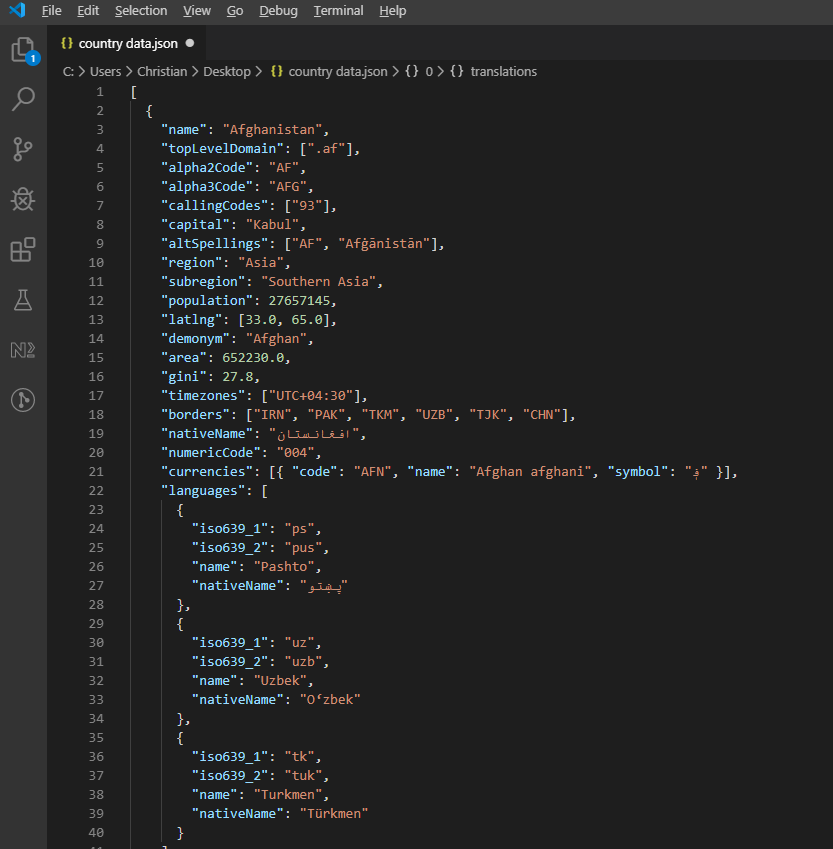 Przykładowa odpowiedź JSON z interfejsu API REST Countries przedstawiająca hierarchiczne informacje o krajach.
Przetwarzaj i zapisuj dane API w Excelu:
private async Task ProcessCountryData(List<RestCountry> countries, WorkSheet workSheet)
{
    for (int i = 0; i < countries.Count; i++)
    {
        var country = countries[i];
        int row = i + 1; // Start from row 1 (after headers)

        // Write basic country data
        workSheet[$"A{row}"].Value = country.Name;
        workSheet[$"B{row}"].Value = country.Population;
        workSheet[$"C{row}"].Value = country.Region;
        workSheet[$"D{row}"].Value = country.NumericCode;

        // Format population with thousands separator
        workSheet[$"B{row}"].FormatString = "#,##0";

        // Add up to 3 languages
        for (int langIndex = 0; langIndex < Math.Min(3, country.Languages?.Count ?? 0); langIndex++)
        {
            var language = country.Languages[langIndex];
            string columnLetter = ((char)('E' + langIndex)).ToString();
            workSheet[$"{columnLetter}{row}"].Value = language.Name;
        }

        // Add conditional formatting for regions
        if (country.Region == "Europe")
        {
            workSheet[$"C{row}"].Style.SetBackgroundColor("#E6F3FF");
        }
        else if (country.Region == "Asia")
        {
            workSheet[$"C{row}"].Style.SetBackgroundColor("#FFF2E6");
        }

        // Show progress every 50 countries
        if (i % 50 == 0)
        {
            Console.WriteLine($"Processed {i} of {countries.Count} countries");
        }
    }

    // Auto-size all columns
    for (int col = 0; col < 7; col++)
    {
        workSheet.AutoSizeColumn(col);
    }
}
private async Task ProcessCountryData(List<RestCountry> countries, WorkSheet workSheet)
{
for (int i = 0; i < countries.Count; i++)
{
var country = countries[i];
int row = i + 1; // Start from row 1 (after headers)
// Write basic country data
workSheet[$"A{row}"].Value = country.Name;
workSheet[$"B{row}"].Value = country.Population;
workSheet[$"C{row}"].Value = country.Region;
workSheet[$"D{row}"].Value = country.NumericCode;
// Format population with thousands separator
workSheet[$"B{row}"].FormatString = "#,##0";
// Add up to 3 languages
for (int langIndex = 0; langIndex < Math.Min(3, country.Languages?.Count ?? 0); langIndex++)
{
var language = country.Languages[langIndex];
string columnLetter = ((char)('E' + langIndex)).ToString();
workSheet[$"{columnLetter}{row}"].Value = language.Name;
}
// Add conditional formatting for regions
if (country.Region == "Europe")
{
workSheet[$"C{row}"].Style.SetBackgroundColor("#E6F3FF");
}
else if (country.Region == "Asia")
{
workSheet[$"C{row}"].Style.SetBackgroundColor("#FFF2E6");
}
// Show progress every 50 countries
if (i % 50 == 0)
{
Console.WriteLine($"Processed {i} of {countries.Count} countries");
}
}
// Auto-size all columns
for (int col = 0; col < 7; col++)
{
workSheet.AutoSizeColumn(col);
}
}Private Async Function ProcessCountryData(ByVal countries As List(Of RestCountry), ByVal workSheet As WorkSheet) As Task
For i As Integer = 0 To countries.Count - 1
Dim country = countries(i)
Dim row As Integer = i + 1 ' Start from row 1 (after headers)
' Write basic country data
workSheet($"A{row}").Value = country.Name
workSheet($"B{row}").Value = country.Population
workSheet($"C{row}").Value = country.Region
workSheet($"D{row}").Value = country.NumericCode
' Format population with thousands separator
workSheet($"B{row}").FormatString = "#,##0"
' Add up to 3 languages
For langIndex As Integer = 0 To Math.Min(3, If(country.Languages?.Count, 0)) - 1
Dim language = country.Languages(langIndex)
Dim columnLetter As String = (ChrW(AscW("E"c) + langIndex)).ToString()
workSheet($"{columnLetter}{row}").Value = language.Name
Next langIndex
' Add conditional formatting for regions
If country.Region = "Europe" Then
workSheet($"C{row}").Style.SetBackgroundColor("#E6F3FF")
ElseIf country.Region = "Asia" Then
workSheet($"C{row}").Style.SetBackgroundColor("#FFF2E6")
End If
' Show progress every 50 countries
If i Mod 50 = 0 Then
Console.WriteLine($"Processed {i} of {countries.Count} countries")
End If
Next i
' Auto-size all columns
For col As Integer = 0 To 6
workSheet.AutoSizeColumn(col)
Next col
End FunctionOdnośniki i zasoby
Zapoznaj się z obszerną Dokumentacją API IronXL, aby uzyskać szczegółową dokumentację klas i poznać zaawansowane funkcje.
Dodatkowe samouczki dotyczące operacji w programie Excel:
Podsumowanie
IronXl.Excel to kompleksowa biblioteka IronXL for .NET do odczytu i manipulacji plikami Excel w różnych formatach. Działa niezależnie, bez konieczności instalacji programu Microsoft Excel lub Interop.
W przypadku operacji na arkuszach kalkulacyjnych w chmurze warto również zapoznać się z biblioteką kliencką Google Sheets API dla .NET, która uzupełnia możliwości IronXL for .NET w zakresie obsługi plików lokalnych.
Chcesz wdrożyć automatyzację Excela w swoich projektach C#? Pobierz IronXL lub zapoznaj się z opcjami licencyjnymi do użytku produkcyjnego.
Często Zadawane Pytania
Jak odczytać pliki Excel w języku C# bez korzystania z pakietu Microsoft Office?
Możesz użyć IronXL do odczytu plików Excel w języku C# bez konieczności korzystania z pakietu Microsoft Office. IronXL udostępnia metody takie jak WorkBook.Load() do otwierania plików Excel oraz umożliwia dostęp do danych i manipulowanie nimi przy użyciu intuicyjnej składni.
Jakie formaty plików Excel można odczytać za pomocą języka C#?
Dzięki IronXL można odczytywać pliki w formatach XLS i XLSX w języku C#. Biblioteka automatycznie wykrywa format pliku i przetwarza go odpowiednio za pomocą metody WorkBook.Load().
Jak sprawdzić poprawność danych w Excelu w języku C#?
IronXL pozwala na programową walidację danych Excel w języku C# poprzez iterację przez komórki i stosowanie logiki, takiej jak wyrażenia regularne dla adresów e-mail lub niestandardowe funkcje walidacyjne. Raporty można generować za pomocą funkcji CreateWorkSheet().
Jak mogę wyeksportować dane z Excela do bazy danych SQL przy użyciu języka C#?
Aby wyeksportować dane z Excela do bazy danych SQL, użyj IronXL do odczytania danych Excela za pomocą metod WorkBook.Load() i GetWorkSheet(), a następnie przejdź przez komórki, aby przenieść dane do bazy danych przy użyciu Entity Framework.
Czy mogę zintegrować funkcje programu Excel z aplikacjami .NET Core?
Tak, IronXL obsługuje integrację z aplikacjami .NET Core. Możesz używać klas WorkBook i WorkSheet w swoich kontrolerach do obsługi przesyłania plików Excel, generowania raportów i nie tylko.
Czy można dodawać formuły do arkuszy kalkulacyjnych Excel za pomocą języka C#?
IronXL umożliwia programowe dodawanie formuł do arkuszy kalkulacyjnych Excel. Formułę można ustawić za pomocą właściwości Formula, np. cell.Formula = "=SUM(A1:A10)", a wyniki obliczyć za pomocą workBook.EvaluateAll().
Jak wypełnić pliki Excel danymi z REST API?
Aby wypełnić pliki Excel danymi z REST API, użyj IronXL wraz z klientem HTTP do pobrania danych API, a następnie zapisz je w Excelu za pomocą metod takich jak sheet["A1"].Value. IronXL zarządza formatowaniem i strukturą Excela.
Jakie są opcje licencyjne dotyczące korzystania z bibliotek Excel w środowiskach produkcyjnych?
IronXL oferuje bezpłatną licencję probną do celów programistycznych, natomiast ceny licencji produkcyjnych zaczynają się od 749 USD. Licencje te obejmują dedykowane wsparcie techniczne i umożliwiają wdrażanie w różnych środowiskach bez konieczności posiadania dodatkowych licencji Office.


Wciąż przewijasz?
Czy chcesz szybko dowodu? PM > Install-Package IronXl.Excel
uruchom próbkę zobacz, jak Twoje dane stają się arkuszem.








 Rozpocznij za DARMO
 Rozpocznij za DARMO
 Zarezerwuj darmowe Demo na żywo





 Nie wymaga karty kredytowej ani tworzenia konta










