


IronXL을 사용하여 ASP.NET MVC에서 C#으로 Excel 파일 읽기

IronXL을 사용하면 ASP.NET MVC 개발자가 Microsoft Office 종속성 없이 C#에서 Excel 파일을 직접 읽을 수 있으며, 몇 줄의 코드만으로 Excel 데이터를 System.Data.DataTable로 변환하여 웹 보기에서 쉽게 표시할 수 있습니다.
퀵스타트: MVC에서 엑셀 시트를 데이터 테이블로 로드하고 변환
이 예제는 몇 초 만에 시작하는 방법을 보여 줍니다: Excel 워크북을 로드하고, 첫 번째 워크시트를 선택하여 IronXL을 사용하여 System.Data.DataTable으로 변환합니다. - 인터롭 없이, 번거로움 없이.

최소 워크플로우(5단계)
- ASP.NET에서 엑셀 파일을 읽기 위한 C# 라이브러리 설치
- 엑셀 파일에서 대상 시트를 로드하고 액세스합니다
ToDataTable메서드를 액세스하고View로 반환하십시오- 웹 페이지에서 엑셀 데이터를 표시하기 위해 루프를 사용하십시오
- 모든 데이터를 반복하여 HTML 테이블을 만듭니다
엑셀 읽기를 위한 ASP.NET 프로젝트를 어떻게 만들까요?
왜 Visual Studio 2022가 가장 적합할까요?
Visual Studio 2022를 사용하여 새로운 ASP.NET 프로젝트를 만듭니다. Visual Studio 2022는 .NET 6+ 프레임워크에 대한 훌륭한 지원을 제공하며, 큰 Excel 파일 작업 시 IronXL 메서드에 대한 향상된 IntelliSense를 제공합니다. IDE의 NuGet 통합은 특히 IronXL 설치를 간단하게 만듭니다.
어떤 프로젝트 템플릿을 선택해야 하나요?
ASP.NET에서 Excel 파일을 읽으려면 "ASP.NET Core Web App (Model-View-Controller)" 템플릿을 선택하십시오. 이 템플릿은 데이터 처리(Excel 읽기)와 표현 로직을 분리하는 깔끔한 MVC 구조를 제공합니다. MVC 패턴은 IronXL의 DataTable 변환과 완벽하게 작동하므로 컨트롤러에서 스프레드시트를 로드하고 뷰에서 원활하게 표시할 수 있습니다.
어떤 .NET 버전을 추천하나요?
IronXL은 .NET Framework 4.6.2+ 및 .NET Core 3.1+와 함께 작동합니다. 새로운 ASP.NET MVC 프로젝트의 경우, 최적의 성능과 보안을 위해 .NET 6.0 이상을 사용하십시오. 이러한 버전은 대용량 Excel 파일을 처리할 때 개선된 메모리 관리와 스프레드시트 파일 형식 변환을 위한 더 나은 async/await 지원을 제공합니다.
IronXL 라이브러리를 설치하는 방법은 무엇입니까?
설치 요구 사항은 무엇입니까?
어떤 설치 방법이 가장 빠른가요?
새 프로젝트를 생성한 후 IronXL 라이브러리를 설치하세요. IronXL 설치하는 방법에 대한 단계에 따라 진행하세요. NuGet 패키지 관리자 콘솔을 열고 다음 명령어를 실행하십시오:
Install-Package IronXL.Excel
설치를 어떻게 확인할 수 있나요?
IronXL이/가 올바르게 설치되었는지 확인하려면 솔루션 탐색기에서 프로젝트의 종속성을 확인하세요. "Dependencies > Packages" 아래에 "IronXL"이 표시되어야 합니다. 또한 컨트롤러 파일의 상단에 using IronXL;을 추가해 보세요 - IntelliSense가 네임스페이스를 즉시 인식해야 합니다. 설치 문제 해결에 대한 내용은 라이선스 가이드를 방문하십시오.
내 컨트롤러에서 Excel 파일을 어떻게 읽나요?
컨트롤러 액션에 어떤 코드가 들어가나요?
ASP.NET 프로젝트에서 기본 컨트롤러(e.g. HomeController.cs)를 열고 Index 메서드를 다음 코드로 교체하세요:
using IronXL;
using System.Data;

public ActionResult Index()
{
    // Load the Excel workbook from a specified path.
    WorkBook workBook = WorkBook.Load(@"C:\Files\Customer Data.xlsx");

    // Access the first worksheet from the workbook.
    WorkSheet workSheet = workBook.WorkSheets.First();

    // Convert the worksheet data to a DataTable object.
    // The 'true' parameter uses the first row as column headers
    var dataTable = workSheet.ToDataTable(true);

    // Send the DataTable to the view for rendering.
    return View(dataTable);
}
using IronXL;
using System.Data;
public ActionResult Index()
{
// Load the Excel workbook from a specified path.
WorkBook workBook = WorkBook.Load(@"C:\Files\Customer Data.xlsx");
// Access the first worksheet from the workbook.
WorkSheet workSheet = workBook.WorkSheets.First();
// Convert the worksheet data to a DataTable object.
// The 'true' parameter uses the first row as column headers
var dataTable = workSheet.ToDataTable(true);
// Send the DataTable to the view for rendering.
return View(dataTable);
}Imports IronXL
Imports System.Data
Public Function Index() As ActionResult
' Load the Excel workbook from a specified path.
Dim workBook As WorkBook = WorkBook.Load("C:\Files\Customer Data.xlsx")
' Access the first worksheet from the workbook.
Dim workSheet As WorkSheet = workBook.WorkSheets.First()
' Convert the worksheet data to a DataTable object.
' The 'true' parameter uses the first row as column headers
Dim dataTable = workSheet.ToDataTable(True)
' Send the DataTable to the view for rendering.
Return View(dataTable)
End Function왜 DataTable을 다른 형식 대신 사용해야 하나요?
Index 액션 메서드에서 IronXL의 Load 메서드를 사용하여 Excel 파일을 로드하세요. Excel 파일의 경로(파일명 포함)는 메서드 호출의 매개변수로 제공됩니다. 다음으로 첫 번째 Excel 시트를 작업 시트로 선택하고 포함된 데이터를 DataTable 객체에 로드합니다. 마지막으로 DataTable을(를) 프론트엔드로 보냅니다.
DataTable은 ASP.NET MVC에 이상적입니다. Razor 뷰와 매끄럽게 통합되고 행과 열을 반복할 수 있는 기본 지원을 제공합니다. 사용자 정의 개체와 달리 DataTable는 모델 매핑이 필요하지 않고 혼합 데이터 유형을 자동으로 처리합니다. 필요한 경우 DataSet와 DataTable을 다시 Excel로 내보낼 수도 있습니다.
누락된 파일에 대한 오류 처리는 어떻게 해야 하나요?
견고한 오류 처리는 Excel 파일이 누락되거나 손상되었을 때 애플리케이션이 중단되지 않도록 보장합니다. 다음은 적절한 예외 처리가 있는 향상된 버전입니다:
public ActionResult Index()
{
    try
    {
        string filePath = @"C:\Files\Customer Data.xlsx";

        // Check if file exists before attempting to load
        if (!System.IO.File.Exists(filePath))
        {
            ViewBag.Error = "Excel file not found at specified location.";
            return View(new DataTable());
        }

        // Load workbook with error handling
        WorkBook workBook = WorkBook.Load(filePath);

        // Verify worksheet exists
        if (workBook.WorkSheets.Count == 0)
        {
            ViewBag.Error = "No worksheets found in the Excel file.";
            return View(new DataTable());
        }

        WorkSheet workSheet = workBook.WorkSheets.First();
        var dataTable = workSheet.ToDataTable(true);

        return View(dataTable);
    }
    catch (Exception ex)
    {
        // Log the exception (consider using a logging framework)
        ViewBag.Error = $"Error reading Excel file: {ex.Message}";
        return View(new DataTable());
    }
}
public ActionResult Index()
{
try
{
string filePath = @"C:\Files\Customer Data.xlsx";
// Check if file exists before attempting to load
if (!System.IO.File.Exists(filePath))
{
ViewBag.Error = "Excel file not found at specified location.";
return View(new DataTable());
}
// Load workbook with error handling
WorkBook workBook = WorkBook.Load(filePath);
// Verify worksheet exists
if (workBook.WorkSheets.Count == 0)
{
ViewBag.Error = "No worksheets found in the Excel file.";
return View(new DataTable());
}
WorkSheet workSheet = workBook.WorkSheets.First();
var dataTable = workSheet.ToDataTable(true);
return View(dataTable);
}
catch (Exception ex)
{
// Log the exception (consider using a logging framework)
ViewBag.Error = $"Error reading Excel file: {ex.Message}";
return View(new DataTable());
}
}Imports System.IO
Imports System.Data
Public Function Index() As ActionResult
Try
Dim filePath As String = "C:\Files\Customer Data.xlsx"
' Check if file exists before attempting to load
If Not File.Exists(filePath) Then
ViewBag.Error = "Excel file not found at specified location."
Return View(New DataTable())
End If
' Load workbook with error handling
Dim workBook As WorkBook = WorkBook.Load(filePath)
' Verify worksheet exists
If workBook.WorkSheets.Count = 0 Then
ViewBag.Error = "No worksheets found in the Excel file."
Return View(New DataTable())
End If
Dim workSheet As WorkSheet = workBook.WorkSheets.First()
Dim dataTable = workSheet.ToDataTable(True)
Return View(dataTable)
Catch ex As Exception
' Log the exception (consider using a logging framework)
ViewBag.Error = $"Error reading Excel file: {ex.Message}"
Return View(New DataTable())
End Try
End Function다른 워크시트를 선택하려면 어떻게 하나요?
IronXL은 특정 워크시트를 선택하고 작업하는 여러 가지 방법을 제공합니다. 인덱스, 이름별로 워크시트에 접근하거나 사용 가능한 모든 시트를 반복할 수 있습니다:
:path=/static-assets/excel/content-code-examples/how-to/asp-net-mvc-read-excel-file-5.cs// Method 1: Select by worksheet name
WorkSheet namedSheet = workBook.GetWorkSheet("Sales Data");
// Method 2: Select by index (zero-based)
WorkSheet secondSheet = workBook.WorkSheets[1];
// Method 3: Select the default/active worksheet
WorkSheet defaultSheet = workBook.DefaultWorkSheet;
// Method 4: Iterate through all worksheets
foreach (WorkSheet sheet in workBook.WorkSheets)
{
string sheetName = sheet.Name;
// Process each worksheet
}
Imports System

' Method 1: Select by worksheet name
Dim namedSheet As WorkSheet = workBook.GetWorkSheet("Sales Data")

' Method 2: Select by index (zero-based)
Dim secondSheet As WorkSheet = workBook.WorkSheets(1)

' Method 3: Select the default/active worksheet
Dim defaultSheet As WorkSheet = workBook.DefaultWorkSheet

' Method 4: Iterate through all worksheets
For Each sheet As WorkSheet In workBook.WorkSheets
    Dim sheetName As String = sheet.Name
    ' Process each worksheet
Next웹 페이지에 Excel 데이터를 표시하려면 어떻게 하나요?
어떤 뷰 코드가 필요합니까?
다음 예제는 앞의 예제에서 반환된 DataTable을 웹 브라우저에 표시하는 방법을 보여 줍니다.
이 예제에서 사용된 작업용 Excel 파일은 다음과 같습니다:
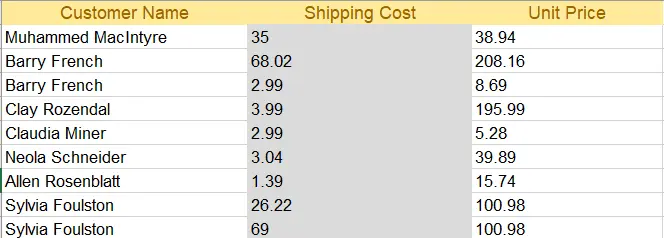
Excel 파일
인덱스 뷰인 index.cshtml을 열고 다음 HTML 코드로 코드를 교체합니다:
@{
    ViewData["Title"] = "Home Page";
}

@using System.Data
@model DataTable

<div class="text-center">
    <h1 class="display-4">Welcome to IronXL Read Excel MVC</h1>
</div>

@* Check for errors first *@
@if (ViewBag.Error != null)
{
    <div class="alert alert-danger">
        @ViewBag.Error
    </div>
}

@* Display table only if data exists *@
@if (Model != null && Model.Rows.Count > 0)
{
    <table class="table table-dark">
        <tbody>
            @foreach (DataRow row in Model.Rows)
            {
                <tr>
                    @for (int i = 0; i < Model.Columns.Count; i++)
                    {
                        <td>@row[i]</td>
                    }
                </tr>
            }
        </tbody>
    </table>
}
else
{
    <p>No data to display.</p>
}
테이블 스타일링에 Bootstrap을 사용하는 이유는 무엇인가요?
위 코드에서 DataTable이/가 Index 메서드에서 반환된 모델로 사용됩니다. 테이블의 각 행이 웹 페이지에 인쇄되며, 부트스트랩 형식을 장식에 포함하여 사용합니다.
Bootstrap은 다양한 화면 크기에 자동으로 맞춰지는 반응형 테이블 디자인을 제공하며, 이는 현대적인 웹 애플리케이션에 필수적입니다. table-dark 클래스는 읽기 쉬운 매력적인 다크 테마 테이블을 만듭니다. 셀 테두리 및 정렬 또는 배경 패턴 및 색상과 같은 더 고급 Excel 형식을 위해 IronXL는 구조화된 데이터에 직접 액세스하는 추가 메서드를 제공합니다.
최종 출력은 어떻게 보이나요?
프로젝트를 실행하면 아래에 표시된 결과가 생성됩니다:
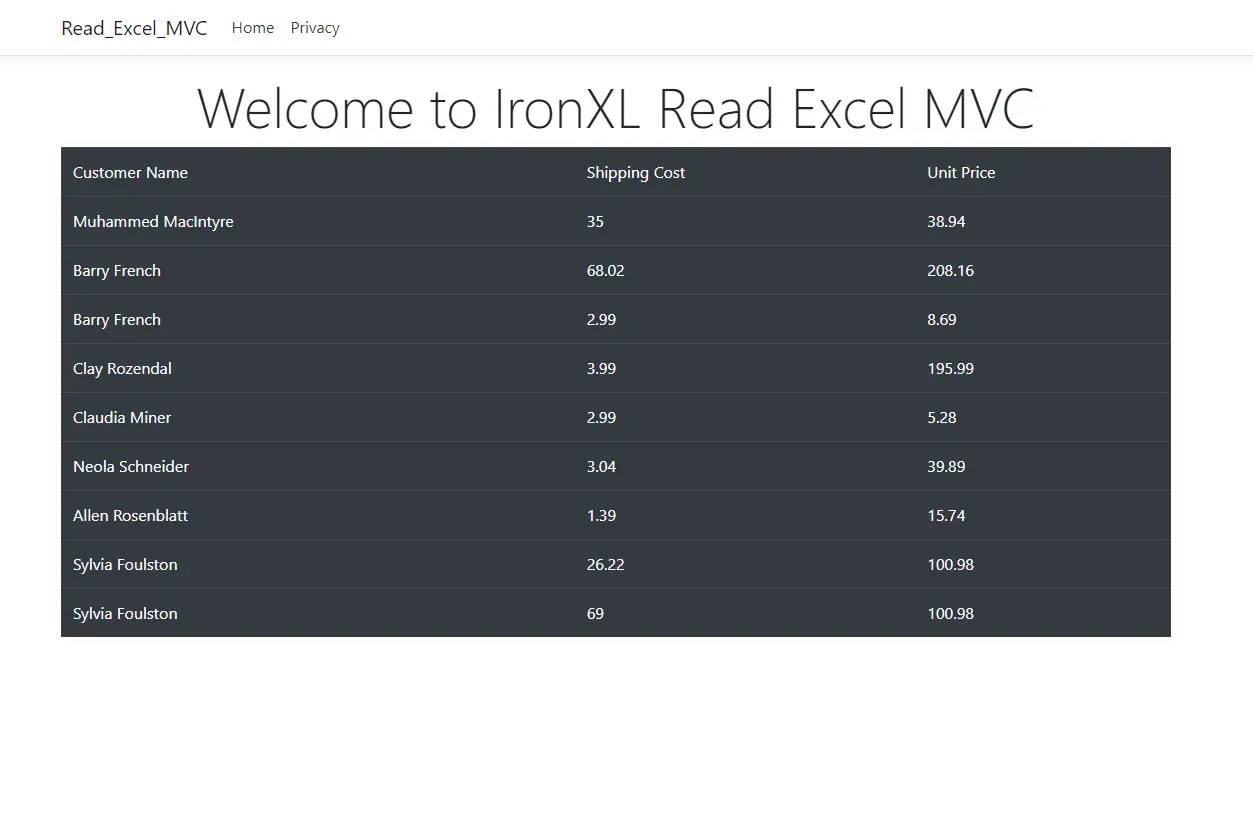
Bootstrap 테이블
테이블에 헤더를 추가하려면 어떻게 하나요?
엑셀 파일에서 열 헤더를 표시하려면 보기 코드를 수정하여 테이블 헤더 섹션을 포함하십시오. ToDataTable(true)을(를) 호출하면 IronXL이/가 첫 번째 행을 자동으로 열 이름으로 사용합니다:
@if (Model != null && Model.Rows.Count > 0)
{
    <table class="table table-dark">
        <thead>
            <tr>
                @foreach (DataColumn column in Model.Columns)
                {
                    <th>@column.ColumnName</th>
                }
            </tr>
        </thead>
        <tbody>
            @foreach (DataRow row in Model.Rows)
            {
                <tr>
                    @for (int i = 0; i < Model.Columns.Count; i++)
                    {
                        <td>@row[i]</td>
                    }
                </tr>
            }
        </tbody>
    </table>
}
@if (Model != null && Model.Rows.Count > 0)
{
<table class="table table-dark">
<thead>
<tr>
@foreach (DataColumn column in Model.Columns)
{
<th>@column.ColumnName</th>
}
</tr>
</thead>
<tbody>
@foreach (DataRow row in Model.Rows)
{
<tr>
@for (int i = 0; i < Model.Columns.Count; i++)
{
<td>@row[i]</td>
}
</tr>
}
</tbody>
</table>
}이 향상은 Excel 파일의 "고객 이름", "배송비", "단가"와 같은 적절한 열 헤더를 표시합니다. 명명된 범위 또는 명명된 테이블과 관련된 더 복잡한 시나리오를 위해 IronXL은 구조화된 데이터에 바로 접근할 수 있도록 추가 메서드를 제공합니다.
자주 묻는 질문
Microsoft Office 없이 ASP.NET MVC에서 Excel 파일을 읽는 방법은 무엇인가요?
IronXL을 사용하면 Microsoft Office에 대한 의존성 없이 C#에서 Excel 파일을 직접 읽을 수 있습니다. NuGet을 통해 IronXL을 설치한 다음 WorkBook.Load()를 사용하여 Excel 파일을 열고 단 한 줄의 코드로 DataTable로 변환할 수 있습니다. 예: var dataTable = IronXL.WorkBook.Load('CustomerData.xlsx').DefaultWorkSheet.ToDataTable(true);
Excel 데이터를 ASP.NET의 DataTable로 변환하는 가장 빠른 방법은 무엇입니까?
IronXL은 Excel 워크시트를 System.Data.DataTable 개체로 즉시 변환하는 ToDataTable() 메서드를 제공합니다. IronXL로 통합 문서를 로드한 후, 아무 워크시트에 접근하여 ToDataTable(true)를 호출하면 헤더를 포함할 수 있습니다. 이 변환은 단 한 줄의 코드로 가능하며 ASP.NET MVC 뷰와 완벽하게 연동됩니다.
웹 애플리케이션에서 엑셀 파일을 처리하려면 어떤 .NET 버전을 사용해야 할까요?
IronXL은 .NET Framework 4.6.2 이상 및 .NET Core 3.1 이상을 지원합니다. 새로운 ASP.NET MVC 프로젝트의 경우, IronXL을 사용하여 대용량 Excel 파일을 처리할 때 메모리 관리가 향상되고 스프레드시트 작업에 대한 async/await 지원이 개선되었으므로 .NET 6.0 이상을 사용하는 것이 좋습니다.
Excel 읽기 기능을 구현하는 데 가장 적합한 Visual Studio 프로젝트 템플릿은 무엇입니까?
프로젝트를 생성할 때 'ASP.NET Core 웹 앱(모델-뷰-컨트롤러)' 템플릿을 선택하세요. 이 MVC 구조는 IronXL의 DataTable 변환 기능과 완벽하게 호환되어 컨트롤러에서 Excel 파일을 로드하고 처리하는 동시에 뷰에서 데이터를 깔끔하게 표시할 수 있습니다.
ASP.NET 프로젝트에 Excel 읽기 라이브러리를 어떻게 설치하나요?
NuGet 패키지 관리자 콘솔에서 'Install-Package IronXL.Excel' 명령을 실행하여 IronXL을 설치하세요. 설치 후 프로젝트 종속성을 확인하고 컨트롤러에 'using IronXL;'을 추가하여 IronXL이 제대로 추가되었는지 확인하세요. IntelliSense에서 네임스페이스를 즉시 인식해야 합니다.


아직도 스크롤하고 계신가요?
빠른 증거를 원하시나요? PM > Install-Package IronXL.Excel
샘플을 실행하세요 데이터가 스프레드시트로 변환되는 것을 지켜보세요.






 무료로 시작하세요
 무료로 시작하세요
 무료 라이브 데모 예약하기
















