
How to Scrape Data from Websites in C#

IronWebScraper是一個用於網頁抓取、網頁資料擷取和網頁內容解析的.NET程式庫。 這是一個易於使用的程式庫,可以新增到Microsoft Visual Studio專案中,用於開發和生產環境。
IronWebScraper具有許多獨特的功能和能力,例如控制允許和禁止的頁面、物件、媒體等。它也允許管理多個身份、網頁快取,以及我們在此教學課程中將介紹的其他許多功能。
開始使用IronWebScraper
Start using IronWebScraper in your project today with a free trial.

目標受眾
本教程以具有基本或高級編程技能的軟體開發人員為目標,他們希望構建和實施具備高級抓取能力的解決方案(網站抓取、網站資料收集和提取、網站內容解析、網頁收割)。

所需技能
- 微軟編程語言(如C#或VB.NET)的基本編程基礎
- 基本的網路技術知識(HTML、JavaScript、JQuery、CSS等)以及它們如何運作
- 基本的DOM、XPath、HTML和CSS選擇器知識
工具
- Microsoft Visual Studio 2010或更高版本
- 用於瀏覽器的Web開發者擴展,例如Chrome的Web Inspector或Firefox的Firebug
為什麼要抓取? (Reasons and Concepts)
如果您希望構建一個具有以下功能的產品或解決方案:
- 提取網站資料
- 比較多個網站的內容、價格、特點等
- 掃描和快取網站內容
如果您有上述一個或多個原因,那麼IronWebScraper是一個適合您需求的程式庫
如何安裝IronWebScraper?
在您IronWebScraper程式庫新增到您的專案中。
使用NuGet安裝
要使用NuGet將IronWebScraper程式庫新增到我們的專案中,我們可以使用視覺介面(NuGet包管理器)或通過命令使用包管理器控制台來完成。
使用NuGet包管理器
- 使用滑鼠 -> 右鍵點選專案名稱 -> 選擇管理NuGet包
- 從瀏覽標籤 -> 搜尋
IronWebScraper-> 安裝 - 點選確定
- 完成
使用NuGet包控制台
- 從工具 -> NuGet包管理器 -> 包管理器控制台
- 選擇類庫專案作為預設專案
- 執行命令 ->
Install-Package IronWebScraper
手動安裝
-
點擊IronWebScraper或直接存取其頁面URLhttps://ironsoftware.com/csharp/webscraper/
-
點擊下載DLL。
-
解壓下載的壓縮文件
-
在Visual Studio中右鍵點選專案 -> 新增 -> 參考 -> 瀏覽
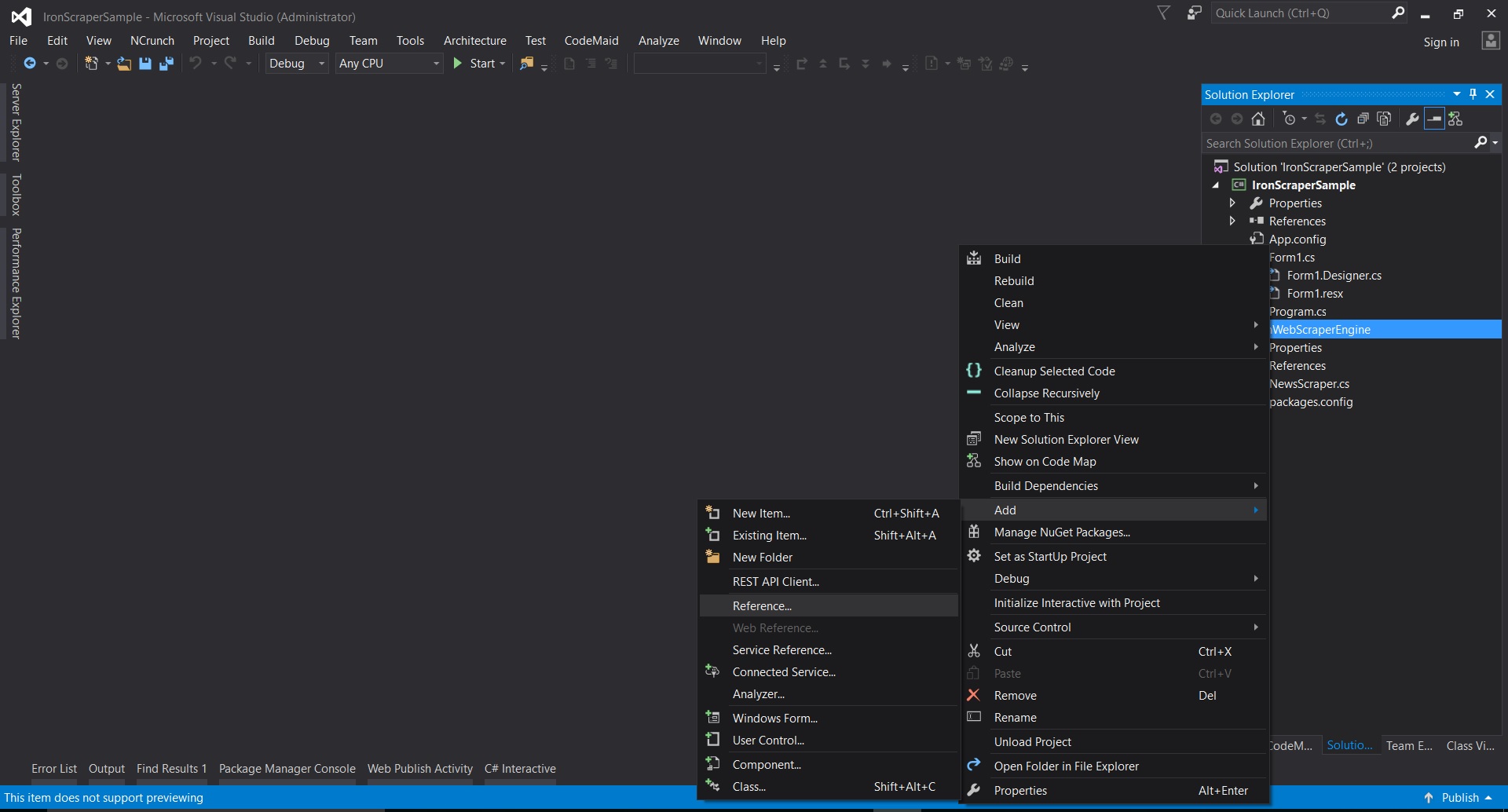
-
前往解壓縮的資料夾 ->
netstandard2.0-> 選擇所有.dll文件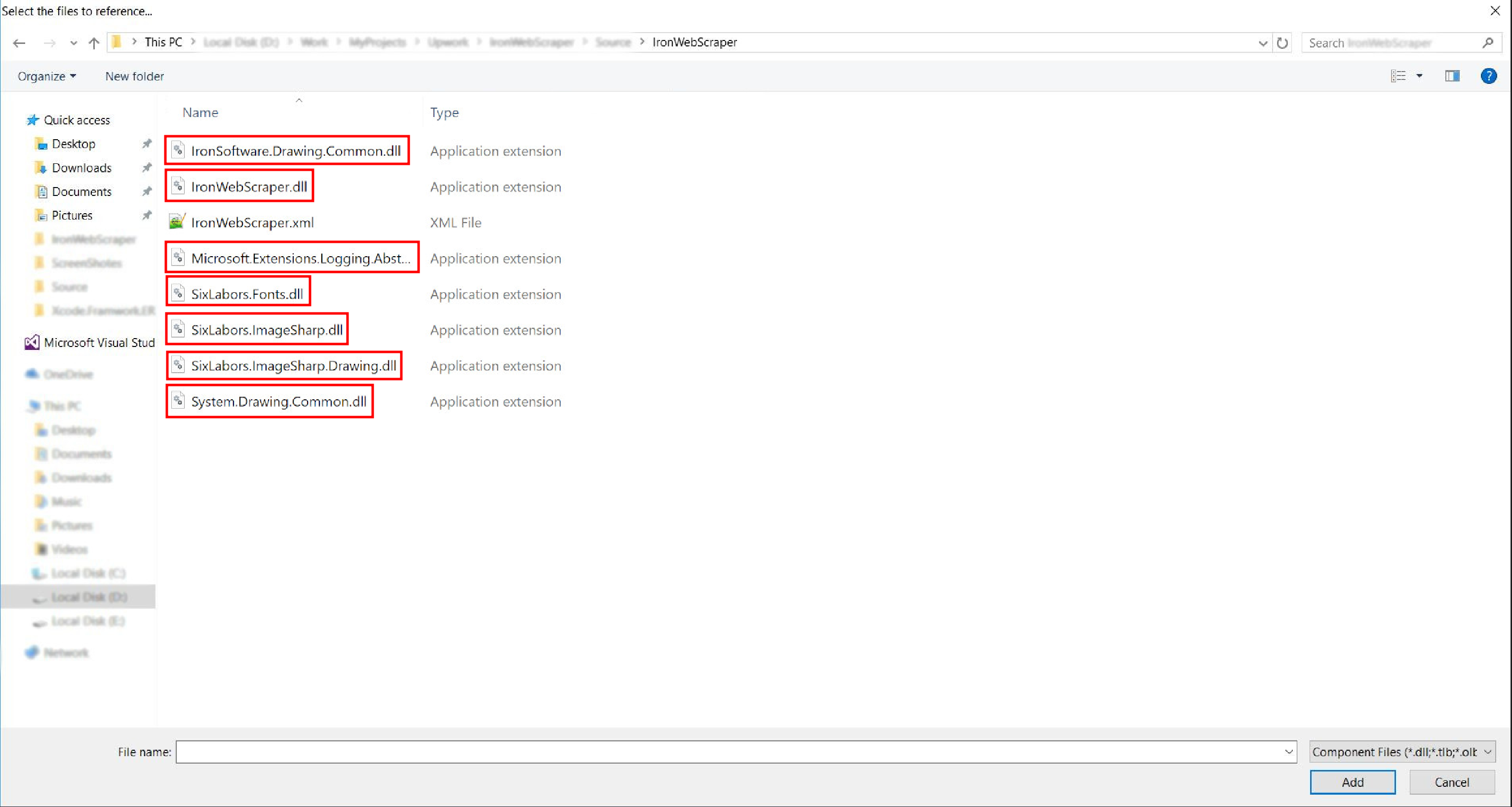
-
完成!
HelloScraper - 我們的第一個IronWebScraper範例
像往常一樣,我們將從實現Hello Scraper應用開始,使用IronWebScraper邁出我們的第一步。
- 我們建立了一個名為"IronWebScraperSample"的新控制台應用程式
建立IronWebScraper範例的步驟
-
建立一個文件夾並命名為"HelloScraperSample"
-
然後新增一個新類並將其命名為
HelloScraper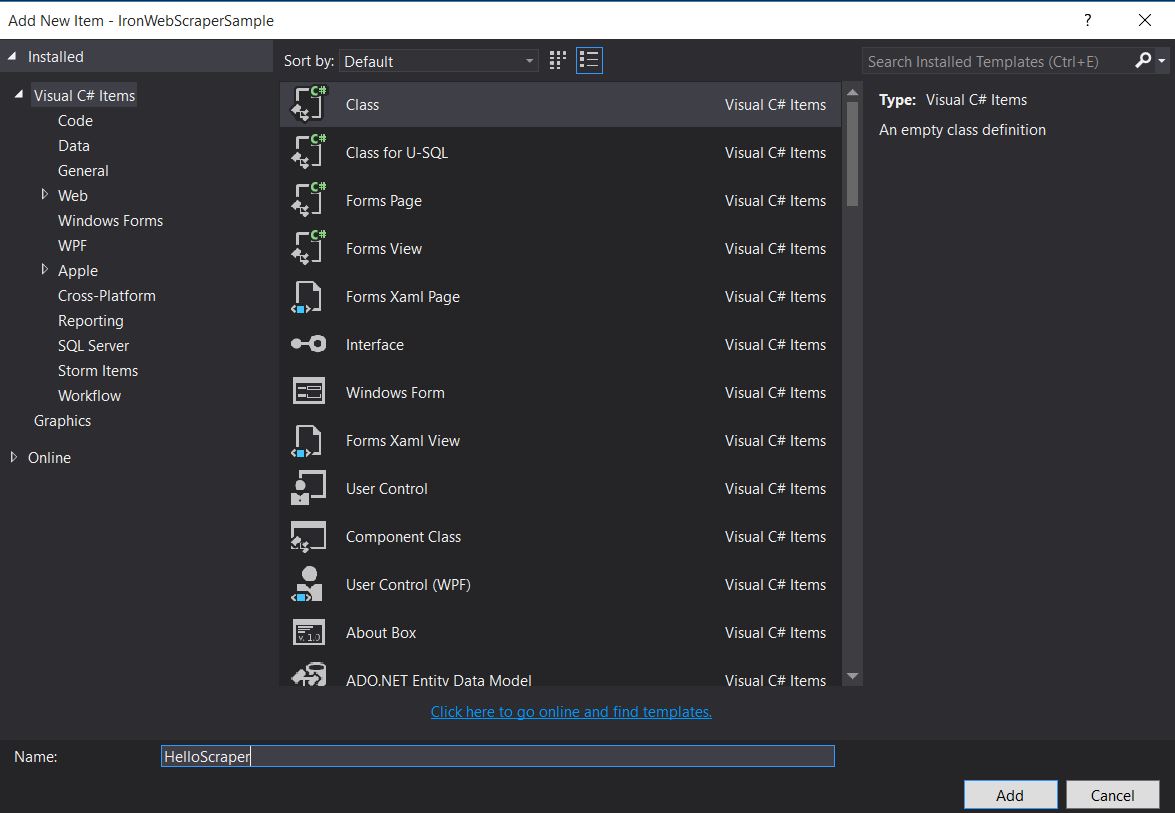
-
將此程式碼片段新增到
HelloScraperpublic class HelloScraper : WebScraper { /// <summary> /// Override this method to initialize your web scraper. /// Important tasks will be to request at least one start URL and set allowed/banned domain or URL patterns. /// </summary> public override void Init() { License.LicenseKey = "LicenseKey"; // Write License Key this.LoggingLevel = WebScraper.LogLevel.All; // Log all events this.Request("https://blog.scrapinghub.com", Parse); // Initialize a web request to the given URL } /// <summary> /// Override this method to create the default Response handler for your web scraper. /// If you have multiple page types, you can add additional similar methods. /// </summary> /// <param name="response">The HTTP Response object to parse</param> public override void Parse(Response response) { // Set working directory for the project this.WorkingDirectory = AppSetting.GetAppRoot() + @"\HelloScraperSample\Output\"; // Loop on all links foreach (var titleLink in response.Css("h2.entry-title a")) { // Read link text string title = titleLink.TextContentClean; // Save result to file Scrape(new ScrapedData() { { "Title", title } }, "HelloScraper.json"); } // Loop on all links for pagination if (response.CssExists("div.prev-post > a[href]")) { // Get next page URL var nextPage = response.Css("div.prev-post > a[href]")[0].Attributes["href"]; // Scrape next URL this.Request(nextPage, Parse); } } }Public Class HelloScraper Inherits WebScraper ''' <summary> ''' Override this method to initialize your web scraper. ''' Important tasks will be to request at least one start URL and set allowed/banned domain or URL patterns. ''' </summary> Public Overrides Sub Init() License.LicenseKey = "LicenseKey" ' Write License Key Me.LoggingLevel = WebScraper.LogLevel.All ' Log all events Me.Request("https://blog.scrapinghub.com", AddressOf Parse) ' Initialize a web request to the given URL End Sub ''' <summary> ''' Override this method to create the default Response handler for your web scraper. ''' If you have multiple page types, you can add additional similar methods. ''' </summary> ''' <param name="response">The HTTP Response object to parse</param> Public Overrides Sub Parse(ByVal response As Response) ' Set working directory for the project Me.WorkingDirectory = AppSetting.GetAppRoot() & "\HelloScraperSample\Output\" ' Loop on all links For Each titleLink In response.Css("h2.entry-title a") ' Read link text Dim title As String = titleLink.TextContentClean ' Save result to file Scrape(New ScrapedData() From { { "Title", title } }, "HelloScraper.json") Next titleLink ' Loop on all links for pagination If response.CssExists("div.prev-post > a[href]") Then ' Get next page URL Dim nextPage = response.Css("div.prev-post > a[href]")(0).Attributes("href") ' Scrape next URL Me.Request(nextPage, AddressOf Parse) End If End Sub End ClassPublic Class HelloScraper Inherits WebScraper ''' <summary> ''' Override this method to initialize your web scraper. ''' Important tasks will be to request at least one start URL and set allowed/banned domain or URL patterns. ''' </summary> Public Overrides Sub Init() License.LicenseKey = "LicenseKey" ' Write License Key Me.LoggingLevel = WebScraper.LogLevel.All ' Log all events Me.Request("https://blog.scrapinghub.com", AddressOf Parse) ' Initialize a web request to the given URL End Sub ''' <summary> ''' Override this method to create the default Response handler for your web scraper. ''' If you have multiple page types, you can add additional similar methods. ''' </summary> ''' <param name="response">The HTTP Response object to parse</param> Public Overrides Sub Parse(ByVal response As Response) ' Set working directory for the project Me.WorkingDirectory = AppSetting.GetAppRoot() & "\HelloScraperSample\Output\" ' Loop on all links For Each titleLink In response.Css("h2.entry-title a") ' Read link text Dim title As String = titleLink.TextContentClean ' Save result to file Scrape(New ScrapedData() From { { "Title", title } }, "HelloScraper.json") Next titleLink ' Loop on all links for pagination If response.CssExists("div.prev-post > a[href]") Then ' Get next page URL Dim nextPage = response.Css("div.prev-post > a[href]")(0).Attributes("href") ' Scrape next URL Me.Request(nextPage, AddressOf Parse) End If End Sub End Class -
現在要開始抓取,將此程式碼片段新增到
Mainstatic void Main(string[] args) { // Create Object From Hello Scrape class HelloScraperSample.HelloScraper scrape = new HelloScraperSample.HelloScraper(); // Start Scraping scrape.Start(); }static void Main(string[] args) { // Create Object From Hello Scrape class HelloScraperSample.HelloScraper scrape = new HelloScraperSample.HelloScraper(); // Start Scraping scrape.Start(); }Shared Sub Main(ByVal args() As String) ' Create Object From Hello Scrape class Dim scrape As New HelloScraperSample.HelloScraper() ' Start Scraping scrape.Start() End SubShared Sub Main(ByVal args() As String) ' Create Object From Hello Scrape class Dim scrape As New HelloScraperSample.HelloScraper() ' Start Scraping scrape.Start() End Sub -
結果將以
WebScraper.WorkingDirectory/classname.Json格式保存到一個文件中
程式碼概覽
Scrape.Start()觸發抓取邏輯,如下所示:
- 呼叫
Init()方法以初始化變數、抓取屬性和行為屬性。 - 在
Request("https://blog.scrapinghub.com", Parse)設置起始頁面請求。 - 處理多個HTTP請求和執行緒並行運行,使程式碼保持同步且易於除錯。
- 在
Parse()方法以處理響應,使用CSS選擇器提取資料並將其保存為JSON格式。
IronWebScraper程式庫的功能與選項
更新後的文件可以在手動安裝方法下載的壓縮文件中找到(IronWebScraper Documentation.chm File),或者您可以查看在線文件以了解該程式庫的最新更新,網址為https://ironsoftware.com/csharp/webscraper/object-reference/。
要在您的專案中開始使用IronWebScraper.WebScraper類中繼承,這樣可以擴展您的類庫並新增抓取功能。 此外,您必須實施Parse(Response response)方法。
namespace IronWebScraperEngine
{
    public class NewsScraper : IronWebScraper.WebScraper
    {
        public override void Init()
        {
            throw new NotImplementedException();
        }

        public override void Parse(Response response)
        {
            throw new NotImplementedException();
        }
    }
}
namespace IronWebScraperEngine
{
public class NewsScraper : IronWebScraper.WebScraper
{
public override void Init()
{
throw new NotImplementedException();
}
public override void Parse(Response response)
{
throw new NotImplementedException();
}
}
}Namespace IronWebScraperEngine
Public Class NewsScraper
Inherits IronWebScraper.WebScraper
Public Overrides Sub Init()
Throw New NotImplementedException()
End Sub
Public Overrides Sub Parse(ByVal response As Response)
Throw New NotImplementedException()
End Sub
End Class
End NamespaceNamespace IronWebScraperEngine
Public Class NewsScraper
Inherits IronWebScraper.WebScraper
Public Overrides Sub Init()
Throw New NotImplementedException()
End Sub
Public Overrides Sub Parse(ByVal response As Response)
Throw New NotImplementedException()
End Sub
End Class
End Namespace| 屬性 \ 功能 | 型別 | 描述 |
|---|---|---|
Init () | 方法 | 用於設置抓取器 |
Parse (Response response) | 方法 | 用於實現抓取器將使用的邏輯以及它將如何處理它。 可以為不同的頁面行為或結構實施多個方法。 |
BannedUrls, AllowedUrls, BannedDomains | 集合 | 用於禁止/允許URL和/或域名。 例: BannedUrls.Add("*.zip", "*.exe", "*.gz", "*.pdf"); 支持通配符和正則表達式。 |
ObeyRobotsDotTxt | 布林值 | 用於啟用或禁用在robots.txt中的指令讀取和遵循。 |
ObeyRobotsDotTxtForHost (string Host) | 方法 | 用於為特定域名啟用或禁用在robots.txt中的指令讀取和遵循。 |
Scrape, ScrapeUnique | 方法 | |
ThrottleMode | 枚舉 | 枚舉選項:ByIpAddress, ByDomainHostName。 啟用智能請求限流,尊重主機IP地址或域名。 |
EnableWebCache, EnableWebCache (TimeSpan cacheDuration) | 方法 | 為Web請求啟用快取。 |
MaxHttpConnectionLimit | 整數 | 設置允許的總打開HTTP請求(執行緒)數量。 |
RateLimitPerHost | 時間跨度 | 設置對特定域或IP地址的每次請求之間的最小禮貌延遲(暫停)。 |
OpenConnectionLimitPerHost | 整數 | 設置每個主機名或IP地址允許的並行HTTP請求(執行緒)數量。 |
WorkingDirectory | string | 設置用於儲存資料的工作目錄路徑。 |
真實世界範例與實踐
抓取線上電影網站
讓我們構建一個範例,在其中抓取一個電影網站。
新增一個新類並將其命名為MovieScraper:
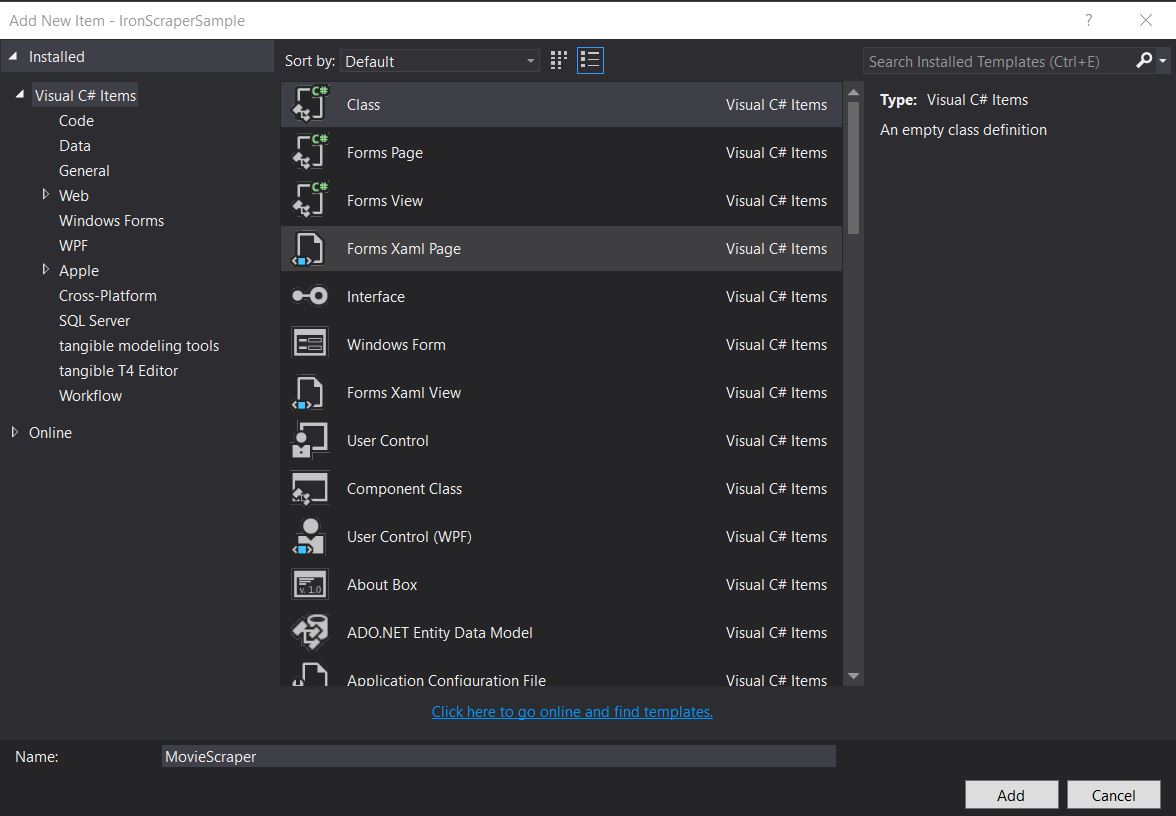
HTML結構
這是我們在網站上看到的首頁HTML的一部分:
<div id="movie-featured" class="movies-list movies-list-full tab-pane in fade active">
    <div data-movie-id="20746" class="ml-item">
        <a href="https://website.com/film/king-arthur-legend-of-the-sword-20746/">
            <span class="mli-quality">CAM</span>
            <img data-original="https://img.gocdn.online/2017/05/16/poster/2116d6719c710eabe83b377463230fbe-king-arthur-legend-of-the-sword.jpg"
                 class="lazy thumb mli-thumb" alt="King Arthur: Legend of the Sword"
                  src="https://img.gocdn.online/2017/05/16/poster/2116d6719c710eabe83b377463230fbe-king-arthur-legend-of-the-sword.jpg"
                 style="display: inline-block;">
            <span class="mli-info"><h2>King Arthur: Legend of the Sword</h2></span>
        </a>
    </div>
    <div data-movie-id="20724" class="ml-item">
        <a href="https://website.com/film/snatched-20724/" >
            <span class="mli-quality">CAM</span>
            <img data-original="https://img.gocdn.online/2017/05/16/poster/5ef66403dc331009bdb5aa37cfe819ba-snatched.jpg"
                 class="lazy thumb mli-thumb" alt="Snatched"
                 src="https://img.gocdn.online/2017/05/16/poster/5ef66403dc331009bdb5aa37cfe819ba-snatched.jpg"
                 style="display: inline-block;">
            <span class="mli-info"><h2>Snatched</h2></span>
        </a>
    </div>
</div>如我們所見,我們有一個電影ID、標題和一個指向詳細頁面的連結。 讓我們開始抓取這些資料:
public class MovieScraper : WebScraper
{
    public override void Init()
    {
        License.LicenseKey = "LicenseKey";
        this.LoggingLevel = WebScraper.LogLevel.All;
        this.WorkingDirectory = AppSetting.GetAppRoot() + @"\MovieSample\Output\";
        this.Request("www.website.com", Parse);
    }

    public override void Parse(Response response)
    {
        foreach (var div in response.Css("#movie-featured > div"))
        {
            if (div.GetAttribute("class") != "clearfix")
            {
                var movieId = div.GetAttribute("data-movie-id");
                var link = div.Css("a")[0];
                var movieTitle = link.TextContentClean;
                Scrape(new ScrapedData() { { "MovieId", movieId }, { "MovieTitle", movieTitle } }, "Movie.Jsonl");
            }
        }
    }
}
public class MovieScraper : WebScraper
{
public override void Init()
{
License.LicenseKey = "LicenseKey";
this.LoggingLevel = WebScraper.LogLevel.All;
this.WorkingDirectory = AppSetting.GetAppRoot() + @"\MovieSample\Output\";
this.Request("www.website.com", Parse);
}
public override void Parse(Response response)
{
foreach (var div in response.Css("#movie-featured > div"))
{
if (div.GetAttribute("class") != "clearfix")
{
var movieId = div.GetAttribute("data-movie-id");
var link = div.Css("a")[0];
var movieTitle = link.TextContentClean;
Scrape(new ScrapedData() { { "MovieId", movieId }, { "MovieTitle", movieTitle } }, "Movie.Jsonl");
}
}
}
}Public Class MovieScraper
Inherits WebScraper
Public Overrides Sub Init()
License.LicenseKey = "LicenseKey"
Me.LoggingLevel = WebScraper.LogLevel.All
Me.WorkingDirectory = AppSetting.GetAppRoot() & "\MovieSample\Output\"
Me.Request("www.website.com", AddressOf Parse)
End Sub
Public Overrides Sub Parse(ByVal response As Response)
For Each div In response.Css("#movie-featured > div")
If div.GetAttribute("class") <> "clearfix" Then
Dim movieId = div.GetAttribute("data-movie-id")
Dim link = div.Css("a")(0)
Dim movieTitle = link.TextContentClean
Scrape(New ScrapedData() From {
{ "MovieId", movieId },
{ "MovieTitle", movieTitle }
},
"Movie.Jsonl")
End If
Next div
End Sub
End ClassPublic Class MovieScraper
Inherits WebScraper
Public Overrides Sub Init()
License.LicenseKey = "LicenseKey"
Me.LoggingLevel = WebScraper.LogLevel.All
Me.WorkingDirectory = AppSetting.GetAppRoot() & "\MovieSample\Output\"
Me.Request("www.website.com", AddressOf Parse)
End Sub
Public Overrides Sub Parse(ByVal response As Response)
For Each div In response.Css("#movie-featured > div")
If div.GetAttribute("class") <> "clearfix" Then
Dim movieId = div.GetAttribute("data-movie-id")
Dim link = div.Css("a")(0)
Dim movieTitle = link.TextContentClean
Scrape(New ScrapedData() From {
{ "MovieId", movieId },
{ "MovieTitle", movieTitle }
},
"Movie.Jsonl")
End If
Next div
End Sub
End Class結構化電影類
為了保存我們的格式化資料,讓我們實施一個電影類:
public class Movie
{
    public int Id { get; set; }
    public string Title { get; set; }
    public string URL { get; set; }
}
public class Movie
{
public int Id { get; set; }
public string Title { get; set; }
public string URL { get; set; }
}Public Class Movie
Public Property Id As Integer
Public Property Title As String
Public Property URL As String
End ClassPublic Class Movie
Public Property Id As Integer
Public Property Title As String
Public Property URL As String
End Class現在更新我們的程式碼以使用Movie類:
public class MovieScraper : WebScraper
{
    public override void Init()
    {
        License.LicenseKey = "LicenseKey";
        this.LoggingLevel = WebScraper.LogLevel.All;
        this.WorkingDirectory = AppSetting.GetAppRoot() + @"\MovieSample\Output\";
        this.Request("https://website.com/", Parse);
    }

    public override void Parse(Response response)
    {
        foreach (var div in response.Css("#movie-featured > div"))
        {
            if (div.GetAttribute("class") != "clearfix")
            {
                var movie = new Movie
                {
                    Id = Convert.ToInt32(div.GetAttribute("data-movie-id")),
                    Title = div.Css("a")[0].TextContentClean,
                    URL = div.Css("a")[0].Attributes["href"]
                };
                Scrape(movie, "Movie.Jsonl");
            }
        }
    }
}
public class MovieScraper : WebScraper
{
public override void Init()
{
License.LicenseKey = "LicenseKey";
this.LoggingLevel = WebScraper.LogLevel.All;
this.WorkingDirectory = AppSetting.GetAppRoot() + @"\MovieSample\Output\";
this.Request("https://website.com/", Parse);
}
public override void Parse(Response response)
{
foreach (var div in response.Css("#movie-featured > div"))
{
if (div.GetAttribute("class") != "clearfix")
{
var movie = new Movie
{
Id = Convert.ToInt32(div.GetAttribute("data-movie-id")),
Title = div.Css("a")[0].TextContentClean,
URL = div.Css("a")[0].Attributes["href"]
};
Scrape(movie, "Movie.Jsonl");
}
}
}
}Public Class MovieScraper
Inherits WebScraper
Public Overrides Sub Init()
License.LicenseKey = "LicenseKey"
Me.LoggingLevel = WebScraper.LogLevel.All
Me.WorkingDirectory = AppSetting.GetAppRoot() & "\MovieSample\Output\"
Me.Request("https://website.com/", AddressOf Parse)
End Sub
Public Overrides Sub Parse(ByVal response As Response)
For Each div In response.Css("#movie-featured > div")
If div.GetAttribute("class") <> "clearfix" Then
Dim movie As New Movie With {
.Id = Convert.ToInt32(div.GetAttribute("data-movie-id")),
.Title = div.Css("a")(0).TextContentClean,
.URL = div.Css("a")(0).Attributes("href")
}
Scrape(movie, "Movie.Jsonl")
End If
Next div
End Sub
End ClassPublic Class MovieScraper
Inherits WebScraper
Public Overrides Sub Init()
License.LicenseKey = "LicenseKey"
Me.LoggingLevel = WebScraper.LogLevel.All
Me.WorkingDirectory = AppSetting.GetAppRoot() & "\MovieSample\Output\"
Me.Request("https://website.com/", AddressOf Parse)
End Sub
Public Overrides Sub Parse(ByVal response As Response)
For Each div In response.Css("#movie-featured > div")
If div.GetAttribute("class") <> "clearfix" Then
Dim movie As New Movie With {
.Id = Convert.ToInt32(div.GetAttribute("data-movie-id")),
.Title = div.Css("a")(0).TextContentClean,
.URL = div.Css("a")(0).Attributes("href")
}
Scrape(movie, "Movie.Jsonl")
End If
Next div
End Sub
End Class詳細頁面抓取
讓我們擴展我們的Movie類,使其具有新屬性以獲得詳細資訊:
public class Movie
{
    public int Id { get; set; }
    public string Title { get; set; }
    public string URL { get; set; }
    public string Description { get; set; }
    public List<string> Genre { get; set; }
    public List<string> Actor { get; set; }
}
public class Movie
{
public int Id { get; set; }
public string Title { get; set; }
public string URL { get; set; }
public string Description { get; set; }
public List<string> Genre { get; set; }
public List<string> Actor { get; set; }
}Public Class Movie
Public Property Id As Integer
Public Property Title As String
Public Property URL As String
Public Property Description As String
Public Property Genre As List(Of String)
Public Property Actor As List(Of String)
End ClassPublic Class Movie
Public Property Id As Integer
Public Property Title As String
Public Property URL As String
Public Property Description As String
Public Property Genre As List(Of String)
Public Property Actor As List(Of String)
End Class然後導航到詳細頁面進行抓取,使用擴展的IronWebScraper功能:
public class MovieScraper : WebScraper
{
    public override void Init()
    {
        License.LicenseKey = "LicenseKey";
        this.LoggingLevel = WebScraper.LogLevel.All;
        this.WorkingDirectory = AppSetting.GetAppRoot() + @"\MovieSample\Output\";
        this.Request("https://domain/", Parse);
    }

    public override void Parse(Response response)
    {
        foreach (var div in response.Css("#movie-featured > div"))
        {
            if (div.GetAttribute("class") != "clearfix")
            {
                var movie = new Movie
                {
                    Id = Convert.ToInt32(div.GetAttribute("data-movie-id")),
                    Title = div.Css("a")[0].TextContentClean,
                    URL = div.Css("a")[0].Attributes["href"]
                };
                this.Request(movie.URL, ParseDetails, new MetaData() { { "movie", movie } });
            }
        }
    }

    public void ParseDetails(Response response)
    {
        var movie = response.MetaData.Get<Movie>("movie");
        var div = response.Css("div.mvic-desc")[0];
        movie.Description = div.Css("div.desc")[0].TextContentClean;
        movie.Genre = div.Css("div > p > a").Select(element => element.TextContentClean).ToList();
        movie.Actor = div.Css("div > p:nth-child(2) > a").Select(element => element.TextContentClean).ToList();

        Scrape(movie, "Movie.Jsonl");
    }
}
public class MovieScraper : WebScraper
{
public override void Init()
{
License.LicenseKey = "LicenseKey";
this.LoggingLevel = WebScraper.LogLevel.All;
this.WorkingDirectory = AppSetting.GetAppRoot() + @"\MovieSample\Output\";
this.Request("https://domain/", Parse);
}
public override void Parse(Response response)
{
foreach (var div in response.Css("#movie-featured > div"))
{
if (div.GetAttribute("class") != "clearfix")
{
var movie = new Movie
{
Id = Convert.ToInt32(div.GetAttribute("data-movie-id")),
Title = div.Css("a")[0].TextContentClean,
URL = div.Css("a")[0].Attributes["href"]
};
this.Request(movie.URL, ParseDetails, new MetaData() { { "movie", movie } });
}
}
}
public void ParseDetails(Response response)
{
var movie = response.MetaData.Get<Movie>("movie");
var div = response.Css("div.mvic-desc")[0];
movie.Description = div.Css("div.desc")[0].TextContentClean;
movie.Genre = div.Css("div > p > a").Select(element => element.TextContentClean).ToList();
movie.Actor = div.Css("div > p:nth-child(2) > a").Select(element => element.TextContentClean).ToList();
Scrape(movie, "Movie.Jsonl");
}
}Public Class MovieScraper
Inherits WebScraper
Public Overrides Sub Init()
License.LicenseKey = "LicenseKey"
Me.LoggingLevel = WebScraper.LogLevel.All
Me.WorkingDirectory = AppSetting.GetAppRoot() & "\MovieSample\Output\"
Me.Request("https://domain/", AddressOf Parse)
End Sub
Public Overrides Sub Parse(ByVal response As Response)
For Each div In response.Css("#movie-featured > div")
If div.GetAttribute("class") <> "clearfix" Then
Dim movie As New Movie With {
.Id = Convert.ToInt32(div.GetAttribute("data-movie-id")),
.Title = div.Css("a")(0).TextContentClean,
.URL = div.Css("a")(0).Attributes("href")
}
Me.Request(movie.URL, AddressOf ParseDetails, New MetaData() From {
{ "movie", movie }
})
End If
Next div
End Sub
Public Sub ParseDetails(ByVal response As Response)
Dim movie = response.MetaData.Get(Of Movie)("movie")
Dim div = response.Css("div.mvic-desc")(0)
movie.Description = div.Css("div.desc")(0).TextContentClean
movie.Genre = div.Css("div > p > a").Select(Function(element) element.TextContentClean).ToList()
movie.Actor = div.Css("div > p:nth-child(2) > a").Select(Function(element) element.TextContentClean).ToList()
Scrape(movie, "Movie.Jsonl")
End Sub
End ClassPublic Class MovieScraper
Inherits WebScraper
Public Overrides Sub Init()
License.LicenseKey = "LicenseKey"
Me.LoggingLevel = WebScraper.LogLevel.All
Me.WorkingDirectory = AppSetting.GetAppRoot() & "\MovieSample\Output\"
Me.Request("https://domain/", AddressOf Parse)
End Sub
Public Overrides Sub Parse(ByVal response As Response)
For Each div In response.Css("#movie-featured > div")
If div.GetAttribute("class") <> "clearfix" Then
Dim movie As New Movie With {
.Id = Convert.ToInt32(div.GetAttribute("data-movie-id")),
.Title = div.Css("a")(0).TextContentClean,
.URL = div.Css("a")(0).Attributes("href")
}
Me.Request(movie.URL, AddressOf ParseDetails, New MetaData() From {
{ "movie", movie }
})
End If
Next div
End Sub
Public Sub ParseDetails(ByVal response As Response)
Dim movie = response.MetaData.Get(Of Movie)("movie")
Dim div = response.Css("div.mvic-desc")(0)
movie.Description = div.Css("div.desc")(0).TextContentClean
movie.Genre = div.Css("div > p > a").Select(Function(element) element.TextContentClean).ToList()
movie.Actor = div.Css("div > p:nth-child(2) > a").Select(Function(element) element.TextContentClean).ToList()
Scrape(movie, "Movie.Jsonl")
End Sub
End ClassIronWebScraper程式庫特點
HttpIdentity功能
某些系統需要使用者登錄才能查看內容; 使用HttpIdentity來處理憑據:
HttpIdentity id = new HttpIdentity
{
    NetworkUsername = "username",
    NetworkPassword = "pwd"
};
Identities.Add(id);
HttpIdentity id = new HttpIdentity
{
NetworkUsername = "username",
NetworkPassword = "pwd"
};
Identities.Add(id);Dim id As New HttpIdentity With {
.NetworkUsername = "username",
.NetworkPassword = "pwd"
}
Identities.Add(id)Dim id As New HttpIdentity With {
.NetworkUsername = "username",
.NetworkPassword = "pwd"
}
Identities.Add(id)啟用Web快取
快取開發過程中請求的頁面以供重用:
public override void Init()
{
    License.LicenseKey = "LicenseKey";
    this.LoggingLevel = WebScraper.LogLevel.All;
    this.WorkingDirectory = AppSetting.GetAppRoot() + @"\ShoppingSiteSample\Output\";
    EnableWebCache();
    this.Request("http://www.WebSite.com", Parse);
}
public override void Init()
{
License.LicenseKey = "LicenseKey";
this.LoggingLevel = WebScraper.LogLevel.All;
this.WorkingDirectory = AppSetting.GetAppRoot() + @"\ShoppingSiteSample\Output\";
EnableWebCache();
this.Request("http://www.WebSite.com", Parse);
}Public Overrides Sub Init()
License.LicenseKey = "LicenseKey"
Me.LoggingLevel = WebScraper.LogLevel.All
Me.WorkingDirectory = AppSetting.GetAppRoot() & "\ShoppingSiteSample\Output\"
EnableWebCache()
Me.Request("http://www.WebSite.com", Parse)
End SubPublic Overrides Sub Init()
License.LicenseKey = "LicenseKey"
Me.LoggingLevel = WebScraper.LogLevel.All
Me.WorkingDirectory = AppSetting.GetAppRoot() & "\ShoppingSiteSample\Output\"
EnableWebCache()
Me.Request("http://www.WebSite.com", Parse)
End Sub限流
控制連接數量和速度:
public override void Init()
{
    License.LicenseKey = "LicenseKey";
    this.LoggingLevel = WebScraper.LogLevel.All;
    this.WorkingDirectory = AppSetting.GetAppRoot() + @"\ShoppingSiteSample\Output\";
    this.MaxHttpConnectionLimit = 80;
    this.RateLimitPerHost = TimeSpan.FromMilliseconds(50);
    this.OpenConnectionLimitPerHost = 25;
    this.ObeyRobotsDotTxt = false;
    this.ThrottleMode = Throttle.ByDomainHostName;
    this.Request("https://www.Website.com", Parse);
}
public override void Init()
{
License.LicenseKey = "LicenseKey";
this.LoggingLevel = WebScraper.LogLevel.All;
this.WorkingDirectory = AppSetting.GetAppRoot() + @"\ShoppingSiteSample\Output\";
this.MaxHttpConnectionLimit = 80;
this.RateLimitPerHost = TimeSpan.FromMilliseconds(50);
this.OpenConnectionLimitPerHost = 25;
this.ObeyRobotsDotTxt = false;
this.ThrottleMode = Throttle.ByDomainHostName;
this.Request("https://www.Website.com", Parse);
}Public Overrides Sub Init()
License.LicenseKey = "LicenseKey"
Me.LoggingLevel = WebScraper.LogLevel.All
Me.WorkingDirectory = AppSetting.GetAppRoot() & "\ShoppingSiteSample\Output\"
Me.MaxHttpConnectionLimit = 80
Me.RateLimitPerHost = TimeSpan.FromMilliseconds(50)
Me.OpenConnectionLimitPerHost = 25
Me.ObeyRobotsDotTxt = False
Me.ThrottleMode = Throttle.ByDomainHostName
Me.Request("https://www.Website.com", Parse)
End SubPublic Overrides Sub Init()
License.LicenseKey = "LicenseKey"
Me.LoggingLevel = WebScraper.LogLevel.All
Me.WorkingDirectory = AppSetting.GetAppRoot() & "\ShoppingSiteSample\Output\"
Me.MaxHttpConnectionLimit = 80
Me.RateLimitPerHost = TimeSpan.FromMilliseconds(50)
Me.OpenConnectionLimitPerHost = 25
Me.ObeyRobotsDotTxt = False
Me.ThrottleMode = Throttle.ByDomainHostName
Me.Request("https://www.Website.com", Parse)
End Sub限流屬性
MaxHttpConnectionLimit
允許的總打開HTTP請求(執行緒)數量RateLimitPerHost
對特定域名或IP地址的每次請求之間的最小禮貌延遲(暫停)OpenConnectionLimitPerHost
每個主機名或IP地址允許的並行HTTP請求(執行緒)數量ThrottleMode
使WebScraper不僅按主機名,而且按主機伺服器的IP地址智能地限流請求。 這在多個抓取的域名托管在同一台機器上的情況下是禮貌的。
附錄
如何建立Windows Form應用程式?
使用Visual Studio 2013或更高版本。
-
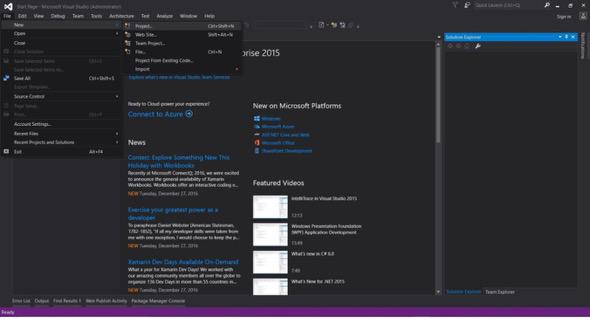
打開Visual Studio。
-
文件 -> 新建 -> 專案
-
選擇Visual C#或VB -> Windows -> Windows Forms應用程式。
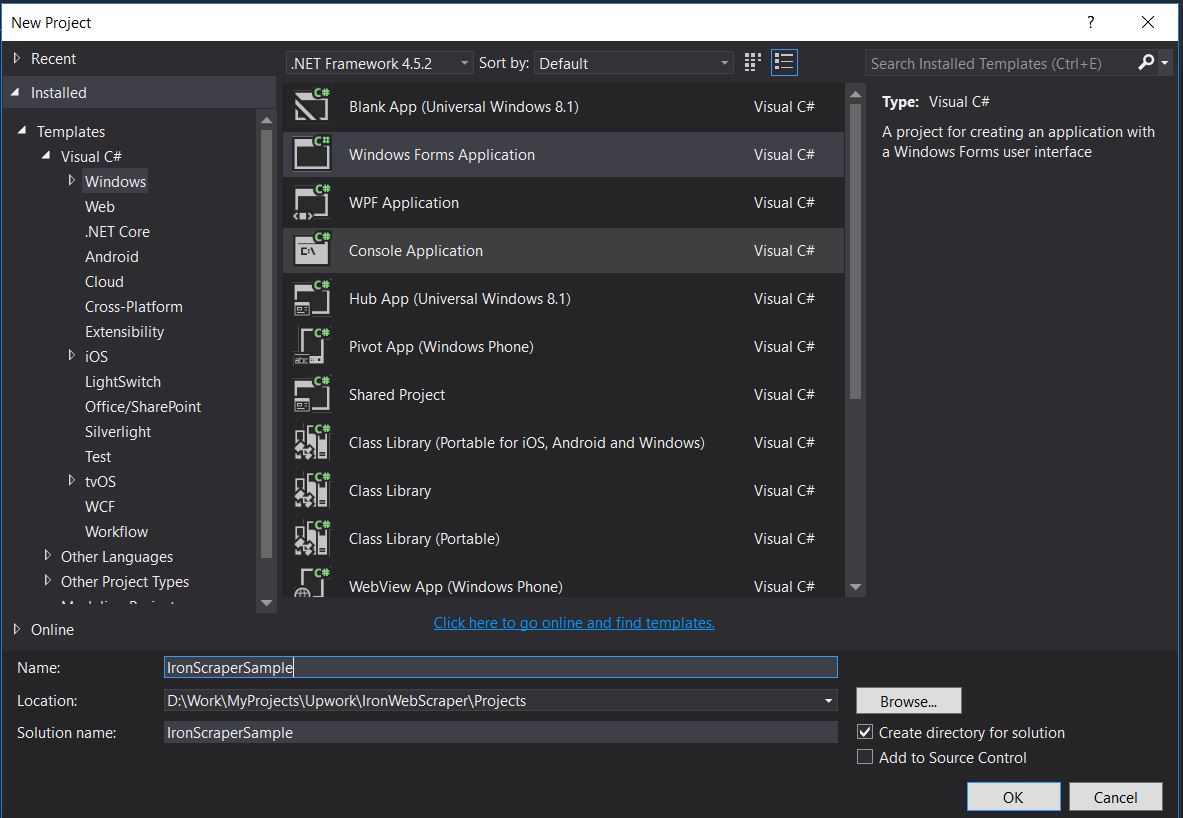
專案名稱: IronScraperSample
位置: 在您的磁碟上選擇一個位置。
如何建立ASP.NET Web Form應用程式?
-
打開Visual Studio。
-
文件 -> 新建 -> 專案
-
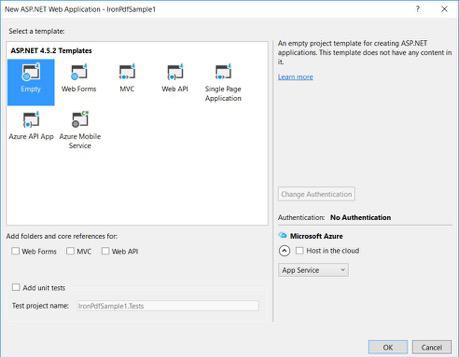
選擇Visual C#或VB -> Web -> ASP.NET Web應用程式 (.NET Framework)。
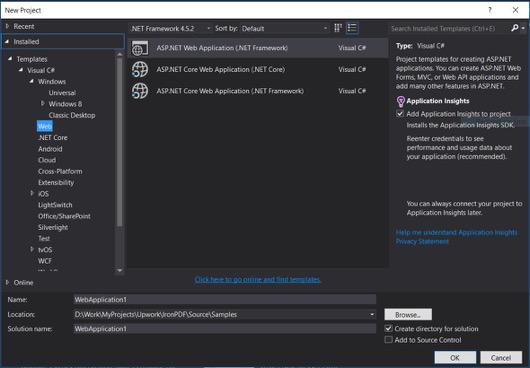
專案名稱: IronScraperSample
位置: 在您的磁碟上選擇一個位置。
-
從您的ASP.NET模板中選擇一個空模板並勾選Web Forms。
-
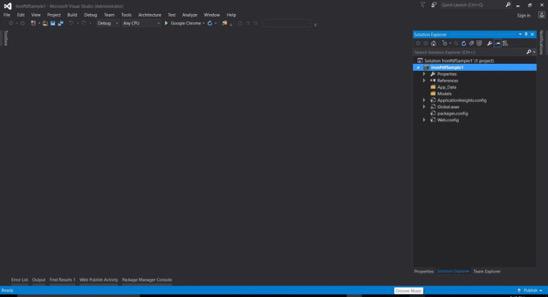
您的基本ASP.NET Web Form專案已建立。
常見問題
如何使用 C# 從網站抓取資料?
您可以使用 IronWebScraper 從網站抓取 C# 資料。首先通過 NuGet 安裝程式庫,並設置一個基本的控制台應用程式以高效地開始提取網頁資料。
C# 網頁爬蟲需要什麼先決條件?
要在 C# 中執行網頁爬蟲,您應具備 C# 或 VB.NET 的基本程式設計技能,並了解 HTML、JavaScript 和 CSS 等網頁技術,以及熟悉 DOM、XPath 和 CSS 選擇器。
如何在 .NET 專案中安裝網頁爬蟲程式庫?
要在 .NET 專案中安裝 IronWebScraper,請使用 NuGet 套件管理器控制台並執行命令 Install-Package IronWebScraper,或在 Microsoft Visual Studio 中通過 NuGet 套件管理器介面導航。
如何在我的網頁爬蟲中實現請求限速?
IronWebScraper 可讓您實現請求限速來管理對伺服器的請求頻率。這可以通過 MaxHttpConnectionLimit、RateLimitPerHost 和 OpenConnectionLimitPerHost 等設定來配置。
在網頁爬蟲中啟用網頁快取的目的是什麼?
在網頁爬蟲中啟用網頁快取有助於減少發送到伺服器的請求數量,方法是儲存和重用先前的回應。這可以在 IronWebScraper 中通過 EnableWebCache 方法設置。
如何在網頁爬蟲中處理身份驗證?
using IronWebScraper,您可以使用 HttpIdentity 管理身份驗證,允許存取登錄表單或受限區域後面的內容,從而實現受保護資源的爬取。
C# 中網頁爬蟲的簡單例子是什麼?
教學中的 'HelloScraper' 是一個簡單的例子。它展示了如何使用 IronWebScraper 設置一個基本的網頁爬蟲,包括如何發起請求和解析回應。
如何擴展我的網頁爬蟲以處理複雜的頁面結構?
using IronWebScraper,您可以通過自定義 Parse 方法來擴展您的爬蟲以處理複雜的頁面結構,從而實現靈活的資料提取策略。
使用網頁爬蟲程式庫的好處是什麼?
使用像 IronWebScraper 這樣的網頁爬蟲程式庫有許多好處,例如簡化資料提取、域管理、請求限速、快取,以及支持身份驗證,從而能夠高效地處理網頁爬蟲任務。
How can developers extend the functionality of IronWebScraper for specific data extraction needs?
Developers can inherit from the IronWebScraper.WebScraper class to extend functionality and implement custom data extraction logic by overriding methods like Init() and Parse(Response response).

Curtis Chau擁有Carleton大學的電腦科學學士學位,專精於前端開發,擁有Node.js、TypeScript、JavaScript和React的專業知識。Curtis熱衷於建立直觀且美觀的使用者介面,喜愛使用現代框架並建立結構良好、視覺吸引力的手冊。



