

C#二维码库
- 读取 &
- 使用二维码图像快速且准确
- 专为.NET Core、Standard和Framework构建
二维码应用程序的代码示例
 条形码快速入门
using IronBarCode;
using System.Drawing;
// Reading a barcode is easy with IronBarcode!
var resultFromFile = BarcodeReader.Read(@"file/barcode.png"); // From a file
var resultFromBitMap = BarcodeReader.Read(new Bitmap("barcode.bmp")); // From a bitmap
var resultFromImage = BarcodeReader.Read(Image.FromFile("barcode.jpg")); // From an image file
var resultFromPdf = BarcodeReader.ReadPdf(@"file/mydocument.pdf"); // From PDF use ReadPdf
// To configure and fine-tune barcode reading, utilize the BarcodeReaderOptions class
var myOptionsExample = new BarcodeReaderOptions
{
// Choose a reading speed from: Faster, Balanced, Detailed, ExtremeDetail
// There is a tradeoff in performance as more detail is set
Speed = ReadingSpeed.Balanced,
// Reader will stop scanning once a single barcode is found (if set to true)
ExpectMultipleBarcodes = true,
// By default, all barcode formats are scanned for
// Specifying a subset of barcode types to search for would improve performance
ExpectBarcodeTypes = BarcodeEncoding.AllOneDimensional,
// Utilize multiple threads to read barcodes from multiple images in parallel
Multithreaded = true,
// Maximum threads for parallelized barcode reading
// Default is 4
MaxParallelThreads = 2,
// The area of each image frame in which to scan for barcodes
// Specifying a crop area will significantly improve performance and avoid noisy parts of the image
CropArea = new Rectangle(),
// Special setting for Code39 barcodes
// If a Code39 barcode is detected, try to read with both the base and extended ASCII character sets
UseCode39ExtendedMode = true
};
// Read with the options applied
var results = BarcodeReader.Read("barcode.png", myOptionsExample);
// Create a barcode with one line of code
var myBarcode = BarcodeWriter.CreateBarcode("12345", BarcodeWriterEncoding.EAN8);
// After creating a barcode, we may choose to resize
myBarcode.ResizeTo(400, 100);
// Save our newly-created barcode as an image
myBarcode.SaveAsImage("EAN8.jpeg");
// Get the barcode as an image for further processing
var myBarcodeImage = myBarcode.Image;
using IronBarCode;
using System.Drawing;

// Reading a barcode is easy with IronBarcode!
var resultFromFile = BarcodeReader.Read(@"file/barcode.png"); // From a file
var resultFromBitMap = BarcodeReader.Read(new Bitmap("barcode.bmp")); // From a bitmap
var resultFromImage = BarcodeReader.Read(Image.FromFile("barcode.jpg")); // From an image file
var resultFromPdf = BarcodeReader.ReadPdf(@"file/mydocument.pdf"); // From PDF use ReadPdf

// To configure and fine-tune barcode reading, utilize the BarcodeReaderOptions class
var myOptionsExample = new BarcodeReaderOptions
{
    // Choose a reading speed from: Faster, Balanced, Detailed, ExtremeDetail
    // There is a tradeoff in performance as more detail is set
    Speed = ReadingSpeed.Balanced,

    // Reader will stop scanning once a single barcode is found (if set to true)
    ExpectMultipleBarcodes = true,

    // By default, all barcode formats are scanned for
    // Specifying a subset of barcode types to search for would improve performance
    ExpectBarcodeTypes = BarcodeEncoding.AllOneDimensional,

    // Utilize multiple threads to read barcodes from multiple images in parallel
    Multithreaded = true,

    // Maximum threads for parallelized barcode reading
    // Default is 4
    MaxParallelThreads = 2,

    // The area of each image frame in which to scan for barcodes
    // Specifying a crop area will significantly improve performance and avoid noisy parts of the image
    CropArea = new Rectangle(),

    // Special setting for Code39 barcodes
    // If a Code39 barcode is detected, try to read with both the base and extended ASCII character sets
    UseCode39ExtendedMode = true
};

// Read with the options applied
var results = BarcodeReader.Read("barcode.png", myOptionsExample);

// Create a barcode with one line of code
var myBarcode = BarcodeWriter.CreateBarcode("12345", BarcodeWriterEncoding.EAN8);

// After creating a barcode, we may choose to resize
myBarcode.ResizeTo(400, 100);

// Save our newly-created barcode as an image
myBarcode.SaveAsImage("EAN8.jpeg");

// Get the barcode as an image for further processing
var myBarcodeImage = myBarcode.Image;
Imports IronBarCode
Imports System.Drawing

' Reading a barcode is easy with IronBarcode!
Dim resultFromFile = BarcodeReader.Read("file/barcode.png") ' From a file
Dim resultFromBitMap = BarcodeReader.Read(New Bitmap("barcode.bmp")) ' From a bitmap
Dim resultFromImage = BarcodeReader.Read(Image.FromFile("barcode.jpg")) ' From an image file
Dim resultFromPdf = BarcodeReader.ReadPdf("file/mydocument.pdf") ' From PDF use ReadPdf

' To configure and fine-tune barcode reading, utilize the BarcodeReaderOptions class
Dim myOptionsExample As New BarcodeReaderOptions With {
    ' Choose a reading speed from: Faster, Balanced, Detailed, ExtremeDetail
    ' There is a tradeoff in performance as more detail is set
    .Speed = ReadingSpeed.Balanced,

    ' Reader will stop scanning once a single barcode is found (if set to true)
    .ExpectMultipleBarcodes = True,

    ' By default, all barcode formats are scanned for
    ' Specifying a subset of barcode types to search for would improve performance
    .ExpectBarcodeTypes = BarcodeEncoding.AllOneDimensional,

    ' Utilize multiple threads to read barcodes from multiple images in parallel
    .Multithreaded = True,

    ' Maximum threads for parallelized barcode reading
    ' Default is 4
    .MaxParallelThreads = 2,

    ' The area of each image frame in which to scan for barcodes
    ' Specifying a crop area will significantly improve performance and avoid noisy parts of the image
    .CropArea = New Rectangle(),

    ' Special setting for Code39 barcodes
    ' If a Code39 barcode is detected, try to read with both the base and extended ASCII character sets
    .UseCode39ExtendedMode = True
}

' Read with the options applied
Dim results = BarcodeReader.Read("barcode.png", myOptionsExample)

' Create a barcode with one line of code
Dim myBarcode = BarcodeWriter.CreateBarcode("12345", BarcodeWriterEncoding.EAN8)

' After creating a barcode, we may choose to resize
myBarcode.ResizeTo(400, 100)

' Save our newly-created barcode as an image
myBarcode.SaveAsImage("EAN8.jpeg")

' Get the barcode as an image for further processing
Dim myBarcodeImage = myBarcode.Image
Imports IronBarCode
Imports System.Drawing
' Reading a barcode is easy with IronBarcode!
Dim resultFromFile = BarcodeReader.Read("file/barcode.png") ' From a file
Dim resultFromBitMap = BarcodeReader.Read(New Bitmap("barcode.bmp")) ' From a bitmap
Dim resultFromImage = BarcodeReader.Read(Image.FromFile("barcode.jpg")) ' From an image file
Dim resultFromPdf = BarcodeReader.ReadPdf("file/mydocument.pdf") ' From PDF use ReadPdf
' To configure and fine-tune barcode reading, utilize the BarcodeReaderOptions class
Dim myOptionsExample As New BarcodeReaderOptions With {
' Choose a reading speed from: Faster, Balanced, Detailed, ExtremeDetail
' There is a tradeoff in performance as more detail is set
.Speed = ReadingSpeed.Balanced,
' Reader will stop scanning once a single barcode is found (if set to true)
.ExpectMultipleBarcodes = True,
' By default, all barcode formats are scanned for
' Specifying a subset of barcode types to search for would improve performance
.ExpectBarcodeTypes = BarcodeEncoding.AllOneDimensional,
' Utilize multiple threads to read barcodes from multiple images in parallel
.Multithreaded = True,
' Maximum threads for parallelized barcode reading
' Default is 4
.MaxParallelThreads = 2,
' The area of each image frame in which to scan for barcodes
' Specifying a crop area will significantly improve performance and avoid noisy parts of the image
.CropArea = New Rectangle(),
' Special setting for Code39 barcodes
' If a Code39 barcode is detected, try to read with both the base and extended ASCII character sets
.UseCode39ExtendedMode = True
}
' Read with the options applied
Dim results = BarcodeReader.Read("barcode.png", myOptionsExample)
' Create a barcode with one line of code
Dim myBarcode = BarcodeWriter.CreateBarcode("12345", BarcodeWriterEncoding.EAN8)
' After creating a barcode, we may choose to resize
myBarcode.ResizeTo(400, 100)
' Save our newly-created barcode as an image
myBarcode.SaveAsImage("EAN8.jpeg")
' Get the barcode as an image for further processing
Dim myBarcodeImage = myBarcode.Image
PM > Install-Package BarCode

直接来自我们开发团队的人工支持
无论是产品、集成还是授权问题,Iron 产品开发团队随时准备回答您所有问题。立即联系并与 Iron 开始对话,以便在您的项目中充分利用我们的库。
找到多种QR码类型
IronBarcode可以读取和生成大多数条码和QR标准,包括UPC A/E、EAN 8/13、Code 39、Code 93、Code 128、ITF、MSI、RSS 14/Expanded、Databar、CodaBar、QR、样式化QR、Data Matrix、MaxiCode、PDF417、Plessey和Aztec。结果提供条码数据、类型、页码、文本和条码图像;理想用于档案或索引系统。
借助图像预处理进行快速准确的读取
IronBarcode自动预处理条码图像以提高速度和准确性。校正旋转、噪音、失真和倾斜以读取扫描或实时视频帧。多核、多线程支持用于批处理服务器应用程序。自动在单页和多页文档中找到一个或多个条码。无需复杂的API即可搜索特定条码类型或文档位置。
将QR码写入多种格式
保存或打印为文件或流,可为PDF、JPG、TIFF、GIF、BMP、PNG或HTML格式。设置颜色、质量、旋转、大小和文本。使用C#条码编程工具箱以及IronPDF和IronOCR的完整.NET文档库。支持:










C# & VB .NET的二维码教程
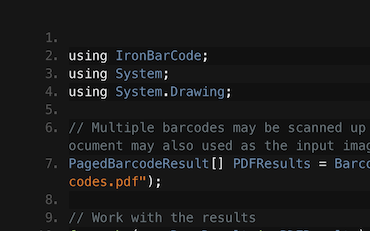
C#.NET条形码QR

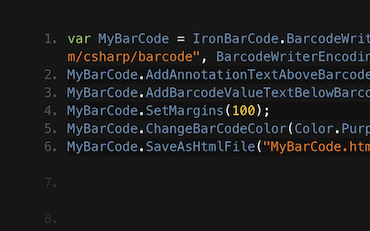
C#.NET条形码

在C#或VB.NET中生成条码图像
Francesca分享了一些在C#或VB应用程序中写入条码到图像的技巧和窍门。了解如何写入条码以及IronBarcode为您提供的所有选项...
查看Francesca的条码教程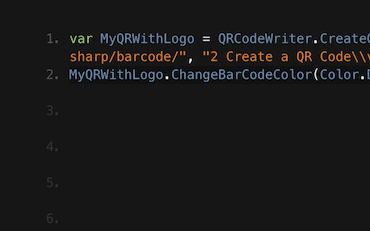
QR.NETC#VB

在C#和VB .NET应用程序中编写QR代码的教程
Jenny的团队每天使用IronBarcode编写成千上万个QR。查看他们关于如何充分利用IronBarcode的教程...
来自Jenny团队的QR编写教程成千上万的开发人员使用IronBarcode来...
会计和金融系统
- # 收据
- # 报告
- # 发票打印

业务数字化
- # 文档
- # 订购和标签
- # 纸质替代

企业内容管理
- # 内容制作
- # 文档管理
- # 内容分发

数据和报告应用程序
- # 性能跟踪
- # 趋势映射
- # 报告



数千家企业、政府、中小企业和开发者信赖Iron软件产品。
Iron团队在.NET软件组件市场拥有超过10年的经验。













IronBarcode 是 IRONSUITE的一部分
10 个 .NET API 产品用于您的办公文档
产品链接
准备开始了吗?
Nuget Downloads 2,540,041|版本:2026.11刚刚发布

当您需要快速读取、写入和设计条形码时。

