

C# QR 코드 라이브러리
- 읽다 &
- QR 코드 이미지를 사용하여 빠르고 정확하게
- .NET Core, Standard 및 Framework용으로 개발되었습니다.
QR 코드 앱용 코드 샘플
 바코드 빠른 시작
using IronBarCode;
using System.Drawing;
// Reading a barcode is easy with IronBarcode!
var resultFromFile = BarcodeReader.Read(@"file/barcode.png"); // From a file
var resultFromBitMap = BarcodeReader.Read(new Bitmap("barcode.bmp")); // From a bitmap
var resultFromImage = BarcodeReader.Read(Image.FromFile("barcode.jpg")); // From an image file
var resultFromPdf = BarcodeReader.ReadPdf(@"file/mydocument.pdf"); // From PDF use ReadPdf
// To configure and fine-tune barcode reading, utilize the BarcodeReaderOptions class
var myOptionsExample = new BarcodeReaderOptions
{
// Choose a reading speed from: Faster, Balanced, Detailed, ExtremeDetail
// There is a tradeoff in performance as more detail is set
Speed = ReadingSpeed.Balanced,
// Reader will stop scanning once a single barcode is found (if set to true)
ExpectMultipleBarcodes = true,
// By default, all barcode formats are scanned for
// Specifying a subset of barcode types to search for would improve performance
ExpectBarcodeTypes = BarcodeEncoding.AllOneDimensional,
// Utilize multiple threads to read barcodes from multiple images in parallel
Multithreaded = true,
// Maximum threads for parallelized barcode reading
// Default is 4
MaxParallelThreads = 2,
// The area of each image frame in which to scan for barcodes
// Specifying a crop area will significantly improve performance and avoid noisy parts of the image
CropArea = new Rectangle(),
// Special setting for Code39 barcodes
// If a Code39 barcode is detected, try to read with both the base and extended ASCII character sets
UseCode39ExtendedMode = true
};
// Read with the options applied
var results = BarcodeReader.Read("barcode.png", myOptionsExample);
// Create a barcode with one line of code
var myBarcode = BarcodeWriter.CreateBarcode("12345", BarcodeWriterEncoding.EAN8);
// After creating a barcode, we may choose to resize
myBarcode.ResizeTo(400, 100);
// Save our newly-created barcode as an image
myBarcode.SaveAsImage("EAN8.jpeg");
// Get the barcode as an image for further processing
var myBarcodeImage = myBarcode.Image;
using IronBarCode;
using System.Drawing;

// Reading a barcode is easy with IronBarcode!
var resultFromFile = BarcodeReader.Read(@"file/barcode.png"); // From a file
var resultFromBitMap = BarcodeReader.Read(new Bitmap("barcode.bmp")); // From a bitmap
var resultFromImage = BarcodeReader.Read(Image.FromFile("barcode.jpg")); // From an image file
var resultFromPdf = BarcodeReader.ReadPdf(@"file/mydocument.pdf"); // From PDF use ReadPdf

// To configure and fine-tune barcode reading, utilize the BarcodeReaderOptions class
var myOptionsExample = new BarcodeReaderOptions
{
    // Choose a reading speed from: Faster, Balanced, Detailed, ExtremeDetail
    // There is a tradeoff in performance as more detail is set
    Speed = ReadingSpeed.Balanced,

    // Reader will stop scanning once a single barcode is found (if set to true)
    ExpectMultipleBarcodes = true,

    // By default, all barcode formats are scanned for
    // Specifying a subset of barcode types to search for would improve performance
    ExpectBarcodeTypes = BarcodeEncoding.AllOneDimensional,

    // Utilize multiple threads to read barcodes from multiple images in parallel
    Multithreaded = true,

    // Maximum threads for parallelized barcode reading
    // Default is 4
    MaxParallelThreads = 2,

    // The area of each image frame in which to scan for barcodes
    // Specifying a crop area will significantly improve performance and avoid noisy parts of the image
    CropArea = new Rectangle(),

    // Special setting for Code39 barcodes
    // If a Code39 barcode is detected, try to read with both the base and extended ASCII character sets
    UseCode39ExtendedMode = true
};

// Read with the options applied
var results = BarcodeReader.Read("barcode.png", myOptionsExample);

// Create a barcode with one line of code
var myBarcode = BarcodeWriter.CreateBarcode("12345", BarcodeWriterEncoding.EAN8);

// After creating a barcode, we may choose to resize
myBarcode.ResizeTo(400, 100);

// Save our newly-created barcode as an image
myBarcode.SaveAsImage("EAN8.jpeg");

// Get the barcode as an image for further processing
var myBarcodeImage = myBarcode.Image;
Imports IronBarCode
Imports System.Drawing

' Reading a barcode is easy with IronBarcode!
Dim resultFromFile = BarcodeReader.Read("file/barcode.png") ' From a file
Dim resultFromBitMap = BarcodeReader.Read(New Bitmap("barcode.bmp")) ' From a bitmap
Dim resultFromImage = BarcodeReader.Read(Image.FromFile("barcode.jpg")) ' From an image file
Dim resultFromPdf = BarcodeReader.ReadPdf("file/mydocument.pdf") ' From PDF use ReadPdf

' To configure and fine-tune barcode reading, utilize the BarcodeReaderOptions class
Dim myOptionsExample As New BarcodeReaderOptions With {
    ' Choose a reading speed from: Faster, Balanced, Detailed, ExtremeDetail
    ' There is a tradeoff in performance as more detail is set
    .Speed = ReadingSpeed.Balanced,

    ' Reader will stop scanning once a single barcode is found (if set to true)
    .ExpectMultipleBarcodes = True,

    ' By default, all barcode formats are scanned for
    ' Specifying a subset of barcode types to search for would improve performance
    .ExpectBarcodeTypes = BarcodeEncoding.AllOneDimensional,

    ' Utilize multiple threads to read barcodes from multiple images in parallel
    .Multithreaded = True,

    ' Maximum threads for parallelized barcode reading
    ' Default is 4
    .MaxParallelThreads = 2,

    ' The area of each image frame in which to scan for barcodes
    ' Specifying a crop area will significantly improve performance and avoid noisy parts of the image
    .CropArea = New Rectangle(),

    ' Special setting for Code39 barcodes
    ' If a Code39 barcode is detected, try to read with both the base and extended ASCII character sets
    .UseCode39ExtendedMode = True
}

' Read with the options applied
Dim results = BarcodeReader.Read("barcode.png", myOptionsExample)

' Create a barcode with one line of code
Dim myBarcode = BarcodeWriter.CreateBarcode("12345", BarcodeWriterEncoding.EAN8)

' After creating a barcode, we may choose to resize
myBarcode.ResizeTo(400, 100)

' Save our newly-created barcode as an image
myBarcode.SaveAsImage("EAN8.jpeg")

' Get the barcode as an image for further processing
Dim myBarcodeImage = myBarcode.Image
Imports IronBarCode
Imports System.Drawing
' Reading a barcode is easy with IronBarcode!
Dim resultFromFile = BarcodeReader.Read("file/barcode.png") ' From a file
Dim resultFromBitMap = BarcodeReader.Read(New Bitmap("barcode.bmp")) ' From a bitmap
Dim resultFromImage = BarcodeReader.Read(Image.FromFile("barcode.jpg")) ' From an image file
Dim resultFromPdf = BarcodeReader.ReadPdf("file/mydocument.pdf") ' From PDF use ReadPdf
' To configure and fine-tune barcode reading, utilize the BarcodeReaderOptions class
Dim myOptionsExample As New BarcodeReaderOptions With {
' Choose a reading speed from: Faster, Balanced, Detailed, ExtremeDetail
' There is a tradeoff in performance as more detail is set
.Speed = ReadingSpeed.Balanced,
' Reader will stop scanning once a single barcode is found (if set to true)
.ExpectMultipleBarcodes = True,
' By default, all barcode formats are scanned for
' Specifying a subset of barcode types to search for would improve performance
.ExpectBarcodeTypes = BarcodeEncoding.AllOneDimensional,
' Utilize multiple threads to read barcodes from multiple images in parallel
.Multithreaded = True,
' Maximum threads for parallelized barcode reading
' Default is 4
.MaxParallelThreads = 2,
' The area of each image frame in which to scan for barcodes
' Specifying a crop area will significantly improve performance and avoid noisy parts of the image
.CropArea = New Rectangle(),
' Special setting for Code39 barcodes
' If a Code39 barcode is detected, try to read with both the base and extended ASCII character sets
.UseCode39ExtendedMode = True
}
' Read with the options applied
Dim results = BarcodeReader.Read("barcode.png", myOptionsExample)
' Create a barcode with one line of code
Dim myBarcode = BarcodeWriter.CreateBarcode("12345", BarcodeWriterEncoding.EAN8)
' After creating a barcode, we may choose to resize
myBarcode.ResizeTo(400, 100)
' Save our newly-created barcode as an image
myBarcode.SaveAsImage("EAN8.jpeg")
' Get the barcode as an image for further processing
Dim myBarcodeImage = myBarcode.Image
PM > Install-Package BarCode

개발팀에서 직접 제공하는 인적 지원
제품, 통합 또는 라이선스 관련 문의 사항이 있으시면 Iron 제품 개발팀이 언제든지 지원해 드립니다. 지금 바로 Iron에 연락하여 프로젝트에 Iron 라이브러리를 최대한 활용하는 방법을 알아보세요.
여러 유형의 QR 코드를 찾습니다
IronBarcode는 UPC A/E, EAN 8/13, Code 39, Code 93, Code 128, ITF, MSI, RSS 14/Expanded, Databar, CodaBar, QR, Styled QR, Data Matrix, MaxiCode, PDF417, Plessey, Aztec 등 대부분의 바코드 및 QR 코드 표준을 읽고 생성합니다. 출력 결과에는 바코드 데이터, 유형, 페이지, 텍스트 및 바코드 이미지가 포함되어 있어 아카이브 또는 색인 시스템에 이상적입니다.
이미지 전처리를 통한 빠르고 정확한 판독
IronBarcode는 바코드 이미지를 자동으로 사전 처리하여 속도와 정확도를 향상시킵니다. 스캔 이미지 또는 실시간 비디오 프레임을 판독하기 위해 회전, 노이즈, 왜곡 및 기울기를 보정합니다. 배치 처리 서버 애플리케이션에 적합한 멀티 코어, 멀티 스레드 환경을 지원합니다. 단일 페이지 및 여러 페이지로 구성된 문서에서 하나 또는 여러 개의 바코드를 자동으로 찾아냅니다. 복잡한 API 없이 특정 바코드 유형이나 문서 위치를 검색할 수 있습니다.
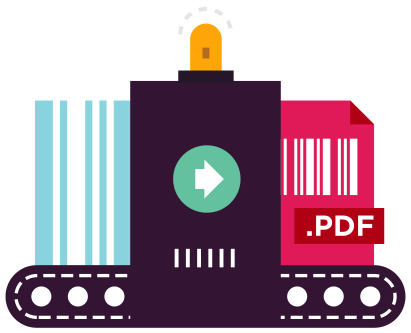
다양한 형식으로 QR 코드를 작성하세요
PDF, JPG, TIFF, GIF, BMP, PNG 또는 HTML 형식으로 파일이나 스트림에 저장하거나 인쇄할 수 있습니다. 색상, 품질, 회전, 크기 및 텍스트를 설정할 수 있습니다. C# 바코드 프로그래밍 툴박스를 IronPDF 및 IronOCR과 함께 사용하면 완벽한 .NET 문서 라이브러리를 구축할 수 있습니다.지원 항목:










C# 및 VB .NET을 이용한 QR 코드 튜토리얼
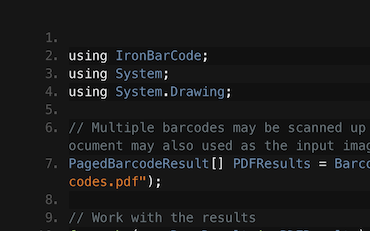
C#.NET바코드QR

바코드 및 QR 코드 읽기 | C# VB .NET 튜토리얼
Frank가 C# .NET 바코드 애플리케이션에서 IronBarcode를 사용하여 스캔 이미지, 사진 및 PDF 문서에서 바코드를 읽는 방법을 살펴보세요...
프랭크의 바코드 판독 튜토리얼을 시청하세요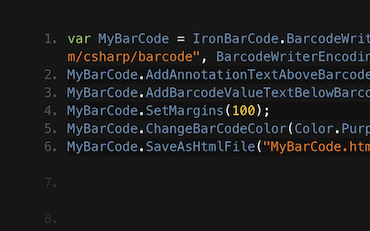
C#.NET바코드

C# 또는 VB.NET을 사용하여 바코드 이미지 생성하기
프란체스카는 C# 또는 VB 애플리케이션에서 바코드를 이미지로 변환하는 몇 가지 팁과 요령을 공유합니다. IronBarcode를 사용하여 바코드를 작성하는 방법과 사용 가능한 모든 옵션을 확인해 보세요.
프란체스카의 바코드 튜토리얼을 참조하세요.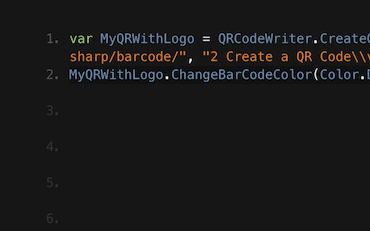
QR.NETC#VB

C# 및 VB .NET 애플리케이션에서 QR 코드를 작성하는 방법 튜토리얼
제니의 팀은 IronBarcode를 사용하여 하루에 수천 개의 QR 코드를 생성합니다. IronBarcode를 최대한 활용하는 방법에 대한 그들의 튜토리얼을 확인해 보세요.
제니 팀의 QR 코드 작성 튜토리얼수천 명의 개발자가 IronBarcode를 사용하여...
회계 및 재무 시스템
- # 영수증
- # 보고
- # 송장 인쇄

비즈니스 디지털화
- # 문서
- # 주문 및 라벨링
- # 종이 교체

기업 콘텐츠 관리
- # 콘텐츠 제작
- # 문서 관리
- # 콘텐츠 배포

데이터 및 보고 애플리케이션
- # 성과 추적
- # 추세 지도
- # 보고서



수많은 기업, 정부 기관, 중소기업 및 개발자들이 Iron Software 제품을 신뢰하고 있습니다.
아이언의 팀은 .NET 소프트웨어 구성 요소 시장에서 10년 이상의 경험을 보유하고 있습니다.













IronBarcode는 IRON SUITE 의 일부입니다.
10개의 .NET API 제품, 당신의 사무 문서를 위해
제품 링크
시작할 준비 되셨나요?
Nuget Downloads 2,540,041|버전:2026.11방금 출시

바코드를 빠르고 정확하게 읽고 쓰고 스타일을 지정해야 할 때.

