



已更新 2026年6月28日
using C# 和網路攝影機建立條碼掃描器
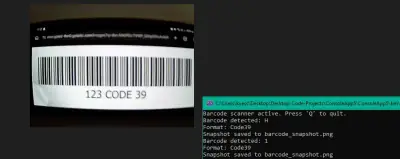
using IronBarcode,用 C# 和網路攝影機建立一個條碼掃描器。即時擷取視訊幀,解碼條碼和二維碼。包含完整原始碼。
閱讀更多

隨著移動技術的興起,像Scanbot SDK和Native SDK這樣的文件掃描應用程式,已成為個人和企業不可或缺的工具。 在本教程中,我們將探討如何使用最新版本的.NET Multi-platform App UI (MAUI)和功能強大的IronOCR OCR(光學字元識別)程式庫來建立文件掃描應用程式。 .NET MAUI讓跨平台移動應用的建立變得簡單,確保可無縫部署到像Android等裝置上。 在本教程結束時,您將能夠開發您自己的文件掃描SDK應用程式,可以輕鬆從圖像和掃描文件中提取文字。
IronOCR是由Iron Software, LLC開發的先進光學字元識別(OCR)軟體,旨在準確且高效地將圖像和掃描文件轉換為可編輯文字。 OCR技術徹底改變了企業處理文件的方式,使從掃描文件、PDF和圖像等各種來源中提取有價值的資訊變得更加簡單。
IronOCR在OCR解決方案中脫穎而出的是其先進的功能、穩健的性能和易於整合的能力。 無論您是希望將OCR功能整合到應用程式中的開發者,或者是希望優化文件管理流程的企業,IronOCR都提供了全面的解決方案。


讓我們從設計我們的MainPage.xaml的佈局開始。 我們將建立一個簡單的佈局,裡面有一個用於顯示捕獲照片的影像控制項,一個用來拍照的Capture按鈕以及一個用於顯示提取文字的Label。
這是MainPage.xaml的XAML程式碼:
<?xml version="1.0" encoding="utf-8" ?>
<ContentPage xmlns="http://schemas.microsoft.com/dotnet/2021/maui"
             xmlns:x="http://schemas.microsoft.com/winfx/2009/xaml"
             xmlns:d="http://schemas.microsoft.com/dotnet/2021/maui/design"
             x:Class="DocumentScanner.MainPage">
    <ScrollView>
        <VerticalStackLayout Padding="30,0" Spacing="25">
            <Image Source="dotnet_bot.png"
                   HeightRequest="185"
                   Aspect="AspectFit"
                   SemanticProperties.Description="dot net bot in a race car number eight" />
            <Label Text="Welcome to .NET MAUI Document Scanner SDK"
                   style="{StaticResource Headline}"
                   SemanticProperties.HeadingLevel="Level1" />
            <Label Text="Using IronOCR"
                   style="{StaticResource SubHeadline}"
                   SemanticProperties.HeadingLevel="Level2"
                   SemanticProperties.Description="Welcome to .NET MAUI Document Scanner SDK" />
            <!-- Camera preview -->
            <Image x:Name="cameraPreview" />
            <!-- Capture button -->
            <Button Text="Capture" Clicked="OnCaptureClicked" />
            <!-- Text display area -->
            <Label x:Name="textLabel" Text="Recognized Text:"/>
        </VerticalStackLayout>
    </ScrollView>
</ContentPage>在這個佈局中:

要在我們的.NET MAUI文件掃描應用中整合提取文字功能,我們將遵循以下步驟:
以下是實施這些步驟的相應程式碼片段:
using IronOcr;

namespace DocumentScanner
{
    public partial class MainPage : ContentPage
    {
        public MainPage()
        {
            InitializeComponent();
        }

        private async void OnCaptureClicked(object sender, EventArgs e)
        {
            License.LicenseKey = "YOUR-LICENSE-KEY-HERE";
            try
            {
                // Request camera permissions
                var status = await Permissions.RequestAsync<Permissions.Camera>();
                if (status == PermissionStatus.Granted)
                {
                    // Take photo
                    var photo = await MediaPicker.CapturePhotoAsync();
                    if (photo != null)
                    {
                        // Display captured photo in Image
                        cameraPreview.Source = ImageSource.FromStream(() => photo.OpenReadAsync().Result);
                        using (var stream = await photo.OpenReadAsync())
                        {
                            // Use a stream from the captured photo for OCR
                            var ocr = new IronTesseract();
                            using var ocrInput = new OcrInput();
                            ocrInput.LoadImage(stream);
                            var ocrResult = ocr.Read(ocrInput);
                            if (string.IsNullOrEmpty(ocrResult.Text))
                            {
                                await DisplayAlert("Error", "No Text Detected!", "OK");
                            }
                            else
                            {
                                await DisplayAlert("Text Detected!", ocrResult.Text, "OK");
                                // Display extracted text
                                textLabel.Text = ocrResult.Text;
                            }
                        }
                    }
                }
                else
                {
                    // Camera permission denied
                    await DisplayAlert("Permission Denied", "Camera permission is required to capture photos.", "OK");
                }
            }
            catch (Exception ex)
            {
                // Handle exception
                await DisplayAlert("Error", ex.Message, "OK");
            }
        }
    }
}Imports IronOcr
Namespace DocumentScanner
Partial Public Class MainPage
Inherits ContentPage
Public Sub New()
InitializeComponent()
End Sub
Private Async Sub OnCaptureClicked(ByVal sender As Object, ByVal e As EventArgs)
License.LicenseKey = "YOUR-LICENSE-KEY-HERE"
Try
' Request camera permissions
Dim status = Await Permissions.RequestAsync(Of Permissions.Camera)()
If status = PermissionStatus.Granted Then
' Take photo
Dim photo = Await MediaPicker.CapturePhotoAsync()
If photo IsNot Nothing Then
' Display captured photo in Image
cameraPreview.Source = ImageSource.FromStream(Function() photo.OpenReadAsync().Result)
Using stream = Await photo.OpenReadAsync()
' Use a stream from the captured photo for OCR
Dim ocr = New IronTesseract()
Dim ocrInput As New OcrInput()
ocrInput.LoadImage(stream)
Dim ocrResult = ocr.Read(ocrInput)
If String.IsNullOrEmpty(ocrResult.Text) Then
Await DisplayAlert("Error", "No Text Detected!", "OK")
Else
Await DisplayAlert("Text Detected!", ocrResult.Text, "OK")
' Display extracted text
textLabel.Text = ocrResult.Text
End If
End Using
End If
Else
' Camera permission denied
Await DisplayAlert("Permission Denied", "Camera permission is required to capture photos.", "OK")
End If
Catch ex As Exception
' Handle exception
Await DisplayAlert("Error", ex.Message, "OK")
End Try
End Sub
End Class
End NamespaceImports IronOcr
Namespace DocumentScanner
Partial Public Class MainPage
Inherits ContentPage
Public Sub New()
InitializeComponent()
End Sub
Private Async Sub OnCaptureClicked(ByVal sender As Object, ByVal e As EventArgs)
License.LicenseKey = "YOUR-LICENSE-KEY-HERE"
Try
' Request camera permissions
Dim status = Await Permissions.RequestAsync(Of Permissions.Camera)()
If status = PermissionStatus.Granted Then
' Take photo
Dim photo = Await MediaPicker.CapturePhotoAsync()
If photo IsNot Nothing Then
' Display captured photo in Image
cameraPreview.Source = ImageSource.FromStream(Function() photo.OpenReadAsync().Result)
Using stream = Await photo.OpenReadAsync()
' Use a stream from the captured photo for OCR
Dim ocr = New IronTesseract()
Dim ocrInput As New OcrInput()
ocrInput.LoadImage(stream)
Dim ocrResult = ocr.Read(ocrInput)
If String.IsNullOrEmpty(ocrResult.Text) Then
Await DisplayAlert("Error", "No Text Detected!", "OK")
Else
Await DisplayAlert("Text Detected!", ocrResult.Text, "OK")
' Display extracted text
textLabel.Text = ocrResult.Text
End If
End Using
End If
Else
' Camera permission denied
Await DisplayAlert("Permission Denied", "Camera permission is required to capture photos.", "OK")
End If
Catch ex As Exception
' Handle exception
Await DisplayAlert("Error", ex.Message, "OK")
End Try
End Sub
End Class
End Namespace讓我們逐步分解這段程式碼:
"YOUR-LICENSE-KEY-HERE"替換為實際的許可證金鑰。RequestAsync<Permissions.Camera>()請求相機許可權,以確保應用可以存取裝置的相機。MediaPicker.CapturePhotoAsync()使用相機拍攝照片。 如果成功,照片將顯示在cameraPreview影像控制項中。要進一步探索IronOCR和額外的程式碼範例,請存取此程式碼範例頁面。


通過按照本教程,您已學會如何在.NET MAUI中使用IronOCR文件掃描SDK。 文件掃描應用程式有許多實用的應用,從數字化紙質文件到從收據和發票中提取儲存的資訊。 利用IronOCR的強大功能和.NET MAUI的靈活性,您可以建立功能豐富的文件掃描應用程式,以滿足各種使用需求。 嘗試不同的功能,探索額外的程式庫,並持續提升您的技能以創造更令人印象深刻的應用。
欲瞭解IronOCR功能的更多詳細資訊,請存取此文件頁面。
IronOCR提供免費試用,在商業模式下測試其全功能。 其永久lite授權從$999開始。 從下載頁面下載程式並試試看。
Curtis Chau擁有Carleton大學的電腦科學學士學位,專精於前端開發,擁有Node.js、TypeScript、JavaScript和React的專業知識。Curtis熱衷於建立直觀且美觀的使用者介面,喜愛使用現代框架並建立結構良好、視覺吸引力的手冊。


IronBarcode 是 IRONSUITE 的一部分
10 款適用於辦公室文件的 .NET API 產品

當您需要快速讀取、寫入和樣式化條形碼。
