




已更新 2026年6月28日
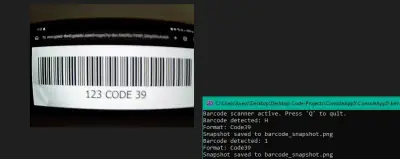
using C# 和網路攝影機建立條碼掃描器
using IronBarcode,用 C# 和網路攝影機建立一個條碼掃描器。即時擷取視訊幀,解碼條碼和二維碼。包含完整原始碼。
閱讀更多

本文將示範如何在ASP.NET網頁應用程式中使用C#列印條碼圖像。 這個範例將使用MVC框架,但您也可以根據需要使用ASP.NET Web Forms、Windows Forms或Web API。
對ASP.NET MVC框架的基本知識將使您對本文有更好的了解。
CreateBarcode方法在C#中建立條碼開啟Microsoft Visual Studio。 點擊建立新專案 > 從模板中選擇ASP.NET Web Application > 按下下一步 > 為您的專案命名 > 按下下一步 > 選擇MVC > 點擊建立按鈕。 生成的專案將如下所示。
 建立新的ASP.NET專案
右鍵單擊模型資料夾 > 新增 > 類別...。
 導航到新增類別對話框
將出現一個新窗口。 將您的類別命名為BarcodeModel。
在模型類別中寫入以下程式碼。
using System.ComponentModel.DataAnnotations;

public class BarcodeModel
{
    [Display(Name ="Barcode File Name")]
    public string FileName { get; set; }

    [Display(Name = "Barcode Content")]
    public string BarcodeContent { get; set; }
}Imports System.ComponentModel.DataAnnotations
Public Class BarcodeModel
<Display(Name :="Barcode File Name")>
Public Property FileName() As String
<Display(Name := "Barcode Content")>
Public Property BarcodeContent() As String
End ClassImports System.ComponentModel.DataAnnotations
Public Class BarcodeModel
<Display(Name :="Barcode File Name")>
Public Property FileName() As String
<Display(Name := "Barcode Content")>
Public Property BarcodeContent() As String
End ClassFileName將用於從使用者處獲取條碼圖像名稱。 BarcodeContent用於獲取條碼的內容。
接下來,在專案中新增Controller。 它將使用MVC模型與Model通信。 生成條碼的程式碼僅由兩到三行組成。 因此,不需要單獨的類別; 相反,程式碼被新增在控制器內。
要新增控制器,右鍵單擊控制器資料夾 > 新增 > 控制器。 將出現一個新窗口。 選擇MVC 5控制器空。 點擊新增按鈕。 將出現一個新框。
 新增控制器對話框
寫下您的控制器名稱,例如BarcodeController。 點擊新增按鈕。 將生成一個新的控制器。
下一步是安裝條碼程式庫。
建議使用IronBarcode程式庫作為第三方程式庫來生成條碼。 它對開發是免費的,並提供多種功能來自訂條碼,例如為條碼圖像新增徽標、在條碼下方或上方新增值、在條碼下方或上方新增註釋、調整條碼大小、將條碼儲存為多種圖像格式等。更多詳情,請點擊這裡。
前往套件管理員控制台。 輸入以下命令並按下Enter。
此命令將在專案中安裝IronBarcode程式庫。
接下來,將以下範例程式碼新增到控制器中。
using System.IO;
using System.Linq;
using System.Web.Mvc;
using IronBarCode;

public class BarcodeController : Controller
{
    [HttpPost]
    public ActionResult CreateBarcode(BarcodeModel model)
    {
        try
        {
            // Create a barcode with the specified content and encoding
            var MyBarCode = BarcodeWriter.CreateBarcode(model.BarcodeContent, BarcodeEncoding.Code128);

            // Define the path where the barcode image will be saved
            string path = Server.MapPath("~/Files/");
            string filepath = Path.Combine(path, model.FileName);

            // Add the barcode value text above the barcode
            MyBarCode.AddBarcodeValueTextAboveBarcode();

            // Save the generated barcode as a JPEG file
            MyBarCode.SaveAsJpeg(filepath);

            // Retrieve the first file from the directory as a sample image
            string image = Directory.GetFiles(path).FirstOrDefault();

            // Pass the image path to the view
            ViewBag.FileName = image;
            return View();
        }
        catch
        {
            // Handle any exceptions that occur
            return View();
        }
    }
}
using System.IO;
using System.Linq;
using System.Web.Mvc;
using IronBarCode;
public class BarcodeController : Controller
{
[HttpPost]
public ActionResult CreateBarcode(BarcodeModel model)
{
try
{
// Create a barcode with the specified content and encoding
var MyBarCode = BarcodeWriter.CreateBarcode(model.BarcodeContent, BarcodeEncoding.Code128);
// Define the path where the barcode image will be saved
string path = Server.MapPath("~/Files/");
string filepath = Path.Combine(path, model.FileName);
// Add the barcode value text above the barcode
MyBarCode.AddBarcodeValueTextAboveBarcode();
// Save the generated barcode as a JPEG file
MyBarCode.SaveAsJpeg(filepath);
// Retrieve the first file from the directory as a sample image
string image = Directory.GetFiles(path).FirstOrDefault();
// Pass the image path to the view
ViewBag.FileName = image;
return View();
}
catch
{
// Handle any exceptions that occur
return View();
}
}
}Imports System.IO
Imports System.Linq
Imports System.Web.Mvc
Imports IronBarCode
Public Class BarcodeController
Inherits Controller
<HttpPost>
Public Function CreateBarcode(ByVal model As BarcodeModel) As ActionResult
Try
' Create a barcode with the specified content and encoding
Dim MyBarCode = BarcodeWriter.CreateBarcode(model.BarcodeContent, BarcodeEncoding.Code128)
' Define the path where the barcode image will be saved
Dim path As String = Server.MapPath("~/Files/")
Dim filepath As String = System.IO.Path.Combine(path, model.FileName)
' Add the barcode value text above the barcode
MyBarCode.AddBarcodeValueTextAboveBarcode()
' Save the generated barcode as a JPEG file
MyBarCode.SaveAsJpeg(filepath)
' Retrieve the first file from the directory as a sample image
Dim image As String = Directory.GetFiles(path).FirstOrDefault()
' Pass the image path to the view
ViewBag.FileName = image
Return View()
Catch
' Handle any exceptions that occur
Return View()
End Try
End Function
End ClassImports System.IO
Imports System.Linq
Imports System.Web.Mvc
Imports IronBarCode
Public Class BarcodeController
Inherits Controller
<HttpPost>
Public Function CreateBarcode(ByVal model As BarcodeModel) As ActionResult
Try
' Create a barcode with the specified content and encoding
Dim MyBarCode = BarcodeWriter.CreateBarcode(model.BarcodeContent, BarcodeEncoding.Code128)
' Define the path where the barcode image will be saved
Dim path As String = Server.MapPath("~/Files/")
Dim filepath As String = System.IO.Path.Combine(path, model.FileName)
' Add the barcode value text above the barcode
MyBarCode.AddBarcodeValueTextAboveBarcode()
' Save the generated barcode as a JPEG file
MyBarCode.SaveAsJpeg(filepath)
' Retrieve the first file from the directory as a sample image
Dim image As String = Directory.GetFiles(path).FirstOrDefault()
' Pass the image path to the view
ViewBag.FileName = image
Return View()
Catch
' Handle any exceptions that occur
Return View()
End Try
End Function
End Classtry-catch用於捕獲任何運行時異常。BarcodeWriter類別提供,接受兩個參數:條碼內容和編碼方案。 此外,它還接受11個其他可選參數,包括最大高度、最大寬度等。Server.MapPath函式用於映射生成的條碼圖像的保存路徑。 Path.Combine方法將合併路徑和條碼圖像名稱。AddBarcodeValueTextAboveBarcode函式將新增條碼值。 IronBarcode還提供其他條碼設置,如max-height, max-width, barcode, color等。 您可以探索並利用各種參數。SaveAsJpeg函式接受路徑作為參數,並將生成的條碼保存到那個特定路徑中。Directory.GetFiles方法將獲取新生成的條碼圖像。ViewBag.FileName用於將條碼圖像的路徑發送到視圖以顯示生成的條碼圖像。也可以通過將編碼方案從QRCode來生成QR碼。
下一步是通過新增新視圖來為此ASP.NET網頁應用程式提供客戶端介面。 右鍵單擊控制器方法的名稱,然後點擊"新增視圖"按鈕。
 導航到新增視圖對話框
將出現一個新窗口。 選擇MVC 5視圖,然後點擊新增按鈕。
將出現如下所示的新提示。
 新增視圖對話框
命名您的視圖並點擊新增按鈕。 將建立一個新的.cshtml文件。
在新生成的視圖中新增以下程式碼。
@model GenerateBarcodeMVC.Models.BarcodeModel

@{
    ViewBag.DisplayBarcode = false;
}

<h2>Create</h2>

@using (Html.BeginForm())
{
    @Html.AntiForgeryToken()

    <div class="form-horizontal">
        <h4>GenerateBarcode</h4>
        <hr />
        @Html.ValidationSummary(true, "", new { @class = "text-danger" })
        <div class="form-group">
            @Html.LabelFor(model => model.FileName, htmlAttributes: new { @class = "control-label col-md-2" })
            <div class="col-md-10">
                @Html.EditorFor(model => model.FileName, new { htmlAttributes = new { @class = "form-control" } })
                @Html.ValidationMessageFor(model => model.FileName, "", new { @class = "text-danger" })
            </div>
        </div>

        <div class="form-group">
            @Html.LabelFor(model => model.BarcodeContent, htmlAttributes: new { @class = "control-label col-md-2" })
            <div class="col-md-10">
                @Html.EditorFor(model => model.BarcodeContent, new { htmlAttributes = new { @class = "form-control" } })
                @Html.ValidationMessageFor(model => model.BarcodeContent, "", new { @class = "text-danger" })
            </div>
        </div>

        <div class="form-group">
            <div class="col-md-offset-2 col-md-10">
                <img src="~/Files/@Path.GetFileName(ViewBag.FileName)" alt="Barcode" />
            </div>
        </div>

        <div class="form-group">
            <div class="col-md-offset-2 col-md-10">
                <input type="submit" value="Create" class="btn btn-default" />
            </div>
        </div>
    </div>
}

@section Scripts {
    @Scripts.Render("~/bundles/jqueryval")
}接下來,右鍵單擊視圖內,然後點擊運行到瀏覽器按鈕。
 運行網頁應用程式以顯示建立表單
輸入您的條碼圖像名稱和條碼內容,如下所示:
 輸入您的條碼內容
點擊建立按鈕。 條碼圖像將被生成並顯示在螢幕上,如下所示。
 從URL生成條碼
本教程演示了如何使用ASP.NET中的C#生成條碼,結合MVC框架。 Microsoft Visual Studio用作IDE。IronPDF是一個免費用於開發的第三方程式庫,與所有版本的.NET框架相容,包括新發布的版本。 IronBarcode快速且提供多功能用於處理條碼。 它還可以通過指定不同型別生成QR碼。
還有許多其他有用的程式庫,例如用於處理PDF文件的IronPDF,用於處理Excel文件的IronXL,以及用於OCR的IronOCR。 目前,您可以僅支付兩個的價格即可獲得所有五個程式庫,透過購買完整的Iron套件。存取我們的授權頁面了解更多詳情。
Curtis Chau擁有Carleton大學的電腦科學學士學位,專精於前端開發,擁有Node.js、TypeScript、JavaScript和React的專業知識。Curtis熱衷於建立直觀且美觀的使用者介面,喜愛使用現代框架並建立結構良好、視覺吸引力的手冊。


IronBarcode 是 IRONSUITE 的一部分
10 款適用於辦公室文件的 .NET API 產品

當您需要快速讀取、寫入和樣式化條形碼。


