


C# Barcode Scanner: Read Barcodes & QR Codes in .NET Applications

Potrzebujesz szybko zeskanować kody kreskowe lub kody QR w swojej aplikacji .NET? IronBarcode sprawia, że odczytywanie kodów kreskowych jest proste i niezawodne, niezależnie od tego, czy przetwarzasz idealne obrazy cyfrowe, czy trudne zdjęcia rzeczywiste. Ten przewodnik pokazuje, jak dokładnie zaimplementować skanowanie kodów kreskowych w C# z praktycznymi przykładami, które możesz użyć od razu.
Szybki start: Odczytaj kod kreskowy z pliku natychmiast
Ten szybki przykład pokazuje, jak łatwo jest zacząć z IronBarcode. Wystarczy jedna linia kodu, aby odczytać kody kreskowe z pliku graficznego—bez konieczności skomplikowanej konfiguracji.
-
Install IronBarcode with NuGet Package Manager
PM > Install-Package BarCode -
Skopiuj i uruchom ten fragment kodu.
var results = IronBarCode.BarcodeReader.Read("path/to/barcode.png"); -
Wdrożenie do testowania w środowisku produkcyjnym
Rozpocznij używanie IronBarcode w swoim projekcie już dziś z darmową wersją próbną

Minimalny proces (5 kroków)
- Zainstaluj IronBarcode z NuGet lub pobierz jako plik DLL
- Użyj metody
BarcodeReader.Read, aby zeskanować dowolny kod kreskowy lub kod QR - Odczytuj wiele kodów kreskowych lub kodów QR podczas jednego skanowania, w pliku PDF lub wieloklatkowym pliku TIFF
- Włącz IronBarcode do dekodowania niedoskonałych skanów i zdjęć, używając zaawansowanych filtrów
- Pobierz projekt z samouczkiem i zacznij skanować natychmiast
Jak zainstalować IronBarcode w moim projekcie .NET?
IronBarcode instaluje się łatwo przez Menedżera Pakietów NuGet lub pobierając bezpośrednio plik DLL. Instalacja z NuGet jest zalecanym podejściem, ponieważ automatycznie zarządza zależnościami i aktualizacjami.
Install-Package BarCode
Po instalacji dodaj using IronBarCode; do swoich plików C#, aby uzyskać dostęp do funkcjonalności skanowania kodów kreskowych. Aby zapoznać się z szczegółowymi instrukcjami instalacji w różnych środowiskach deweloperskich, sprawdź nasz przewodnik instalacji.
Jak mogę odczytać mój pierwszy kod kreskowy używając C#?
Odczytywanie kodów kreskowych z IronBarcode wymaga zaledwie jednej linii kodu. Biblioteka automatycznie wykrywa formaty kodów kreskowych i wyodrębnia wszystkie zakodowane dane.
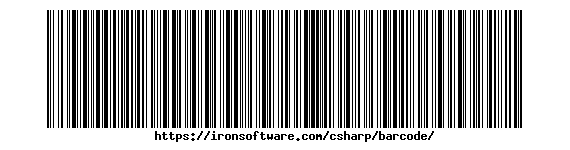 *Standardowy kod kreskowy Code128, który IronBarcode może odczytać natychmiast*
using IronBarCode;
using System;
// Read barcodes from the image file - supports PNG, JPG, BMP, GIF, and more
BarcodeResults results = BarcodeReader.Read("GetStarted.png");
// Check if any barcodes were detected
if (results != null && results.Count > 0)
{
// Process each barcode found in the image
foreach (BarcodeResult result in results)
{
// Extract the text value from the barcode
Console.WriteLine("Barcode detected! Value: " + result.Text);
// Additional properties available:
// result.BarcodeType - The format (Code128, QR, etc.)
// result.BinaryValue - Raw binary data if applicable
// result.Confidence - Detection confidence score
}
}
else
{
Console.WriteLine("No barcodes detected in the image.");
}using IronBarCode;
using System;
// Read barcodes from the image file - supports PNG, JPG, BMP, GIF, and more
BarcodeResults results = BarcodeReader.Read("GetStarted.png");
// Check if any barcodes were detected
if (results != null && results.Count > 0)
{
// Process each barcode found in the image
foreach (BarcodeResult result in results)
{
// Extract the text value from the barcode
Console.WriteLine("Barcode detected! Value: " + result.Text);
// Additional properties available:
// result.BarcodeType - The format (Code128, QR, etc.)
// result.BinaryValue - Raw binary data if applicable
// result.Confidence - Detection confidence score
}
}
else
{
Console.WriteLine("No barcodes detected in the image.");
}Imports IronBarCode
Imports System
' Read barcodes from the image file - supports PNG, JPG, BMP, GIF, and more
Dim results As BarcodeResults = BarcodeReader.Read("GetStarted.png")
' Check if any barcodes were detected
If results IsNot Nothing AndAlso results.Count > 0 Then
' Process each barcode found in the image
For Each result As BarcodeResult In results
' Extract the text value from the barcode
Console.WriteLine("Barcode detected! Value: " & result.Text)
' Additional properties available:
' result.BarcodeType - The format (Code128, QR, etc.)
' result.BinaryValue - Raw binary data if applicable
' result.Confidence - Detection confidence score
Next
Else
Console.WriteLine("No barcodes detected in the image.")
End IfMetoda BarcodeReader.Read zwraca kolekcję BarcodeResults zawierającą wszystkie wykryte kody kreskowe. Każda BarcodeResult zapewnia dostęp do wartości tekstowej kodu kreskowego, typu formatu, współrzędnych pozycji i danych binarnych. To podejście działa bezproblemowo z typowymi formatami kodów kreskowych, w tym Code128, Code39, kodami QR i kodami Data Matrix.
Jakie opcje pomagają odczytywać trudne lub uszkodzone kody kreskowe?
Skanowanie kodów kreskowych w rzeczywistym świecie często obejmuje niedoskonałe obrazy - przechylone kąty, słabe oświetlenie lub częściowe uszkodzenia. Zaawansowane opcje IronBarcode radzą sobie skutecznie z tymi wyzwaniami.
using IronBarCode;

// Configure advanced reading options for difficult barcodes
BarcodeReaderOptions options = new BarcodeReaderOptions
{
    // Speed settings: Faster, Balanced, Detailed, ExtremeDetail
    // ExtremeDetail performs deep analysis for challenging images
    Speed = ReadingSpeed.ExtremeDetail,

    // Specify expected formats to improve performance
    // Use bitwise OR (|) to combine multiple formats
    ExpectBarcodeTypes = BarcodeEncoding.QRCode | BarcodeEncoding.Code128,

    // Maximum number of barcodes to find (0 = unlimited)
    MaxParallelThreads = 4,

    // Crop region for faster processing of specific areas
    CropArea = null // Or specify a Rectangle
};

// Apply options when reading
BarcodeResults results = BarcodeReader.Read("TryHarderQR.png", options);

// Process detected barcodes
foreach (var barcode in results)
{
    Console.WriteLine($"Format: {barcode.BarcodeType}, Value: {barcode.Text}");
}
using IronBarCode;
// Configure advanced reading options for difficult barcodes
BarcodeReaderOptions options = new BarcodeReaderOptions
{
// Speed settings: Faster, Balanced, Detailed, ExtremeDetail
// ExtremeDetail performs deep analysis for challenging images
Speed = ReadingSpeed.ExtremeDetail,
// Specify expected formats to improve performance
// Use bitwise OR (|) to combine multiple formats
ExpectBarcodeTypes = BarcodeEncoding.QRCode | BarcodeEncoding.Code128,
// Maximum number of barcodes to find (0 = unlimited)
MaxParallelThreads = 4,
// Crop region for faster processing of specific areas
CropArea = null // Or specify a Rectangle
};
// Apply options when reading
BarcodeResults results = BarcodeReader.Read("TryHarderQR.png", options);
// Process detected barcodes
foreach (var barcode in results)
{
Console.WriteLine($"Format: {barcode.BarcodeType}, Value: {barcode.Text}");
}Imports IronBarCode
' Configure advanced reading options for difficult barcodes
Private options As New BarcodeReaderOptions With {
.Speed = ReadingSpeed.ExtremeDetail,
.ExpectBarcodeTypes = BarcodeEncoding.QRCode Or BarcodeEncoding.Code128,
.MaxParallelThreads = 4,
.CropArea = Nothing
}
' Apply options when reading
Private results As BarcodeResults = BarcodeReader.Read("TryHarderQR.png", options)
' Process detected barcodes
For Each barcode In results
Console.WriteLine($"Format: {barcode.BarcodeType}, Value: {barcode.Text}")
Next barcode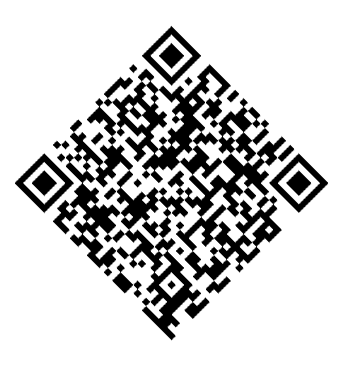 *Obrócony kod QR, który IronBarcode skutecznie odczytuje przy użyciu zaawansowanych opcji*
Właściwość ExpectBarcodeTypes znacznie poprawia wydajność, ograniczając wyszukiwanie do określonych formatów. Dla maksymalnej dokładności przy problematycznych obrazach, połącz filtry obrazów z automatycznym obrotem:
using IronBarCode;

BarcodeReaderOptions options = new BarcodeReaderOptions
{
    // Apply image processing filters to enhance readability
    ImageFilters = new ImageFilterCollection
    {
        new AdaptiveThresholdFilter(9, 0.01f), // Handles varying lighting
        new ContrastFilter(2.0f),               // Increases contrast
        new SharpenFilter()                     // Reduces blur
    },

    // Automatically rotate to find barcodes at any angle
    AutoRotate = true,

    // Use multiple CPU cores for faster processing
    Multithreaded = true
};

BarcodeResults results = BarcodeReader.Read("TryHarderQR.png", options);

foreach (var result in results)
{
    Console.WriteLine($"Detected {result.BarcodeType}: {result.Text}");
    Console.WriteLine($"Confidence: {result.Confidence}%");
    Console.WriteLine($"Position: X={result.X}, Y={result.Y}");
}
using IronBarCode;
BarcodeReaderOptions options = new BarcodeReaderOptions
{
// Apply image processing filters to enhance readability
ImageFilters = new ImageFilterCollection
{
new AdaptiveThresholdFilter(9, 0.01f), // Handles varying lighting
new ContrastFilter(2.0f), // Increases contrast
new SharpenFilter() // Reduces blur
},
// Automatically rotate to find barcodes at any angle
AutoRotate = true,
// Use multiple CPU cores for faster processing
Multithreaded = true
};
BarcodeResults results = BarcodeReader.Read("TryHarderQR.png", options);
foreach (var result in results)
{
Console.WriteLine($"Detected {result.BarcodeType}: {result.Text}");
Console.WriteLine($"Confidence: {result.Confidence}%");
Console.WriteLine($"Position: X={result.X}, Y={result.Y}");
}Imports IronBarCode
Private options As New BarcodeReaderOptions With {
.ImageFilters = New ImageFilterCollection From {
New AdaptiveThresholdFilter(9, 0.01F),
New ContrastFilter(2.0F),
New SharpenFilter()
},
.AutoRotate = True,
.Multithreaded = True
}
Private results As BarcodeResults = BarcodeReader.Read("TryHarderQR.png", options)
For Each result In results
Console.WriteLine($"Detected {result.BarcodeType}: {result.Text}")
Console.WriteLine($"Confidence: {result.Confidence}%")
Console.WriteLine($"Position: X={result.X}, Y={result.Y}")
Next resultTe zaawansowane funkcje czynią IronBarcode idealnym do skanowania kodów kreskowych ze zdjęć, kamer bezpieczeństwa lub ujęć z urządzeń mobilnych, gdzie jakość obrazu znacznie się różni.
Jak mogę zeskanować wiele kodów kreskowych z dokumentów PDF?
Skanowanie kodów kreskowych z dokumentów PDF jest kluczowe do przetwarzania faktur, etykiet wysyłkowych i dokumentów inwentaryzacyjnych. IronBarcode odczytuje wszystkie kody kreskowe na każdej stronie efektywnie.
Odczytywanie kodów kreskowych z plików PDF
using System;
using IronBarCode;

try
{
    // Scan all pages of a PDF for barcodes
    BarcodeResults results = BarcodeReader.ReadPdf("MultipleBarcodes.pdf");

    if (results != null && results.Count > 0)
    {
        foreach (var barcode in results)
        {
            // Access barcode data and metadata
            string value = barcode.Text;
            int pageNumber = barcode.PageNumber;
            BarcodeEncoding format = barcode.BarcodeType;
            byte[] binaryData = barcode.BinaryValue;

            // Extract barcode image if needed
            System.Drawing.Bitmap barcodeImage = barcode.BarcodeImage;

            Console.WriteLine($"Found {format} on page {pageNumber}: {value}");
        }
    }
    else
    {
        Console.WriteLine("No barcodes found in the PDF.");
    }
}
catch (Exception ex)
{
    Console.WriteLine($"Error reading PDF: {ex.Message}");
}
using System;
using IronBarCode;
try
{
// Scan all pages of a PDF for barcodes
BarcodeResults results = BarcodeReader.ReadPdf("MultipleBarcodes.pdf");
if (results != null && results.Count > 0)
{
foreach (var barcode in results)
{
// Access barcode data and metadata
string value = barcode.Text;
int pageNumber = barcode.PageNumber;
BarcodeEncoding format = barcode.BarcodeType;
byte[] binaryData = barcode.BinaryValue;
// Extract barcode image if needed
System.Drawing.Bitmap barcodeImage = barcode.BarcodeImage;
Console.WriteLine($"Found {format} on page {pageNumber}: {value}");
}
}
else
{
Console.WriteLine("No barcodes found in the PDF.");
}
}
catch (Exception ex)
{
Console.WriteLine($"Error reading PDF: {ex.Message}");
}Imports System
Imports IronBarCode
Try
' Scan all pages of a PDF for barcodes
Dim results As BarcodeResults = BarcodeReader.ReadPdf("MultipleBarcodes.pdf")
If results IsNot Nothing AndAlso results.Count > 0 Then
For Each barcode In results
' Access barcode data and metadata
Dim value As String = barcode.Text
Dim pageNumber As Integer = barcode.PageNumber
Dim format As BarcodeEncoding = barcode.BarcodeType
Dim binaryData() As Byte = barcode.BinaryValue
' Extract barcode image if needed
Dim barcodeImage As System.Drawing.Bitmap = barcode.BarcodeImage
Console.WriteLine($"Found {format} on page {pageNumber}: {value}")
Next barcode
Else
Console.WriteLine("No barcodes found in the PDF.")
End If
Catch ex As Exception
Console.WriteLine($"Error reading PDF: {ex.Message}")
End Try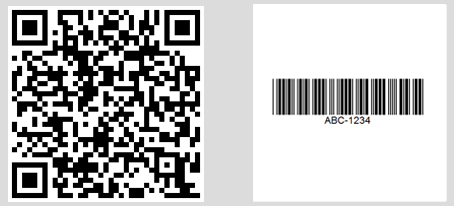 Konsolowy wynik pokazujący wiele kodów kreskowych znalezionych na różnych stronach PDF
Dla określonych zakresów stron lub zaawansowanego przetwarzania PDF użyj BarcodeReaderOptions:
// Read only specific pages to improve performance
BarcodeReaderOptions pdfOptions = new BarcodeReaderOptions
{
    // Scan pages 1-5 only
    PageNumbers = new[] { 1, 2, 3, 4, 5 },

    // PDF-specific settings
    PdfDpi = 300, // Higher DPI for better accuracy
    ReadBehindVectorGraphics = true
};

BarcodeResults results = BarcodeReader.ReadPdf("document.pdf", pdfOptions);
// Read only specific pages to improve performance
BarcodeReaderOptions pdfOptions = new BarcodeReaderOptions
{
// Scan pages 1-5 only
PageNumbers = new[] { 1, 2, 3, 4, 5 },
// PDF-specific settings
PdfDpi = 300, // Higher DPI for better accuracy
ReadBehindVectorGraphics = true
};
BarcodeResults results = BarcodeReader.ReadPdf("document.pdf", pdfOptions);' Read only specific pages to improve performance
Dim pdfOptions As New BarcodeReaderOptions With {
.PageNumbers = { 1, 2, 3, 4, 5 },
.PdfDpi = 300,
.ReadBehindVectorGraphics = True
}
Dim results As BarcodeResults = BarcodeReader.ReadPdf("document.pdf", pdfOptions)Jak mogę przetwarzać obrazy TIFF z wieloma klatkami?
Pliki TIFF z wieloma klatkami, powszechne w systemach skanowania dokumentów i faksów, otrzymują taką samą wszechstronną obsługę jak pliki PDF.
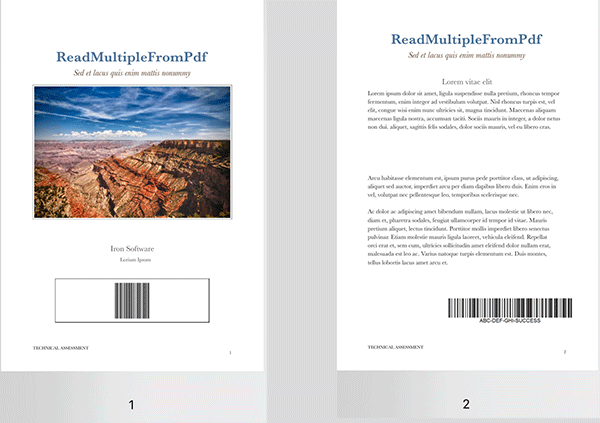 Plik TIFF z wieloma klatkami z kodami kreskowymi na różnych klatkach
using IronBarCode;

// TIFF files are processed similarly to regular images
// Each frame is scanned automatically
BarcodeResults multiFrameResults = BarcodeReader.Read("Multiframe.tiff");

foreach (var result in multiFrameResults)
{
    // Access frame-specific information
    int frameNumber = result.PageNumber; // Frame number in TIFF
    string barcodeValue = result.Text;

    Console.WriteLine($"Frame {frameNumber}: {barcodeValue}");

    // Save individual barcode images if needed
    result.BarcodeImage?.Save($"barcode_frame_{frameNumber}.png");
}
using IronBarCode;
// TIFF files are processed similarly to regular images
// Each frame is scanned automatically
BarcodeResults multiFrameResults = BarcodeReader.Read("Multiframe.tiff");
foreach (var result in multiFrameResults)
{
// Access frame-specific information
int frameNumber = result.PageNumber; // Frame number in TIFF
string barcodeValue = result.Text;
Console.WriteLine($"Frame {frameNumber}: {barcodeValue}");
// Save individual barcode images if needed
result.BarcodeImage?.Save($"barcode_frame_{frameNumber}.png");
}Imports IronBarCode
' TIFF files are processed similarly to regular images
' Each frame is scanned automatically
Private multiFrameResults As BarcodeResults = BarcodeReader.Read("Multiframe.tiff")
For Each result In multiFrameResults
' Access frame-specific information
Dim frameNumber As Integer = result.PageNumber ' Frame number in TIFF
Dim barcodeValue As String = result.Text
Console.WriteLine($"Frame {frameNumber}: {barcodeValue}")
' Save individual barcode images if needed
If result.BarcodeImage IsNot Nothing Then
result.BarcodeImage.Save($"barcode_frame_{frameNumber}.png")
End If
Next resultTe same BarcodeReaderOptions mają zastosowanie do przetwarzania plików TIFF, w tym filtry obrazów i ustawienia rotacji. Dla szczegółowych scenariuszy obsługi TIFF, zobacz nasze samouczki przetwarzania obrazów.
Czy mogę przyspieszyć przetwarzanie przy użyciu wielowątkowości?
Przetwarzanie wielu dokumentów korzysta znacznie z przetwarzania równoległego. IronBarcode automatycznie wykorzystuje dostępne rdzenie CPU dla optymalnej wydajności.
using IronBarCode;

// List of documents to process - mix of formats supported
var documentBatch = new[]
{
    "invoice1.pdf",
    "shipping_label.png",
    "inventory_sheet.tiff",
    "product_catalog.pdf"
};

// Configure for batch processing
BarcodeReaderOptions batchOptions = new BarcodeReaderOptions
{
    // Enable parallel processing across documents
    Multithreaded = true,

    // Limit threads if needed (0 = use all cores)
    MaxParallelThreads = Environment.ProcessorCount,

    // Apply consistent settings to all documents
    Speed = ReadingSpeed.Balanced,
    ExpectBarcodeTypes = BarcodeEncoding.All
};

// Process all documents in parallel
BarcodeResults batchResults = BarcodeReader.Read(documentBatch, batchOptions);

// Group results by source document
var resultsByDocument = batchResults.GroupBy(r => r.Filename);

foreach (var docGroup in resultsByDocument)
{
    Console.WriteLine($"\nDocument: {docGroup.Key}");
    foreach (var barcode in docGroup)
    {
        Console.WriteLine($"  - {barcode.BarcodeType}: {barcode.Text}");
    }
}
using IronBarCode;
// List of documents to process - mix of formats supported
var documentBatch = new[]
{
"invoice1.pdf",
"shipping_label.png",
"inventory_sheet.tiff",
"product_catalog.pdf"
};
// Configure for batch processing
BarcodeReaderOptions batchOptions = new BarcodeReaderOptions
{
// Enable parallel processing across documents
Multithreaded = true,
// Limit threads if needed (0 = use all cores)
MaxParallelThreads = Environment.ProcessorCount,
// Apply consistent settings to all documents
Speed = ReadingSpeed.Balanced,
ExpectBarcodeTypes = BarcodeEncoding.All
};
// Process all documents in parallel
BarcodeResults batchResults = BarcodeReader.Read(documentBatch, batchOptions);
// Group results by source document
var resultsByDocument = batchResults.GroupBy(r => r.Filename);
foreach (var docGroup in resultsByDocument)
{
Console.WriteLine($"\nDocument: {docGroup.Key}");
foreach (var barcode in docGroup)
{
Console.WriteLine($" - {barcode.BarcodeType}: {barcode.Text}");
}
}Imports Microsoft.VisualBasic
Imports IronBarCode
' List of documents to process - mix of formats supported
Private documentBatch = { "invoice1.pdf", "shipping_label.png", "inventory_sheet.tiff", "product_catalog.pdf" }
' Configure for batch processing
Private batchOptions As New BarcodeReaderOptions With {
.Multithreaded = True,
.MaxParallelThreads = Environment.ProcessorCount,
.Speed = ReadingSpeed.Balanced,
.ExpectBarcodeTypes = BarcodeEncoding.All
}
' Process all documents in parallel
Private batchResults As BarcodeResults = BarcodeReader.Read(documentBatch, batchOptions)
' Group results by source document
Private resultsByDocument = batchResults.GroupBy(Function(r) r.Filename)
For Each docGroup In resultsByDocument
Console.WriteLine($vbLf & "Document: {docGroup.Key}")
For Each barcode In docGroup
Console.WriteLine($" - {barcode.BarcodeType}: {barcode.Text}")
Next barcode
Next docGroupTa równoległa metoda przetwarza dokumenty jednocześnie, redukując całkowity czas skanowania do 75% w systemach wielordzeniowych. Dla przetwarzania kodów kreskowych na skalę enterprise zobacz nasz przewodnik optymalizacji wydajności.
Podsumowanie
IronBarcode przekształca skomplikowane skanowanie kodów kreskowych w prosty kod C#. Niezależnie od tego, czy tworzysz systemy magazynowe, procesory dokumentów, czy aplikacje mobilne, biblioteka obsługuje wszystko, od nienaruszonych cyfrowych kodów kreskowych po trudne zdjęcia rzeczywiste.
Omawiane kluczowe możliwości:
- Odczytywanie kodów kreskowych z obrazów za pomocą jednej linii
- Zaawansowane opcje dla uszkodzonych lub obróconych kodów kreskowych
- Wszechstronne skanowanie dokumentów PDF i TIFF
- Wydajne przetwarzanie wsadowe z wykorzystaniem wielowątkowości
- Wsparcie dla wszystkich głównych formatów kodów kreskowych
Dalsza lektura
Rozszerz swoje możliwości przetwarzania kodów kreskowych z tymi zasobami:
- Samouczek generowania kodów kreskowych - Tworzenie kodów niestandardowych
- Przewodnik po kodach QR - Specjalnie funkcje kodów QR
BarcodeReaderKlasa referencyjna - Kompletną dokumentacja API- Przewodnik rozwiązywania problemów - Typowe problemy i rozwiązania
Pliki do pobrania z kodem źródłowym
Uruchom te przykłady samodzielnie:
Gotowy do zaimplementowania skanowania kodów kreskowych w swojej aplikacji? Rozpocznij darmowy okres próbny i dodaj profesjonalne odczytywanie kodów kreskowych do swojego projektu .NET już dziś.
Często Zadawane Pytania
How can I install a barcode reading library in a .NET project?
You can install the IronBarcode library via NuGet Package Manager using the command dotnet add package BarCode or through Visual Studio's NuGet interface. Alternatively, download the DLL for manual installation.
What is the method to read a barcode from an image using C#?
Use the BarcodeReader.Read method from IronBarcode with a single line of code: var results = BarcodeReader.Read('image.png'); This method detects and reads all barcode formats present in the image.
Is it possible to detect multiple barcodes in a single image or document?
Yes, IronBarcode can automatically detect and read multiple barcodes in an image, PDF, or multiframe TIFF, returning each barcode's value, type, and position in a BarcodeResults collection.
How do I read barcodes from a PDF using C#?
Use IronBarcode's BarcodeReader.ReadPdf method to scan all pages of a PDF document: var results = BarcodeReader.ReadPdf('document.pdf'); Each result includes the page number where the barcode was found.
What should I do if the barcode images are blurry or rotated?
Configure BarcodeReaderOptions to handle challenging images by setting AutoRotate = true and applying image filters like SharpenFilter or AdaptiveThresholdFilter. Use Speed = ExtremeDetail for better accuracy.
Which barcode formats are supported in .NET applications?
IronBarcode supports all major barcode formats such as QR Code, Code 128, Code 39, EAN-13, UPC-A, Data Matrix, PDF417, and more. Utilize BarcodeEncoding.All to scan for any supported format.
How can I enhance barcode scanning performance in a C# application?
Improve performance by specifying expected barcode types with ExpectBarcodeTypes, enabling Multithreaded processing, and choosing appropriate Speed settings. For batch tasks, utilize BarcodeReader.Read with file paths.
What is the recommended approach for handling barcode reading errors?
Encapsulate barcode reading in try-catch blocks and verify if the results are null or empty. IronBarcode provides detailed error messages and a Confidence property to indicate detection reliability.
Can I extract barcode images after they are scanned?
Yes, IronBarcode's BarcodeResult includes a BarcodeImage property that contains a Bitmap of the detected barcode, which can be saved or processed separately.
How do I read barcodes from specific pages within a PDF document?
Set the PageNumbers property in BarcodeReaderOptions to specify pages: options.PageNumbers = new[] {1, 2, 3}; This optimizes performance by scanning only the designated pages.
What image formats are compatible with barcode scanning in .NET?
IronBarcode supports scanning in formats like PNG, JPEG, BMP, GIF, TIFF (including multiframe), and PDF. You can load images from file paths, streams, or byte arrays.
How can I access binary data from scanned barcodes in C#?
Utilize the BinaryValue property of BarcodeResult to obtain raw binary data, especially useful for barcodes containing non-text data such as compressed information or binary protocols.


Wciąż przewijasz?
Czy chcesz szybko dowodu? PM > Install-Package BarCode
uruchom przykład zobacz, jak twoje ciągi zamieniają się w kody kreskowe.








 Rozpocznij za DARMO
 Rozpocznij za DARMO
 Zarezerwuj darmowe Demo na żywo





 Nie wymaga karty kredytowej ani tworzenia konta










