
Lire les fichiers Excel dans ASP.NET MVC en utilisant C# avec IronXL

IronXL permet aux développeurs ASP.NET MVC de lire des fichiers Excel directement en C# sans dépendances de Microsoft Office, en convertissant les données Excel en System.Data.DataTable pour un affichage facile dans les vues web avec seulement quelques lignes de code.
Cet exemple montre comment commencer en quelques secondes : chargez un classeur Excel, choisissez sa première feuille de calcul et convertissez-la en System.Data.DataTable à l'aide d'IronXL - pas d'Interop, pas de tracas.
-
1Install IronXL with NuGet Package Manager
-
2Copiez et exécutez cet extrait de code.
var dataTable = IronXL.WorkBook.Load("CustomerData.xlsx").DefaultWorkSheet.ToDataTable(true);Dim dataTable = WorkBook.Load("CustomerData.xlsx").DefaultWorkSheet.ToDataTable(True) -
3Déployez pour tester sur votre environnement de production.
Commencez à utiliser IronXL dans votre projet dès aujourd'hui avec un essai gratuit
Flux de travail minimal (5 étapes)
- Installer la bibliothèque C# pour lire un fichier Excel dans ASP.NET
- Chargement et accès à la feuille ciblée dans le fichier Excel
- Accédez à la méthode
ToDataTableet renvoyez-la àView - Afficher des données Excel sur une page web à l'aide d'une boucle
- Interroger toutes les données et construire un tableau HTML
Comment créer un projet ASP.NET pour la lecture d'Excel ?
Pourquoi Visual Studio 2022 est-il le plus adapté ?
À l'aide de Visual Studio 2022, créez un nouveau projet ASP.NET. Visual Studio 2022 offre un excellent support pour les cadres .NET 6+, une meilleure IntelliSense pour les méthodes IronXL, et de meilleures performances lors du travail avec de gros fichiers Excel. L'intégration NuGet de l'IDE rend l'installation de IronXL particulièrement simple.
Quel modèle de projet dois-je choisir ?
Pour la lecture de fichiers Excel en ASP.NET, choisissez le modèle "ASP.NET Core Web App (Model-View-Controller)". Ce modèle offre une structure MVC propre qui sépare le traitement des données (lecture d'Excel) de la logique de présentation. Le modèle MVC fonctionne parfaitement avec la conversion IronXL de DataTable, vous permettant de charger les feuilles de calcul dans les contrôleurs et de les afficher dans les vues de manière transparente.
Quelle est la version de .NET recommandée?
IronXL fonctionne avec .NET Framework 4.6.2+ et .NET Core 3.1+. Pour les nouveaux projets ASP.NET MVC, utilisez .NET 6.0 ou une version plus récente pour des performances et une sécurité optimales. Ces versions offrent une meilleure gestion de la mémoire lors du traitement de fichiers Excel volumineux et une meilleure prise en charge asynchrone/attente pour la conversion des types de fichiers de feuilles de calcul.
Comment installer la bibliothèque IronXL?
Quelle est la configuration requise pour l'installation?
Quelle est la méthode d'installation la plus rapide ?
Après avoir créé le nouveau projet, installez la bibliothèque IronXL. Suivez ces étapes pour installer IronXL. Ouvrez la console du gestionnaire de packages NuGet et exécutez la commande suivante :
Comment puis-je vérifier l'installation ?
Pour vérifier que IronXL est bien installé, vérifiez les dépendances de votre projet dans l'Explorateur de solutions. Vous devriez voir "IronXL" listé sous "Dependencies > Packages". En outre, essayez d'ajouter using IronXL; en haut de votre fichier de contrôleur - IntelliSense devrait reconnaître immédiatement l'espace de noms. Pour résoudre les problèmes d'installation, consultez le guide des licences.
Comment lire un fichier Excel dans mon contrôleur?
Quel est le code contenu dans l'action du contrôleur ?
Ouvrez le contrôleur par défaut dans votre projet ASP.NET (par exemple, HomeController.cs) et remplacez la méthode Index par le code suivant :
using IronXL;
using System.Data;

public ActionResult Index()
{
    // Load the Excel workbook from a specified path.
    WorkBook workBook = WorkBook.Load(@"C:\Files\Customer Data.xlsx");

    // Access the first worksheet from the workbook.
    WorkSheet workSheet = workBook.WorkSheets.First();

    // Convert the worksheet data to a DataTable object.
    // The 'true' parameter uses the first row as column headers
    var dataTable = workSheet.ToDataTable(true);

    // Send the DataTable to the view for rendering.
    return View(dataTable);
}Imports IronXL
Imports System.Data
Public Function Index() As ActionResult
' Load the Excel workbook from a specified path.
Dim workBook As WorkBook = WorkBook.Load("C:\Files\Customer Data.xlsx")
' Access the first worksheet from the workbook.
Dim workSheet As WorkSheet = workBook.WorkSheets.First()
' Convert the worksheet data to a DataTable object.
' The 'true' parameter uses the first row as column headers
Dim dataTable = workSheet.ToDataTable(True)
' Send the DataTable to the view for rendering.
Return View(dataTable)
End FunctionPourquoi utiliser DataTable au lieu d'autres formats ?
Dans la méthode d'action Index, chargez le fichier Excel en utilisant la méthode Load de IronXL. Le chemin d'accès au fichier Excel (y compris le nom du fichier) est fourni en tant que paramètre à l'appel de méthode. Ensuite, sélectionnez la première feuille Excel comme feuille de travail et chargez les données qu'elle contient dans un objet DataTable. Enfin, envoyez le DataTable au frontend.
DataTable est idéal pour ASP.NET MVC car il s'intègre parfaitement aux vues Razor et offre un support intégré pour parcourir les lignes et les colonnes. Contrairement aux objets personnalisés, DataTable ne nécessite pas de mappage de modèle et gère automatiquement les types de données mixtes. Vous pouvez également exporter DataSet et DataTable vers Excel lorsque nécessaire.
Qu'en est-il de la gestion des erreurs pour les fichiers manquants ?
Une gestion robuste des erreurs garantit que votre application ne se bloque pas lorsque des fichiers Excel sont manquants ou corrompus. Voici une version améliorée avec une gestion correcte des exceptions :
public ActionResult Index()
{
    try
    {
        string filePath = @"C:\Files\Customer Data.xlsx";

        // Check if file exists before attempting to load
        if (!System.IO.File.Exists(filePath))
        {
            ViewBag.Error = "Excel file not found at specified location.";
            return View(new DataTable());
        }

        // Load workbook with error handling
        WorkBook workBook = WorkBook.Load(filePath);

        // Verify worksheet exists
        if (workBook.WorkSheets.Count == 0)
        {
            ViewBag.Error = "No worksheets found in the Excel file.";
            return View(new DataTable());
        }

        WorkSheet workSheet = workBook.WorkSheets.First();
        var dataTable = workSheet.ToDataTable(true);

        return View(dataTable);
    }
    catch (Exception ex)
    {
        // Log the exception (consider using a logging framework)
        ViewBag.Error = $"Error reading Excel file: {ex.Message}";
        return View(new DataTable());
    }
}Public Function Index() As ActionResult
Try
Dim filePath As String = "C:\Files\Customer Data.xlsx"
' Check if file exists before attempting to load
If Not System.IO.File.Exists(filePath) Then
ViewBag.Error = "Excel file not found at specified location."
Return View(New DataTable())
End If
' Load workbook with error handling
Dim workBook As WorkBook = WorkBook.Load(filePath)
' Verify worksheet exists
If workBook.WorkSheets.Count = 0 Then
ViewBag.Error = "No worksheets found in the Excel file."
Return View(New DataTable())
End If
Dim workSheet As WorkSheet = workBook.WorkSheets.First()
Dim dataTable = workSheet.ToDataTable(True)
Return View(dataTable)
Catch ex As Exception
' Log the exception (consider using a logging framework)
ViewBag.Error = $"Error reading Excel file: {ex.Message}"
Return View(New DataTable())
End Try
End FunctionComment puis-je sélectionner différentes feuilles de calcul ?
IronXL offre plusieurs façons de sélectionner et travailler avec des feuilles spécifiques. Vous pouvez accéder aux feuilles de calcul par index ou par nom, ou parcourir toutes les feuilles disponibles :
// Method 1: Select by worksheet name
WorkSheet namedSheet = workBook.GetWorkSheet("Sales Data");

// Method 2: Select by index (zero-based)
WorkSheet secondSheet = workBook.WorkSheets[1];

// Method 3: Select the default/active worksheet
WorkSheet defaultSheet = workBook.DefaultWorkSheet;

// Method 4: Iterate through all worksheets
foreach (WorkSheet sheet in workBook.WorkSheets)
{
    string sheetName = sheet.Name;
    // Process each worksheet
}' Method 1: Select by worksheet name
Dim namedSheet As WorkSheet = workBook.GetWorkSheet("Sales Data")
' Method 2: Select by index (zero-based)
Dim secondSheet As WorkSheet = workBook.WorkSheets(1)
' Method 3: Select the default/active worksheet
Dim defaultSheet As WorkSheet = workBook.DefaultWorkSheet
' Method 4: Iterate through all worksheets
For Each sheet As WorkSheet In workBook.WorkSheets
Dim sheetName As String = sheet.Name
' Process each worksheet
NextComment afficher des données Excel sur une page web?
Quel est le code d'affichage requis ?
L'exemple suivant montre comment afficher le DataTable retourné dans l'exemple précédent dans un navigateur web.
Le fichier Excel utilisé dans cet exemple est présenté ci-dessous :
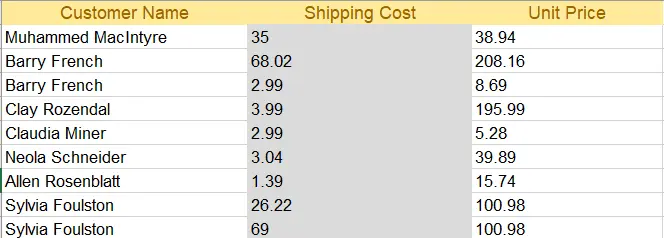
fichier Excel
Ouvrez le index.cshtml (vue index) et remplacez le code par le code HTML suivant :
@{
    ViewData["Title"] = "Home Page";
}

@using System.Data
@model DataTable

<div class="text-center">
    <h1 class="display-4">Welcome to IronXL Read Excel MVC</h1>
</div>

@* Check for errors first *@
@if (ViewBag.Error != null)
{
    <div class="alert alert-danger">
        @ViewBag.Error
    </div>
}

@* Display table only if data exists *@
@if (Model != null && Model.Rows.Count > 0)
{
    <table class="table table-dark">
        <tbody>
            @foreach (DataRow row in Model.Rows)
            {
                <tr>
                    @for (int i = 0; i < Model.Columns.Count; i++)
                    {
                        <td>@row[i]</td>
                    }
                </tr>
            }
        </tbody>
    </table>
}
else
{
    <p>No data to display.</p>
}Pourquoi utiliser Bootstrap pour l'habillage des tableaux ?
Le code ci-dessus utilise le DataTable retourné par la méthode Index comme modèle. Chaque ligne du tableau est imprimée sur la page web à l'aide d'une boucle @for, y compris le formatage Bootstrap pour la décoration.
Bootstrap permet de concevoir des tableaux réactifs qui s'adaptent automatiquement aux différentes tailles d'écran, ce qui est essentiel pour les applications web modernes. La classe table-dark crée une table à thème sombre attrayante et facile à lire. Pour un formatage Excel plus avancé comme les bordures et alignements de cellules ou les motifs et couleurs de fond, IronXL fournit des méthodes supplémentaires pour accéder directement aux données structurées.
À quoi ressemble le résultat final?
L'exécution du projet produit les résultats ci-dessous :
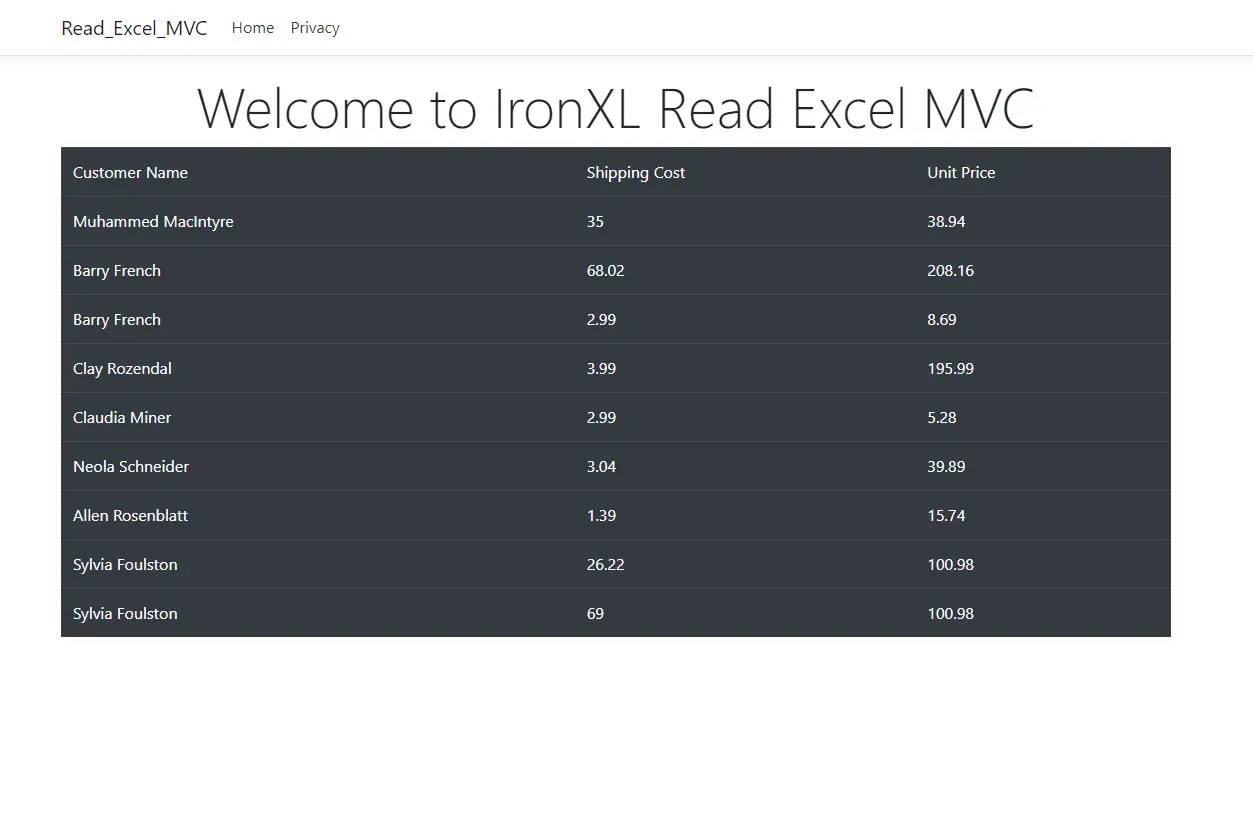
Tableau Bootstrap
Comment ajouter des en-têtes au tableau ?
Pour afficher les en-têtes de colonne de votre fichier Excel, modifiez le code d'affichage afin d'inclure une section d'en-tête de tableau. Lors de l'appel de ToDataTable(true), IronXL utilise automatiquement la première ligne comme noms de colonnes :
@if (Model != null && Model.Rows.Count > 0)
{
    <table class="table table-dark">
        <thead>
            <tr>
                @foreach (DataColumn column in Model.Columns)
                {
                    <th>@column.ColumnName</th>
                }
            </tr>
        </thead>
        <tbody>
            @foreach (DataRow row in Model.Rows)
            {
                <tr>
                    @for (int i = 0; i < Model.Columns.Count; i++)
                    {
                        <td>@row[i]</td>
                    }
                </tr>
            }
        </tbody>
    </table>
}netCette amélioration affiche les en-têtes de colonne appropriés comme "Nom du client", "Coût de livraison" et "Prix unitaire" à partir de votre fichier Excel. Pour des scénarios plus complexes impliquant des plages nommées ou des tables nommées, IronXL fournit des méthodes supplémentaires pour accéder directement aux données structurées.
Questions Fréquemment Posées
Comment lire des fichiers Excel en ASP.NET MVC sans Microsoft Office ?
IronXL vous permet de lire des fichiers Excel directement en C# sans aucune dépendance vis-à-vis de Microsoft Office. Il suffit d'installer IronXL via NuGet, puis d'utiliser WorkBook.Load() pour ouvrir votre fichier Excel et le convertir en DataTable en une seule ligne de code : var dataTable = IronXL.WorkBook.Load('CustomerData.xlsx').DefaultWorkSheet.ToDataTable(true) ;
Quel est le moyen le plus rapide de convertir des données Excel en tableau de données en ASP.NET ?
IronXL fournit la méthode ToDataTable() qui convertit instantanément les feuilles de calcul Excel en objets System.Data.DataTable. Après avoir chargé votre classeur avec IronXL, accédez à n'importe quelle feuille de calcul et appelez ToDataTable(true) pour inclure les en-têtes. Cette conversion ne nécessite qu'une seule ligne de code et fonctionne de manière transparente avec les vues ASP.NET MVC.
Quelle version de .NET dois-je utiliser pour le traitement des fichiers Excel dans les applications web ?
IronXL prend en charge .NET Framework 4.6.2+ et .NET Core 3.1+. Pour les nouveaux projets ASP.NET MVC, il est recommandé d'utiliser .NET 6.0 ou une version plus récente, car elle offre une meilleure gestion de la mémoire lors du traitement de fichiers Excel volumineux avec IronXL et une meilleure prise en charge asynchrone/attente pour les opérations sur les feuilles de calcul.
Quel modèle de projet Visual Studio fonctionne le mieux pour la fonctionnalité de lecture d'Excel ?
Choisissez le modèle " ASP.NET Core Web App (modèle-vue-contrôleur) " lors de la création de votre projet. Cette structure MVC complète parfaitement la fonctionnalité de conversion DataTable d'IronXL, vous permettant de charger et de traiter les fichiers Excel dans les contrôleurs tout en affichant proprement les données dans les vues.
Comment installer la bibliothèque de lecture Excel dans mon projet ASP.NET ?
Installez IronXL via la console du Package Manager NuGet en exécutant "Install-Package IronXL.Excel". Après l'installation, vérifiez qu'il a été correctement ajouté en vérifiant les dépendances de votre projet et en ajoutant " using IronXL ; " à votre contrôleur - IntelliSense devrait reconnaître l'espace de noms immédiatement.
Why choose DataTable format when using IronXL?
The DataTable format is ideal for ASP.NET MVC applications because it integrates with Razor views, allows for straightforward iteration over data rows and columns without model mapping, and accommodates mixed data types efficiently.
What steps are required to install IronXL in an ASP.NET MVC project?
Installation involves adding IronXL via the NuGet Package Manager in Visual Studio. It requires opening the NuGet Package Manager Console and executing a specific command to add IronXL to the project's dependencies.
How do you handle errors when reading Excel files with IronXL?
IronXL supports reliable error handling such as checking file existence before loading, catching exceptions during the workbook loading process, and managing missing worksheet scenarios. This ensures application stability even if Excel files are corrupted or absent.
Can IronXL select specific worksheets from an Excel file?
Yes, IronXL allows developers to select worksheets by name, index, or default setting, and it also provides functionality to iterate through all available worksheets in a workbook.
What are some styling options for displaying Excel data using IronXL in web apps?
IronXL, when used with ASP.NET MVC, enables styling options like Bootstrap for responsive table layouts and additional IronXL methods for setting cell borders, alignment, patterns, and colors within spreadsheets.

Curtis Chau détient un baccalauréat en informatique (Université de Carleton) et se spécialise dans le développement front-end avec expertise en Node.js, TypeScript, JavaScript et React. Passionné par la création d'interfaces utilisateur intuitives et esthétiquement plaisantes, Curtis aime travailler avec des frameworks modernes et créer des manuels bien structurés et visuellement attrayants.



