


已更新 2026年6月4日
如何使用 IronWord 在 C# 中建立可填寫的表格範本
學習如何使用 IronWord 在 C# 中建立可填寫的表單範本。
閱讀更多

在現代應用程式中,即時生成Word文件對於各種目的(如帳單、發票、信函等)是至關重要的。Microsoft Word範本文件功能提供了一種強大的方式來確保一致性和效率。 然而,手動填寫這些範本可能會耗時且容易出錯。 這就是來自Iron Software的IronWord的用武之地——這是一個強大的.NET程式庫,專為程式化填寫Word範本而設計。 在本文中,我們將演示如何使用IronWord來填寫Word文件範本,並提供實際範例來說明該過程。
IronWord是Iron Software推出的一個.NET程式庫,旨在促進Microsoft Word文件的程式化建立、操作和管理。 它允許開發者自動化生成Word文件的過程,使其更容易在應用程式中動態建立報告、發票、信函和其他型別的文件。
IronWord 允許使用Word範本來定義範本文件中的佔位符,並在運行時用實際資料替換它們。
您可以輕鬆在Word文件中插入、替換或刪除文字。
該程式庫支持各種格式選項,包括字體樣式、大小、顏色和段落對齊。
IronWord允許您在文件中插入和操作表格和圖像。
它與不同版本的Microsoft Word無縫相容,確保易用性和相容性。
IronWord簡化了在.NET應用程式中使用Word文件的工作,對於希望自動化文件生成和管理任務的開發人員來說,這是一個有價值的工具。
開始之前,請確保您已經具備以下資源:
現在,讓我們開始建立一個新的Visual Studio專案。

在下方螢幕上選擇控制台應用程式範本。

提供專案名稱和位置。

選擇.NET版本,最好是帶有支持的最新版本,然後點擊建立。

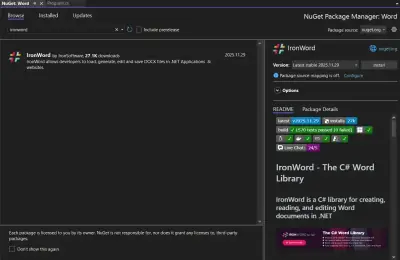
在Visual Studio中,從NuGet套件管理器中安裝IronWord NuGet套件,如下所示。

或者,請直接使用以下指令在CLI中安裝它。
現在,生成一個帶有一到兩頁的Word範本文件,以便在Word文件生成過程中使用。
Dear {Name},

Thanks for purchasing {product}. We are happy to serve you always. Your application dated {Date} has been approved. The product comes with an expiry date of {expiryDate}. Renew the product on or before the expiry date.

Feel free to contact {phone} or {email} for further queries.

Address: {Address}

Thank you,

{Sender}現在,將上述文件另存為Template.docx。
using System;
using System.Collections.Generic;
using IronWord;

class Program
{
    static void Main()
    {
        // Set the license key for IronWord
        License.LicenseKey = "your key";

        // Define paths for the template and the output file
        string templatePath = "Template.docx";
        string outputPath = "FilledDocument.docx";

        // Create a new instance of the WordDocument class using the template path
        WordDocument doc = new WordDocument(templatePath);

        // Define a dictionary of placeholders and their replacements
        var replacements = new Dictionary<string, string>
        {
            { "{Name}", "John Doe" },
            { "{Date}", DateTime.Now.ToString("MMMM d, yyyy") },
            { "{Address}", "123 Iron Street, Iron Software" },
            { "{product}", "IronWord" },
            { "{Sender}", "IronSoftware" },
            { "{phone}", "+123 456789" },
            { "{email}", "sale@ironsoftware.com" },
            { "{expiryDate}", DateTime.Now.AddYears(1).ToString("MMMM d, yyyy") },
        };

        // Replace placeholders in the document with actual data
        foreach (var replacement in replacements)
        {
            doc.Texts.ForEach(x => x.Replace(replacement.Key, replacement.Value));
        }

        // Save the filled document
        doc.Save(outputPath);

        // Notify the user that the document has been saved successfully
        Console.WriteLine("Document filled and saved successfully.");
    }
}Imports System
Imports System.Collections.Generic
Imports IronWord
Friend Class Program
Shared Sub Main()
' Set the license key for IronWord
License.LicenseKey = "your key"
' Define paths for the template and the output file
Dim templatePath As String = "Template.docx"
Dim outputPath As String = "FilledDocument.docx"
' Create a new instance of the WordDocument class using the template path
Dim doc As New WordDocument(templatePath)
' Define a dictionary of placeholders and their replacements
Dim replacements = New Dictionary(Of String, String) From {
{"{Name}", "John Doe"},
{"{Date}", DateTime.Now.ToString("MMMM d, yyyy")},
{"{Address}", "123 Iron Street, Iron Software"},
{"{product}", "IronWord"},
{"{Sender}", "IronSoftware"},
{"{phone}", "+123 456789"},
{"{email}", "sale@ironsoftware.com"},
{"{expiryDate}", DateTime.Now.AddYears(1).ToString("MMMM d, yyyy")}
}
' Replace placeholders in the document with actual data
For Each replacement In replacements
doc.Texts.ForEach(Function(x) x.Replace(replacement.Key, replacement.Value))
Next replacement
' Save the filled document
doc.Save(outputPath)
' Notify the user that the document has been saved successfully
Console.WriteLine("Document filled and saved successfully.")
End Sub
End ClassImports System
Imports System.Collections.Generic
Imports IronWord
Friend Class Program
Shared Sub Main()
' Set the license key for IronWord
License.LicenseKey = "your key"
' Define paths for the template and the output file
Dim templatePath As String = "Template.docx"
Dim outputPath As String = "FilledDocument.docx"
' Create a new instance of the WordDocument class using the template path
Dim doc As New WordDocument(templatePath)
' Define a dictionary of placeholders and their replacements
Dim replacements = New Dictionary(Of String, String) From {
{"{Name}", "John Doe"},
{"{Date}", DateTime.Now.ToString("MMMM d, yyyy")},
{"{Address}", "123 Iron Street, Iron Software"},
{"{product}", "IronWord"},
{"{Sender}", "IronSoftware"},
{"{phone}", "+123 456789"},
{"{email}", "sale@ironsoftware.com"},
{"{expiryDate}", DateTime.Now.AddYears(1).ToString("MMMM d, yyyy")}
}
' Replace placeholders in the document with actual data
For Each replacement In replacements
doc.Texts.ForEach(Function(x) x.Replace(replacement.Key, replacement.Value))
Next replacement
' Save the filled document
doc.Save(outputPath)
' Notify the user that the document has been saved successfully
Console.WriteLine("Document filled and saved successfully.")
End Sub
End Class提供的程式碼展示了如何使用IronWord程式庫將特定資料填入Word文件範本。 以下是簡要說明:
FilledDocument.docx)的路徑。WordDocument實例。輸出

IronWord還允許新增各種文字效果,如下表所示。
在下列範例中,我們為"Iron Software"這幾個字新增了文字效果。
using System;
using System.Collections.Generic;
using IronWord;
using IronWord.Models;

class Program
{
    static void Main()
    {
        // Set the license key for IronWord
        License.LicenseKey = "your key";

        // Define paths for the template and the output file
        string templatePath = "Template.docx";
        string outputPath = "glowEffect.docx";

        // Create a new instance of the WordDocument class
        WordDocument doc = new WordDocument(templatePath);

        // Define a dictionary of placeholders and their replacements
        var replacements = new Dictionary<string, string>
        {
            { "{Name}", "John Doe" },
            { "{Date}", DateTime.Now.ToString("MMMM d, yyyy") },
            { "{Address}", "123 Iron Street, Iron Software" },
            { "{product}", "IronWord" },
            { "{Sender}", "Sale," },
            { "{phone}", "+123 456789" },
            { "{email}", "sale@ironsoftware.com" },
            { "{expiryDate}", DateTime.Now.AddYears(1).ToString("MMMM d, yyyy") },
        };

        // Replace placeholders in the document with actual data
        foreach (var replacement in replacements)
        {
            doc.Texts.ForEach(x => x.Replace(replacement.Key, replacement.Value));
        }

        // Create and configure text style methods with a glow effect
        TextStyle textStyle = new TextStyle
        {
            TextEffect = new TextEffect()
            {
                GlowEffect = new Glow()
                {
                    GlowColor = IronWord.Models.Color.Aqua,
                    GlowRadius = 10,
                },
            }
        };

        // Add styled text to the document
        doc.AddText(" IronSoftware").Style = textStyle;

        // Save the document with the glow effect
        doc.SaveAs(outputPath);

        // Notify the user that the document has been saved successfully
        Console.WriteLine("Styled document saved successfully.");
    }
}
using System;
using System.Collections.Generic;
using IronWord;
using IronWord.Models;
class Program
{
static void Main()
{
// Set the license key for IronWord
License.LicenseKey = "your key";
// Define paths for the template and the output file
string templatePath = "Template.docx";
string outputPath = "glowEffect.docx";
// Create a new instance of the WordDocument class
WordDocument doc = new WordDocument(templatePath);
// Define a dictionary of placeholders and their replacements
var replacements = new Dictionary<string, string>
{
{ "{Name}", "John Doe" },
{ "{Date}", DateTime.Now.ToString("MMMM d, yyyy") },
{ "{Address}", "123 Iron Street, Iron Software" },
{ "{product}", "IronWord" },
{ "{Sender}", "Sale," },
{ "{phone}", "+123 456789" },
{ "{email}", "sale@ironsoftware.com" },
{ "{expiryDate}", DateTime.Now.AddYears(1).ToString("MMMM d, yyyy") },
};
// Replace placeholders in the document with actual data
foreach (var replacement in replacements)
{
doc.Texts.ForEach(x => x.Replace(replacement.Key, replacement.Value));
}
// Create and configure text style methods with a glow effect
TextStyle textStyle = new TextStyle
{
TextEffect = new TextEffect()
{
GlowEffect = new Glow()
{
GlowColor = IronWord.Models.Color.Aqua,
GlowRadius = 10,
},
}
};
// Add styled text to the document
doc.AddText(" IronSoftware").Style = textStyle;
// Save the document with the glow effect
doc.SaveAs(outputPath);
// Notify the user that the document has been saved successfully
Console.WriteLine("Styled document saved successfully.");
}
}Imports System
Imports System.Collections.Generic
Imports IronWord
Imports IronWord.Models
Friend Class Program
Shared Sub Main()
' Set the license key for IronWord
License.LicenseKey = "your key"
' Define paths for the template and the output file
Dim templatePath As String = "Template.docx"
Dim outputPath As String = "glowEffect.docx"
' Create a new instance of the WordDocument class
Dim doc As New WordDocument(templatePath)
' Define a dictionary of placeholders and their replacements
Dim replacements = New Dictionary(Of String, String) From {
{"{Name}", "John Doe"},
{"{Date}", DateTime.Now.ToString("MMMM d, yyyy")},
{"{Address}", "123 Iron Street, Iron Software"},
{"{product}", "IronWord"},
{"{Sender}", "Sale,"},
{"{phone}", "+123 456789"},
{"{email}", "sale@ironsoftware.com"},
{"{expiryDate}", DateTime.Now.AddYears(1).ToString("MMMM d, yyyy")}
}
' Replace placeholders in the document with actual data
For Each replacement In replacements
doc.Texts.ForEach(Function(x) x.Replace(replacement.Key, replacement.Value))
Next replacement
' Create and configure text style methods with a glow effect
Dim textStyle As New TextStyle With {
.TextEffect = New TextEffect() With {
.GlowEffect = New Glow() With {
.GlowColor = IronWord.Models.Color.Aqua,
.GlowRadius = 10
}
}
}
' Add styled text to the document
doc.AddText(" IronSoftware").Style = textStyle
' Save the document with the glow effect
doc.SaveAs(outputPath)
' Notify the user that the document has been saved successfully
Console.WriteLine("Styled document saved successfully.")
End Sub
End ClassImports System
Imports System.Collections.Generic
Imports IronWord
Imports IronWord.Models
Friend Class Program
Shared Sub Main()
' Set the license key for IronWord
License.LicenseKey = "your key"
' Define paths for the template and the output file
Dim templatePath As String = "Template.docx"
Dim outputPath As String = "glowEffect.docx"
' Create a new instance of the WordDocument class
Dim doc As New WordDocument(templatePath)
' Define a dictionary of placeholders and their replacements
Dim replacements = New Dictionary(Of String, String) From {
{"{Name}", "John Doe"},
{"{Date}", DateTime.Now.ToString("MMMM d, yyyy")},
{"{Address}", "123 Iron Street, Iron Software"},
{"{product}", "IronWord"},
{"{Sender}", "Sale,"},
{"{phone}", "+123 456789"},
{"{email}", "sale@ironsoftware.com"},
{"{expiryDate}", DateTime.Now.AddYears(1).ToString("MMMM d, yyyy")}
}
' Replace placeholders in the document with actual data
For Each replacement In replacements
doc.Texts.ForEach(Function(x) x.Replace(replacement.Key, replacement.Value))
Next replacement
' Create and configure text style methods with a glow effect
Dim textStyle As New TextStyle With {
.TextEffect = New TextEffect() With {
.GlowEffect = New Glow() With {
.GlowColor = IronWord.Models.Color.Aqua,
.GlowRadius = 10
}
}
}
' Add styled text to the document
doc.AddText(" IronSoftware").Style = textStyle
' Save the document with the glow effect
doc.SaveAs(outputPath)
' Notify the user that the document has been saved successfully
Console.WriteLine("Styled document saved successfully.")
End Sub
End Class說明
修訂後的程式碼展示了如何使用IronWord程式庫填寫Word文件範本、樣式文字並保存修改後的文件。 以下是簡要說明:
glowEffect.docx)的路徑。WordDocument實例。glowEffect.docx)保存更新後的文件,反映應用的文字樣式。輸出

IronWord. 一旦輸入資料後,授權將發送到所提供的電子郵件ID。 此授權需要放在程式碼的開頭,在使用IronWord程式庫之前,如下所示。
License.LicenseKey = "your Key Here";License.LicenseKey = "your Key Here";License.LicenseKey = "your Key Here"License.LicenseKey = "your Key Here"IronWord在使用範本生成Word文件方面提供了多種優勢。 它透過允許開發者程式化地填寫範本中的特定資料來簡化文件建立自動化,減少了手動輸入的需要。 這提高了效率和準確性,因為人為錯誤的風險得到了最小化。 此外,IronWord 彰顯文件的一致性,確保每個生成的文件都遵循相同的格式和結構。 自動化重複的任務節省了時間和資源,使其可快速生成大量文件,是理想的選擇。 IronWord在需要頻繁或複雜文件生成的情境中提高生產力並使工作流程更流暢。
透過遵循本文中概述的步驟並利用提供的 IronWord 範例,您可以有效管理您的文件生成需求並簡化您的工作流程。
Curtis Chau擁有Carleton大學的電腦科學學士學位,專精於前端開發,擁有Node.js、TypeScript、JavaScript和React的專業知識。Curtis熱衷於建立直觀且美觀的使用者介面,喜愛使用現代框架並建立結構良好、視覺吸引力的手冊。

IronWord 是 IRONSUITE 的一部分
10 款適用於辦公室文件的 .NET API 產品

當您需要快速建立、編輯和格式化Word文件。