

已更新 2026年4月21日
C# 列印列表:快速教程
在這篇文章中,我們將探索在 C# 中列印列表的不同方法。
閱讀更多

在C#中列印行是主控台應用程式的一個基本方面,它涉及將文字或指定的值顯示在主控台螢幕上。 無論您是在使用標準輸出流還是格式化字串,了解如何有效列印行都是在C#主控台應用程式中至關重要的。
在本文中,我們將探討與在C#中列印行相關的各種方法和技術。
在C#中,列印行通常涉及使用Console.WriteLine方法。 讓我們從簡單的範例開始:
using System;

class Program
{
    public static void Main()
    {
        Console.WriteLine("Hello, C# Print Line!");
    }
}Imports System
Friend Class Program
Public Shared Sub Main()
Console.WriteLine("Hello, C# Print Line!")
End Sub
End ClassImports System
Friend Class Program
Public Shared Sub Main()
Console.WriteLine("Hello, C# Print Line!")
End Sub
End Class在上述程式碼中,Console.WriteLine語句輸出指定的字串值("Hello, C# Print Line!"),後面跟著一個新行。這是透過WriteLine方法實現的,它在輸出結尾附加一個行終止符。
行終止符是一個特殊字元或序列,用於表示行的結尾。兩個最常見的行終止符是回車符('\r')和換行符('\n')。 在C#中,Console.WriteLine方法負責根據操作系統來使用適當的當前行終止符。
public static void Main()
{
    Console.WriteLine("This is on the first line.");
    Console.WriteLine("This is on the second line.");
}
public static void Main()
{
Console.WriteLine("This is on the first line.");
Console.WriteLine("This is on the second line.");
}Public Shared Sub Main()
Console.WriteLine("This is on the first line.")
Console.WriteLine("This is on the second line.")
End SubPublic Shared Sub Main()
Console.WriteLine("This is on the first line.")
Console.WriteLine("This is on the second line.")
End Sub在上面的例子中,在程式執行之後,每個Console.WriteLine會在C#主控台視窗中產生一個新行,從而生成兩行指定行。

如果您需要顯式控制行終止符,可以使用Console.Write方法並手動增加所需的行終止符:
public static void Main()
{
    Console.Write("This is on the first line.");
    Console.Write('\r'); // Carriage return
    Console.Write("This is on the same line but very far left position.");
}
public static void Main()
{
Console.Write("This is on the first line.");
Console.Write('\r'); // Carriage return
Console.Write("This is on the same line but very far left position.");
}Imports Microsoft.VisualBasic
Public Shared Sub Main()
Console.Write("This is on the first line.")
Console.Write(ControlChars.Cr) ' Carriage return
Console.Write("This is on the same line but very far left position.")
End SubImports Microsoft.VisualBasic
Public Shared Sub Main()
Console.Write("This is on the first line.")
Console.Write(ControlChars.Cr) ' Carriage return
Console.Write("This is on the same line but very far left position.")
End Sub在這個例子中,回車符('\r')被用來將游標位置到行的開頭,結果是文字的第二部分出現在最左側位置,也就是覆蓋之前的輸出。

若要列印多行而不重複Console.WriteLine語句,您可以使用變數長度的參數列表:
public static void Main()
{
    PrintLines("Line 1", "Line 2", "Line 3");
}

static void PrintLines(params string[] lines)
{
    foreach (var line in lines)
    {
        Console.WriteLine(line);
    }
}
public static void Main()
{
PrintLines("Line 1", "Line 2", "Line 3");
}
static void PrintLines(params string[] lines)
{
foreach (var line in lines)
{
Console.WriteLine(line);
}
}Public Shared Sub Main()
PrintLines("Line 1", "Line 2", "Line 3")
End Sub
Shared Sub PrintLines(ParamArray ByVal lines() As String)
For Each line In lines
Console.WriteLine(line)
Next line
End SubPublic Shared Sub Main()
PrintLines("Line 1", "Line 2", "Line 3")
End Sub
Shared Sub PrintLines(ParamArray ByVal lines() As String)
For Each line In lines
Console.WriteLine(line)
Next line
End Sub我們建立的PrintLines方法接受指定的字串參數陣列,允許您傳遞任意數量的新行來列印指定的字串值。

格式化輸出是至關重要的,尤其是在處理不同資料型別時。Console.WriteLine方法提供了多種重載,接受指定的物件和格式資訊:
public static void Main()
{
    int answer = 42;
    string name = "John Doe";
    Console.WriteLine("The answer is {0}.", answer);
    Console.WriteLine("Hello, {0}!", name);
}
public static void Main()
{
int answer = 42;
string name = "John Doe";
Console.WriteLine("The answer is {0}.", answer);
Console.WriteLine("Hello, {0}!", name);
}Public Shared Sub Main()
Dim answer As Integer = 42
Dim name As String = "John Doe"
Console.WriteLine("The answer is {0}.", answer)
Console.WriteLine("Hello, {0}!", name)
End SubPublic Shared Sub Main()
Dim answer As Integer = 42
Dim name As String = "John Doe"
Console.WriteLine("The answer is {0}.", answer)
Console.WriteLine("Hello, {0}!", name)
End Sub在這個例子中,{0}是指定物件的佔位符(在此例子中為answer和name),允許您在輸出中包括可變資料並列印指定的格式資訊。

對於特殊的換行或Unicode字元,您可以使用轉義序列。 您還可以使用Console.WriteLine列印任何ASCII字面量或有效的HTML程式碼。例如,在同一字串中包含一個單行換行:
public static void Main()
{
    Console.WriteLine("This is line 1.\nThis is line 2.");
    Console.WriteLine("Line 1\u000Aline 2");
}
public static void Main()
{
Console.WriteLine("This is line 1.\nThis is line 2.");
Console.WriteLine("Line 1\u000Aline 2");
}Imports Microsoft.VisualBasic
Public Shared Sub Main()
Console.WriteLine("This is line 1." & vbLf & "This is line 2.")
Console.WriteLine("Line 1" & vbLf & "line 2")
End SubImports Microsoft.VisualBasic
Public Shared Sub Main()
Console.WriteLine("This is line 1." & vbLf & "This is line 2.")
Console.WriteLine("Line 1" & vbLf & "line 2")
End Sub這裡,\n和\u000A,指定的Unicode字元,均表示換行符,使文字在每種情況下移動到下一行。

下面的程式碼使用Console.WriteLine方法中的字串插值。 字串插值是C# 6.0中引入的一個功能,簡化了在字串字面量中嵌入表達式或變數的過程,並正確地顯示在Console應用程式上簡化指定的布林值。
using System;

class Program
{
    static void Main()
    {
        Random rnd = new Random();
        for (int i = 1; i <= 5; i++)
        {
            bool isTrue = rnd.Next(0, 2) == 1;
            Console.WriteLine($"True or False: {isTrue}");
        }
    }
}
using System;
class Program
{
static void Main()
{
Random rnd = new Random();
for (int i = 1; i <= 5; i++)
{
bool isTrue = rnd.Next(0, 2) == 1;
Console.WriteLine($"True or False: {isTrue}");
}
}
}Imports System
Friend Class Program
Shared Sub Main()
Dim rnd As New Random()
For i As Integer = 1 To 5
Dim isTrue As Boolean = rnd.Next(0, 2) = 1
Console.WriteLine($"True or False: {isTrue}")
Next i
End Sub
End ClassImports System
Friend Class Program
Shared Sub Main()
Dim rnd As New Random()
For i As Integer = 1 To 5
Dim isTrue As Boolean = rnd.Next(0, 2) = 1
Console.WriteLine($"True or False: {isTrue}")
Next i
End Sub
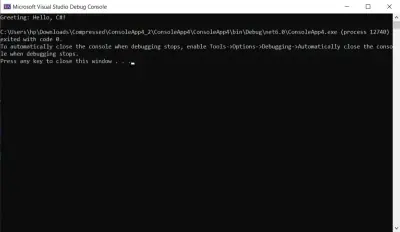
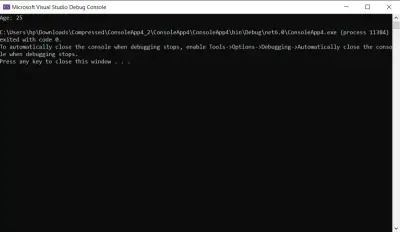
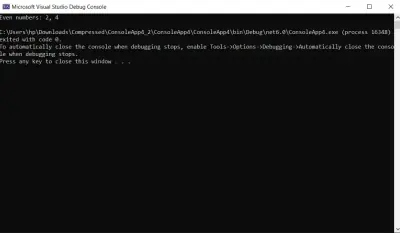
End Class從表達式中返回的指定資料按如下所示列印在主控台應用程式上:

列印各種數值格式是程式設計中常見的需求,特別是在處理雙精度浮點和單精度浮點數時。 同樣,Console.WriteLine語句可以用來精確和輕鬆地列印它們。
double doubleValue = 0.123456789;
Console.WriteLine($"Double Precision: {doubleValue:F7}");
double doubleValue = 0.123456789;
Console.WriteLine($"Double Precision: {doubleValue:F7}");Dim doubleValue As Double = 0.123456789
Console.WriteLine($"Double Precision: {doubleValue:F7}")Dim doubleValue As Double = 0.123456789
Console.WriteLine($"Double Precision: {doubleValue:F7}")在這個例子中,F7指定雙值應以小數點後7位數字格式化。 您可以調整'F'後的數字來控制精度。
string existingString = "Hello, C#!";
Console.WriteLine($"Existing String: {existingString}");
string existingString = "Hello, C#!";
Console.WriteLine($"Existing String: {existingString}");Dim existingString As String = "Hello, C#!"
Console.WriteLine($"Existing String: {existingString}")Dim existingString As String = "Hello, C#!"
Console.WriteLine($"Existing String: {existingString}")列印現有字串很簡單。 只需使用Console.WriteLine並包含您想顯示的字串。
float singleValue = 0.123456789f;
Console.WriteLine($"Single Precision: {singleValue:F7}");
float singleValue = 0.123456789f;
Console.WriteLine($"Single Precision: {singleValue:F7}");Dim singleValue As Single = 0.123456789F
Console.WriteLine($"Single Precision: {singleValue:F7}")Dim singleValue As Single = 0.123456789F
Console.WriteLine($"Single Precision: {singleValue:F7}")與雙精度類似,F7格式規範亦適用於單精度浮點數。 您可以根據您的精度要求調整'F'後的數字。
列印文件是許多應用程式的基本方面,而在C#中充分利用列印潛力時,IronPrint作為一個多功能且功能豐富的程式庫而脫穎而出。
IronPrint由Iron Software開發,是為.NET生態系統設計的高級列印程式庫,包括C#。 無論您是在開發桌面應用程式、移動應用程式還是網頁應用程式,IronPrint都可以無縫整合到您的C#專案中,提供一組廣泛的工具來處理各種列印需求。

1. 跨平台相容性:
IronPrint支持包括Windows、macOS、Android和iOS在內的各種操作系統。 這種跨平台的相容性確保您的列印解決方案可以覆蓋到不同環境中的使用者。
2. .NET版本支援:
與.NET Framework 4.6.2及以上版本、.NET Core 3.1+和最新的.NET版本相容,IronPrint涵蓋了廣泛的.NET環境。
3. 專案型別支援:
IronPrint迎合不同的專案型別,包括移動(Xamarin和MAUI)、桌面(WPF和MAUI)和主控台(應用程式和程式庫)。 這種靈活性使其適合多種應用程式架構。
4. 簡易安裝:
使用IronPrint很簡單。 您可以通過NuGet Package Manager Console快速安裝此程式庫並執行Install-Package IronPrint命令。
這是一個簡單的範例,演示如何在C#主控台應用程式中輕鬆使用IronPrint來列印文件:
using IronPrint;

class Program
{
    static void Main()
    {
        Console.WriteLine("Printing Started...");
        // Silent printing of a document
        Printer.Print("document.pdf");
        // Or display a print dialog
        Printer.ShowPrintDialog("document.pdf");
        Console.WriteLine("Printing Completed...");
    }
}
using IronPrint;
class Program
{
static void Main()
{
Console.WriteLine("Printing Started...");
// Silent printing of a document
Printer.Print("document.pdf");
// Or display a print dialog
Printer.ShowPrintDialog("document.pdf");
Console.WriteLine("Printing Completed...");
}
}Imports IronPrint
Friend Class Program
Shared Sub Main()
Console.WriteLine("Printing Started...")
' Silent printing of a document
Printer.Print("document.pdf")
' Or display a print dialog
Printer.ShowPrintDialog("document.pdf")
Console.WriteLine("Printing Completed...")
End Sub
End ClassImports IronPrint
Friend Class Program
Shared Sub Main()
Console.WriteLine("Printing Started...")
' Silent printing of a document
Printer.Print("document.pdf")
' Or display a print dialog
Printer.ShowPrintDialog("document.pdf")
Console.WriteLine("Printing Completed...")
End Sub
End Class這裡的輸出顯示了使用Print和ShowPrintDialog方法列印文件。 如果未安裝實體印表機,則使用預設印表機進行列印。

IronPrint超越了基本的列印任務,並提供了以下進階功能:
IronPrint允許您針對不同平台定制您的列印解決方案。 例如,在處理針對特定平台如Windows、Android、iOS或macOS的.NET Core專案時,您可以根據情況調整專案文件中的TargetFrameworks屬性。
要獲取有關IronPrint的更多詳細資訊,請存取此文件和API參考頁面。
在C#中列印行是一項開發主控台應用程式的基本技能。 無論您是顯示文字、格式化輸出還是控制行終止符,了解可用的各種技術將提高您建立高效和可讀的主控台程式的能力。 探索由Console類提供的多樣化方法,試驗格式選項,充分利用C#的靈活性以在應用程式中產生清晰且結構良好的主控台輸出。
IronPrint 是對C#開發者尋求強大而靈活的列印功能的重要盟友。 憑藉其跨平台支援、與多個.NET版本的相容性和進階列印功能,IronPrint簡化了在多樣化的C#應用程式中實現列印方案的過程。 無論您是在為桌面、移動還是網頁開發,IronPrint為您提供所需的工具,使您的列印需求在C#開發世界中成為現實。
Jacob Mellor是Iron Software的首席技術官,一位在C# PDF技術上開創先河的遠見工程師。作為Iron Software核心程式碼庫的原開發者,他從創立以來就一直在塑造公司的產品架構,與首席執行官Cameron Rimington一起將公司轉變為服務於NASA、特斯拉和全球政府公司的50多名人員的公司。

IronPrint 是 IRONSUITE 的一部分
10 款適用於辦公室文件的 .NET API 產品

當您需要快速列印文件。