




Przetestuj w żywym środowisku
Przetestuj w produkcji bez znaków wodnych.
Działa tam, gdzie tego potrzebujesz.


 Barcode Quickstart
using IronBarCode;
using System.Drawing;

// Reading a barcode is easy with IronBarcode!
var resultFromFile = BarcodeReader.Read(@"file/barcode.png"); // From a file
var resultFromBitMap = BarcodeReader.Read(new Bitmap("barcode.bmp")); // From a bitmap
var resultFromImage = BarcodeReader.Read(Image.FromFile("barcode.jpg")); // From an image file
var resultFromPdf = BarcodeReader.ReadPdf(@"file/mydocument.pdf"); // From PDF use ReadPdf

// To configure and fine-tune barcode reading, utilize the BarcodeReaderOptions class
var myOptionsExample = new BarcodeReaderOptions
{
    // Choose a reading speed from: Faster, Balanced, Detailed, ExtremeDetail
    // There is a tradeoff in performance as more detail is set
    Speed = ReadingSpeed.Balanced,

    // Reader will stop scanning once a single barcode is found (if set to true)
    ExpectMultipleBarcodes = true,

    // By default, all barcode formats are scanned for
    // Specifying a subset of barcode types to search for would improve performance
    ExpectBarcodeTypes = BarcodeEncoding.AllOneDimensional,

    // Utilize multiple threads to read barcodes from multiple images in parallel
    Multithreaded = true,

    // Maximum threads for parallelized barcode reading
    // Default is 4
    MaxParallelThreads = 2,

    // The area of each image frame in which to scan for barcodes
    // Specifying a crop area will significantly improve performance and avoid noisy parts of the image
    CropArea = new Rectangle(),

    // Special setting for Code39 barcodes
    // If a Code39 barcode is detected, try to read with both the base and extended ASCII character sets
    UseCode39ExtendedMode = true
};

// Read with the options applied
var results = BarcodeReader.Read("barcode.png", myOptionsExample);

// Create a barcode with one line of code
var myBarcode = BarcodeWriter.CreateBarcode("12345", BarcodeWriterEncoding.EAN8);

// After creating a barcode, we may choose to resize
myBarcode.ResizeTo(400, 100);

// Save our newly-created barcode as an image
myBarcode.SaveAsImage("EAN8.jpeg");

// Get the barcode as an image for further processing
var myBarcodeImage = myBarcode.Image;
Imports IronBarCode
Imports System.Drawing
' Reading a barcode is easy with IronBarcode!
Dim resultFromFile = BarcodeReader.Read("file/barcode.png") ' From a file
Dim resultFromBitMap = BarcodeReader.Read(New Bitmap("barcode.bmp")) ' From a bitmap
Dim resultFromImage = BarcodeReader.Read(Image.FromFile("barcode.jpg")) ' From an image file
Dim resultFromPdf = BarcodeReader.ReadPdf("file/mydocument.pdf") ' From PDF use ReadPdf
' To configure and fine-tune barcode reading, utilize the BarcodeReaderOptions class
Dim myOptionsExample As New BarcodeReaderOptions With {
' Choose a reading speed from: Faster, Balanced, Detailed, ExtremeDetail
' There is a tradeoff in performance as more detail is set
.Speed = ReadingSpeed.Balanced,
' Reader will stop scanning once a single barcode is found (if set to true)
.ExpectMultipleBarcodes = True,
' By default, all barcode formats are scanned for
' Specifying a subset of barcode types to search for would improve performance
.ExpectBarcodeTypes = BarcodeEncoding.AllOneDimensional,
' Utilize multiple threads to read barcodes from multiple images in parallel
.Multithreaded = True,
' Maximum threads for parallelized barcode reading
' Default is 4
.MaxParallelThreads = 2,
' The area of each image frame in which to scan for barcodes
' Specifying a crop area will significantly improve performance and avoid noisy parts of the image
.CropArea = New Rectangle(),
' Special setting for Code39 barcodes
' If a Code39 barcode is detected, try to read with both the base and extended ASCII character sets
.UseCode39ExtendedMode = True
}
' Read with the options applied
Dim results = BarcodeReader.Read("barcode.png", myOptionsExample)
' Create a barcode with one line of code
Dim myBarcode = BarcodeWriter.CreateBarcode("12345", BarcodeWriterEncoding.EAN8)
' After creating a barcode, we may choose to resize
myBarcode.ResizeTo(400, 100)
' Save our newly-created barcode as an image
myBarcode.SaveAsImage("EAN8.jpeg")
' Get the barcode as an image for further processing
Dim myBarcodeImage = myBarcode.Image
Install-Package BarCode
IronBarcode obsługuje różne standardowe formaty, od plików graficznych (jpeg, png i jpg) po bardziej programistyczne formaty, w których można przekazywać zmienne, takie jak bitmapa. Dodatkowo, obsługuje także formaty zewnętrzne, takie jak PDF, umożliwiając IronBarcode łatwą integrację z dowolnym kodem, dając programistom elastyczność w zakresie formatów plików i zmiennych.
Poza tym, że jest czytnikiem kodów kreskowych dla wszystkich formatów plików, IronBarcode działa także jako generator kodów kreskowych, który obsługuje wszystkie standardowe kodowania i formatowania, takie jak EAN8, Code128 i Code39. Konfiguracja generatora kodów kreskowych zajmuje tylko dwie linie kodu. Z niskim progiem wejścia i wieloma opcjami dostosowywania dla programistów, IronBarcode jest numerem jeden w każdej sytuacji związanej z kodami kreskowymi.
Najpierw importujemy niezbędne biblioteki, takie jak IronBarCode i System.Drawing, i inicjujemy BarcodeWriter, aby stworzyć kod kreskowy z wartością łańcucha 12345 w formacie EAN8. Następnie zapisujemy wygenerowany kod kreskowy jako obraz w żądanym formacie. Istnieją różne opcje dla tego, ponieważ IronBarcode obsługuje tworzenie kodu kreskowego jako Image oraz jako Bitmap.
Jak pokazano powyżej, generowanie kodu kreskowego przy użyciu IronBarcode wymaga tylko dwóch linii kodu i zapisania go jako pliku do późniejszego użycia. IronBarcode dalej rozszerza to, zapewniając programistom wiele opcji dostosowywania kodu kreskowego do sytuacji.
Możemy użyć metody ResizeTo i przekazać wysokość oraz szerokość, aby zmienić rozmiar obrazu kodu kreskowego.
Podobnie jak powyżej, najpierw inicjujemy BarcodeReader, przekazujemy ścieżkę pliku do metody Read i zapisujemy ją jako zmienną do późniejszego użycia i manipulacji obiektem kodu kreskowego. Istnieją określone metody do odczytywania formatów zewnętrznych, takich jak PDF, z ReadPDF; jednak w przypadku ogólnych formatów obrazów i bitmap używamy Read.
IronBarcode umożliwia programistom skanowanie kodów kreskowych ze standardowego formatu plików. Jednak są sytuacje, w których programiści chcą dostroić zachowanie metody Read, zwłaszcza w przypadkach, gdy odczytuje ona partię plików kodów kreskowych programistycznie. W tym miejscu do gry wchodzi BarcodeReaderOptions. IronBarCode umożliwia pełne dostosowanie takich ustawień jak prędkość odczytu za pomocą właściwości Speed, informacja o tym, czy w pliku spodziewanych jest wiele kodów kreskowych za pomocą ExpectedMultipleBarcodes, oraz rodzaj kodów kreskowych za pomocą właściwości ExpectBarcodeTypes. Dzięki temu programiści mogą uruchamiać wiele wątków do odczytywania kodów kreskowych z wielu obrazów równolegle, a także kontrolować liczbę wątków używanych podczas wykonywania równoległego odczytu.
To tylko niektóre właściwości, które demonstrują siłę IronBarcode. Aby uzyskać pełną listę, zapoznaj się z dokumentacją tutaj.
Naucz się tworzyć kody kreskowe z naszym szczegółowym przewodnikiem!
Imperfect Barcodes and Image Correction
using IronBarCode;
using IronSoftware.Drawing;

// Choose which filters are to be applied (in order)
// Set cacheAtEachIteration = true to save the intermediate image data after each filter is applied
var filtersToApply = new ImageFilterCollection(cacheAtEachIteration: true) {
    new SharpenFilter(),
    new InvertFilter(),
    new ContrastFilter(),
    new BrightnessFilter(),
    new AdaptiveThresholdFilter(),
    new BinaryThresholdFilter(),
    new GaussianBlurFilter(),
    new MedianBlurFilter(),
    new BilateralFilter()
};

BarcodeReaderOptions myOptionsExample = new BarcodeReaderOptions()
{
    // Set chosen filters in BarcodeReaderOptions
    ImageFilters = filtersToApply,

    Speed = ReadingSpeed.Balanced,
    ExpectMultipleBarcodes = true,
};

// Read with the options applied
BarcodeResults results = BarcodeReader.Read("screenshot.png", myOptionsExample);

AnyBitmap[] filteredImages = results.FilterImages();

// Export intermediate image files to disk
for (int i = 0 ; i < filteredImages.Length ; i++)
    filteredImages[i].SaveAs($"{i}_barcode.png");

// Or
results.ExportFilterImagesToDisk("filter-result.jpg");
Imports IronBarCode
Imports IronSoftware.Drawing
' Choose which filters are to be applied (in order)
' Set cacheAtEachIteration = true to save the intermediate image data after each filter is applied
Private filtersToApply = New ImageFilterCollection(cacheAtEachIteration:= True) From {
New SharpenFilter(),
New InvertFilter(),
New ContrastFilter(),
New BrightnessFilter(),
New AdaptiveThresholdFilter(),
New BinaryThresholdFilter(),
New GaussianBlurFilter(),
New MedianBlurFilter(),
New BilateralFilter()
}
Private myOptionsExample As New BarcodeReaderOptions() With {
.ImageFilters = filtersToApply,
.Speed = ReadingSpeed.Balanced,
.ExpectMultipleBarcodes = True
}
' Read with the options applied
Private results As BarcodeResults = BarcodeReader.Read("screenshot.png", myOptionsExample)
Private filteredImages() As AnyBitmap = results.FilterImages()
' Export intermediate image files to disk
For i As Integer = 0 To filteredImages.Length - 1
filteredImages(i).SaveAs($"{i}_barcode.png")
Next i
' Or
results.ExportFilterImagesToDisk("filter-result.jpg")Install-Package BarCode
IronBarcode oferuje wiele filtrów wstępnego przetwarzania obrazu, które można łatwo zastosować w ramach BarcodeReaderOptions. Wybierz filtry, które mogą poprawić odczyt obrazu, takie jak Sharpen, Binary Threshold i Contrast. Prosimy pamiętać, że kolejność, w jakiej je wybierasz, jest kolejnością, w jakiej są stosowane.
Jest opcja zapisu danych obrazu pośrednich obrazów z każdym zastosowanym filtrem. Można to przełączać za pomocą właściwości SaveAtEachIteration w ImageFilterCollection.
Kluczowe punkty z przykładowego kodu:
BarcodeReaderOptions i konfigurujemy ją z różnymi filtrami obrazu: Sharpen, Binary Threshold i Contrast.cacheAtEachIteration na true, biblioteka zapisuje pośrednie obrazy po każdej aplikacji filtra, co jest przydatne do debugowania i analizy.
Creating Barcodes Images
using IronBarCode;
using System.Drawing;

/*** CREATING BARCODE IMAGES ***/

// Create and save a barcode in a single line of code
BarcodeWriter.CreateBarcode("12345", BarcodeWriterEncoding.EAN8).ResizeTo(400, 100).SaveAsImage("EAN8.jpeg");

/*****  IN-DEPTH BARCODE CREATION OPTIONS *****/

// BarcodeWriter.CreateBarcode creates a GeneratedBarcode which can be styled and exported as an Image object or file
GeneratedBarcode MyBarCode = BarcodeWriter.CreateBarcode("Any Number, String or Binary Value", BarcodeWriterEncoding.Code128);

// Style the Barcode in a fluent LINQ-style fashion
MyBarCode.ResizeTo(300, 150).SetMargins(20).AddAnnotationTextAboveBarcode("Example EAN8 Barcode").AddBarcodeValueTextBelowBarcode();
MyBarCode.ChangeBackgroundColor(Color.LightGoldenrodYellow);

// Save the barcode as an image file
MyBarCode.SaveAsImage("MyBarCode.png");
MyBarCode.SaveAsGif("MyBarCode.gif");
MyBarCode.SaveAsHtmlFile("MyBarCode.html");
MyBarCode.SaveAsJpeg("MyBarCode.jpg");
MyBarCode.SaveAsPdf("MyBarCode.Pdf");
MyBarCode.SaveAsPng("MyBarCode.png");
MyBarCode.SaveAsTiff("MyBarCode.tiff");
MyBarCode.SaveAsWindowsBitmap("MyBarCode.bmp");

// Save the barcode as a .NET native object
Image MyBarCodeImage = MyBarCode.Image;
Bitmap MyBarCodeBitmap = MyBarCode.ToBitmap();

byte[] PngBytes = MyBarCode.ToPngBinaryData();

using (System.IO.Stream PdfStream = MyBarCode.ToPdfStream())
{
    // Stream barcode image output also works for GIF, JPEG, PDF, PNG, BMP and TIFF
}

// Save MyBarCode as an HTML file or tag
MyBarCode.SaveAsHtmlFile("MyBarCode.Html");
string ImgTagForHTML = MyBarCode.ToHtmlTag();
string DataURL = MyBarCode.ToDataUrl();

// Save MyBarCode to a new PDF, or stamp it in any position on any page(s) of an existing document
MyBarCode.SaveAsPdf("MyBarCode.Pdf");
MyBarCode.StampToExistingPdfPage("ExistingPDF.pdf", 200, 50, 1);  // Position (200, 50) on page 1
MyBarCode.StampToExistingPdfPages("ExistingPDF.pdf", 200, 50, new[] { 1, 2, 3 }, "Password123");  // Multiple pages of an encrypted PDF
Imports IronBarCode
Imports System.Drawing
'''* CREATING BARCODE IMAGES **
' Create and save a barcode in a single line of code
BarcodeWriter.CreateBarcode("12345", BarcodeWriterEncoding.EAN8).ResizeTo(400, 100).SaveAsImage("EAN8.jpeg")
'''*** IN-DEPTH BARCODE CREATION OPTIONS ****
' BarcodeWriter.CreateBarcode creates a GeneratedBarcode which can be styled and exported as an Image object or file
Dim MyBarCode As GeneratedBarcode = BarcodeWriter.CreateBarcode("Any Number, String or Binary Value", BarcodeWriterEncoding.Code128)
' Style the Barcode in a fluent LINQ-style fashion
MyBarCode.ResizeTo(300, 150).SetMargins(20).AddAnnotationTextAboveBarcode("Example EAN8 Barcode").AddBarcodeValueTextBelowBarcode()
MyBarCode.ChangeBackgroundColor(Color.LightGoldenrodYellow)
' Save the barcode as an image file
MyBarCode.SaveAsImage("MyBarCode.png")
MyBarCode.SaveAsGif("MyBarCode.gif")
MyBarCode.SaveAsHtmlFile("MyBarCode.html")
MyBarCode.SaveAsJpeg("MyBarCode.jpg")
MyBarCode.SaveAsPdf("MyBarCode.Pdf")
MyBarCode.SaveAsPng("MyBarCode.png")
MyBarCode.SaveAsTiff("MyBarCode.tiff")
MyBarCode.SaveAsWindowsBitmap("MyBarCode.bmp")
' Save the barcode as a .NET native object
Dim MyBarCodeImage As Image = MyBarCode.Image
Dim MyBarCodeBitmap As Bitmap = MyBarCode.ToBitmap()
Dim PngBytes() As Byte = MyBarCode.ToPngBinaryData()
Using PdfStream As System.IO.Stream = MyBarCode.ToPdfStream()
' Stream barcode image output also works for GIF, JPEG, PDF, PNG, BMP and TIFF
End Using
' Save MyBarCode as an HTML file or tag
MyBarCode.SaveAsHtmlFile("MyBarCode.Html")
Dim ImgTagForHTML As String = MyBarCode.ToHtmlTag()
Dim DataURL As String = MyBarCode.ToDataUrl()
' Save MyBarCode to a new PDF, or stamp it in any position on any page(s) of an existing document
MyBarCode.SaveAsPdf("MyBarCode.Pdf")
MyBarCode.StampToExistingPdfPage("ExistingPDF.pdf", 200, 50, 1) ' Position (200, 50) on page 1
MyBarCode.StampToExistingPdfPages("ExistingPDF.pdf", 200, 50, { 1, 2, 3 }, "Password123") ' Multiple pages of an encrypted PDFInstall-Package BarCode
W tym przykładzie widzimy, że kody kreskowe wielu różnych typów i formatów mogą być tworzone, zmieniane rozmiarowo i zapisywane; możliwe nawet w jednej linii kodu.
Używając naszego płynnego API, wygenerowana klasa kodu kreskowego może być używana do ustawiania marginesów, zmiany rozmiaru i adnotowania kodów kreskowych. Następnie mogą być zapisane jako obrazy, a IronBarcode automatycznie przyjmuje odpowiedni typ obrazu na podstawie nazwy pliku: GIF-y, pliki HTML, tagi HTML, JPEG-i, PDF-y, PNG-i, TIFF-y oraz Windows Bitmaps.
Dostępna jest również metoda StampToExistingPdfPage, która umożliwia wygenerowanie kodu kreskowego i nałożenie go na istniejący plik PDF. Jest to przydatne przy edytowaniu ogólnego PDF-a lub dodawaniu wewnętrznego numeru identyfikacyjnego do dokumentu poprzez kod kreskowy.
Barcode Styling & Annotation
using IronBarCode;
using System;
using System.Drawing;

/*** STYLING GENERATED BARCODES  ***/

// BarcodeWriter.CreateBarcode creates a GeneratedBarcode object which allows the barcode to be styled and annotated.
GeneratedBarcode MyBarCode = BarcodeWriter.CreateBarcode("Iron Software", BarcodeWriterEncoding.QRCode);

// Any text (or commonly, the value of the barcode) can be added to the image in a default or specified font.
// Text positions are automatically centered, above or below. Fonts that are too large for a given image are automatically scaled down.
MyBarCode.AddBarcodeValueTextBelowBarcode();
MyBarCode.AddAnnotationTextAboveBarcode("This is my barcode");

// Resize, add margins and check final image dimensions
MyBarCode.ResizeTo(300, 300); // Resize in pixels
MyBarCode.SetMargins(0, 20, 0, 20); // Set margins in pixels

int FinalWidth = MyBarCode.Width;
int FinalHeight = MyBarCode.Height;

// Recolor the barcode and its background
MyBarCode.ChangeBackgroundColor(Color.LightGray);
MyBarCode.ChangeBarCodeColor(Color.DarkSlateBlue);
if (!MyBarCode.Verify())
{
    Console.WriteLine("Color contrast should be at least 50% or a barcode may become unreadable. Test using GeneratedBarcode.Verify()");
}

// Finally, save the result
MyBarCode.SaveAsHtmlFile("StyledBarcode.html");

/*** STYLING BARCODES IN A SINGLE LINQ-STYLE EXPRESSION ***/

// Create a barcode in one line of code
BarcodeWriter.CreateBarcode("https://ironsoftware.com", BarcodeWriterEncoding.Aztec).ResizeTo(250, 250).SetMargins(10).AddBarcodeValueTextAboveBarcode().SaveAsImage("StyledBarcode.png");

/*** STYLING QR CODES WITH LOGO IMAGES OR BRANDING ***/

// Use the QRCodeWriter.CreateQrCodeWithLogo Method instead of BarcodeWriter.CreateBarcode
// Logo will automatically be sized appropriately and snapped to the QR grid.

var qrCodeLogo = new QRCodeLogo("ironsoftware_logo.png");
GeneratedBarcode myQRCodeWithLogo = QRCodeWriter.CreateQrCodeWithLogo("https://ironsoftware.com/", qrCodeLogo);
myQRCodeWithLogo.ResizeTo(500, 500).SetMargins(10).ChangeBarCodeColor(Color.DarkGreen);
myQRCodeWithLogo.ResizeTo(500, 500).SetMargins(10).ChangeBarCodeColor(Color.DarkGreen);
myQRCodeWithLogo.SaveAsPng("QRWithLogo.Png").SaveAsPdf("MyVerifiedQR.html"); // Save as 2 different formats
Imports IronBarCode
Imports System
Imports System.Drawing
'*** STYLING GENERATED BARCODES ***
' BarcodeWriter.CreateBarcode creates a GeneratedBarcode object which allows the barcode to be styled and annotated.
Dim MyBarCode As GeneratedBarcode = BarcodeWriter.CreateBarcode("Iron Software", BarcodeWriterEncoding.QRCode)
' Any text (or commonly, the value of the barcode) can be added to the image in a default or specified font.
' Text positions are automatically centered, above or below. Fonts that are too large for a given image are automatically scaled down.
MyBarCode.AddBarcodeValueTextBelowBarcode()
MyBarCode.AddAnnotationTextAboveBarcode("This is my barcode")
' Resize, add margins and check final image dimensions
MyBarCode.ResizeTo(300, 300) ' Resize in pixels
MyBarCode.SetMargins(0, 20, 0, 20) ' Set margins in pixels
Dim FinalWidth As Integer = MyBarCode.Width
Dim FinalHeight As Integer = MyBarCode.Height
' Recolor the barcode and its background
MyBarCode.ChangeBackgroundColor(Color.LightGray)
MyBarCode.ChangeBarCodeColor(Color.DarkSlateBlue)
If Not MyBarCode.Verify() Then
Console.WriteLine("Color contrast should be at least 50% or a barcode may become unreadable. Test using GeneratedBarcode.Verify()")
End If
' Finally, save the result
MyBarCode.SaveAsHtmlFile("StyledBarcode.html")
'*** STYLING BARCODES IN A SINGLE LINQ-STYLE EXPRESSION ***
' Create a barcode in one line of code
BarcodeWriter.CreateBarcode("https://ironsoftware.com", BarcodeWriterEncoding.Aztec).ResizeTo(250, 250).SetMargins(10).AddBarcodeValueTextAboveBarcode().SaveAsImage("StyledBarcode.png")
'*** STYLING QR CODES WITH LOGO IMAGES OR BRANDING ***
' Use the QRCodeWriter.CreateQrCodeWithLogo Method instead of BarcodeWriter.CreateBarcode
' Logo will automatically be sized appropriately and snapped to the QR grid.
Dim qrCodeLogo = New QRCodeLogo("ironsoftware_logo.png")
Dim myQRCodeWithLogo As GeneratedBarcode = QRCodeWriter.CreateQrCodeWithLogo("https://ironsoftware.com/", qrCodeLogo)
myQRCodeWithLogo.ResizeTo(500, 500).SetMargins(10).ChangeBarCodeColor(Color.DarkGreen)
myQRCodeWithLogo.ResizeTo(500, 500).SetMargins(10).ChangeBarCodeColor(Color.DarkGreen)
myQRCodeWithLogo.SaveAsPng("QRWithLogo.Png").SaveAsPdf("MyVerifiedQR.html") ' Save as 2 different formatsInstall-Package BarCode
W tym przykładzie widzimy, że kody kreskowe mogą być oznakowane tekstem wybranym przez użytkownika lub własnym tekstem kodu kreskowego przy użyciu dowolnej czcionki zainstalowanej na docelowej maszynie. Jeśli ta czcionka nie jest dostępna, zostanie wybrana odpowiednia podobna czcionka. Kody kreskowe mogą być zmieniane, można dodawać marginesy, a zarówno kod kreskowy, jak i tło mogą być kolorowane. Następnie mogą być zapisane w odpowiednim formacie.
Na ostatnich kilku liniach kodu widać, że przy użyciu naszych operatorów stylu płynnościowego można stworzyć i wystylizować kod kreskowy w zaledwie kilku liniach kodu, podobnie jak System.Linq.
Export Barcodes as HTML
using IronBarCode;

GeneratedBarcode MyBarCode = BarcodeWriter.CreateBarcode("1234567890", BarcodeWriterEncoding.Code128);

// Save as a stand-alone HTML file without any image assets
MyBarCode.SaveAsHtmlFile("MyBarCode.html");

// Save as a stand-alone HTML image tag which can be served in HTML files, ASPX or MVC Views. No image assets required, the tag embeds the entire image in its source content
string ImgTag = MyBarCode.ToHtmlTag();

// Turn the image into a HTML/CSS Data URI.
string DataURI = MyBarCode.ToDataUrl();
Imports IronBarCode
Private MyBarCode As GeneratedBarcode = BarcodeWriter.CreateBarcode("1234567890", BarcodeWriterEncoding.Code128)
' Save as a stand-alone HTML file without any image assets
MyBarCode.SaveAsHtmlFile("MyBarCode.html")
' Save as a stand-alone HTML image tag which can be served in HTML files, ASPX or MVC Views. No image assets required, the tag embeds the entire image in its source content
Dim ImgTag As String = MyBarCode.ToHtmlTag()
' Turn the image into a HTML/CSS Data URI.
Dim DataURI As String = MyBarCode.ToDataUrl()Install-Package BarCode
IronBarcode ma bardzo przydatną funkcję umożliwiającą wyeksportowanie kodów kreskowych jako samodzielne HTML, które nie zawiera powiązanych zasobów obrazów. Wszystko jest zawarte w pliku HTML.
Możemy eksportować jako plik HTML, tag obrazka HTML lub do danych URI.
W tym przykładzie:
BarcodeWriter.CreateBarcode, określając dane wejściowe i typ kodowania. ToHtmlTag() generuje tag HTML <img>, który można osadzić na stronach internetowych. ToDataUri() tworzy ciąg danych URI, który można użyć jako źródło dla tagów <img> lub praktycznie wszędzie tam, gdzie potrzebny jest URL obrazu. SaveAsHtmlFile() zapisuje kod kreskowy jako samodzielny plik HTML, zawierający wszystkie dane obrazów, co czyni go przenośnym i łatwym do udostępnienia.
Whether it's product, integration or licensing queries, the Iron product development team is on hand to support all of your questions. Get in touch and start a dialog with Iron to make the most of our library in your project.
Zadaj pytanie
IronBarcode .NET barcode library reads any type of barcode within the BarcodeEncoding Enum. It recognizes barcodes in .NET Core, .NET Standard and .NET Framework.
To save time and improve efficiency for inventory workflows, IronBarcode recommends one-dimensional (1D) or linear barcodes, including the traditional and established barcode types such as UPC and EAN codes. Points of sale services across the glove usually use UPC (Universal Product Code) barcodes (including its variations UPC-A and UPC-E). It benefits the target consumer by making it easier to identify and track product features in warehouses and at checkout. Where UPCA is limited to having only numerical contentof 12 to 13 digits long, UPCE supports content between 8 to 13 digits.
Like UPC, European markets use EAN barcodes to label consumer goods for point-of-sale scanning. Its variant includes EAN-13 as the default, whereas EAN-8 is used for limited packaging spaces, like candies. In addition to their flexibility, as a high-density barcode, EAN-13 encodes larger data sets compactly.
1D barcodes do not end there.
The automotive and defense industry utilizes Code 39 barcodes. Its title axplains its ability to encode 39 characters (now revised to 43). Similarly, Code 128-character set and high data density. Continuing with logistics, the packaging industry prefers ITF (Interleaved 2 of 5) barcodes to label packaging materials, such as corrugated sheets due to their high printing tolerance. Whereas, MSI is preferred for product indentification and inventory management.
The Pharma industry utilizes Pharmaceutical Binary COde. Whereas RSS 14 (Reduced Space Symbologies) and Databar barcodes are a 1D and 2D barcode hybrid. It is a healthcare favorite to mark small items. Similar to Code 128 barcodes, Codabar is a logistics and healthcare favorite as well. It works without a computer, readable from a dot-matrix printer output.
2D barcodes include Aztec, Data Matrix, Data Bar, IntelligentMail, Maxicode, QR code. Used in different industries, Aztec is used in the transportation industry on tickets and boarding passes with readability in lower resolution. While IntelligentMail is limited to a specific purpose in US Mail, Maxicode is utilized to standardize shipment tracking.
The widest known amongst barcodes is the QR code. It has a plethora of purposes from B2B to B2C due to its flexibility, fault tolerance, readability, various data support such as numeric, alphanumeric, byte/binary, and Kanji.
Once the type is finalized, IronBarcode - the leading barcode generator takes it from there!

Reading barcode types in .NET is now a breeze with IronBarcode's versatile, advanced, and efficient library.

Get started in minutes with a few lines of code. Built for .NET Core, .NET Standard, and Framework as an easy to use single DLL; without dependencies; supporting 32 & 64 bit; in any .NET Language. Use in Web, Cloud, Desktop or Console Applications; supporting Mobile & Desktop devices. You can download the software product from this link.
Get Started Now
As IronBarcode facilitates the creation, resizing, and saving of various barcode types and formats, there is no reason to not begin with it right away!
With the Fluent API, use the generated barcode class to set margins, resize, and annotate barcodes. Then save as images with IronOCR automatically assuming the correct image type from a file name. Whether it is GIF, HTML file, HTML tag, JPEG, PNG, TIFF, and Windows Bitmaps.
The StampToExistingPdfPage method allows a barcode to be generated and stamped onto an existing PDF. It is useful when editing a generic PDF or adding an internal identification number to a document via a barcode.
Connect with LIVE 24/7 human support right away. Whether you have a question or require project support; begin with our 30-day trial key, benefit from our broad documentation resource in easy-to-understand English, or benefit from our lifetime licensing from $749.






Free community development licenses. Commercial licenses from $749.




C# .NET BarCode QR

See How Frank uses IronBarcode to Read Barcodes from Scans, Photos, & PDF documents inside his C# .NET Barcode Application...
View Frank's Barcode Reading Tutorial
C# .NET BarCode

Francesca shares some tips and tricks for writing Barcodes to Images in C# or VB Applications. See how to write the barcodes and all the options available to you with IronBarcode...
See Francesca's Barcode Tutorial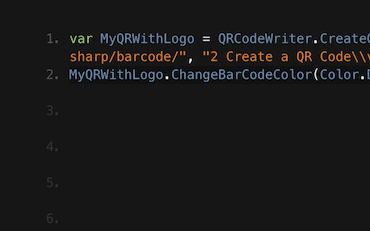
QR .NET C# VB

Jenny's Team use IronBarcode to write thousands of QRs per day. See their tutorial on getting the most out of IronBarcode...
QR Writing Tutorial from Jenny's Team





Iron's team have over 10 years experience in the .NET software component market.










Install-Package BarCode


Nie wymaga karty kredytowej
Twój klucz próbny powinien być w e-mailu. Formularz próbny został przesłany
pomyślnie.
Jeśli go nie ma, skontaktuj się
support@ironsoftware.com
Nie wymaga karty kredytowej

 Rozpocznij za DARMO
Przetestuj w produkcji bez znaków wodnych.
Działa tam, gdzie tego potrzebujesz.
Uzyskaj 30 dni pełni funkcjonalnego produktu.
Uruchom w ciągu kilku minut.
Pełny dostęp do naszego zespołu wsparcia technicznego podczas okresu próbnego
 Rozpocznij za DARMO
 Zarezerwuj darmowe Demo na żywo
Demonstrowanie na żywo naszego produktu i jego kluczowych funkcji
Zyskaj rekomendacje funkcji specyficznych dla projektu
Wszystkie twoje pytania zostaną odpowiednio wyjaśnione, abyś miał wszystkie potrzebne informacje. (Bez żadnych zobowiązań.)
Zarezerwuj darmowe Demo na żywo



 Nie wymaga karty kredytowej ani tworzenia konta




Zarezerwuj Konsultację Bez Zobowiązań

Wypełnij poniższy formularz lub wyślij e-mail na sales@ironsoftware.com
Twoje dane zawsze będą utrzymywane w tajemnicy.

Zarezerwuj 30-minutowe, osobiste demo.
Bez umowy, brak danych karty, brak zobowiązań.






