












在实际环境中测试
在生产环境中测试,没有水印。
在您需要的地方使用。


 条形码快速入门
using IronBarCode;
using System.Drawing;

// Reading a barcode is easy with IronBarcode!
var resultFromFile = BarcodeReader.Read(@"file/barcode.png"); // From a file
var resultFromBitMap = BarcodeReader.Read(new Bitmap("barcode.bmp")); // From a bitmap
var resultFromImage = BarcodeReader.Read(Image.FromFile("barcode.jpg")); // From an image file
var resultFromPdf = BarcodeReader.ReadPdf(@"file/mydocument.pdf"); // From PDF use ReadPdf

// To configure and fine-tune barcode reading, utilize the BarcodeReaderOptions class
var myOptionsExample = new BarcodeReaderOptions
{
    // Choose a reading speed from: Faster, Balanced, Detailed, ExtremeDetail
    // There is a tradeoff in performance as more detail is set
    Speed = ReadingSpeed.Balanced,

    // Reader will stop scanning once a single barcode is found (if set to true)
    ExpectMultipleBarcodes = true,

    // By default, all barcode formats are scanned for
    // Specifying a subset of barcode types to search for would improve performance
    ExpectBarcodeTypes = BarcodeEncoding.AllOneDimensional,

    // Utilize multiple threads to read barcodes from multiple images in parallel
    Multithreaded = true,

    // Maximum threads for parallelized barcode reading
    // Default is 4
    MaxParallelThreads = 2,

    // The area of each image frame in which to scan for barcodes
    // Specifying a crop area will significantly improve performance and avoid noisy parts of the image
    CropArea = new Rectangle(),

    // Special setting for Code39 barcodes
    // If a Code39 barcode is detected, try to read with both the base and extended ASCII character sets
    UseCode39ExtendedMode = true
};

// Read with the options applied
var results = BarcodeReader.Read("barcode.png", myOptionsExample);

// Create a barcode with one line of code
var myBarcode = BarcodeWriter.CreateBarcode("12345", BarcodeWriterEncoding.EAN8);

// After creating a barcode, we may choose to resize
myBarcode.ResizeTo(400, 100);

// Save our newly-created barcode as an image
myBarcode.SaveAsImage("EAN8.jpeg");

// Get the barcode as an image for further processing
var myBarcodeImage = myBarcode.Image;
Imports IronBarCode
Imports System.Drawing
' Reading a barcode is easy with IronBarcode!
Dim resultFromFile = BarcodeReader.Read("file/barcode.png") ' From a file
Dim resultFromBitMap = BarcodeReader.Read(New Bitmap("barcode.bmp")) ' From a bitmap
Dim resultFromImage = BarcodeReader.Read(Image.FromFile("barcode.jpg")) ' From an image file
Dim resultFromPdf = BarcodeReader.ReadPdf("file/mydocument.pdf") ' From PDF use ReadPdf
' To configure and fine-tune barcode reading, utilize the BarcodeReaderOptions class
Dim myOptionsExample As New BarcodeReaderOptions With {
' Choose a reading speed from: Faster, Balanced, Detailed, ExtremeDetail
' There is a tradeoff in performance as more detail is set
.Speed = ReadingSpeed.Balanced,
' Reader will stop scanning once a single barcode is found (if set to true)
.ExpectMultipleBarcodes = True,
' By default, all barcode formats are scanned for
' Specifying a subset of barcode types to search for would improve performance
.ExpectBarcodeTypes = BarcodeEncoding.AllOneDimensional,
' Utilize multiple threads to read barcodes from multiple images in parallel
.Multithreaded = True,
' Maximum threads for parallelized barcode reading
' Default is 4
.MaxParallelThreads = 2,
' The area of each image frame in which to scan for barcodes
' Specifying a crop area will significantly improve performance and avoid noisy parts of the image
.CropArea = New Rectangle(),
' Special setting for Code39 barcodes
' If a Code39 barcode is detected, try to read with both the base and extended ASCII character sets
.UseCode39ExtendedMode = True
}
' Read with the options applied
Dim results = BarcodeReader.Read("barcode.png", myOptionsExample)
' Create a barcode with one line of code
Dim myBarcode = BarcodeWriter.CreateBarcode("12345", BarcodeWriterEncoding.EAN8)
' After creating a barcode, we may choose to resize
myBarcode.ResizeTo(400, 100)
' Save our newly-created barcode as an image
myBarcode.SaveAsImage("EAN8.jpeg")
' Get the barcode as an image for further processing
Dim myBarcodeImage = myBarcode.Image
Install-Package BarCode
IronBarcode支持多种标准格式,从图像文件(jpeg、png和jpg)到您可能希望传递变量的更程序化格式,如位图。此外,它还支持外部格式,如PDF,使IronBarcode可无缝集成到任何代码库中,为开发人员提供文件格式和变量的灵活性。
除了作为所有文件格式的条码阅读器之外,IronBarcode还兼作支持所有标准编码和格式的条码生成器,例如Code39。 设置条形码生成器只需要两行代码。 IronBarcode凭借低进入门槛和大量的定制选项,是所有与条码相关的情况的首选。
我们首先导入必要的库,如EAN8。 然后我们将生成的条形码以所需格式保存为图像。 对于此操作,有多种选项,因为IronBarcode支持创建为Bitmap的条码。
如上所见,使用IronBarcode生成条码只需两行代码,并保存为文件以供日后使用。 IronBarcode进一步扩展了这一点,为开发人员提供了大量的选项以根据情况定制条码。
我们可以使用ResizeTo方法,并传入高度和宽度以调整条码图像大小。
与上述相似,我们首先实例化Read方法,并将其保存为变量以供后续使用和操作条码对象。 对于如PDF的外部格式读取,有指定方法和ReadPDF; 然而,对于一般图像格式和位图,我们应使用Read。
IronBarcode允许开发人员从标准文件格式中扫描条码。 不过,有些情况下开发人员希望微调BarcodeReaderOptions方法的行为,特别是在批量程序读取条码文件时。 此时BarcodeReaderOptions派上用场。 IronBarcode让您可以完全自定义诸如ExpectBarcodeTypes。 这样一来,开发人员就可以运行多个线程来并行读取多个图像中的条形码,还可以控制并行读取时使用的线程数。
这些只是展示IronBarcode功能的某些属性。 完整列表请参阅此处的文档。
通过我们的详细指南学习创建条形码! Read
不完美条形码和图像校正
using IronBarCode;
using IronSoftware.Drawing;

// Choose which filters are to be applied (in order)
// Set cacheAtEachIteration = true to save the intermediate image data after each filter is applied
var filtersToApply = new ImageFilterCollection(cacheAtEachIteration: true) {
    new SharpenFilter(),
    new InvertFilter(),
    new ContrastFilter(),
    new BrightnessFilter(),
    new AdaptiveThresholdFilter(),
    new BinaryThresholdFilter(),
    new GaussianBlurFilter(),
    new MedianBlurFilter(),
    new BilateralFilter()
};

BarcodeReaderOptions myOptionsExample = new BarcodeReaderOptions()
{
    // Set chosen filters in BarcodeReaderOptions
    ImageFilters = filtersToApply,

    Speed = ReadingSpeed.Balanced,
    ExpectMultipleBarcodes = true,
};

// Read with the options applied
BarcodeResults results = BarcodeReader.Read("screenshot.png", myOptionsExample);

AnyBitmap[] filteredImages = results.FilterImages();

// Export intermediate image files to disk
for (int i = 0 ; i < filteredImages.Length ; i++)
    filteredImages[i].SaveAs($"{i}_barcode.png");

// Or
results.ExportFilterImagesToDisk("filter-result.jpg");
Imports IronBarCode
Imports IronSoftware.Drawing
' Choose which filters are to be applied (in order)
' Set cacheAtEachIteration = true to save the intermediate image data after each filter is applied
Private filtersToApply = New ImageFilterCollection(cacheAtEachIteration:= True) From {
New SharpenFilter(),
New InvertFilter(),
New ContrastFilter(),
New BrightnessFilter(),
New AdaptiveThresholdFilter(),
New BinaryThresholdFilter(),
New GaussianBlurFilter(),
New MedianBlurFilter(),
New BilateralFilter()
}
Private myOptionsExample As New BarcodeReaderOptions() With {
.ImageFilters = filtersToApply,
.Speed = ReadingSpeed.Balanced,
.ExpectMultipleBarcodes = True
}
' Read with the options applied
Private results As BarcodeResults = BarcodeReader.Read("screenshot.png", myOptionsExample)
Private filteredImages() As AnyBitmap = results.FilterImages()
' Export intermediate image files to disk
For i As Integer = 0 To filteredImages.Length - 1
filteredImages(i).SaveAs($"{i}_barcode.png")
Next i
' Or
results.ExportFilterImagesToDisk("filter-result.jpg")Install-Package BarCode
IronBarcode提供了许多图像预处理滤镜可供选择,这些滤镜可以轻松应用于BarcodeReaderOptions中。 选择可以改善图像读取的滤镜,如Contrast。 请记住,您选择它们的顺序就是应用的顺序。
可以选择保存应用每个过滤器的中间图像的数据。 这可以通过ImageFilterCollection进行切换。
来自代码示例的关键要点:
Contrast。true,库会在每次滤镜应用后保存中间图像,这对于调试和分析很有用。
创建条形码图像
using IronBarCode;
using System.Drawing;

/*** CREATING BARCODE IMAGES ***/

// Create and save a barcode in a single line of code
BarcodeWriter.CreateBarcode("12345", BarcodeWriterEncoding.EAN8).ResizeTo(400, 100).SaveAsImage("EAN8.jpeg");

/*****  IN-DEPTH BARCODE CREATION OPTIONS *****/

// BarcodeWriter.CreateBarcode creates a GeneratedBarcode which can be styled and exported as an Image object or file
GeneratedBarcode MyBarCode = BarcodeWriter.CreateBarcode("Any Number, String or Binary Value", BarcodeWriterEncoding.Code128);

// Style the Barcode in a fluent LINQ-style fashion
MyBarCode.ResizeTo(300, 150).SetMargins(20).AddAnnotationTextAboveBarcode("Example EAN8 Barcode").AddBarcodeValueTextBelowBarcode();
MyBarCode.ChangeBackgroundColor(Color.LightGoldenrodYellow);

// Save the barcode as an image file
MyBarCode.SaveAsImage("MyBarCode.png");
MyBarCode.SaveAsGif("MyBarCode.gif");
MyBarCode.SaveAsHtmlFile("MyBarCode.html");
MyBarCode.SaveAsJpeg("MyBarCode.jpg");
MyBarCode.SaveAsPdf("MyBarCode.Pdf");
MyBarCode.SaveAsPng("MyBarCode.png");
MyBarCode.SaveAsTiff("MyBarCode.tiff");
MyBarCode.SaveAsWindowsBitmap("MyBarCode.bmp");

// Save the barcode as a .NET native object
Image MyBarCodeImage = MyBarCode.Image;
Bitmap MyBarCodeBitmap = MyBarCode.ToBitmap();

byte[] PngBytes = MyBarCode.ToPngBinaryData();

using (System.IO.Stream PdfStream = MyBarCode.ToPdfStream())
{
    // Stream barcode image output also works for GIF, JPEG, PDF, PNG, BMP and TIFF
}

// Save MyBarCode as an HTML file or tag
MyBarCode.SaveAsHtmlFile("MyBarCode.Html");
string ImgTagForHTML = MyBarCode.ToHtmlTag();
string DataURL = MyBarCode.ToDataUrl();

// Save MyBarCode to a new PDF, or stamp it in any position on any page(s) of an existing document
MyBarCode.SaveAsPdf("MyBarCode.Pdf");
MyBarCode.StampToExistingPdfPage("ExistingPDF.pdf", 200, 50, 1);  // Position (200, 50) on page 1
MyBarCode.StampToExistingPdfPages("ExistingPDF.pdf", 200, 50, new[] { 1, 2, 3 }, "Password123");  // Multiple pages of an encrypted PDF
Imports IronBarCode
Imports System.Drawing
'''* CREATING BARCODE IMAGES **
' Create and save a barcode in a single line of code
BarcodeWriter.CreateBarcode("12345", BarcodeWriterEncoding.EAN8).ResizeTo(400, 100).SaveAsImage("EAN8.jpeg")
'''*** IN-DEPTH BARCODE CREATION OPTIONS ****
' BarcodeWriter.CreateBarcode creates a GeneratedBarcode which can be styled and exported as an Image object or file
Dim MyBarCode As GeneratedBarcode = BarcodeWriter.CreateBarcode("Any Number, String or Binary Value", BarcodeWriterEncoding.Code128)
' Style the Barcode in a fluent LINQ-style fashion
MyBarCode.ResizeTo(300, 150).SetMargins(20).AddAnnotationTextAboveBarcode("Example EAN8 Barcode").AddBarcodeValueTextBelowBarcode()
MyBarCode.ChangeBackgroundColor(Color.LightGoldenrodYellow)
' Save the barcode as an image file
MyBarCode.SaveAsImage("MyBarCode.png")
MyBarCode.SaveAsGif("MyBarCode.gif")
MyBarCode.SaveAsHtmlFile("MyBarCode.html")
MyBarCode.SaveAsJpeg("MyBarCode.jpg")
MyBarCode.SaveAsPdf("MyBarCode.Pdf")
MyBarCode.SaveAsPng("MyBarCode.png")
MyBarCode.SaveAsTiff("MyBarCode.tiff")
MyBarCode.SaveAsWindowsBitmap("MyBarCode.bmp")
' Save the barcode as a .NET native object
Dim MyBarCodeImage As Image = MyBarCode.Image
Dim MyBarCodeBitmap As Bitmap = MyBarCode.ToBitmap()
Dim PngBytes() As Byte = MyBarCode.ToPngBinaryData()
Using PdfStream As System.IO.Stream = MyBarCode.ToPdfStream()
' Stream barcode image output also works for GIF, JPEG, PDF, PNG, BMP and TIFF
End Using
' Save MyBarCode as an HTML file or tag
MyBarCode.SaveAsHtmlFile("MyBarCode.Html")
Dim ImgTagForHTML As String = MyBarCode.ToHtmlTag()
Dim DataURL As String = MyBarCode.ToDataUrl()
' Save MyBarCode to a new PDF, or stamp it in any position on any page(s) of an existing document
MyBarCode.SaveAsPdf("MyBarCode.Pdf")
MyBarCode.StampToExistingPdfPage("ExistingPDF.pdf", 200, 50, 1) ' Position (200, 50) on page 1
MyBarCode.StampToExistingPdfPages("ExistingPDF.pdf", 200, 50, { 1, 2, 3 }, "Password123") ' Multiple pages of an encrypted PDFInstall-Package BarCode
在这个例子中,我们可以看到可以创建、调整大小和保存多种不同类型和格式的条形码; 甚至可能只需要一行代码。
使用我们的流畅API,生成的barcode类可以用于设置边距、调整尺寸和注释条形码。 然后,它们可以保存为图像,IronBarcode 会自动根据文件名假定正确的图像类型: GIF、HTML 文件、HTML 标签、JPEG、PDF、PNG、TIFF 和 Windows 位图。
我们也有StampToExistingPdfPage方法,允许将条形码生成并加盖到现有PDF上。 在编辑通用 PDF 文件或通过条形码向文档添加内部识别号码时,此功能非常有用。
条形码样式和注释
using IronBarCode;
using System;
using System.Drawing;

/*** STYLING GENERATED BARCODES  ***/

// BarcodeWriter.CreateBarcode creates a GeneratedBarcode object which allows the barcode to be styled and annotated.
GeneratedBarcode MyBarCode = BarcodeWriter.CreateBarcode("Iron Software", BarcodeWriterEncoding.QRCode);

// Any text (or commonly, the value of the barcode) can be added to the image in a default or specified font.
// Text positions are automatically centered, above or below. Fonts that are too large for a given image are automatically scaled down.
MyBarCode.AddBarcodeValueTextBelowBarcode();
MyBarCode.AddAnnotationTextAboveBarcode("This is my barcode");

// Resize, add margins and check final image dimensions
MyBarCode.ResizeTo(300, 300); // Resize in pixels
MyBarCode.SetMargins(0, 20, 0, 20); // Set margins in pixels

int FinalWidth = MyBarCode.Width;
int FinalHeight = MyBarCode.Height;

// Recolor the barcode and its background
MyBarCode.ChangeBackgroundColor(Color.LightGray);
MyBarCode.ChangeBarCodeColor(Color.DarkSlateBlue);
if (!MyBarCode.Verify())
{
    Console.WriteLine("Color contrast should be at least 50% or a barcode may become unreadable. Test using GeneratedBarcode.Verify()");
}

// Finally, save the result
MyBarCode.SaveAsHtmlFile("StyledBarcode.html");

/*** STYLING BARCODES IN A SINGLE LINQ-STYLE EXPRESSION ***/

// Create a barcode in one line of code
BarcodeWriter.CreateBarcode("https://ironsoftware.com", BarcodeWriterEncoding.Aztec).ResizeTo(250, 250).SetMargins(10).AddBarcodeValueTextAboveBarcode().SaveAsImage("StyledBarcode.png");

/*** STYLING QR CODES WITH LOGO IMAGES OR BRANDING ***/

// Use the QRCodeWriter.CreateQrCodeWithLogo Method instead of BarcodeWriter.CreateBarcode
// Logo will automatically be sized appropriately and snapped to the QR grid.

var qrCodeLogo = new QRCodeLogo("ironsoftware_logo.png");
GeneratedBarcode myQRCodeWithLogo = QRCodeWriter.CreateQrCodeWithLogo("https://ironsoftware.com/", qrCodeLogo);
myQRCodeWithLogo.ResizeTo(500, 500).SetMargins(10).ChangeBarCodeColor(Color.DarkGreen);
myQRCodeWithLogo.ResizeTo(500, 500).SetMargins(10).ChangeBarCodeColor(Color.DarkGreen);
myQRCodeWithLogo.SaveAsPng("QRWithLogo.Png").SaveAsPdf("MyVerifiedQR.html"); // Save as 2 different formats
Imports IronBarCode
Imports System
Imports System.Drawing
'*** STYLING GENERATED BARCODES ***
' BarcodeWriter.CreateBarcode creates a GeneratedBarcode object which allows the barcode to be styled and annotated.
Dim MyBarCode As GeneratedBarcode = BarcodeWriter.CreateBarcode("Iron Software", BarcodeWriterEncoding.QRCode)
' Any text (or commonly, the value of the barcode) can be added to the image in a default or specified font.
' Text positions are automatically centered, above or below. Fonts that are too large for a given image are automatically scaled down.
MyBarCode.AddBarcodeValueTextBelowBarcode()
MyBarCode.AddAnnotationTextAboveBarcode("This is my barcode")
' Resize, add margins and check final image dimensions
MyBarCode.ResizeTo(300, 300) ' Resize in pixels
MyBarCode.SetMargins(0, 20, 0, 20) ' Set margins in pixels
Dim FinalWidth As Integer = MyBarCode.Width
Dim FinalHeight As Integer = MyBarCode.Height
' Recolor the barcode and its background
MyBarCode.ChangeBackgroundColor(Color.LightGray)
MyBarCode.ChangeBarCodeColor(Color.DarkSlateBlue)
If Not MyBarCode.Verify() Then
Console.WriteLine("Color contrast should be at least 50% or a barcode may become unreadable. Test using GeneratedBarcode.Verify()")
End If
' Finally, save the result
MyBarCode.SaveAsHtmlFile("StyledBarcode.html")
'*** STYLING BARCODES IN A SINGLE LINQ-STYLE EXPRESSION ***
' Create a barcode in one line of code
BarcodeWriter.CreateBarcode("https://ironsoftware.com", BarcodeWriterEncoding.Aztec).ResizeTo(250, 250).SetMargins(10).AddBarcodeValueTextAboveBarcode().SaveAsImage("StyledBarcode.png")
'*** STYLING QR CODES WITH LOGO IMAGES OR BRANDING ***
' Use the QRCodeWriter.CreateQrCodeWithLogo Method instead of BarcodeWriter.CreateBarcode
' Logo will automatically be sized appropriately and snapped to the QR grid.
Dim qrCodeLogo = New QRCodeLogo("ironsoftware_logo.png")
Dim myQRCodeWithLogo As GeneratedBarcode = QRCodeWriter.CreateQrCodeWithLogo("https://ironsoftware.com/", qrCodeLogo)
myQRCodeWithLogo.ResizeTo(500, 500).SetMargins(10).ChangeBarCodeColor(Color.DarkGreen)
myQRCodeWithLogo.ResizeTo(500, 500).SetMargins(10).ChangeBarCodeColor(Color.DarkGreen)
myQRCodeWithLogo.SaveAsPng("QRWithLogo.Png").SaveAsPdf("MyVerifiedQR.html") ' Save as 2 different formatsInstall-Package BarCode
在本示例中,我们看到条码可能用您选择的文本或barcode自己的值用任何安装在目标机器上的字体进行注释。如果该字体不可用,将选择合适的相似字体。 条码可调整大小,添加边距,以及重新着色barcode和背景。 然后可以将它们保存为合适的格式。
在代码的最后几行,您可以看到,使用我们的流畅样式操作符,可以仅用几行代码创建和样式化System.Linq。
将条形码导出为HTML
using IronBarCode;

GeneratedBarcode MyBarCode = BarcodeWriter.CreateBarcode("1234567890", BarcodeWriterEncoding.Code128);

// Save as a stand-alone HTML file without any image assets
MyBarCode.SaveAsHtmlFile("MyBarCode.html");

// Save as a stand-alone HTML image tag which can be served in HTML files, ASPX or MVC Views. No image assets required, the tag embeds the entire image in its source content
string ImgTag = MyBarCode.ToHtmlTag();

// Turn the image into a HTML/CSS Data URI.
string DataURI = MyBarCode.ToDataUrl();
Imports IronBarCode
Private MyBarCode As GeneratedBarcode = BarcodeWriter.CreateBarcode("1234567890", BarcodeWriterEncoding.Code128)
' Save as a stand-alone HTML file without any image assets
MyBarCode.SaveAsHtmlFile("MyBarCode.html")
' Save as a stand-alone HTML image tag which can be served in HTML files, ASPX or MVC Views. No image assets required, the tag embeds the entire image in its source content
Dim ImgTag As String = MyBarCode.ToHtmlTag()
' Turn the image into a HTML/CSS Data URI.
Dim DataURI As String = MyBarCode.ToDataUrl()Install-Package BarCode
IronBarcode 有一个非常有用的功能,允许将条形码导出为自包含的 HTML,这样就没有关联的图像资产。 一切都包含在 HTML 文件中。
我们可以导出为HTML 文件、HTML 图像标签或数据 URI。
在此示例中:
BarcodeWriter.CreateBarcode创建一个条形码,指定输入数据和编码类型。ToHtmlTag()生成一个可以嵌入网页的HTML <img>标签。<img>标签的来源,或几乎任何需要图像URL的地方。SaveAsHtmlFile()将条形码保存为一个独立的HTML文件,包含所有内嵌图像数据,使其便携且易于分享。
IronBarcode 的 .NET 条形码库可以在 BarcodeEncoding Enum 内读取任何类型的条形码。它可以在 .NET Core、.NET Standard 和 .NET Framework 中识别条形码。
为了节省时间并提高库存工作流的效率,IronBarcode 推荐一维(1D)或线性条形码,包括传统且成熟的条形码类型,如 UPC 和 EAN 码。全球的销售点服务通常使用 UPC(通用产品代码)条形码(包括其变体 UPC-A 和 UPC-E)。这使目标消费者更容易在仓库中和结账时识别和追踪产品特征。UPCA 仅限于拥有 12 至 13 位数字的数字内容,而 UPCE 支持 8 到 13 位的内容。
与 UPC 类似,欧洲市场使用 EAN 条形码标识消费品以进行销售点扫描。其变体包括 EAN-13 作为默认,当包装空间有限时,例如糖果,使用 EAN-8。除了灵活性之外,作为一种高密度条形码,EAN-13 紧凑地编码了更大的数据集。
一维条形码不仅限于此。
汽车和国防工业使用 Code 39 条形码。其标题说明了其编码 39 个字符(现在修订为 43 个)的能力。同样,Code 128 字符集具有高数据密度。在物流方面,包装行业更青睐 ITF(交错 2 的 5)条形码,用于标识包装材料,例如由于其高印刷公差的瓦楞纸板。而 MSI 更适用于产品识别和库存管理。
制药行业利用药品二进制代码。而 RSS 14(缩减空间符号)和 Databar 条形码是 1D 和 2D 条形码混合体。这是医疗保健的最爱,用于标记小物品。类似于 Code 128 条形码,Codabar 也是物流和医疗保健的最爱。它无需计算机即可运行,可从点阵打印机输出中读取。
二维条形码包括 Aztec、Data Matrix、Data Bar、IntelligentMail、Maxicode、QR 码。用于不同行业中,Aztec 用于交通行业的车票和登机牌,并可以在低分辨率下阅读。而 IntelligentMail 有限于美国邮件的特定用途,Maxicode 用于标准化货物追踪。
条形码中最为广泛知名的是 QR 码。由于其灵活性、错误容忍度、可读性、各种数据支持(如数字、字母数字、字节/二进制和汉字),因此其用途广泛,从 B2B 到 B2C。
一旦类型确定下来,IronBarcode——领先的条形码生成器就会开始工作!

在 .NET 中读取条形码类型现在变得轻而易举,IronBarcode 的多功能、高级且高效的库。
由于 IronBarcode 促进了各种条形码类型和格式的创建、调整大小和保存,没有理由不立即开始使用它!
通过 Fluent API,使用生成的条形码类设置边距、调整大小和注释条形码。 然后将其保存为图像,IronOCR 自动根据文件名假定图像类型。 无论是 GIF、HTML 文件、HTML 标签、JPEG、PNG、TIFF 和 Windows 比特图。
StampToExistingPdfPage 方法允许生成条形码并将其印记到现有的 PDF 上。 当编辑通用 PDF 时非常有用,或通过条形码向文档添加内部识别号时非常有用。
立即与 LIVE 24/7 人类支持取得联系。 无论您有问题还是需要项目支持; 从我们的 30 天试用钥匙开始获益,或从 $749 的终身许可中获益。






C# .NET 条形码 QR

C# .NET 条形码

Francesca分享了一些在C#或VB应用程序中写入条码到图像的技巧和窍门。了解如何写入条码以及IronBarcode为您提供的所有选项...
查看Francesca的条码教程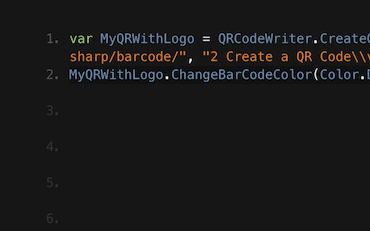
QR .NET C# VB

Jenny的团队每天使用IronBarcode编写成千上万个QR。查看他们关于如何充分利用IronBarcode的教程...
来自Jenny团队的QR编写教程





Iron团队在.NET软件组件市场拥有超过10年的经验。









无需信用卡

您的试用密钥应在电子邮件中。试用表单已
成功提交。
如果没有,请联系我们
support@ironsoftware.com

 免费开始
免费开始在生产环境中测试,没有水印。
在您需要的地方使用。
使用功能齐全的产品30天。
几分钟内即可启动和运行。
在产品试用期间,全面访问我们的支持工程团队
 免费开始
免费开始 预定免费现场演示
我们产品及其关键功能的在线演示
获取项目特定功能建议
我们会回答您的所有问题,确保您获得所需的全部信息。(无任何承诺)。
预定免费现场演示



无任何限制。100% 解锁。无需信用卡。
 无需信用卡或创建账户无任何限制。100% 解锁。无需信用卡。




预订无义务咨询

预定一次 30 分钟的个人演示。
无合约、无卡号、无任何长期承诺。







