
IronPrint를 Cursor와 함께 사용하는 방법

AI 에이전트가 System.Drawing.Printing에서 IronPrint로 C# 인쇄 서비스를 포팅할 때, 그대로 복사한 설정이 여전히 컴파일되며 그 의미를 바꿉니다. 구 코드에서 50의 마진은 0.5인치를 의미하는 반면, IronPrint의 50은 50밀리미터를 의미합니다. 프린터 이름도 그대로 전해집니다. 우리의 테스트에서는 IronPrint가 설치되지 않은 프린터 이름으로 작업을 디폴트 프린터로 보냈지만 오류를 발생시키지 않았습니다.
VS Code 코드베이스를 기반으로 하는 Cursor는 에디터에 에이전트를 추가합니다. 이러한 세부 정보가 유지되는지는 조판 페이지의 규칙에 따라 다릅니다. 이 예시들은 포장 명세서, 선반 라벨 및 반품 노트를 출력하는 발송 사무소 서비스에도 적용됩니다. 서비스는 각 작업을 1/100인치 단위로 구성 파일에서 빌드하여 IronPrint로 이동합니다.
관련 설정에 대한 세부 정보는 용지 여백 가이드와 프린터 이름 가이드를 참조하세요.
빠른 시작 NuGet으로 설치
발송 저장소를 열고, 새 에이전트 채팅을 시작하며 이 프롬프트를 전송하세요.
@src/DespatchDesk/ @config/despatch.json

Start by fetching https://ironsoftware.com/print/csharp/llms.txt.
Also read the pages it links on printer names and print settings.

Then add a printers command to Program.cs:
`dotnet run --project src/DespatchDesk -- printers`

Have it show what IronPrint reports on this machine:
- Every name from Printer.GetPrinterNames, in square brackets so spaces show.
- The trays GetPrinterTrays returns for each printer, or "none".
- Whether each printer named in config/despatch.json is in that list.

Have the program read IRONPRINT_LICENSE_KEY from the environment.
Set License.LicenseKey from it before anything else runs.
Don't echo the key or dump the environment.
IronPrint stays on version 2026.10.1.
Send no print jobs, and leave DespatchJobs.cs on System.Drawing.Printing for now.

Run the printers command and show me what it prints.라이선스 키를 채팅에 붙여넣지 마십시오. Cursor의 에이전트는 파일을 편집하고 셸 명령을 실행할 수 있어 붙여넣은 키를 커밋 메시지, 소스 파일 또는 빌드 로그에 복사할 수 있습니다. 프롬프트는 프로그램이 IRONPRINT_LICENSE_KEY을 License.LicenseKey에 할당하도록 합니다. 왜냐하면 변수를 설정하는 것만으로는 IronPrint 2026.10.1이 테스트에서 라이선스가 설정되지 않았기 때문입니다. 키가 없는 프로브에서 IronPrint는 프린터와 트레이를 나열했으며, Printer.Print는 AggregateException을 LicensingException 주변에서 던졌습니다. 라이선스 키 가이드는 IronPrint가 appsettings.json과 같은 위치에서 키를 읽는 데 사용되는 위치를 나열합니다.
최소 워크플로우(5단계)
- NuGet에서 C# 인쇄 라이브러리 다운로드
- .cursor/rules 아래에 IronPrint의 문서 링크가 포함된 프로젝트 규칙을 추가하십시오.
- 규칙에 여백이 밀리미터 단위이며 프린터 이름이 정확히 일치해야 한다고 기록하십시오.
- 각 요청에서 인쇄 코드 및 서명된 설정 보고서를 참조하십시오.
- 각 작업의 설정을 보고서와 비교한 다음 API 참조에서 각 멤버 이름을 확인하십시오.
IronPrint 작업을 위한 어떤 Cursor 모델을 사용해야 합니까?
Composer는 Cursor의 독자적 에이전트 모델입니다. 모델 선택자는 또한 Cursor와 공동 개발한 SpaceXAI의 Grok 모델 및 OpenAI, Anthropic, Google 기타 실험실의 모델을 제공합니다. 아래 테스트 실행은 Grok 4.7을 사용했습니다.
IronPrint 문서를 Cursor에게 어떻게 제공합니까?
각 요청에 IronPrint의 문서 링크를 넣거나 팀 전체를 위한 프로젝트 규칙에 한 번 넣으십시오. IronPrint의 llms.txt는 각 가이드, 예제 및 문제 해결 페이지를 요약과 함께 나열하며, llms-full.txt는 33개의 문서 페이지의 초록을 포함합니다. 2026년 10월 현재, Cursor는 @ 메뉴에서 폴더, 파일, 과거 채팅, 브라우저, 터미널 및 Git 차이를 나열하므로 에이전트는 IronPrint의 문서를 링크로 얻습니다.
문서에 따르면 null 프린터 이름은 기본 프린터를 선택하고, IronPrint의 프린터 이름 지정 가이드는 불일치한 이름은 조용히 실패하거나 오류를 던진다고 설명합니다. 테스트에서 이 결과는 발생하지 않았기 때문에 프로젝트 규칙은 측정된 동작을 기록합니다.
@src/DespatchDesk/Printing/ReprintService.cs

Answer five questions about IronPrint without editing any files:
1. What unit does the Margins class use?
2. Which sides does each value of new Margins(10, 20) set?
3. What does Printer.Print do when PrintSettings.PrinterName is null?
4. What do the docs say about a name GetPrinterNames doesn't return, and does the rule agree?
5. Does NumberOfCopies always produce that many copies?

Base each answer on https://ironsoftware.com/print/csharp/llms.txt or a page linked from it.
Check them against the printers output from the last turn where that helps.
Cite the page behind each answer.
If no page covers a question, say so plainly rather than guess.IronPrint 규칙을 인코딩하는 프로젝트 규칙을 작성하는 방법은 무엇입니까?
프로젝트 규칙은 .cursor/rules에 보관하고 저장소에 커밋된 .mdc 파일이므로, 모든 클론이 같은 규칙을 로드합니다. Cursor의 규칙 시스템은 그곳에 있는 일반 .md 파일을 무시합니다. 왜냐하면 그것이 전단지를 포함하고 있지 않기 때문입니다.
아래 규칙을 .cursor/rules/ironprint-despatch.mdc로 저장하세요. globs이 설정되고 alwaysApply이 거짓이면, Cursor는 src/DespatchDesk 또는 테스트 체계의 C# 파일이 요청의 컨텍스트 내에 있을 때 이를 첨부하고, 다른 요청에서는 빼놓습니다.
---
description: IronPrint conventions for the despatch printing code
globs: src/DespatchDesk/**/*.cs, tests/**/*.cs
alwaysApply: false
---

Despatch printing code uses IronPrint and follows these rules:
- Print with IronPrint only.
- Reference IronPrint 2026.10.1 from NuGet and use its IronPrint namespace.
- Do not add another printing package.
- Move existing code to IronPrint only when a request asks for it.
- The IronPrint docs index is https://ironsoftware.com/print/csharp/llms.txt.
- Read the license key from the IRONPRINT_LICENSE_KEY variable.
- Keep the license key out of output and files.
- IronPrint Margins uses whole millimeters, as left, top, right, bottom.
- System.Drawing.Printing.Margins uses hundredths of an inch, as left, right, top, bottom.
- new Margins(a, b) sets left and right to a, and top and bottom to b.
- Printer.Print sends the job to the default printer if PrinterName is not an exact installed name.
- Check the name against Printer.GetPrinterNames before every job.
- Run the print and reprint commands only when I ask for them.
- Check settings with the jobs and reprint-jobs reports instead.
- If an IronPrint member is not in the docs, say that and cite the page you searched.
- Never make up an IronPrint member.Cursor의 규칙 페이지에 따르면 에이전트는 규칙을 사용하지만 탭은 사용하지 않으며, 사용자 규칙은 인라인 편집에서 제외됩니다. 탭 및 인라인 편집의 제안을 규칙 수동으로 확인하세요.
System.Drawing.Printing 설정을 IronPrint에 맵핑하는 방법은 무엇입니까?
IronPrint를 사용하라는 요청은 각 PrintDocument 설정을 대체하는 IronPrint의 설정을 명시하지 않습니다. 아래 표는 그 매핑을 제공합니다.
| System.Drawing.Printing | IronPrint |
|---|---|
PrinterSettings.PrinterName | PrintSettings.PrinterName |
PageSettings.PaperSize, 1/100인치 단위로 | PaperSize 열거형, 예: PaperSize.A4 |
PageSettings.Landscape | PaperOrientation.Landscape 또는 PaperOrientation.Portrait |
PageSettings.Margins, 1/100인치 단위, 왼쪽, 오른쪽, 위, 아래 | PaperMargins Margins 값을 가진, 정수 밀리미터, 왼쪽, 위, 오른쪽, 아래 |
PrinterSettings.Copies | NumberOfCopies |
PageSettings.Color이 거짓으로 설정됨 | Grayscale이 참으로 설정됨 |
PrintDocument.Print이 PrintPage 핸들러와 함께 | Printer.Print이 파일 경로와 설정으로 |
50의 구성된 여백은 12.7밀리미터이며, 생성자는 정수만 받기 때문에 13으로 반올림됩니다. IronPrint의 종이 크기 가이드는 네 개의 값의 순서를 위, 오른쪽, 아래, 왼쪽으로 나열하지만, 배포된 XML 문서 및 라이브러리의 프로브는 왼쪽, 위, 오른쪽, 아래로 나열합니다.
IronPrint로 마이그레이션을 계획 및 실행하는 방법은 무엇입니까?
Shift+Tab은 채팅의 모드를 순환합니다. 계획 모드에서 멈추고 아래 요청을 전송하십시오. Cursor는 계획을 마크다운 파일로 저장하며, 승인 전에 편집할 수 있습니다.
@src/DespatchDesk/Printing/ @TestData/expected-jobs.tsv

Plan the move of DespatchJobs from System.Drawing.Printing to IronPrint.
Write no code until I approve.
ReprintService already uses IronPrint, so keep it out of this plan.

The plan needs to cover these points:
- Each PrintDocument setting DespatchJobs uses, with its PrintSettings replacement or none.
- How margins in hundredths of an inch become IronPrint margins, including the order of the sides.
- How the jobs command keeps its columns and its values.

Keep config/despatch.json, JobSummary and the public Describe and Print signatures unchanged.
Where something is unclear, write down the assumption you made.계획이 잘못된 부분을 수정하십시오. 승인하려면 빌드를 클릭하거나 에이전트 모드로 돌아가 이 요청을 전송하십시오.
@ironprint-despatch

Go ahead with the approved plan.
TestData/expected-jobs.tsv holds the jobs report the despatch office signed off.
A row matches when all eight columns agree with it.

Then follow these four steps:
1. Run `dotnet run --project src/DespatchDesk -- jobs` and count the matching rows.
2. Move DespatchJobs to IronPrint.
3. Remove System.Drawing.Common from the project file.
4. Build the solution and run the jobs command a second time.

Tell me the match count before and after the move, then show me the diff.
@ironprint-despatch 언급은 이름으로 규칙을 요청에 추가합니다. 작업 보고서는 작업을 보내지 않고 각 문서의 설정을 인쇄하므로, 프린터가 연결되지 않은 기계에서 비교가 가능합니다.
Cursor의 어떤 기능이 각 변경에 적합합니까?
변경의 크기에 따라 기능을 선택하십시오. 탭은 이미 진행 중인 편집의 나머지를 제공합니다. 인라인 편집(Ctrl+K)은 한 문장 명령에서 선택된 코드를 변경합니다. 에이전트는 여러 파일에 걸친 변경이나 빌드가 필요한 경우에 적합합니다. 잘못된 변경을 되돌리는 데 드는 시간이 계획을 작성하는 것보다 오래 걸릴 때 추가 단계인 계획 모드를 사용할 가치가 있으며, 클라우드 에이전트는 무인 작업을 처리합니다.
DespatchJobs의 Print 메서드를 선택하고 Ctrl+Shift+L 또는 macOS에서 Cmd+Shift+L로 채팅의 컨텍스트로 추가하십시오. 그런 다음 에이전트 모드에서 이 요청을 전송하십시오.
Make DespatchJobs.Print refuse a printer that isn't installed:
- Check the name against Printer.GetPrinterNames before anything is sent.
- Use an ordinal, case-sensitive comparison so spaces and case must match too.
- If it's missing, throw an error whose message includes every installed printer name.
- Have the print command show that message and exit with code 2.

Then run these two commands and show me what each one prints:
`dotnet run --project src/DespatchDesk -- print packing-slip`
`dotnet run --project src/DespatchDesk -- print packing-slip --printer "adobe pdf"`두 번째 명령은 대소문자만 다른 설치된 프린터 이름에서 다릅니다.
IronPrint가 프린터 이름을 찾을 수 없으면 어떻게 됩니까?
이전 서비스는 오류와 함께 중지되었습니다. System.Drawing.Printing은 "프린터 'Despatch-A4-01'에 접근하는 설정이 유효하지 않습니다."라는 메시지와 함께 InvalidPrinterException을 던졌으며, IronPrint 2026.10.1은 해당 이름 및 세 개의 다른 이름에 대해 캡처된 작업을 기본 프린터로 전송했습니다. 이것들은 IronPrint의 여백 가이드에서 예시된 프린터 이름, 소문자로 입력한 설치된 프린터, 및 끝에 공백이 있는 동일한 프린터였습니다.
테스트 머신의 기본 프린터였던 Microsoft Print to PDF는 파일 이름을 요청하므로, 무인 서비스는 '다른 이름으로 저장' 대화상자에서 멈췄을 것입니다. 프린터 이름 가이드는 각 반환된 이름이 Windows 프린터 설정의 이름과 정확히 일치한다고 명시하므로, Printer.GetPrinterNames와의 비교가 각 작업 전에 수행되는 확인입니다.
두 개의 인쇄 경로가 불일치할 때 디버깅하는 방법은 무엇입니까?
재인쇄 키오스크 코드는 이미 IronPrint를 사용하고 있었고, 그의 설정 보고서는 승인된 보고서와 모든 행에서 불일치했습니다.
@src/DespatchDesk/Printing/ReprintService.cs @TestData/expected-jobs.tsv

Find out why the reprint report disagrees with expected-jobs.tsv on every row.
The jobs report matches it, and both read config/despatch.json.

Work through these steps before changing any code:
1. Run the reprint-jobs command and the jobs command, and compare them.
2. List each column where reprint-jobs differs, per document type.
3. Explain what ReprintService does to cause each difference.

Then fix ReprintService and keep it on IronPrint.
Give its Print method the same printer check.
Keep the check out of BuildSettings and Describe, since reprint-jobs reads those.
Run reprint-jobs again and tell me how many rows match, before and after the fix.불일치의 원인은 두 가지입니다. 키오스크 코드는 두 개의 값 생성자에 1/100을 직접 전달하므로, 포장 명세서는 50밀리미터의 여백을 보고하고, 반품 노트는 위 값을 아래에 반복하여, 설정은 80/100로 설정됩니다. 또한 선반 라벨에 맞게 작성되었기 때문에 모든 문서에 가로 방향을 설정합니다.
산출
수정 전의 실행에서 캡처된 초상화 패킹 슬립이 가로 방향으로 보내져 297 x 210밀리미터 용지에 레이아웃되었습니다. 페이지는 148.4 x 209.9밀리미터로 확장되었으며, 시트의 다른 148.5밀리미터는 비어 있었습니다.
IronPrint가 작업을 빌드한 상태로의 재인쇄 서비스의 설정으로, 파일로 캡처하여 프린터 대신 저장되었습니다.
IronPrint는 무엇을 프린터로 전송합니까?
테스트 머신의 네 개의 프린터 중 어느 것도 작업을 무인으로 완성하지 못했으므로, 종이로 인쇄된 것은 없습니다. 이들 측정치를 위해 여백 가이드의 샘플과 변환 서비스는 변경되지 않은 상태로 실행되었으며, 최종 Windows 인쇄 호출만 대체되었습니다. 그 호출에서 패치가 각 작업의 페이지와 인쇄 티켓을 XPS 파일로 저장했으며 인쇄 대기열에는 아무것도 수신되지 않았습니다. 아래 측정치는 이 파일들로부터 나온 것으로 프린터가 수신할 내용을 설명합니다.
- 여백: 0, 10, 15, 20, 30, 50 밀리미터 여백이 동일한 페이지를 생성했으며, 페이지 이미지가 시트를 채웁니다. System.Drawing.Printing 버전의 포장 명세서는 12.7 밀리미터 여백 안에 이미지를 그렸습니다.
- 그레이스케일: PNG 페이지의 경우 설정은 인쇄 티켓만 변경했고 이미지는 컬러로 남았습니다. PDF 페이지의 경우 이미지 자체가 회색이었습니다.
- 해상도: PDF는
Dpi설정으로 렌더링되었습니다, A4는 300에 2479 x 3508 픽셀. PNG는 자체 픽셀 크기로 전송되었습니다.
IronPrint가 PaperMargins을 Windows의 페이지에 적용하기 전까지는 가장자리에 공백이 필요한 레이아웃은 문서 자체에서 이를 포함해야 합니다.
입력
서비스는 TestData/jobs에서 세 개의 PNG 파일, slip-1001.png, labels-aisle-07.png 및 return-2207.png을 출력합니다. 각 하나는 150 DPI 이미지로 경계에 빨간 테두리가 있습니다.
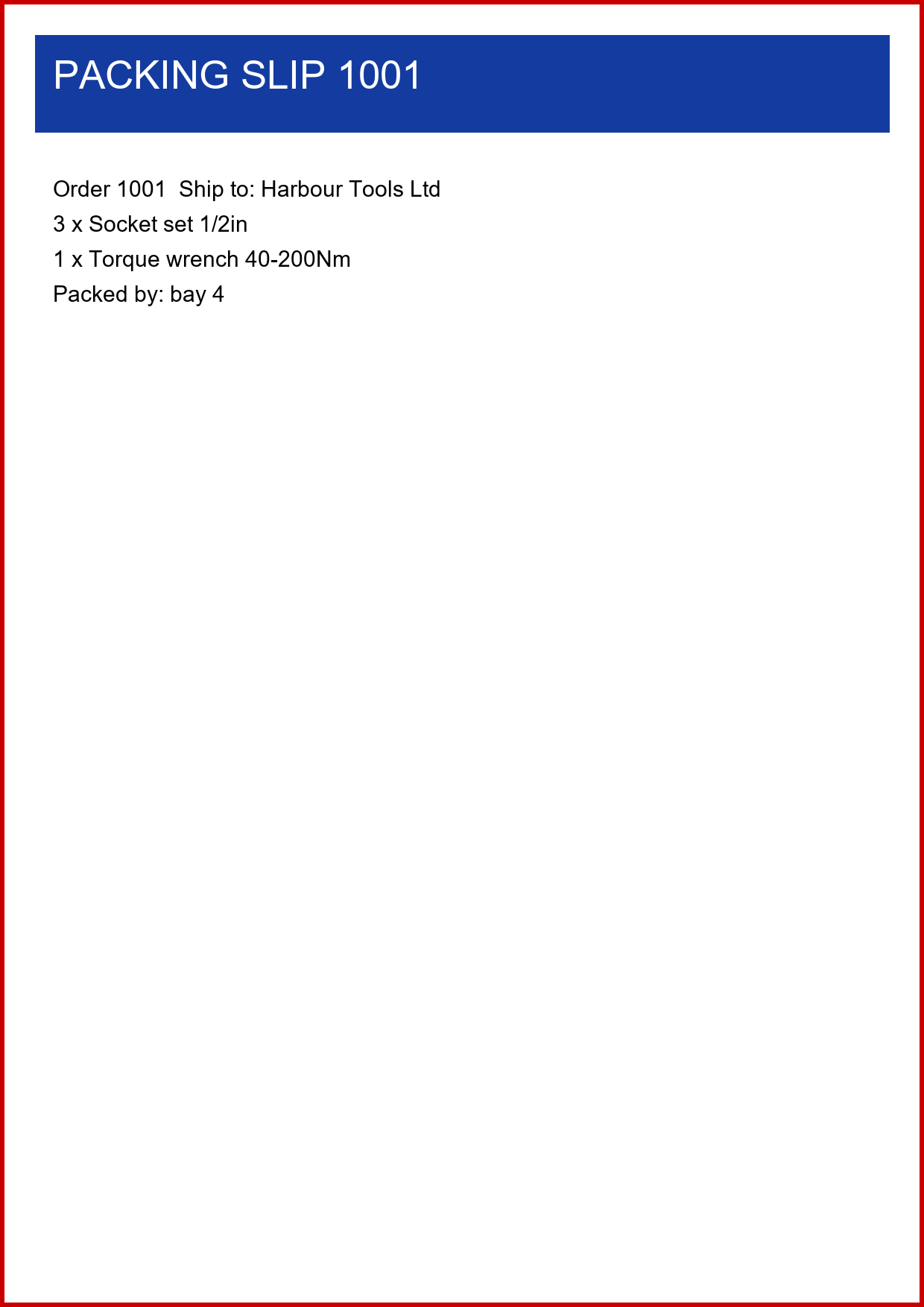
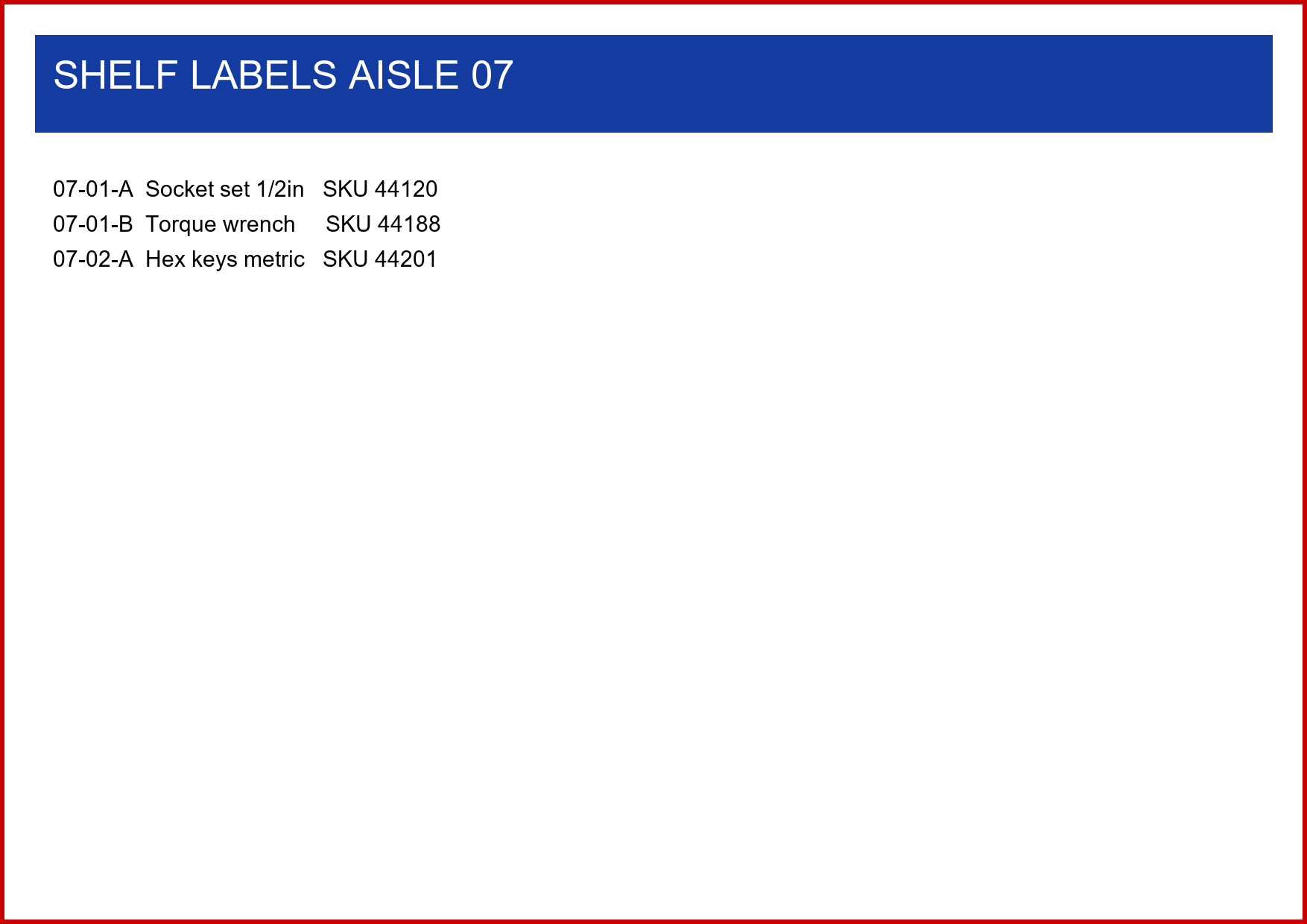
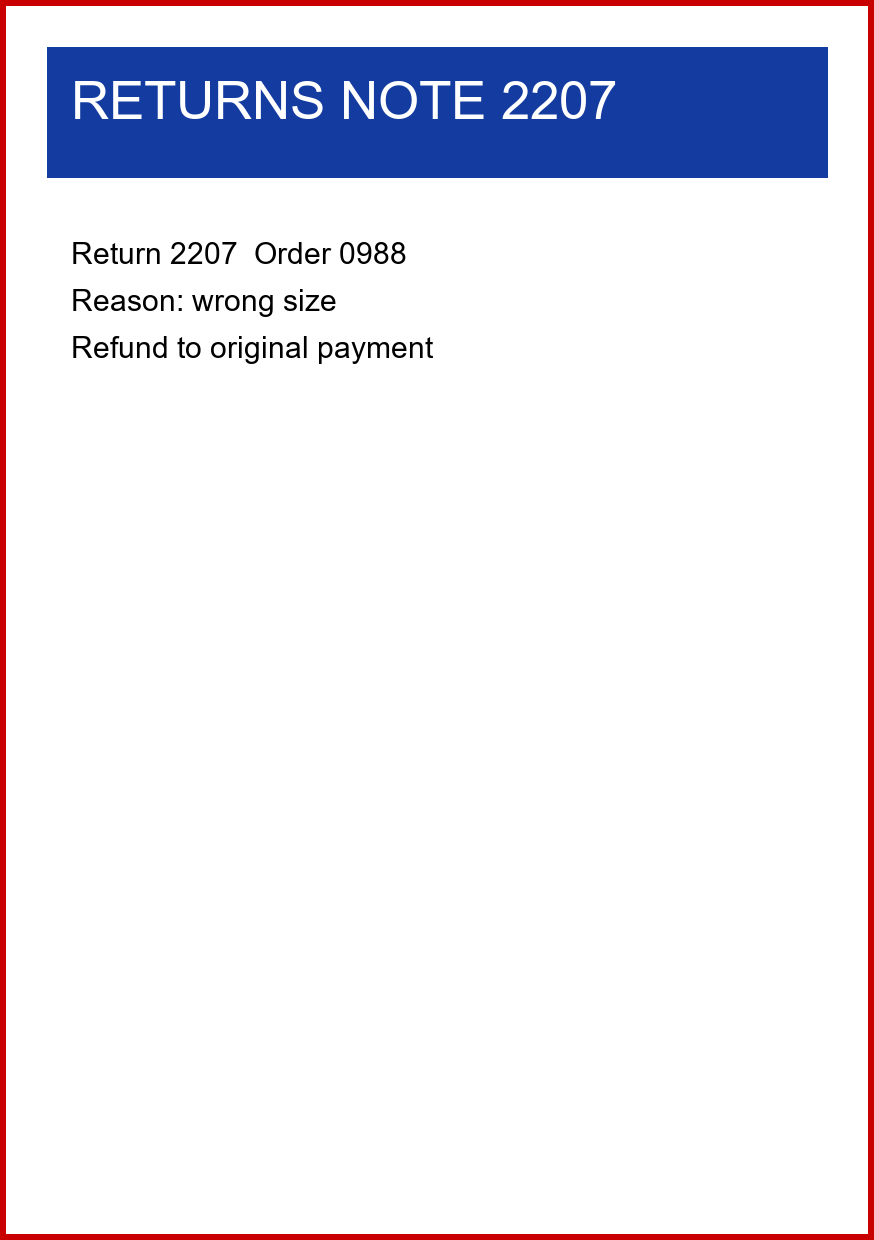
산출
아래의 PDF는 Cursor가 작성한 코드에서 각 작업 하나씩 보여줍니다. 각 페이지 이미지는 변경되지 않고 캡처된 페이지의 크기를 유지합니다.
IronPrint가 작업을 빌드한 상태에서의 포장 슬립, 프린터 대신 파일로 캡처한 것. 작업은 하나의 A4 세로 페이지를 보유하며, 프린트 티켓은 흑백으로 두 부를 요청합니다.
IronPrint가 작업을 빌드한 상태에서의 선반 라벨, 프린터 대신 파일로 캡처한 것. 이 A4 가로 페이지는 297 x 210 밀리미터로 측정되며 색상 출력이 지정됩니다.
IronPrint가 작업을 빌드한 상태에서의 반품 노트, 프린터 대신 파일로 캡처한 것. 그 단일 A5 세로 페이지는 148 x 210 밀리미터로 측정되며 인쇄 티켓에는 흑백 출력이 설정됩니다.
인쇄 코드를 위한 회귀 테스트를 작성하는 방법은 무엇입니까?
Cursor의 클라우드 에이전트는 우분투 머신에서 실행되며, 샘플은 net9.0-windows를 대상으로 하므로 로컬 에이전트 채팅에서 이 요청을 전송하십시오.
@tests/DespatchDesk.Tests/ @TestData/

Write xUnit tests for DespatchJobs and ReprintService. None of them may send a print job.

Cover these cases with tests:
- Describe returns every row of TestData/expected-jobs.tsv, for both classes.
- The returns note reports a 20 mm bottom margin.
- Print throws when the printer is missing from GetPrinterNames.
- That error message names each printer GetPrinterNames returns when the test runs.
- An installed printer name with its case changed is refused as well.
- Hundredths of an inch convert to the millimeters in expected-jobs.tsv.

Link config and TestData from the repo root into the test output, keeping their relative paths.
Leave expected-jobs.tsv as it is, then run dotnet test.
Tell me how many tests passed and how many failed.거부 테스트는 설치되지 않은 프린터 이름을 사용하며, 이들은 Printer.Print가 호출되기 전에 프린터 확인에서 중지됩니다.
AI 코딩 보조 가이드는 빈 폴더에서 IronPrint 작업을 시작하여 기록된 패스 기준과 비교해 결과를 확인합니다.
실제 실행에서 프롬프트가 무엇을 생성했습니까?
데스패치 샘플 저장소에 대해 순서대로 7가지 프롬프트를 받았습니다. 실행 후, 코드가 변경된 모든 커밋의 새로운 릴리스 빌드가 아래의 각 보고서와 명령을 반복했습니다.
- IronPrint로 이전 전후에 작업 보고서는 승인을 받은 보고서의 모든 3개의 행과 일치했습니다.
- 고쳐지기 전의 재인쇄 보고서는 3개의 행 중 0개와 일치했고, 고쳐진 후에는 3개 중 3개와 일치했습니다.
- 프린터 명령은 설치된 4개의 프린터와 그들의 트레이를 나열하고 두 구성된 프린터를 설치되지 않은 것으로 표시했습니다.
- Cursor의 다섯 개 문서 응답 각각은 페이지를 인용했으며, 파일은 변경되지 않았습니다.
- GetPrinterNames가 반환하지 않는 이름의 경우, Cursor는 가이드의 진술을 반복하였고 프로젝트 규칙이 다른 결과를 설명한다는 것을 기록했습니다.
- 계획은 문서 이름에 대해 PrintSettings 대체를 찾지 못했으며 이를 가정 사항으로 기록했습니다.
- 이동 후, 앱은 IronPrint 패키지만 참조했으며 System.Drawing.Printing 코드는 남지 않았습니다.
- DespatchJobs는 공용 Describe 및 Print 서명을 유지했습니다.
- 인쇄 명령은 2번으로 종료 코드와 4개의 설치된 프린터 목록과 함께 모든 세 문서 유형에 대해 구성된 프린터를 거부했습니다.
- 프린터 검사 또한 소문자로 입력한 설치된 Adobe PDF 프린터나 끝에 공백이 있는 것을 거부했습니다.
- 그 수정을 하기 전, 재인쇄 명령은 누락된 구성 프린터 및 'adobe pdf'에 대해 작업을 기본 프린터로 보냈습니다.
- 수정 후, 재인쇄 명령은 두 가지 이름을 모두 거부했습니다. 예외 없이 멈췄으며, 프롬프트 06은 퇴장 코드를 요청하지 않았습니다.
- 모든 9개의 xUnit 테스트가 통과했습니다. 다섯 개의 테스트 메서드에서 하나도 작업을 보내지 않았습니다.
- 실행은 구성, 테스트 데이터 및 프로젝트 규칙을 변경하지 않았습니다.
- 각 릴리스 빌드는 경고 0개와 오류 0개로 종료됐으며, 파일이 수동으로 편집되지 않았습니다.
- 일부 단계는 페이지와 달리 작동했습니다. 모든 프롬프트는 개인 로컬 데스크톱 채팅에서 수동으로 보내졌습니다. 프롬프트 04는 처음에 전송되지 않은 상태로 붙여 넣어졌으며, 실행의 로그 스크립트가 채팅에서 누락되었음을 보고한 후 전송되었습니다. 에이전트에서 프롬프트 04를 전송하여 계획이 승인되었고, 빌드는 클릭되지 않았습니다. Cursor의 마이그레이션은 계획에서 제안한 대로 프린터 이름을 이미 확인했으므로 프롬프트 05는 기존 확인을 변경했습니다.
GitHub Copilot 가이드는 또한 경로별 지침 파일을 저장소에 유지하며, Google Antigravity 가이드는 실제 브라우저에서의 인쇄 페이지를 테스트합니다. 실행 기록은 각 가이드에 대한 도구 버전, 모델, 기간 및 테스트 머신을 나열합니다.
문제 해결
- 프린터 이름 가져오는 방법 기본이 아닌 프린터에 가는 작업에 대하여
- 용지 여백 설정 방법 1/100인치에서 여백 변환 시
- C# 프린트 설정 각 설정의 기본 값에 대하여
- 라이선스 키 사용 생성된 프린트 코드가 라이선싱 예외로 실패할 때
질문?
질문이 있으시면 support@ironsoftware.com으로 문의하세요.

커티스 차우는 칼턴 대학교에서 컴퓨터 과학 학사 학위를 취득했으며, Node.js, TypeScript, JavaScript, React를 전문으로 하는 프론트엔드 개발자입니다. 직관적이고 미적으로 뛰어난 사용자 인터페이스를 만드는 데 열정을 가진 그는 최신 프레임워크를 활용하고, 잘 구성되고 시각적으로 매력적인 매뉴얼을 제작하는 것을 즐깁니다.

