




已更新 2026年6月28日
使用 C# 和网络摄像头构建条形码扫描器
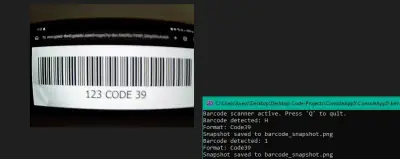
使用 IronBarcode,用 C# 和网络摄像头构建一个条形码扫描器。实时捕获视频帧,解码条形码和二维码。包含完整源代码。
阅读更多

本教程将演示如何在C#控制台应用程序和.NET Windows窗体应用程序中使用IronBarcode库扫描QR码和条形码。
使用IronBarcode库,可以同时扫描和读取多个条形码,还可以成功扫描不完美的图像。 首先,我们来澄清一下什么是条码扫描器。
条码是由一系列平行的黑线和宽度不等的白色间隔组成的方形或长方形图像。 条码扫描器或条码阅读器是一种能够读取印刷条码、解码条码中包含的数据并将数据发送到计算机的设备。
以下步骤将介绍如何借助IronBarcode库创建一个条码扫描器。
打开Visual Studio > 点击创建新项目 > 选择Windows窗体应用程序模板 > 按下一步 > 命名项目 > 按下一步 > 选择目标.NET Framework > 点击创建按钮。
创建项目后,从Visual Studio工具箱按如下设计窗体:PictureBox、Label、TextBox和Button控件。
 条码扫描器
条码扫描器
可以通过以下三种方法之一安装条码库:
在包管理器控制台中写下以下命令。 它将为您下载并安装程序包。
您还可以通过使用NuGet包解决方案来安装条码库。 只需按照这些步骤操作:
点击工具 > NuGet程序包管理器 > 管理解决方案的NuGet程序包。
这将为您打开NuGet包管理器。 点击浏览并搜索条码,然后安装类库。
作为替代方案,可以下载IronBarCode.Dll并将其添加为项目的引用。
下载后,将以下引用添加到您的条码阅读器项目中。
using IronBarCode;Imports IronBarCodeImports IronBarCode在.NET中使用IronBarcode库读取条码或QR码非常简单,.NET条码阅读器。
在您的项目中,浏览您希望读取的图像。 它将打开在PictureBox; 立即点击"扫描代码"。 文本将出现在文本框中。
这是"浏览"按钮以打开图像的代码:
// Open file dialog
OpenFileDialog open = new OpenFileDialog();
// Image filters
open.Filter = "Image Files(*.jpg; *.png; *.jpeg; *.gif; *.bmp)|*.jpg;*.png;*.jpeg;*.gif;*.bmp";
if (open.ShowDialog() == DialogResult.OK) {
    // Display image in PictureBox
    pictureBox1.Image = new Bitmap(open.FileName);
    // Store image file path in class data member. Initialize it as string ImageFileName;
    ImageFileName = open.FileName;
}
// Open file dialog
OpenFileDialog open = new OpenFileDialog();
// Image filters
open.Filter = "Image Files(*.jpg; *.png; *.jpeg; *.gif; *.bmp)|*.jpg;*.png;*.jpeg;*.gif;*.bmp";
if (open.ShowDialog() == DialogResult.OK) {
// Display image in PictureBox
pictureBox1.Image = new Bitmap(open.FileName);
// Store image file path in class data member. Initialize it as string ImageFileName;
ImageFileName = open.FileName;
}' Open file dialog
Dim open As New OpenFileDialog()
' Image filters
open.Filter = "Image Files(*.jpg; *.png; *.jpeg; *.gif; *.bmp)|*.jpg;*.png;*.jpeg;*.gif;*.bmp"
If open.ShowDialog() = DialogResult.OK Then
' Display image in PictureBox
pictureBox1.Image = New Bitmap(open.FileName)
' Store image file path in class data member. Initialize it as string ImageFileName;
ImageFileName = open.FileName
End If' Open file dialog
Dim open As New OpenFileDialog()
' Image filters
open.Filter = "Image Files(*.jpg; *.png; *.jpeg; *.gif; *.bmp)|*.jpg;*.png;*.jpeg;*.gif;*.bmp"
If open.ShowDialog() = DialogResult.OK Then
' Display image in PictureBox
pictureBox1.Image = New Bitmap(open.FileName)
' Store image file path in class data member. Initialize it as string ImageFileName;
ImageFileName = open.FileName
End If"扫描代码"按钮的代码:
// Read the barcode from the image file path
BarcodeResult Result = BarcodeReader.Read(ImageFileName);
// Display the decoded text in TextBox
textBox1.Text = Result.Text;
// Read the barcode from the image file path
BarcodeResult Result = BarcodeReader.Read(ImageFileName);
// Display the decoded text in TextBox
textBox1.Text = Result.Text;' Read the barcode from the image file path
Dim Result As BarcodeResult = BarcodeReader.Read(ImageFileName)
' Display the decoded text in TextBox
textBox1.Text = Result.Text' Read the barcode from the image file path
Dim Result As BarcodeResult = BarcodeReader.Read(ImageFileName)
' Display the decoded text in TextBox
textBox1.Text = Result.Text条码扫描器按如下图在文本框中显示条码数据:
 要使用C#扫描的条码图像
在本节中,IronBarcode库能够有效处理涉及倾斜QR码的实际情况。 虽然倾斜角度的QR码可以通过Read方法处理并读取,但仍然可能需要更多时间来解决。 IronBarcode库提供了一种使用BarcodeReaderOptions作为额外参数来处理此类图像输入的自定义方式。 代码如下
// Define a collection of image filters to apply
var filtersToApply = new ImageFilterCollection() {
    new SharpenFilter(),
    new InvertFilter(),
    new ContrastFilter(),
    new BrightnessFilter(),
    new AdaptiveThresholdFilter(),
    new BinaryThresholdFilter()
};

// Configure barcode reader options with specified filters
BarcodeReaderOptions myOptionsExample = new BarcodeReaderOptions() {
    ImageFilters = filtersToApply,
    ExpectBarcodeTypes = BarcodeEncoding.QRCode | BarcodeEncoding.Code128,
};

// Read the barcode/QR code with custom options and display result
BarcodeResult Result = BarcodeReader.Read(ImageFileName, myOptionsExample);
textBox1.Text = Result.Text;
// Define a collection of image filters to apply
var filtersToApply = new ImageFilterCollection() {
new SharpenFilter(),
new InvertFilter(),
new ContrastFilter(),
new BrightnessFilter(),
new AdaptiveThresholdFilter(),
new BinaryThresholdFilter()
};
// Configure barcode reader options with specified filters
BarcodeReaderOptions myOptionsExample = new BarcodeReaderOptions() {
ImageFilters = filtersToApply,
ExpectBarcodeTypes = BarcodeEncoding.QRCode | BarcodeEncoding.Code128,
};
// Read the barcode/QR code with custom options and display result
BarcodeResult Result = BarcodeReader.Read(ImageFileName, myOptionsExample);
textBox1.Text = Result.Text;' Define a collection of image filters to apply
Dim filtersToApply = New ImageFilterCollection() From {
New SharpenFilter(),
New InvertFilter(),
New ContrastFilter(),
New BrightnessFilter(),
New AdaptiveThresholdFilter(),
New BinaryThresholdFilter()
}
' Configure barcode reader options with specified filters
Dim myOptionsExample As New BarcodeReaderOptions() With {
.ImageFilters = filtersToApply,
.ExpectBarcodeTypes = BarcodeEncoding.QRCode Or BarcodeEncoding.Code128
}
' Read the barcode/QR code with custom options and display result
Dim Result As BarcodeResult = BarcodeReader.Read(ImageFileName, myOptionsExample)
textBox1.Text = Result.Text' Define a collection of image filters to apply
Dim filtersToApply = New ImageFilterCollection() From {
New SharpenFilter(),
New InvertFilter(),
New ContrastFilter(),
New BrightnessFilter(),
New AdaptiveThresholdFilter(),
New BinaryThresholdFilter()
}
' Configure barcode reader options with specified filters
Dim myOptionsExample As New BarcodeReaderOptions() With {
.ImageFilters = filtersToApply,
.ExpectBarcodeTypes = BarcodeEncoding.QRCode Or BarcodeEncoding.Code128
}
' Read the barcode/QR code with custom options and display result
Dim Result As BarcodeResult = BarcodeReader.Read(ImageFileName, myOptionsExample)
textBox1.Text = Result.Text打开倾斜QR码图像后的输出如下所示:
 倾斜QR码图像
条码图像可以从PDF文件中扫描,并可以根据需要显示每个结果。 以下示例代码允许您从PDF文件中读取多个条码。
// Scan for multiple barcodes within a PDF document
BarcodeResult[] PDFResults = BarcodeReader.ReadPdf("MultipleBarcodes.pdf");

// Work with the results found
foreach (var PageResult in PDFResults) {
    string Value = PageResult.Value;
    int PageNum = PageResult.PageNumber;
    System.Drawing.Bitmap Img = PageResult.BarcodeImage;
    BarcodeEncoding BarcodeType = PageResult.BarcodeType;
    byte[] Binary = PageResult.BinaryValue;
    Console.WriteLine(PageResult.Value + " on page " + PageNum);
}
// Scan for multiple barcodes within a PDF document
BarcodeResult[] PDFResults = BarcodeReader.ReadPdf("MultipleBarcodes.pdf");
// Work with the results found
foreach (var PageResult in PDFResults) {
string Value = PageResult.Value;
int PageNum = PageResult.PageNumber;
System.Drawing.Bitmap Img = PageResult.BarcodeImage;
BarcodeEncoding BarcodeType = PageResult.BarcodeType;
byte[] Binary = PageResult.BinaryValue;
Console.WriteLine(PageResult.Value + " on page " + PageNum);
}' Scan for multiple barcodes within a PDF document
Dim PDFResults() As BarcodeResult = BarcodeReader.ReadPdf("MultipleBarcodes.pdf")
' Work with the results found
For Each PageResult In PDFResults
Dim Value As String = PageResult.Value
Dim PageNum As Integer = PageResult.PageNumber
Dim Img As System.Drawing.Bitmap = PageResult.BarcodeImage
Dim BarcodeType As BarcodeEncoding = PageResult.BarcodeType
Dim Binary() As Byte = PageResult.BinaryValue
Console.WriteLine(PageResult.Value & " on page " & PageNum)
Next PageResult' Scan for multiple barcodes within a PDF document
Dim PDFResults() As BarcodeResult = BarcodeReader.ReadPdf("MultipleBarcodes.pdf")
' Work with the results found
For Each PageResult In PDFResults
Dim Value As String = PageResult.Value
Dim PageNum As Integer = PageResult.PageNumber
Dim Img As System.Drawing.Bitmap = PageResult.BarcodeImage
Dim BarcodeType As BarcodeEncoding = PageResult.BarcodeType
Dim Binary() As Byte = PageResult.BinaryValue
Console.WriteLine(PageResult.Value & " on page " & PageNum)
Next PageResultPDF文件中存在的条码和QR码:
 C# - 从PDF读取条码结果
在现实世界的使用场景中,条码通常会在图像、扫描、缩略图或照片中发现瑕疵,并可能包含数字噪声或被倾斜。 本节演示如何从缩略图中读取条码数据。
IronBarcode库使用C#条码生成器,甚至可以读取条码的损坏缩略图。
 自动条码缩略图尺寸修正。 使用IronBarcode在C#中可读文件
它会自动检测到过小的条码图像,无法合理代表实际条码,然后放大并清除与缩略图相关的所有数字噪声,从而使其再次可读。
// Small or 'Thumbnail' barcode images are automatically detected by IronBarCode and corrected for wherever possible even if they have much digital noise.
BarcodeResult SmallResult = BarcodeReader.Read("ThumbnailOfBarcode.gif");
// Small or 'Thumbnail' barcode images are automatically detected by IronBarCode and corrected for wherever possible even if they have much digital noise.
BarcodeResult SmallResult = BarcodeReader.Read("ThumbnailOfBarcode.gif");' Small or 'Thumbnail' barcode images are automatically detected by IronBarCode and corrected for wherever possible even if they have much digital noise.
Dim SmallResult As BarcodeResult = BarcodeReader.Read("ThumbnailOfBarcode.gif")' Small or 'Thumbnail' barcode images are automatically detected by IronBarCode and corrected for wherever possible even if they have much digital noise.
Dim SmallResult As BarcodeResult = BarcodeReader.Read("ThumbnailOfBarcode.gif")IronBarcode是一个多功能的.NET软件库和C# QR码生成器,用于扫描和读取多种条码图像格式,无论这些条码是否是完美的屏幕截图或实际上是照片、扫描或其他不完美的现实图像。 此外,IronBarcode提供了一系列广泛的定制选项来提高条码读取速度,比如裁剪区域或多线程,以及ML模型的准确性。 访问官方文档页面以获取有关IronBarcode的更多信息。
当前,如果您购买完整的Iron Suite,可以以购买两个库的价格获得五个库。
Curtis Chau 拥有卡尔顿大学的计算机科学学士学位,专注于前端开发,精通 Node.js、TypeScript、JavaScript 和 React。他热衷于打造直观且美观的用户界面,喜欢使用现代框架并创建结构良好、视觉吸引力强的手册。


IronBarcode 是 IRONSUITE的一部分
10 个 .NET API 产品用于您的办公文档

当您需要快速读取、写入和设计条形码时。


