


How to Generate Barcode Images in C# .NET Applications

Besoin de générer rapidement des images de codes-barres professionnelles dans vos applications .NET ? Ce tutoriel vous montre précisément comment créer, personnaliser et exporter des codes-barres à l'aide d'IronBarcode, depuis les implémentations simples sur une seule ligne jusqu'aux techniques de style avancées qui vous offrent un contrôle total sur l'apparence de votre code-barres.
Démarrage rapide : Créez et Enregistrez une Image de Code-barres Immédiatement
Avec IronBarcode, vous pouvez générer et exporter une image de code-barres en un seul appel. Utilisez la méthode CreateBarcode avec votre texte, choisissez le format et la taille, puis appelez SaveAsPng — aucune configuration complexe n'est nécessaire.
-
Installez IronBarcode avec le Gestionnaire de Packages NuGet
-
Copiez et exécutez cet extrait de code.
IronBarCode.BarcodeWriter.CreateBarcode("Hello123", BarcodeWriterEncoding.Code128, 200, 100).SaveAsPng("barcode.png"); -
Déployez pour tester sur votre environnement de production.
Commencez à utiliser IronBarcode dans votre projet dès aujourd'hui avec un essai gratuit

Flux de travail minimal (5 étapes)
- Installer IronBarcode via le gestionnaire de packages NuGet
- Générez un code-barres simple avec une seule ligne de code
- Appliquez un style et des annotations personnalisés à votre code-barres
- Exportez les codes-barres sous forme d'images, de PDF ou de HTML.
- Utilisez l'API Fluent pour une génération de codes-barres efficace
How Do I Install a Barcode Generator Library in C#?
L'installation d'IronBarcode ne prend que quelques secondes grâce au gestionnaire de packages NuGet. Vous pouvez l'installer directement via la console du gestionnaire de packages ou télécharger la DLL manuellement.
Install-Package BarCode
 IronBarcode offre des fonctionnalités complètes de génération de codes-barres pour les développeurs .NET
How Can I Generate a Simple Barcode Using C#?
La création de votre premier code-barres ne nécessite que deux lignes de code. L'exemple ci-dessous montre comment générer un code-barres standard Code128 et l'enregistrer en tant que fichier image.
:path=/static-assets/barcode/content-code-examples/tutorials/csharp-barcode-image-generator-3.csusing IronBarCode;
using IronSoftware.Drawing;
// Fluent API for Barcode Image generation.
string value = "https://ironsoftware.com/csharp/barcode";
AnyBitmap barcodeBitmap = BarcodeWriter.CreateBarcode(value, BarcodeEncoding.PDF417).ResizeTo(300, 200).SetMargins(100).ToBitmap();
System.Drawing.Bitmap barcodeLegacyBitmap = (System.Drawing.Bitmap)barcodeBitmap;Imports IronBarCode
Imports IronSoftware.Drawing
' Fluent API for Barcode Image generation.
Private value As String = "https://ironsoftware.com/csharp/barcode"
Private barcodeBitmap As AnyBitmap = BarcodeWriter.CreateBarcode(value, BarcodeEncoding.PDF417).ResizeTo(300, 200).SetMargins(100).ToBitmap()
Private barcodeLegacyBitmap As System.Drawing.Bitmap = CType(barcodeBitmap, System.Drawing.Bitmap)La méthode BarcodeWriter.CreateBarcode() est votre point d'entrée pour la génération de code-barres. Elle accepte deux paramètres : les données que vous voulez encoder et le format du code-barres de l'enum BarcodeWriterEncoding. IronBarcode prend en charge tous les principaux formats de codes-barres, y compris les codes Code128, Code39, EAN13, UPCA, PDF417, DataMatrix, et QRCode.
Une fois généré, l'objet GeneratedBarcode offre plusieurs options d'exportation. Vous pouvez l'enregistrer sous divers formats d'image (PNG, JPEG, GIF, TIFF), l'exporter en PDF, ou même le récupérer comme un System.Drawing.Bitmap pour un traitement ultérieur dans votre application.
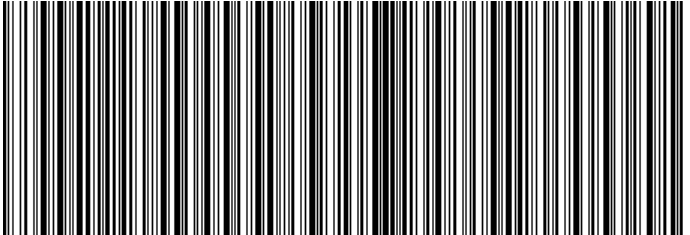 *A Code128 barcode generated with IronBarcode displaying a URL*
Puis-je personnaliser l'apparence des codes-barres générés ?
IronBarcode offre de nombreuses options de personnalisation qui vont bien au-delà de la simple génération de codes-barres. Vous pouvez ajouter des annotations, ajuster les couleurs, définir les marges et contrôler chaque aspect de l'apparence de votre code-barres.
:path=/static-assets/barcode/content-code-examples/tutorials/csharp-barcode-image-generator-4.csusing IronBarCode;
using IronSoftware.Drawing;
// Create a QR code with advanced styling options
GeneratedBarcode myBarCode = BarcodeWriter.CreateBarcode(
"https://ironsoftware.com/csharp/barcode",
BarcodeWriterEncoding.QRCode
);
// Add descriptive text above the barcode
myBarCode.AddAnnotationTextAboveBarcode("Product URL:");
// Display the encoded value below the barcode
myBarCode.AddBarcodeValueTextBelowBarcode();
// Set consistent margins around the barcode
myBarCode.SetMargins(100);
// Customize the barcode color (purple in this example)
myBarCode.ChangeBarCodeColor(Color.Purple);
// Export as an HTML file for web integration
myBarCode.SaveAsHtmlFile("MyBarCode.html");
Imports IronBarCode
Imports IronSoftware.Drawing

' Create a QR code with advanced styling options
Dim myBarCode As GeneratedBarcode = BarcodeWriter.CreateBarcode("https://ironsoftware.com/csharp/barcode", BarcodeWriterEncoding.QRCode)

' Add descriptive text above the barcode
myBarCode.AddAnnotationTextAboveBarcode("Product URL:")

' Display the encoded value below the barcode
myBarCode.AddBarcodeValueTextBelowBarcode()

' Set consistent margins around the barcode
myBarCode.SetMargins(100)

' Customize the barcode color (purple in this example)
myBarCode.ChangeBarCodeColor(Color.Purple)

' Export as an HTML file for web integration
myBarCode.SaveAsHtmlFile("MyBarCode.html")La classe GeneratedBarcode fournit un ensemble riche de méthodes pour la personnalisation :
- Annotations : Utilisez
AddAnnotationTextAboveBarcode()etAddAnnotationTextBelowBarcode()pour ajouter des étiquettes ou instructions personnalisées autour de votre code-barres - Affichage des Valeurs : La méthode
AddBarcodeValueTextBelowBarcode()affiche automatiquement les données encodées au format lisible par l'homme - Espacements : Contrôlez l'espace blanc avec
SetMargins()pour assurer un bon balayage et un attrait visuel - Couleurs : Changez les couleurs de premier plan et d'arrière-plan à l'aide de
ChangeBarCodeColor()etChangeBackgroundColor() - Options d'exportation : Enregistrer sous forme de fichiers image, de PDF ou de documents HTML autonomes
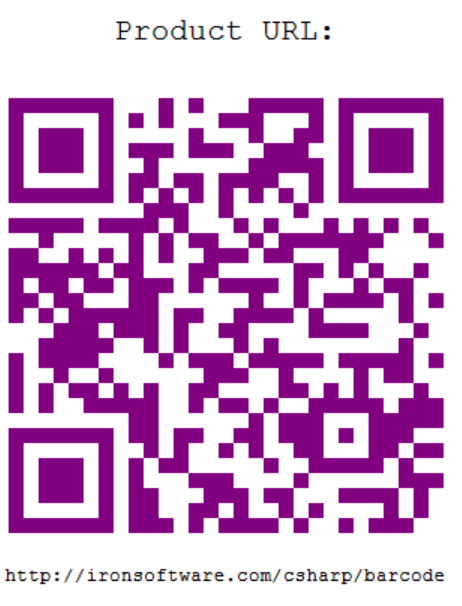 *Un code QR stylisé avec une couleur personnalisée et du texte d'annotation*
Pour des options de personnalisation détaillées, explorez la documentation de la classe GeneratedBarcode qui couvre toutes les méthodes et propriétés de style disponibles.
Comment créer et exporter un code-barres en une seule ligne de code ?
IronBarcode met en œuvre un modèle de conception d'API fluide qui permet l'enchaînement de méthodes pour un code plus concis et lisible. Cette approche est particulièrement utile lorsque vous appliquez plusieurs transformations à votre code-barres.
:path=/static-assets/barcode/content-code-examples/tutorials/csharp-barcode-image-generator-5.csusing IronBarCode;
using IronSoftware.Drawing;
// Generate, style, and convert a barcode in a single statement
string value = "https://ironsoftware.com/csharp/barcode";
// Create PDF417 barcode with chained operations
AnyBitmap barcodeBitmap = BarcodeWriter
.CreateBarcode(value, BarcodeWriterEncoding.PDF417) // Create PDF417 barcode
.ResizeTo(300, 200) // Set specific dimensions
.SetMargins(10) // Add 10px margins
.ToBitmap(); // Convert to bitmap
// Convert to System.Drawing.Bitmap for legacy compatibility
System.Drawing.Bitmap legacyBitmap = barcodeBitmap;
Imports IronBarCode
Imports IronSoftware.Drawing

' Generate, style, and convert a barcode in a single statement
Dim value As String = "https://ironsoftware.com/csharp/barcode"

' Create PDF417 barcode with chained operations
Dim barcodeBitmap As AnyBitmap = BarcodeWriter _
    .CreateBarcode(value, BarcodeWriterEncoding.PDF417) _  ' Create PDF417 barcode
    .ResizeTo(300, 200) _                                  ' Set specific dimensions
    .SetMargins(10) _                                      ' Add 10px margins
    .ToBitmap()                                            ' Convert to bitmap

' Convert to System.Drawing.Bitmap for legacy compatibility
Dim legacyBitmap As System.Drawing.Bitmap = barcodeBitmapLe modèle d'API fluide offre plusieurs avantages :
- Lisibilité : Enchaîner les opérations dans une séquence logique qui se lit comme du langage naturel
- Efficacité : Réduire les déclarations de variables et les étapes intermédiaires
- Flexibilité : Ajoutez ou supprimez facilement des opérations sans restructurer votre code.
Les opérations courantes de fluidité comprennent :
ResizeTo(): Contrôlez les dimensions exactes du code-barresSetMargins(): Ajoutez un espacement constantChangeBarCodeColor(): Modifiez l'apparenceAddAnnotationTextAboveBarcode(): Incluez un texte descriptifToBitmap(),SaveAsPng(),SaveAsPdf(): Exportez dans divers formats
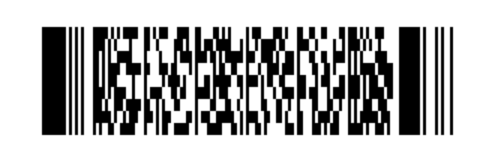 *A PDF417 barcode generated using fluent method chaining*
Quels formats de codes-barres sont pris en charge par IronBarcode ?
IronBarcode prend en charge la génération complète de formats de codes-barres à travers l'enum BarcodeWriterEncoding. Les formats pris en charge incluent :
Codes-Barres 1D : Code128, Code39, Code93, Codabar, ITF, MSI, Plessey, UPCA, UPCE, EAN8, EAN13
Codes-Barres 2D : QRCode, DataMatrix, PDF417, Aztec, MaxiCode
Formats spécialisés : IntelligentMail, DataBar, DataBarExpanded et divers standards GS1
Chaque format possède des caractéristiques et des cas d'utilisation spécifiques. Par exemple, les codes QRCode excellent à stocker des URLs et de grandes quantités de données, tandis que EAN13 est standard pour les produits de détail. Apprenez-en davantage sur le choix du format de code-barres adapté à votre application.
Comment puis-je vérifier que mon code-barres généré est lisible ?
L'assurance qualité est essentielle pour la mise en œuvre des codes-barres. IronBarcode intègre une vérification pour garantir que vos codes-barres générés restent scannables :
:path=/static-assets/barcode/content-code-examples/tutorials/csharp-barcode-image-generator-6.cs// Generate and verify a barcode
GeneratedBarcode myBarcode = BarcodeWriter
.CreateBarcode("TEST123", BarcodeWriterEncoding.Code128)
.ResizeTo(200, 100)
.ChangeBarCodeColor(Color.DarkBlue);
// Verify the barcode is still readable after modifications
bool isReadable = myBarcode.Verify("TEST123");
Console.WriteLine($"Barcode verification: {(isReadable ? "PASS" : "FAIL")}");
Imports System.Drawing

' Generate and verify a barcode
Dim myBarcode As GeneratedBarcode = BarcodeWriter _
    .CreateBarcode("TEST123", BarcodeWriterEncoding.Code128) _
    .ResizeTo(200, 100) _
    .ChangeBarCodeColor(Color.DarkBlue)

' Verify the barcode is still readable after modifications
Dim isReadable As Boolean = myBarcode.Verify("TEST123")
Console.WriteLine($"Barcode verification: {(If(isReadable, "PASS", "FAIL"))}")La méthode Verify() vérifie si votre code-barres reste lisible par machine après avoir appliqué des transformations comme le redimensionnement ou le recoloration. Ceci est particulièrement important lorsqu'on utilise des couleurs non standard ou des tailles très petites.
Où puis-je trouver d'autres exemples de génération de codes-barres ?
Pour étendre vos capacités de génération de codes-barres, explorez ces ressources supplémentaires :
Code source et exemples
Téléchargez le code source complet de ce tutoriel :
Sujets avancés
- Générez des codes QR avec logos - Ajoutez votre marque à vos codes QR
- Guide de style des codes-barres - Maîtrisez les techniques de personnalisation avancées
- Lecture des codes-barres à partir d'images - Complétez le cycle par la numérisation des codes-barres
- Génération de codes-barres par lots - Générez efficacement plusieurs codes-barres
Documentation de l'API
- Référence de Classe
BarcodeWriter- Documentation complète des méthodes - Référence de Classe
GeneratedBarcode- Toutes les options de personnalisation - Enum
BarcodeWriterEncoding- Formats de codes-barres pris en charge
Prêt à générer des codes-barres professionnels dans votre application ?
IronBarcode simplifie la génération de codes-barres tout en offrant la flexibilité nécessaire aux applications professionnelles. Que vous ayez besoin de codes produits simples ou de codes-barres 2D complexes avec un style personnalisé, IronBarcode gère tout cela avec un minimum de code.
Téléchargez IronBarcode dès aujourd'hui et commencez à générer des codes-barres en quelques minutes. Besoin d'aide pour choisir la bonne licence ? Consultez nos options de licence ou demandez une clé d'essai gratuite pour tester IronBarcode dans votre environnement de production.
Questions Fréquemment Posées
Comment puis-je créer une image de code-barres en C# ?
Pour créer une image de code-barres en C#, vous pouvez utiliser la méthode BarcodeWriter.CreateBarcode() d'IronBarcode. Cela vous permet de spécifier les données et le format du code-barres, puis de sauvegarder l'image avec des formats tels que PNG ou JPEG en utilisant des méthodes comme SaveAsPng().
Quelles sont les étapes pour installer IronBarcode dans un projet .NET ?
Vous pouvez installer IronBarcode dans votre projet .NET en utilisant le gestionnaire de packages NuGet dans Visual Studio. Alternativement, vous pouvez télécharger le DLL depuis le site Web d'IronBarcode et l'ajouter à vos références de projet.
Comment puis-je exporter un code-barres en PDF dans C# ?
IronBarcode permet d'exporter des codes-barres en PDF en utilisant la méthode SaveAsPdf() de la classe GeneratedBarcode, offrant un moyen simple de sauvegarder vos codes-barres au format PDF.
Quelles options de personnalisation sont disponibles pour les codes-barres en C# ?
IronBarcode offre de vastes options de personnalisation, telles que changer les couleurs des codes-barres avec ChangeBarCodeColor(), ajouter des annotations textuelles à l'aide de AddAnnotationTextAboveBarcode(), et définir les marges avec SetMargins().
Comment puis-je créer et styliser rapidement un code-barres en une ligne de code ?
En utilisant l'API fluide d'IronBarcode, vous pouvez créer et styliser un code-barres en une ligne avec l'enchaînement de méthodes : BarcodeWriter.CreateBarcode(data, encoding).ResizeTo(300, 200).SetMargins(10).SaveAsPng(path).
Comment puis-je m'assurer que mon code-barres est lisible après des modifications ?
Pour vérifier la lisibilité d'un code-barres après un style ou un redimensionnement, utilisez la méthode Verify() sur l'objet GeneratedBarcode pour vérifier sa lisibilité par machine.
Puis-je générer des codes QR avec des logos en C# ?
Oui, IronBarcode prend en charge la génération de codes QR avec logos intégrés en utilisant la classe QRCodeWriter, qui inclut des fonctionnalités pour l'insertion de logos et des niveaux améliorés de correction d'erreurs.
Quel est le processus pour générer efficacement plusieurs codes-barres en C# ?
Vous pouvez générer efficacement plusieurs codes-barres en C# en utilisant IronBarcode, qui prend en charge le traitement par lots et permet l'utilisation de boucles ou de traitement parallèle pour gérer la génération de codes-barres en volume élevé.
Quels formats de fichier puis-je utiliser pour exporter des codes-barres en C# ?
IronBarcode prend en charge l'exportation de codes-barres dans divers formats, y compris PNG, JPEG, GIF, TIFF, BMP, PDF et HTML, offrant une flexibilité pour différents besoins applicatifs.
Comment puis-je ajouter du texte lisible par humain sous un code-barres en C# ?
Pour ajouter du texte lisible par humain sous un code-barres en C#, utilisez la méthode AddBarcodeValueTextBelowBarcode(), qui affiche automatiquement la valeur encodée dans un format texte sous l'image du code-barres.


Vous faites encore défiler ?
Vous voulez une preuve rapidement ? PM > Install-Package BarCode
exécuter un échantillon regarder votre chaîne devenir un code-barres.








 Commencez GRATUITEMENT
 Commencez GRATUITEMENT
 Réservez une démonstration en direct gratuite
















