
已更新 2026年6月28日
使用 C# 和网络摄像头构建条形码扫描器
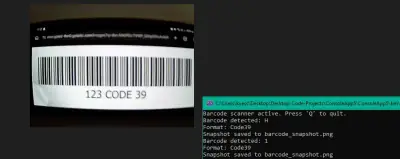
使用 IronBarcode,用 C# 和网络摄像头构建一个条形码扫描器。实时捕获视频帧,解码条形码和二维码。包含完整源代码。
阅读更多

Crystal Reports是一款功能强大的报表工具,它允许开发人员为其应用程序创建功能丰富的报表。 在 Crystal Reports 中使用C#添加条形码时,它为数据表示增添了一个新的维度,使信息更容易管理和跟踪。 在本文中,我们将探讨使用 C# 将条形码集成到 Crystal Reports 中的步骤。
在深入实施之前,选择一个支持 Crystal Reports 和 C# 的条形码库至关重要。 IronBarcode 适用于 .NET 是一个很受欢迎的选择。
IronBarcode是一个功能强大的 .NET 库,可简化条形码的生成和读取。 使用 IronBarcode,您可以通过指定要编码的值,轻松创建各种条形码,包括 Code 128 和 QR 码。 它还支持调整大小和自定义。 在读取方面,IronBarcode 可以从图像或 PDF 中提取条形码数据,使其成为库存管理和文档跟踪的理想选择。 其用户友好的 API 确保您能快速集成到项目中,并且跨平台支持使您能够在不同的 .NET 版本间无缝开发。 无论您是经验丰富的开发人员还是初学者,IronBarcode 都能让您高效地处理条形码。
打开 Visual Studio 以创建 ASP.NET Crystal Reports 网站。我使用的是Visual Studio 2022 。 您可以使用任何版本,但请确保已安装适用于该特定版本的 Visual Studio 的 Crystal Reports。

开始之前,我们需要一个数据库。 让我们创建一个新的数据库和一个示例表。
以下脚本将创建一个新的数据库。
CREATE DATABASE ProductDB;
USE [ProductDB]
GO
/****** Object:  Table [dbo].[Products]    Script Date: 3/10/2024 2:57:18 PM******/
SET ANSI_NULLS ON
GO
SET QUOTED_IDENTIFIER ON
GO
CREATE TABLE [dbo].[Products](
    [Product_ID] [int] NULL,
    [Product_Name] [varchar](100) NULL,
    [Product_Price] [decimal](18, 0) NULL,
    [Product_Barcode] [image] NULL
) ON [PRIMARY] TEXTIMAGE_ON [PRIMARY]
GO让我们向此表中插入数据。 我们将创建一个条形码并将其保存在产品表中。 因此,我们需要使用 C# 代码插入数据,并在我们的项目中安装 IronBarcode 库,以便使用其功能创建条形码。
要使用 NuGet 包管理器控制台安装IronBarcode 库,请按照以下步骤操作:
打开 NuGet 包管理器控制台。 您可以通过依次点击"查看"->"其他窗口"->"程序包管理器控制台"找到它。

在软件包管理器控制台中,使用以下命令安装 IronBarcode 库:
按 Enter 执行命令。
或者,您可以使用"管理解决方案的 NuGet 程序包"来安装 IronBarcode 库:

等待 NuGet 包管理器下载并安装 IronBarcode 库及其依赖项。 安装完成后,您将在软件包管理器控制台中看到确认消息。
现在,IronBarcode 库已安装到您的项目中,您可以开始使用它的条形码生成和读取功能。
我们将使用 ADO.NET 生成条形码图像并将其存储在数据库中。 以下代码演示了在 C# 中生成条形码的示例。
using System;
using System.Data.SqlClient;
using IronBarCode;

class Program
{
    static void Main(string[] args)
    {
        // Create a barcode from a string value using Code128 format.
        var myBarcode = BarcodeWriter.CreateBarcode("77446252", BarcodeWriterEncoding.Code128);
        // Add the barcode value text below the barcode image.
        myBarcode.AddBarcodeValueTextBelowBarcode();
        // Resize the barcode image.
        myBarcode.ResizeTo(600, 300);

        // SQL connection to the SQL Server database.
        using (SqlConnection cn = new SqlConnection("Data Source=localhost\\SQLEXPRESS;Initial Catalog=ProductDB;User ID=sa;Password=123456;Integrated Security=SSPI;"))
        {
            // SQL command to insert the barcode into the Products table.
            SqlCommand cmd = new SqlCommand($"INSERT INTO dbo.Products VALUES (77446252, 'Pine Apple Small', '100', @Barcode)", cn);
            // Add parameter for the barcode binary data.
            cmd.Parameters.AddWithValue("@Barcode", myBarcode.BinaryStream);

            // Open the connection, execute the query, close the connection.
            cn.Open();
            cmd.ExecuteNonQuery();
            cn.Close();
        }
    }
}Imports System
Imports System.Data.SqlClient
Imports IronBarCode
Friend Class Program
Shared Sub Main(ByVal args() As String)
' Create a barcode from a string value using Code128 format.
Dim myBarcode = BarcodeWriter.CreateBarcode("77446252", BarcodeWriterEncoding.Code128)
' Add the barcode value text below the barcode image.
myBarcode.AddBarcodeValueTextBelowBarcode()
' Resize the barcode image.
myBarcode.ResizeTo(600, 300)
' SQL connection to the SQL Server database.
Using cn As New SqlConnection("Data Source=localhost\SQLEXPRESS;Initial Catalog=ProductDB;User ID=sa;Password=123456;Integrated Security=SSPI;")
' SQL command to insert the barcode into the Products table.
Dim cmd As New SqlCommand($"INSERT INTO dbo.Products VALUES (77446252, 'Pine Apple Small', '100', @Barcode)", cn)
' Add parameter for the barcode binary data.
cmd.Parameters.AddWithValue("@Barcode", myBarcode.BinaryStream)
' Open the connection, execute the query, close the connection.
cn.Open()
cmd.ExecuteNonQuery()
cn.Close()
End Using
End Sub
End ClassImports System
Imports System.Data.SqlClient
Imports IronBarCode
Friend Class Program
Shared Sub Main(ByVal args() As String)
' Create a barcode from a string value using Code128 format.
Dim myBarcode = BarcodeWriter.CreateBarcode("77446252", BarcodeWriterEncoding.Code128)
' Add the barcode value text below the barcode image.
myBarcode.AddBarcodeValueTextBelowBarcode()
' Resize the barcode image.
myBarcode.ResizeTo(600, 300)
' SQL connection to the SQL Server database.
Using cn As New SqlConnection("Data Source=localhost\SQLEXPRESS;Initial Catalog=ProductDB;User ID=sa;Password=123456;Integrated Security=SSPI;")
' SQL command to insert the barcode into the Products table.
Dim cmd As New SqlCommand($"INSERT INTO dbo.Products VALUES (77446252, 'Pine Apple Small', '100', @Barcode)", cn)
' Add parameter for the barcode binary data.
cmd.Parameters.AddWithValue("@Barcode", myBarcode.BinaryStream)
' Open the connection, execute the query, close the connection.
cn.Open()
cmd.ExecuteNonQuery()
cn.Close()
End Using
End Sub
End Classvar myBarcode = BarcodeWriter.CreateBarcode("77446252", BarcodeWriterEncoding.Code128);
CreateBarcode()方法创建条形码。 条形码是根据字符串"77446252"表示的数据,采用 Code 128 编码格式生成的。 myBarcode变量现在持有生成的条形码。AddBarcodeValueTextBelowBarcode()
ResizeTo(600, 300)
您可以使用SaveAs()方法将条形码图像保存到文件系统。
上述代码将生成以下条形码:

SqlConnection cn = new SqlConnection("Data Source=localhost\\SQLEXPRESS;Initial Catalog=ProductDB;User ID=sa;Password=123456;Integrated Security=SSPI;");
password 123456)。SqlCommand cmd = new SqlCommand($"INSERT INTO dbo.Products VALUES (77446252, 'Pine Apple Small', '100', '{myBarcode.BinaryStream}' )", cn);
SqlCommand对象。 此命令表示将数据插入 Products 表的 SQL 查询。77446252, 'Pine Apple Small', myBarcode.BinaryStream)。cn.Open();:数据库连接已打开。cmd.ExecuteNonQuery();:执行 SQL 查询,将指定的值插入 Products 表中。cn.Close();:关闭数据库连接以释放资源。现在,设计报表布局,添加数据库连接,并安排必要的字段。 如果你是新手,请按照以下步骤操作。
打开字段资源管理器 => 数据库字段 => 数据库专家。

展开创建新连接 => OLE DB(ADO) => 创建新连接。

选择"Microsoft OLE DB 数据源(适用于 SQL Server)",然后单击"下一步"。

请提供如下所示的服务器名称、登录凭据和数据库名称。
![如何使用 C# 在 Crystal Reports 中添加条形码:图 9 - 指定 SQL Server 名称、登录凭据和数据库名称。 然后点击"下一步",再点击"完成"。
按下"下一步"按钮,将出现一个新窗口,然后单击"完成"。
选择要添加的表格。 在这种情况下,请选择"产品"表。

在 Crystal Report Viewer 中查看 Crystal Report 预览。

构建并运行项目。 译文如下:

我没有下载示例数据集包,也没有确保拥有正确的数据文件,而是使用 C# 创建了一个 Crystal Report 来进行全面的数据可视化。
这样,我们就可以在 Crystal Reports 应用程序中创建条形码,而无需下载条形码字体。 同样,我们也可以根据您的要求添加二维码。
总之,使用 C# 将条形码集成到 Crystal Reports 中是增强数据表示和管理的一种有效方法。 选择像IronBarcode这样可靠的条形码库可以简化流程,提供多功能性和易用性。 IronBarcode 支持各种条形码类型、调整大小和自定义功能,证明其在条形码生成和读取任务中是一项宝贵的工具。 这里提供的分步指南可确保从选择库到设计 Crystal Report 布局的无缝实施过程。
此外,IronBarcode 还为开发者提供了解锁更多功能和支持的机会,以增强他们的条形码集成体验。 IronBarcode 的这种灵活性使其成为开发人员的理想选择,无论他们是在开发小型项目还是企业级应用程序。
Curtis Chau 拥有卡尔顿大学的计算机科学学士学位,专注于前端开发,精通 Node.js、TypeScript、JavaScript 和 React。他热衷于打造直观且美观的用户界面,喜欢使用现代框架并创建结构良好、视觉吸引力强的手册。


IronBarcode 是 IRONSUITE的一部分
10 个 .NET API 产品用于您的办公文档

当您需要快速读取、写入和设计条形码时。