
Generate QR Codes in C# - Complete Tutorial for .NET Developers

IronQR est la toute nouvelle bibliothèque de codes QR .NET d'Iron Software. Grâce à des techniques d'apprentissage automatique de pointe, lisez les codes QR sous tous les angles avec une précision de 99,99 %. Générez et personnalisez facilement de nouveaux codes QR ! Lancez-vous avec IronQR dès maintenant !
Besoin de générer des codes QR dans votre application C# ? Ce didacticiel vous montre exactement comment créer, personnaliser et vérifier des codes QR en utilisant IronBarcode - des implémentations simples en une ligne de code aux fonctionnalités avancées comme l'intégration de logo et le codage de données binaires.
Que vous développiez des systèmes de gestion des stocks, des plateformes de billetterie événementielle ou des solutions de paiement sans contact, vous apprendrez à implémenter des fonctionnalités de code QR de qualité professionnelle dans vos applications .NET.
Démarrage rapide : Création d'un code QR en une ligne avec IronBarcodePrêt à générer un code QR rapidement ? Voici comment vous pouvez utiliser l'API QRCodeWriter d'IronBarcode pour produire un code QR en une seule ligne de code - la personnalisation est optionnelle mais puissante.
-
1Install IronBarcode with NuGet Package Manager
-
2Copiez et exécutez cet extrait de code.
var qr = QRCodeWriter.CreateQrCode("https://ironsoftware.com/", 500, QRCodeWriter.QrErrorCorrectionLevel.Medium); qr.SaveAsPng("MyQR.png");Dim qr = QRCodeWriter.CreateQrCode("https://ironsoftware.com/", 500, QRCodeWriter.QrErrorCorrectionLevel.Medium) qr.SaveAsPng("MyQR.png") -
3Déployez pour tester sur votre environnement de production.
Commencez à utiliser IronBarcode dans votre projet dès aujourd'hui avec un essai gratuit
Flux de travail minimal (5 étapes)
- Installer IronBarcode via NuGet
- Créez un code QR en une seule ligne :
QRCodeWriter.CreateQrCode() - Intégrez des logos à l'aide
CreateQrCodeWithLogo() - Vérifiez la lisibilité avec
GeneratedBarcode.Verify() - Encoder des données binaires pour des applications avancées
How Do I Install a QR Code Library in C#?
Installez IronBarcode en utilisant le Gestionnaire de packages NuGet avec cette commande simple :
Vous pouvez également télécharger directement la DLL IronBarcode et l'ajouter comme référence à votre projet.
Espaces de noms requis à importer
Ajoutez ces espaces de noms pour accéder aux fonctionnalités de génération de codes QR d'IronBarcode :
using IronBarCode;

// You may add styling with color, logo images or branding:
QRCodeLogo qrCodeLogo = new QRCodeLogo("visual-studio-logo.png");
GeneratedBarcode myQRCodeWithLogo = QRCodeWriter.CreateQrCodeWithLogo("https://ironsoftware.com/", qrCodeLogo);

myQRCodeWithLogo.ChangeBarCodeColor(System.Drawing.Color.DarkGreen);

// Save as PDF
myQRCodeWithLogo.SaveAsPdf("MyQRWithLogo.pdf");

// Also Save as HTML
myQRCodeWithLogo.SaveAsHtmlFile("MyQRWithLogo.html");Imports IronBarCode
' You may add styling with color, logo images or branding:
Private qrCodeLogo As New QRCodeLogo("visual-studio-logo.png")
Private myQRCodeWithLogo As GeneratedBarcode = QRCodeWriter.CreateQrCodeWithLogo("https://ironsoftware.com/", qrCodeLogo)
myQRCodeWithLogo.ChangeBarCodeColor(System.Drawing.Color.DarkGreen)
' Save as PDF
myQRCodeWithLogo.SaveAsPdf("MyQRWithLogo.pdf")
' Also Save as HTML
myQRCodeWithLogo.SaveAsHtmlFile("MyQRWithLogo.html")How Can I Create a Simple QR Code in C#?
Générez un code QR avec une seule ligne de code en utilisant la méthode CreateQrCode d'IronBarcode :
using IronBarCode;
using IronSoftware.Drawing;
using System;

// Verifying QR Codes
QRCodeLogo qrCodeLogo = new QRCodeLogo("visual-studio-logo.png");
GeneratedBarcode MyVerifiedQR = QRCodeWriter.CreateQrCodeWithLogo("https://ironsoftware.com/", qrCodeLogo);

MyVerifiedQR.ChangeBarCodeColor(System.Drawing.Color.LightBlue);

if (!MyVerifiedQR.Verify())
{
    Console.WriteLine("\t LightBlue is not dark enough to be read accurately.  Lets try DarkBlue");
    MyVerifiedQR.ChangeBarCodeColor(Color.DarkBlue);
}
MyVerifiedQR.SaveAsHtmlFile("MyVerifiedQR.html");

// open the barcode html file in your default web browser
System.Diagnostics.Process.Start("MyVerifiedQR.html");Imports Microsoft.VisualBasic
Imports IronBarCode
Imports IronSoftware.Drawing
Imports System
' Verifying QR Codes
Private qrCodeLogo As New QRCodeLogo("visual-studio-logo.png")
Private MyVerifiedQR As GeneratedBarcode = QRCodeWriter.CreateQrCodeWithLogo("https://ironsoftware.com/", qrCodeLogo)
MyVerifiedQR.ChangeBarCodeColor(System.Drawing.Color.LightBlue)
If Not MyVerifiedQR.Verify() Then
Console.WriteLine(vbTab & " LightBlue is not dark enough to be read accurately. Lets try DarkBlue")
MyVerifiedQR.ChangeBarCodeColor(Color.DarkBlue)
End If
MyVerifiedQR.SaveAsHtmlFile("MyVerifiedQR.html")
' open the barcode html file in your default web browser
System.Diagnostics.Process.Start("MyVerifiedQR.html")La méthode CreateQrCode accepte trois paramètres :
- Contenu textuel : Les données à encoder (prend en charge les URL, le texte ou toute chaîne de caractères)
- Taille : Dimensions en pixels du code QR carré (500x500 dans cet exemple)
- Correction d'erreurs : Détermine la lisibilité dans des conditions sous-optimales (faible, moyenne, quartile ou élevée)
Des niveaux de correction d'erreurs plus élevés permettent aux codes QR de rester lisibles même lorsqu'ils sont partiellement endommagés ou masqués, bien qu'ils entraînent des motifs plus denses avec davantage de modules de données.
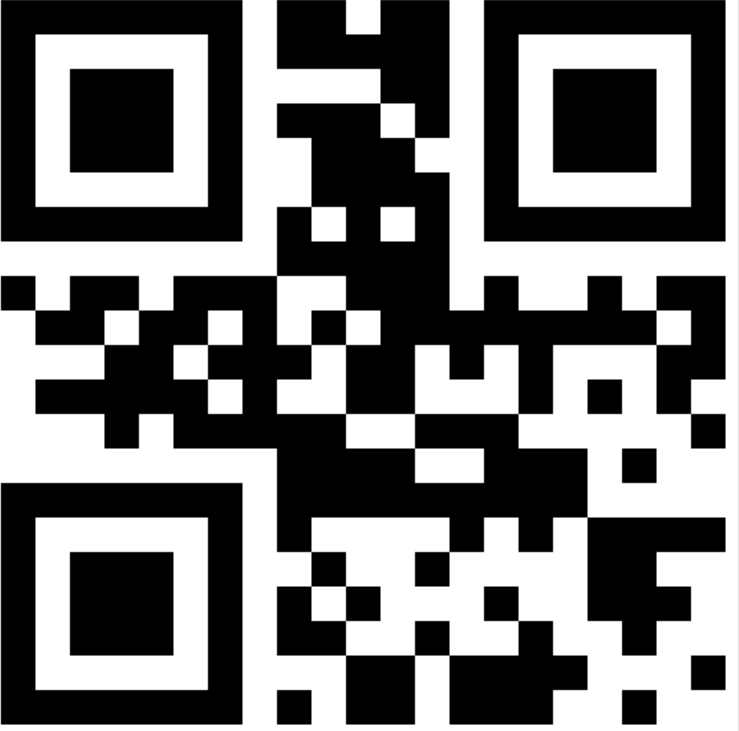 Un code QR basique contenant le texte " hello world ", généré à 500x500 pixels avec une correction d'erreur moyenne
Comment ajouter un logo à mon code QR ?
L'intégration de logos dans les codes QR améliore la reconnaissance de la marque tout en préservant la facilité de lecture. IronBarcode positionne et dimensionne automatiquement les logos pour préserver l'intégrité des codes QR :
using IronBarCode;
using System;
using System.Linq;

// Create Some Binary Data - This example equally well for Byte[] and System.IO.Stream
byte[] BinaryData = System.Text.Encoding.UTF8.GetBytes("https://ironsoftware.com/csharp/barcode/");

// WRITE QR with Binary Content
QRCodeWriter.CreateQrCode(BinaryData, 500).SaveAsImage("MyBinaryQR.png");

// READ QR with Binary Content
var MyReturnedData = BarcodeReader.Read("MyBinaryQR.png").First();
if (BinaryData.SequenceEqual(MyReturnedData.BinaryValue))
{
    Console.WriteLine("\t Binary Data Read and Written Perfectly");
}
else
{
    throw new Exception("Corrupted Data");
}Imports Microsoft.VisualBasic
Imports IronBarCode
Imports System
Imports System.Linq
' Create Some Binary Data - This example equally well for Byte[] and System.IO.Stream
Private BinaryData() As Byte = System.Text.Encoding.UTF8.GetBytes("https://ironsoftware.com/csharp/barcode/")
' WRITE QR with Binary Content
QRCodeWriter.CreateQrCode(BinaryData, 500).SaveAsImage("MyBinaryQR.png")
' READ QR with Binary Content
Dim MyReturnedData = BarcodeReader.Read("MyBinaryQR.png").First()
If BinaryData.SequenceEqual(MyReturnedData.BinaryValue) Then
Console.WriteLine(vbTab & " Binary Data Read and Written Perfectly")
Else
Throw New Exception("Corrupted Data")
End IfLa méthode CreateQrCodeWithLogo gère intelligemment le placement des logos en :
- Adaptation automatique de la taille du logo pour garantir la lisibilité du code QR
- Le positionner dans une zone silencieuse afin d'éviter toute corruption de données
- Préserver les couleurs originales du logo lors du changement des couleurs du code QR
Cette approche garantit que vos codes QR de marque restent pleinement fonctionnels sur tous les appareils et applications de lecture.
 Code QR affichant le logo de Visual Studio, illustrant le dimensionnement et le positionnement automatiques du logo par IronBarcode
Comment exporter des codes QR vers différents formats ?
IronBarcode prend en charge plusieurs formats d'exportation pour différents cas d'utilisation. Exportez vos codes QR sous forme d'images, de fichiers PDF ou HTML :
using IronBarCode;
using System;
using System.Linq;

BarcodeResults result = BarcodeReader.Read("QR.png", new BarcodeReaderOptions() { ExpectBarcodeTypes = BarcodeEncoding.QRCode });
if (result != null)
{
    Console.WriteLine(result.First().Value);
}Imports IronBarCode
Imports System
Imports System.Linq
Private result As BarcodeResults = BarcodeReader.Read("QR.png", New BarcodeReaderOptions() With {.ExpectBarcodeTypes = BarcodeEncoding.QRCode})
If result IsNot Nothing Then
Console.WriteLine(result.First().Value)
End IfChaque format répond à des objectifs spécifiques :
- PDF : Idéal pour les documents et rapports imprimables
- HTML : Idéal pour l'intégration web sans dépendances externes
- PNG/JPEG : Formats d'image standard pour une utilisation polyvalente
Comment vérifier la lisibilité du code QR après personnalisation ?
Les modifications de couleur et l'ajout de logos peuvent avoir un impact sur la capacité de lecture des codes QR. Utilisez la méthode Verify() pour vous assurer que vos codes QR personnalisés restent lisibles :
using IronBarCode;
using System;
using System.Linq;

BarcodeReaderOptions options = new BarcodeReaderOptions
{
    Speed = ReadingSpeed.Faster,
    ExpectMultipleBarcodes = false,
    ExpectBarcodeTypes = BarcodeEncoding.All,
    Multithreaded = false,
    MaxParallelThreads = 0,
    CropArea = null,
    UseCode39ExtendedMode = false,
    RemoveFalsePositive = false,
    ImageFilters = null
};

BarcodeResults result = BarcodeReader.Read("QR.png", options);
if (result != null)
{
    Console.WriteLine(result.First().Value);
}Imports IronBarCode
Imports System
Imports System.Linq
Private options As New BarcodeReaderOptions With {
.Speed = ReadingSpeed.Faster,
.ExpectMultipleBarcodes = False,
.ExpectBarcodeTypes = BarcodeEncoding.All,
.Multithreaded = False,
.MaxParallelThreads = 0,
.CropArea = Nothing,
.UseCode39ExtendedMode = False,
.RemoveFalsePositive = False,
.ImageFilters = Nothing
}
Private result As BarcodeResults = BarcodeReader.Read("QR.png", options)
If result IsNot Nothing Then
Console.WriteLine(result.First().Value)
End IfLa méthode Verify() effectue un test de balayage complet sur votre code QR. Cela garantit la compatibilité entre différents appareils de numérisation et conditions d'éclairage avant le déploiement.
 Un code QR vérifié avec succès, de couleur bleu foncé, présentant un contraste adéquat pour une lecture fiable.
Comment encoder des données binaires dans des codes QR ?
Les codes QR excellent dans le stockage efficace des données binaires. Cette fonctionnalité permet des applications avancées telles que le transfert de données chiffrées, le partage de fichiers et la configuration des appareils IoT :
using IronBarCode;
using System;
using System.Linq;

// Convert string to binary data
byte[] binaryData = System.Text.Encoding.UTF8.GetBytes("https://ironsoftware.com/csharp/barcode/");

// Create QR code from binary content
QRCodeWriter.CreateQrCode(binaryData, 500).SaveAsPng("MyBinaryQR.png");

// Read and verify binary data integrity
var myReturnedData = BarcodeReader.Read("MyBinaryQR.png").First();

// Confirm data matches original
if (binaryData.SequenceEqual(myReturnedData.BinaryValue))
{
    Console.WriteLine("Binary Data Read and Written Perfectly");
}
else
{
    throw new Exception("Data integrity check failed");
}Imports IronBarCode
Imports System
Imports System.Linq
' Convert string to binary data
Dim binaryData As Byte() = System.Text.Encoding.UTF8.GetBytes("https://ironsoftware.com/csharp/barcode/")
' Create QR code from binary content
QRCodeWriter.CreateQrCode(binaryData, 500).SaveAsPng("MyBinaryQR.png")
' Read and verify binary data integrity
Dim myReturnedData = BarcodeReader.Read("MyBinaryQR.png").First()
' Confirm data matches original
If binaryData.SequenceEqual(myReturnedData.BinaryValue) Then
Console.WriteLine("Binary Data Read and Written Perfectly")
Else
Throw New Exception("Data integrity check failed")
End IfL'encodage binaire dans les codes QR offre plusieurs avantages :
- Efficacité : Stocke les données au format binaire compact
- Polyvalence : Gère tout type de données (fichiers, contenu chiffré, objets sérialisés)
- Intégrité : Préserve les séquences d'octets exactes sans problème d'encodage
Cette fonctionnalité distingue IronBarcode des bibliothèques de codes QR basiques, permettant des scénarios d'échange de données sophistiqués dans vos applications.
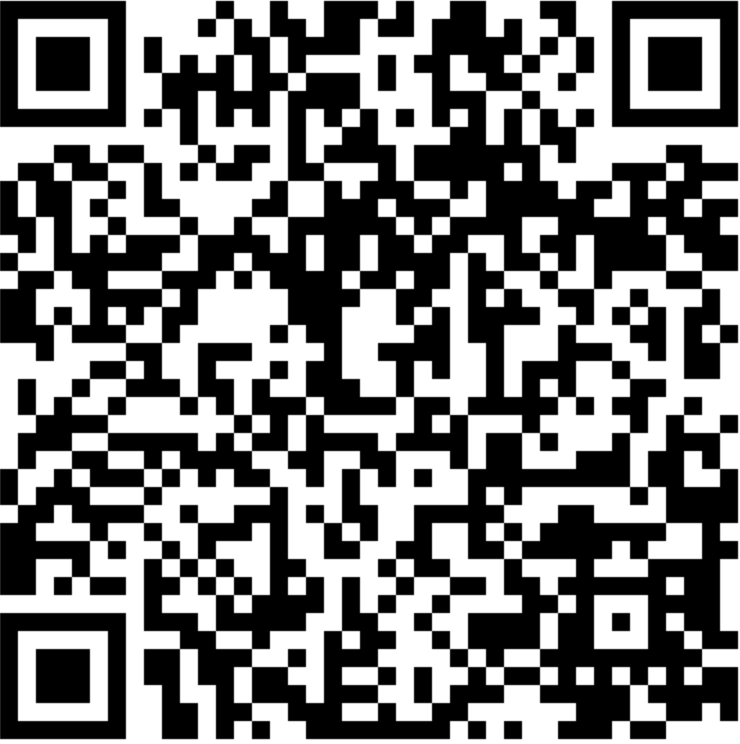 Code QR stockant des données binaires, démontrant les capacités d'encodage avancées d'IronBarcode
How Do I Read QR Codes in C#?
IronBarcode offre des capacités de lecture de codes QR flexibles. Voici l'approche la plus simple :
using IronBarCode;
using System;
using System.Linq;

// Read QR code with optimized settings
BarcodeResults result = BarcodeReader.Read("QR.png", new BarcodeReaderOptions() {
    ExpectBarcodeTypes = BarcodeEncoding.QRCode
});

// Extract and display the decoded value
if (result != null && result.Any())
{
    Console.WriteLine(result.First().Value);
}
else
{
    Console.WriteLine("No QR codes found in the image.");
}Imports IronBarCode
Imports System
Imports System.Linq
' Read QR code with optimized settings
Private result As BarcodeResults = BarcodeReader.Read("QR.png", New BarcodeReaderOptions() With {.ExpectBarcodeTypes = BarcodeEncoding.QRCode})
' Extract and display the decoded value
If result IsNot Nothing AndAlso result.Any() Then
Console.WriteLine(result.First().Value)
Else
Console.WriteLine("No QR codes found in the image.")
End IfPour des scénarios plus complexes nécessitant un contrôle précis :
using IronBarCode;
using System;
using System.Linq;

// Configure advanced reading options
BarcodeReaderOptions options = new BarcodeReaderOptions
{
    Speed = ReadingSpeed.Faster,           // Optimize for speed
    ExpectMultipleBarcodes = false,        // Single QR code expected
    ExpectBarcodeTypes = BarcodeEncoding.QRCode, // QR codes only
    Multithreaded = true,                  // Enable parallel processing
    MaxParallelThreads = 4,                // Utilize multiple CPU cores
    RemoveFalsePositive = true,            // Filter out false detections
    ImageFilters = new ImageFilterCollection() // Apply preprocessing
    {
        new AdaptiveThresholdFilter(),    // Handle varying lighting
        new ContrastFilter(),              // Enhance contrast
        new SharpenFilter()                // Improve edge definition
    }
};

// Read with advanced configuration
BarcodeResults result = BarcodeReader.Read("QR.png", options);Imports IronBarCode
Imports System
Imports System.Linq
' Configure advanced reading options
Dim options As New BarcodeReaderOptions With {
.Speed = ReadingSpeed.Faster, ' Optimize for speed
.ExpectMultipleBarcodes = False, ' Single QR code expected
.ExpectBarcodeTypes = BarcodeEncoding.QRCode, ' QR codes only
.Multithreaded = True, ' Enable parallel processing
.MaxParallelThreads = 4, ' Utilize multiple CPU cores
.RemoveFalsePositive = True, ' Filter out false detections
.ImageFilters = New ImageFilterCollection() From { ' Apply preprocessing
New AdaptiveThresholdFilter(), ' Handle varying lighting
New ContrastFilter(), ' Enhance contrast
New SharpenFilter() ' Improve edge definition
}
}
' Read with advanced configuration
Dim result As BarcodeResults = BarcodeReader.Read("QR.png", options)Ces options de lecture avancées permettent une détection fiable des codes QR même dans des conditions difficiles, comme un éclairage insuffisant, une distorsion de l'image ou des impressions de mauvaise qualité.
Qu'en est-il du développement des codes QR?
Maintenant que vous avez maîtrisé la génération de codes QR avec IronBarcode, explorez ces sujets avancés :
- Extraire les codes QR des documents PDF
- Mise en œuvre du traitement par lots des codes QR
- Appliquer des corrections d'image aux numérisations difficiles
Ressources à télécharger
Accédez au code source complet et aux exemples :
Documentation de l'API
Explorez l'ensemble des fonctionnalités dans la documentation de l'API :
- Référence de la classe QRCodeWriter
- Référence de la classe BarcodeReader
- Référence de la classe GeneratedBarcode
Alternative : IronQR pour les applications QR avancées
Pour les projets nécessitant des capacités de code QR de pointe, pensez à IronQR-La bibliothèque de code QR spécialisée d'Iron Software, qui propose une lecture alimentée par l'apprentissage automatique avec une précision de 99,99 % et des options de génération avancées.
Prêt à intégrer les codes QR dans votre application .NET ? Démarrez votre essai gratuit ou téléchargez IronBarcode dès aujourd'hui.
Questions Fréquemment Posées
Comment générer un code QR en C# ?
Vous pouvez générer un code QR en C# en utilisant la méthode IronBarcode's QRCodeWriter.CreateQrCode(). Cette méthode vous permet de passer votre contenu, taille, et niveau de correction d'erreur pour créer efficacement un code QR.
Quels formats d'image les codes QR peuvent-ils être exportés ?
Avec IronBarcode, vous pouvez exporter des codes QR vers divers formats, y compris PNG, JPEG, PDF et HTML. Des méthodes comme SaveAsPng(), SaveAsJpeg(), SaveAsPdf(), et SaveAsHtmlFile() sont disponibles à cet effet.
Comment puis-je ajouter un logo d'entreprise à un code QR ?
IronBarcode fournit la méthode CreateQrCodeWithLogo(), où vous pouvez passer un objet QRCodeLogo contenant l'image de votre logo. La bibliothèque garantit que le logo est correctement dimensionné et positionné pour que le code QR reste lisible.
Qu'est-ce que la correction d'erreur de code QR et quel niveau choisir ?
La correction d'erreur dans les codes QR leur permet de rester scannables même s'ils sont partiellement endommagés. IronBarcode offre quatre niveaux : Faible (7%), Moyen (15%), Quartile (25%) et Élevé (30%). Moyen est adapté pour la plupart des usages, tandis qu'Élevé est idéal pour les environnements difficiles.
Comment vérifier la lisibilité d'un code QR personnalisé ?
Vous pouvez utiliser la méthode Verify() sur un objet GeneratedBarcode pour vous assurer que votre code QR personnalisé reste scannable après des modifications telles que des changements de couleur ou des ajouts de logo.
Les données binaires peuvent-elles être encodées dans les codes QR ?
Oui, la méthode CreateQrCode() d'IronBarcode prend en charge l'encodage de tableaux d'octets, vous permettant de stocker des données binaires telles que des fichiers ou du contenu crypté au sein des codes QR.
Comment lire des codes QR à partir d'images en C# ?
Pour lire des codes QR à partir d'images en C#, utilisez la méthode BarcodeReader.Read() d'IronBarcode. Pour une performance optimisée, spécifiez BarcodeEncoding.QRCode dans le BarcodeReaderOptions.
Quelle est la capacité de données maximale d'un code QR ?
Les codes QR générés par IronBarcode peuvent contenir jusqu'à 2 953 octets, 4 296 caractères alphanumériques ou 7 089 chiffres, selon le niveau de correction d'erreur sélectionné.
Comment puis-je changer la couleur d'un code QR tout en assurant qu'il reste scannable ?
La méthode ChangeBarCodeColor() dans IronBarcode vous permet de changer la couleur d'un code QR. Utilisez toujours la méthode Verify() par la suite pour confirmer que la lisibilité du code QR n'est pas affectée par le changement de couleur.
Quelles fonctionnalités offre une bibliothèque spécialisée de code QR ?
IronQR, une bibliothèque spécialisée d'Iron Software, inclut des fonctionnalités avancées telles que la lecture de code QR alimentée par l'apprentissage automatique avec une précision de 99,99%, et des capacités de génération robuste adaptées aux applications complexes.

Jacob Mellor est directeur de la technologie chez Iron Software et un ingénieur visionnaire pionnier de la technologie C# PDF. En tant que développeur à l'origine de la base de code centrale d'Iron Software, il a façonné l'architecture des produits de l'entreprise depuis sa création, la transformant aux côtés du PDG Cameron Rimington en une entreprise de plus de 50 personnes au service de la NASA, de Tesla et d'agences gouvernementales mondiales.



