Saltar al pie de página
C# + VB.NET: Convertir Tipos de Archivo de Hoja de Cálculo XLSX Convertir Tipos de Archivo de Hoja de Cálculo XLSX
using IronXL;
using System.IO;

// Import any XLSX, XLS, XLSM, XLTX, CSV and TSV
WorkBook workBook = WorkBook.Load("sample.xlsx");

// Export the excel file as XLS, XLSX, XLSM, CSV, TSV, JSON, XML
workBook.SaveAs("sample.xls");
workBook.SaveAs("sample.xlsx");
workBook.SaveAs("sample.tsv");
workBook.SaveAsCsv("sample.csv");
workBook.SaveAsJson("sample.json");
workBook.SaveAsXml("sample.xml");

// Export the excel file as Html, Html string
workBook.ExportToHtml("sample.html");
string htmlString = workBook.ExportToHtmlString();

// Export the excel file as Binary, Byte array, Data set, Stream
byte[] binary = workBook.ToBinary();
byte[] byteArray = workBook.ToByteArray();
System.Data.DataSet dataSet = workBook.ToDataSet(); // Allow easy integration with DataGrids, SQL and EF
Stream stream = workBook.ToStream();
Imports IronXL
Imports System.IO

' Import any XLSX, XLS, XLSM, XLTX, CSV and TSV
Private workBook As WorkBook = WorkBook.Load("sample.xlsx")

' Export the excel file as XLS, XLSX, XLSM, CSV, TSV, JSON, XML
workBook.SaveAs("sample.xls")
workBook.SaveAs("sample.xlsx")
workBook.SaveAs("sample.tsv")
workBook.SaveAsCsv("sample.csv")
workBook.SaveAsJson("sample.json")
workBook.SaveAsXml("sample.xml")

' Export the excel file as Html, Html string
workBook.ExportToHtml("sample.html")
Dim htmlString As String = workBook.ExportToHtmlString()

' Export the excel file as Binary, Byte array, Data set, Stream
Dim binary() As Byte = workBook.ToBinary()
Dim byteArray() As Byte = workBook.ToByteArray()
Dim dataSet As System.Data.DataSet = workBook.ToDataSet() ' Allow easy integration with DataGrids, SQL and EF
Dim stream As Stream = workBook.ToStream()


Install-Package IronXL.Excel

IronXL offers a simple and flexible way for developers to work with Excel files, allowing easy import and export across various formats. It supports file types like XLS, XLSX, CSV, JSON, XML, and HTML, making it ideal for different application needs. Developers can convert Excel data into formats suitable for web integration, APIs, or further data processing with just a few lines of code.

For example, exporting Excel files as HTML or JSON makes it easy to embed data into web applications, while converting them to binary, byte arrays, or streams helps integrate with databases or other systems. Converting Excel content into a DataSet simplifies connecting to SQL databases or populating UI components like data grids. This reduces manual coding, enhances productivity, and makes IronXL a valuable tool for modern, data-driven applications.

5 Steps to Export Excel Files in Multiple Formats

This code demonstrates the versatility of IronXL in handling and exporting Excel data across multiple formats. The process begins by loading an existing Excel file, Sample.xlsx, into a WorkBook object. This object acts as the central hub for manipulating and exporting data. Using the SaveAs method, the workbook is saved as an .xlsx file, ensuring compatibility with modern Excel applications.

Next, the SaveAsJson method converts the workbook into JSON format, making it suitable for API responses or lightweight data exchanges. The ToDataSet method enables seamless integration with databases or UI components by converting the workbook into a DataSet object, which is a .NET-native structure for handling tabular data.

Finally, the ExportToHtml method generates an HTML file, enabling developers to display the Excel data directly on web pages. These capabilities streamline data processing tasks, making IronXL an exceptional tool for developers working with Excel files.

Learn to Convert Excel File Types Effortlessly

C# + VB.NET: Leer archivos de Excel sin Interop Leer archivos de Excel sin Interop
using IronXL;
using System;
using System.Linq;

// Supported for XLSX, XLS, XLSM, XLTX, CSV and TSV
WorkBook workBook = WorkBook.Load("sample.xlsx");

// Select worksheet at index 0
WorkSheet workSheet = workBook.WorkSheets[0];

// Get any existing worksheet
WorkSheet firstSheet = workBook.DefaultWorkSheet;

// Select a cell and return the converted value
int cellValue = workSheet["A2"].IntValue;

// Read from ranges of cells elegantly.
foreach (var cell in workSheet["A2:A10"])
{
    Console.WriteLine("Cell {0} has value '{1}'", cell.AddressString, cell.Text);
}

// Calculate aggregate values such as Min, Max and Sum
decimal sum = workSheet["A2:A10"].Sum();

// Linq compatible
decimal max = workSheet["A2:A10"].Max(c => c.DecimalValue);
Imports IronXL
Imports System
Imports System.Linq

' Supported for XLSX, XLS, XLSM, XLTX, CSV and TSV
Private workBook As WorkBook = WorkBook.Load("sample.xlsx")

' Select worksheet at index 0
Private workSheet As WorkSheet = workBook.WorkSheets(0)

' Get any existing worksheet
Private firstSheet As WorkSheet = workBook.DefaultWorkSheet

' Select a cell and return the converted value
Private cellValue As Integer = workSheet("A2").IntValue

' Read from ranges of cells elegantly.
For Each cell In workSheet("A2:A10")
	Console.WriteLine("Cell {0} has value '{1}'", cell.AddressString, cell.Text)
Next cell

' Calculate aggregate values such as Min, Max and Sum
Dim sum As Decimal = workSheet("A2:A10").Sum()

' Linq compatible
Dim max As Decimal = workSheet("A2:A10").Max(Function(c) c.DecimalValue)
Install-Package IronXL.Excel

The Load feature in IronXL allows you to easily load and manipulate existing Excel files in various formats (XLSX, XLS, CSV, etc.). By loading a workbook, you gain access to its worksheets and data, enabling you to extract values, loop through cell ranges, and perform calculations like sums or maximum values. You can access specific cells, convert their values to the appropriate data type (e.g., integers, decimals), and even use LINQ for advanced data operations. This feature simplifies working with Excel data in .NET, making it ideal for tasks like data analysis, report generation, and automation.

The WorkBook object is the key starting point for interacting with Excel files in IronXL. By using the WorkBook.Load("sample.xlsx") method, you open an existing Excel file, gaining access to its content and structure for further manipulation. This allows developers to work with pre-existing data, automate tasks, and update spreadsheets without having to create a new one from scratch.

Next, the WorkSheets[0] property is used to access the first worksheet in the workbook. In Excel, a workbook can contain multiple sheets, each representing a set of data organized into rows and columns. By selecting the first sheet, you're targeting the main area where your data is stored or where you'll perform operations like reading values or calculating results.

The range variable defines a specific group of cells, in this case, the range from A2 to A10. This is where IronXL allows you to interact with multiple cells at once, either by reading values, applying formatting, or performing calculations across ranges. In this example, it captures a column range, making it easy to work with sequential data.

The .Sum() method is used to calculate the sum of the numeric values in the selected range. This highlights how IronXL allows developers to perform quick, built-in calculations on ranges of data, eliminating the need for manual iteration and summing.

Finally, the Console.WriteLine() statement outputs the calculated sum to the console. This is a simple but powerful way to display the result of your operations, such as the sum of values in a range, directly within your application.

With this approach, developers can easily automate data aggregation tasks or integrate them into larger workflows.

Learn to Load and Manipulate Excel Files with IronXL

C# + VB.NET: Trabajar con hojas de trabajo de Excel Trabajar con hojas de trabajo de Excel
using IronXL;

// Create new Excel spreadsheet
WorkBook workBook = WorkBook.Create(ExcelFileFormat.XLSX);

// Create worksheets (workSheet1, workSheet2, workSheet3)
WorkSheet workSheet1 = workBook.CreateWorkSheet("workSheet1");
WorkSheet workSheet2 = workBook.CreateWorkSheet("workSheet2");
WorkSheet workSheet3 = workBook.CreateWorkSheet("workSheet3");

// Set worksheet position (workSheet2, workSheet1, workSheet3)
workBook.SetSheetPosition("workSheet2", 0);

// Set active for workSheet3
workBook.SetActiveTab(2);

// Remove workSheet1
workBook.RemoveWorkSheet(1);

workBook.SaveAs("manageWorkSheet.xlsx");
Imports IronXL

' Create new Excel spreadsheet
Private workBook As WorkBook = WorkBook.Create(ExcelFileFormat.XLSX)

' Create worksheets (workSheet1, workSheet2, workSheet3)
Private workSheet1 As WorkSheet = workBook.CreateWorkSheet("workSheet1")
Private workSheet2 As WorkSheet = workBook.CreateWorkSheet("workSheet2")
Private workSheet3 As WorkSheet = workBook.CreateWorkSheet("workSheet3")

' Set worksheet position (workSheet2, workSheet1, workSheet3)
workBook.SetSheetPosition("workSheet2", 0)

' Set active for workSheet3
workBook.SetActiveTab(2)

' Remove workSheet1
workBook.RemoveWorkSheet(1)

workBook.SaveAs("manageWorkSheet.xlsx")
Install-Package IronXL.Excel

IronXL library makes managing worksheets using C# code as easy as possible. The actions of creating & deleting worksheets, changing worksheet positions, and setting the active worksheet in an Excel file can be achieved without using Office Interop.

Create Worksheet

The CreateWorkSheet method allows creating a worksheet. It requires the worksheet name as the only parameter.

  • This code snippet creates a new workbook and a new worksheet named "NewSheet" within that workbook.

Set Worksheet Position

The SetSheetPosition method can be used to change or move a worksheet's position. Two parameters are required: the worksheet name as a string and its index position as an integer.

  • This modifies the position of the worksheet named "SheetName" to the second position in the workbook (remember, indexing is zero-based).

Set Active Worksheet

Setting the active worksheet means setting which worksheet will be opened by default when the workbook is accessed. To achieve this, use the SetActiveTab method with the index position of the worksheet.

  • This sets the first worksheet as the active tab that opens by default.

Remove Worksheet

Removing a worksheet can also be done with IronXL. Use the RemoveWorkSheet method along with the index position of the worksheet. If the worksheet's position is unknown, the name of the worksheet can also be used to delete it.

  • The first example removes the first worksheet in the workbook by index.
  • The second example removes the worksheet named "SheetName".

Please note that all the index positions mentioned above utilize zero-based indexing, meaning the first element has an index of 0.

C# + VB.NET: Crear un nuevo archivo de Excel Crear un nuevo archivo de Excel
using IronXL;

// Create new Excel WorkBook document
WorkBook workBook = WorkBook.Create();

// Convert XLSX to XLS
WorkBook xlsWorkBook = WorkBook.Create(ExcelFileFormat.XLS);

// Create a blank WorkSheet
WorkSheet workSheet = workBook.CreateWorkSheet("new_sheet");

// Add data and styles to the new worksheet
workSheet["A1"].Value = "Hello World";
workSheet["A1"].Style.WrapText = true;
workSheet["A2"].BoolValue = true;
workSheet["A2"].Style.BottomBorder.Type = IronXL.Styles.BorderType.Double;

// Save the excel file as XLS, XLSX, CSV, TSV, JSON, XML, HTML and streams
workBook.SaveAs("sample.xlsx");
Imports IronXL

' Create new Excel WorkBook document
Private workBook As WorkBook = WorkBook.Create()

' Convert XLSX to XLS
Private xlsWorkBook As WorkBook = WorkBook.Create(ExcelFileFormat.XLS)

' Create a blank WorkSheet
Private workSheet As WorkSheet = workBook.CreateWorkSheet("new_sheet")

' Add data and styles to the new worksheet
Private workSheet("A1").Value = "Hello World"
Private workSheet("A1").Style.WrapText = True
Private workSheet("A2").BoolValue = True
Private workSheet("A2").Style.BottomBorder.Type = IronXL.Styles.BorderType.Double

' Save the excel file as XLS, XLSX, CSV, TSV, JSON, XML, HTML and streams
workBook.SaveAs("sample.xlsx")
Install-Package IronXL.Excel

The Create Excel feature provides developers with a powerful way to generate and manage Excel files directly within .NET applications.

It streamlines tasks like creating new workbooks, adding worksheets, and inputting data while offering advanced styling options such as text wrapping, borders, and formatting. This feature is perfect for automating reports, exporting data, or creating dynamic spreadsheets. IronXL supports multiple file formats, including XLS, XLSX, CSV, and more, ensuring compatibility with various systems. With its user-friendly API, developers can focus on core functionality while saving time and reducing complexity in Excel file management.

The WorkBook object serves as the foundation of any Excel file. By initializing a new workbook, developers gain access to a blank Excel document, ready to be populated with data and formatted as needed.

Every Excel workbook requires at least one worksheet. The next step demonstrates how to create a new sheet within the workbook and assign it a custom name. Worksheets act as the primary structure for organizing data in rows and columns.

The snippet demonstrates how to add content by assigning the value "Hello World" to a specific cell, A1. This shows how easy it is to populate data into an Excel sheet programmatically, enabling developers to automate tasks like report generation and data export.

Additionally, the snippet applies styling to the cell by enabling the WrapText property. This ensures that lengthy content in the cell is displayed neatly across multiple lines, improving readability and preventing text from being cut off. Such styling options empower developers to create visually appealing and professional spreadsheets.

Explore the Step-by-Step Guide to Create Excel Files in C#

C# + VB.NET: Excel a SQL a través de System.Data.DataSet Excel a SQL a través de System.Data.DataSet
using IronXL;
using System;
using System.Data;

// Supported for XLSX, XLS, XLSM, XLTX, CSV and TSV
WorkBook workBook = WorkBook.Load("sample.xlsx");

// Convert the whole Excel WorkBook to a DataSet
DataSet dataSet = workBook.ToDataSet();

foreach (DataTable table in dataSet.Tables)
{
    Console.WriteLine(table.TableName);

    // Enumerate by rows or columns first at your preference
    foreach (DataRow row in table.Rows)
    {
        for (int i = 0 ; i < table.Columns.Count ; i++)
        {
            Console.Write(row[i]);
        }
    }
}
Imports IronXL
Imports System
Imports System.Data

' Supported for XLSX, XLS, XLSM, XLTX, CSV and TSV
Private workBook As WorkBook = WorkBook.Load("sample.xlsx")

' Convert the whole Excel WorkBook to a DataSet
Private dataSet As DataSet = workBook.ToDataSet()

For Each table As DataTable In dataSet.Tables
	Console.WriteLine(table.TableName)

	' Enumerate by rows or columns first at your preference
	For Each row As DataRow In table.Rows
		For i As Integer = 0 To table.Columns.Count - 1
			Console.Write(row(i))
		Next i
	Next row
Next table
Install-Package IronXL.Excel

Convert any XLSX, XLS, XLSM, XLTX, CSV and TSV file to a System.Data.DataTable for full interoperability with System.Data.SQL or to populate a DataGrid. This DataTable object can contain a collection of tables, relationships, and constraints.

Learn how to export DataTables in C# with our guide.

C# + VB.NET: Excel a SQL y DataGrid a través de DataTable Excel a SQL y DataGrid a través de DataTable
using IronXL;
using System;
using System.Data;

// Supported for XLSX, XLS, XLSM, XLTX, CSV and TSV
WorkBook workBook = WorkBook.Load("sample.xlsx");

// Select default sheet
WorkSheet workSheet = workBook.DefaultWorkSheet;

// Convert the worksheet to DataTable
DataTable dataTable = workSheet.ToDataTable(true);

// Enumerate by rows or columns first at your preference
foreach (DataRow row in dataTable.Rows)
{
    for (int i = 0 ; i < dataTable.Columns.Count ; i++)
    {
        Console.Write(row[i]);
    }
}
Imports IronXL
Imports System
Imports System.Data

' Supported for XLSX, XLS, XLSM, XLTX, CSV and TSV
Private workBook As WorkBook = WorkBook.Load("sample.xlsx")

' Select default sheet
Private workSheet As WorkSheet = workBook.DefaultWorkSheet

' Convert the worksheet to DataTable
Private dataTable As DataTable = workSheet.ToDataTable(True)

' Enumerate by rows or columns first at your preference
For Each row As DataRow In dataTable.Rows
	For i As Integer = 0 To dataTable.Columns.Count - 1
		Console.Write(row(i))
	Next i
Next row
Install-Package IronXL.Excel

Convert XLSX, XLS, XLSM, XLTX, CSV and TSV file to a System.Data.DataTable for full interoperability with System.Data.SQL or to populate a DataGrid.

Input true to ToDataTable method to set the first row as column names of the table. The DataTable can populate a DataGrid.

Learn to Export DataTable to Excel in C#

Soporte de la biblioteca XLSX

Soporte de nuestro Equipo de Excel

El equipo de productos de Excel de Iron está disponible para apoyar todas tus preguntas. Ponte en contacto para preguntar cómo nuestra biblioteca puede ayudarte en tu proyecto.

Levantar un Ticket de Soporte
Crear archivos XLSX en C#

Crear archivos XLSX en .NET

Crear y Editar archivos de Hojas de Cálculo en C#. Funciona con Dotnet Core y Azure sin necesidad de instalar MS Office o Interop.

Funciona con XLSX, C#, .NET CORE, .NET, VB.NET

Características
Read And Write Multiple Formats Cropped related to La Biblioteca XLSX de C#

Leer y Escribir Múltiples Formatos

IronXL le permite leer y escribir rápidamente hojas de cálculo de Excel en sus aplicaciones .NET. Leer y editar XLS/XLSX/CSV/TSV - Guardar y exportar a XLS/XLSX/CSV/TSV/JSON. IronXL supera a las bibliotecas gratuitas e Interop en análisis, edición, y guardado de archivos de Excel.

Aprender Más
Soporte de datos XLSX

Conversión de SQL a XLSX

Convertir Datos entre Excel y SQL usando objetos System.Data.DataSet y System.Data.DataTable.

Guía Rápida
Edit Excel Data Formulas Filters Sorting Cropped related to La Biblioteca XLSX de C#

Editar Datos XLSX

Ordenar y editar fórmulas. Sintaxis familiar de Hoja de Trabajo [“A1:B10”]. Ordenar por Rangos, Columnas y Filas.

Más
Formatear y Estilizar archivos XLSX

Formatear Archivos XLSX

Establecer Fuente, Tamaño, Fondo, Borde, Alineación y formato.

Ver Más
Biblioteca XLSX de C# para Visual Studio.

Biblioteca XLSX de C# para Microsoft Visual Studio

IronXL crea archivos XLSX rápidamente usando Visual Studio. Instalar con NuGet o DLL.

PM > Install-Package IronXL.Excel Descargar DLL
Soporta:
  • .NET Core 2.0 y superior
  • El marco .NET 4.0 y superior admite C#, VB, F#
  • Microsoft Visual Studio. Icono IDE de desarrollo .NET
  • Soporte de Instalador NuGet para Visual Studio
  • Compatible con asistente de lenguaje C# JetBrains ReSharper
  • Compatible con la plataforma de alojamiento Microsoft Azure C# .NET

Licenciamiento y Precios

Licencias de desarrollo comunitario gratuitas. Licencias comerciales desde $749.

Licencias de Biblioteca para Proyecto C# + VB.NET

Proyecto

Licencia de Biblioteca C# + VB.NET para Desarrolladores

Desarrollador

Licenciamiento de Biblioteca C# + VB.NET para Organizaciones

Organización

Licenciamiento de Biblioteca C# + VB.NET para Agencias

Agencia

Licenciamiento de Biblioteca C# + VB.NET para SaaS

SaaS

Licenciamiento de Biblioteca C# + VB.NET para OEM

OEM

Ver Opciones Completas de Licencia  

Tutoriales XLSX para C# y VB .NET
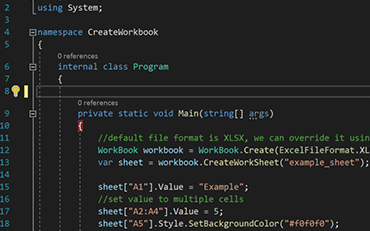
Cómo Crear Archivos de Excel en C#

C# Excel XLSX

Jonas Schmidt - Desarrollador de C#

Crear Archivos XLSX en C#

Vea cómo Jonas usa IronXL para generar archivos de Excel sin usar Office Interop...

Vea el Tutorial de Generación de Archivos de Excel de Jonas
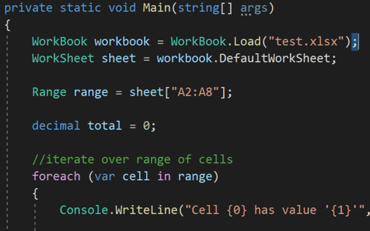
Tutorial de Lectura y Escritura de Excel + Ejemplos de Código en C# y VB.NET

C# Excel XLS

Elijah Williams - Ingeniero de Desarrollo de Producto

Abrir y Editar Archivos XLSX en C# o VB

Elijah comparte un enfoque práctico para leer datos de Excel en aplicaciones C#...

Vea el Tutorial de Lectura y Edición de Excel de Elijah
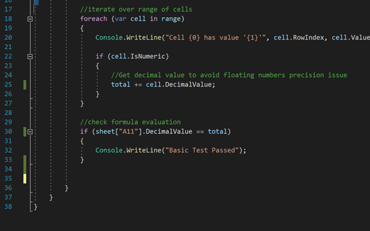

Tutorial + Ejemplos de Código Creación y Edición de PDF VB.NET | VB.NET y ASP.NET PDF

C# Excel Datos

Rebecca White - Directora de Soluciones .NET

Cómo Leer Archivos XLSX en .NET.

Recorrido del código de Rebecca para leer datos de Excel en una aplicación .NET...

Lea el Tutorial de Becky en C#
Desarrolladores profesionales usan IronXL para...

Sistemas de Contabilidad y Finanzas

  • # Recibos
  • # Informes
  • # Impresión de Facturas
Agregar soporte de Excel a Sistemas de Contabilidad y Finanzas ASP.NET

Digitalización de Negocios

  • # Documentación
  • # Pedidos y Etiquetado
  • # Reemplazo de Papel
Casos de Uso de Digitalización de Negocios C#

Gestión de Contenidos Empresariales

  • # Producción de Contenidos
  • # Gestión de Documentos
  • # Distribución de Contenidos
Soporte Excel para CMS .NET

Aplicaciones de Datos e Informes

  • # Seguimiento del Rendimiento
  • # Mapeo de Tendencias
  • # Informes
Informes de Excel en C#
Desarrolladores de Componentes .NET Empresariales de Iron Software

Miles de corporaciones, gobiernos, PYMEs y desarrolladores confían en los productos de Iron software.

El equipo de Iron tiene más de 10 años de experiencia en el mercado de componentes de software .NET.


Icono de Cliente Iron