




Probar en un entorno en vivo
Probar en producción sin marcas de agua.
Funciona donde lo necesites.


 Leer archivos Excel en Core
using IronXL;
using System;
using System.Linq;

// Supported for XLSX, XLS, XLSM, XLTX, CSV and TSV
WorkBook workBook = WorkBook.Load("sample.xlsx");

// Select worksheet at index 0
WorkSheet workSheet = workBook.WorkSheets[0];

// Get any existing worksheet
WorkSheet firstSheet = workBook.DefaultWorkSheet;

// Select a cell and return the converted value
int cellValue = workSheet["A2"].IntValue;

// Read from ranges of cells elegantly.
foreach (var cell in workSheet["A2:A10"])
{
    Console.WriteLine("Cell {0} has value '{1}'", cell.AddressString, cell.Text);
}

// Calculate aggregate values such as Min, Max and Sum
decimal sum = workSheet["A2:A10"].Sum();

// Linq compatible
decimal max = workSheet["A2:A10"].Max(c => c.DecimalValue);
Imports IronXL
Imports System
Imports System.Linq
' Supported for XLSX, XLS, XLSM, XLTX, CSV and TSV
Private workBook As WorkBook = WorkBook.Load("sample.xlsx")
' Select worksheet at index 0
Private workSheet As WorkSheet = workBook.WorkSheets(0)
' Get any existing worksheet
Private firstSheet As WorkSheet = workBook.DefaultWorkSheet
' Select a cell and return the converted value
Private cellValue As Integer = workSheet("A2").IntValue
' Read from ranges of cells elegantly.
For Each cell In workSheet("A2:A10")
Console.WriteLine("Cell {0} has value '{1}'", cell.AddressString, cell.Text)
Next cell
' Calculate aggregate values such as Min, Max and Sum
Dim sum As Decimal = workSheet("A2:A10").Sum()
' Linq compatible
Dim max As Decimal = workSheet("A2:A10").Max(Function(c) c.DecimalValue)
Install-Package IronXL.Excel
La función Load en IronXL te permite cargar y manipular fácilmente archivos Excel existentes en varios formatos (XLSX, XLS, CSV, etc.). Al cargar un WorkBook, obtienes acceso a sus WorkSheets y datos, permitiéndote extraer valores, recorrer rangos de celdas y realizar cálculos como sumas o valores máximos. Puedes acceder a celdas específicas, convertir sus valores al tipo de datos apropiado (por ejemplo, enteros, decimales) e incluso usar LINQ para operaciones avanzadas de datos. Esta característica simplifica el trabajo con datos de Excel en .NET, haciéndolo ideal para tareas como análisis de datos, generación de informes y automatización.
WorkBook workBook = WorkBook.Load("ejemplo.xlsx");Hoja de trabajo workSheet = workBook.WorkSheets[0];var rango = hoja de trabajo["A2:A10"];suma decimal = range.Sum();Console.WriteLine("La suma del rango A2:A10 es: " + suma);El objeto WorkBook es el punto de partida clave para interactuar con archivos Excel en IronXL. Al utilizar el método WorkBook.Load("sample.xlsx"), abres un archivo Excel existente, obteniendo acceso a su contenido y estructura para una manipulación posterior. Esto permite a los desarrolladores trabajar con datos preexistentes, automatizar tareas y actualizar hojas de cálculo sin tener que crear una nueva desde cero.
A continuación, se utiliza la propiedad WorkSheets[0] para acceder a la primera hoja de trabajo en el libro. En Excel, un libro puede contener múltiples hojas, cada una representando un conjunto de datos organizados en filas y columnas. Al seleccionar la primera hoja, estás apuntando al área principal donde se almacenan tus datos o donde vas a realizar operaciones como leer valores o calcular resultados.
La variable range define un grupo específico de celdas, en este caso, el rango de A2 a A10. Aquí es donde IronXL te permite interactuar con múltiples celdas a la vez, ya sea leyendo valores, aplicando formato o realizando cálculos en rangos. En este ejemplo, captura un rango de columna, facilitando el trabajo con datos secuenciales.
El método .Sum() se utiliza para calcular la suma de los valores numéricos en el rango seleccionado. Esto resalta cómo IronXL permite a los desarrolladores realizar cálculos rápidos y predeterminados en rangos de datos, eliminando la necesidad de iteración manual y suma.
Finalmente, la declaración Console.WriteLine() muestra la suma calculada en la consola. Este es un método simple pero poderoso para mostrar el resultado de tus operaciones, como la suma de valores en un rango, directamente dentro de tu aplicación.
Con este enfoque, los desarrolladores pueden automatizar fácilmente tareas de agregación de datos o integrarlas en flujos de trabajo más grandes.
Trabajar con hojas de trabajo de Excel
using IronXL;

// Create new Excel spreadsheet
WorkBook workBook = WorkBook.Create(ExcelFileFormat.XLSX);

// Create worksheets (workSheet1, workSheet2, workSheet3)
WorkSheet workSheet1 = workBook.CreateWorkSheet("workSheet1");
WorkSheet workSheet2 = workBook.CreateWorkSheet("workSheet2");
WorkSheet workSheet3 = workBook.CreateWorkSheet("workSheet3");

// Set worksheet position (workSheet2, workSheet1, workSheet3)
workBook.SetSheetPosition("workSheet2", 0);

// Set active for workSheet3
workBook.SetActiveTab(2);

// Remove workSheet1
workBook.RemoveWorkSheet(1);

workBook.SaveAs("manageWorkSheet.xlsx");
Imports IronXL
' Create new Excel spreadsheet
Private workBook As WorkBook = WorkBook.Create(ExcelFileFormat.XLSX)
' Create worksheets (workSheet1, workSheet2, workSheet3)
Private workSheet1 As WorkSheet = workBook.CreateWorkSheet("workSheet1")
Private workSheet2 As WorkSheet = workBook.CreateWorkSheet("workSheet2")
Private workSheet3 As WorkSheet = workBook.CreateWorkSheet("workSheet3")
' Set worksheet position (workSheet2, workSheet1, workSheet3)
workBook.SetSheetPosition("workSheet2", 0)
' Set active for workSheet3
workBook.SetActiveTab(2)
' Remove workSheet1
workBook.RemoveWorkSheet(1)
workBook.SaveAs("manageWorkSheet.xlsx")Install-Package IronXL.Excel
La biblioteca IronXL hace que gestionar hojas de cálculo usando código C# sea lo más sencillo posible. Las acciones de crear y eliminar hojas de cálculo, cambiar posiciones de las hojas de cálculo y establecer la hoja activa en un archivo de Excel se pueden lograr sin usar Office Interop.
El método CreateWorkSheet permite crear una hoja de cálculo. Requiere el nombre de la hoja de cálculo como único parámetro.
El método SetSheetPosition se puede utilizar para cambiar o mover la posición de una hoja de cálculo. Se requieren dos parámetros: el nombre de la hoja de cálculo como un string y su posición de índice como un integer.
Establecer la hoja de cálculo activa significa definir qué hoja se abrirá por defecto cuando se acceda al libro. Para lograr esto, use el método SetActiveTab con la posición de índice de la hoja de cálculo.
Eliminar una hoja de cálculo también se puede hacer con IronXL. Use el método RemoveWorkSheet junto con la posición de índice de la hoja de cálculo. Si la posición de la hoja es desconocida, también se puede usar el nombre de la hoja para eliminarla.
Tenga en cuenta que todas las posiciones de índice mencionadas utilizan indexado que comienza en cero, lo que significa que el primer elemento tiene un índice de 0.
CreateWorkSheet para crear una hoja de cálculoSetSheetPositionSetActiveTab para establecer qué hoja de cálculo se abre de forma predeterminadaRemoveWorkSheet de C#
Crear un nuevo archivo de Excel
using IronXL;

// Create new Excel WorkBook document
WorkBook workBook = WorkBook.Create();

// Convert XLSX to XLS
WorkBook xlsWorkBook = WorkBook.Create(ExcelFileFormat.XLS);

// Create a blank WorkSheet
WorkSheet workSheet = workBook.CreateWorkSheet("new_sheet");

// Add data and styles to the new worksheet
workSheet["A1"].Value = "Hello World";
workSheet["A1"].Style.WrapText = true;
workSheet["A2"].BoolValue = true;
workSheet["A2"].Style.BottomBorder.Type = IronXL.Styles.BorderType.Double;

// Save the excel file as XLS, XLSX, CSV, TSV, JSON, XML, HTML and streams
workBook.SaveAs("sample.xlsx");
Imports IronXL
' Create new Excel WorkBook document
Private workBook As WorkBook = WorkBook.Create()
' Convert XLSX to XLS
Private xlsWorkBook As WorkBook = WorkBook.Create(ExcelFileFormat.XLS)
' Create a blank WorkSheet
Private workSheet As WorkSheet = workBook.CreateWorkSheet("new_sheet")
' Add data and styles to the new worksheet
Private workSheet("A1").Value = "Hello World"
Private workSheet("A1").Style.WrapText = True
Private workSheet("A2").BoolValue = True
Private workSheet("A2").Style.BottomBorder.Type = IronXL.Styles.BorderType.Double
' Save the excel file as XLS, XLSX, CSV, TSV, JSON, XML, HTML and streams
workBook.SaveAs("sample.xlsx")Install-Package IronXL.Excel
La función Crear Excel proporciona a los desarrolladores una forma poderosa de generar y gestionar archivos de Excel directamente dentro de aplicaciones .NET.
Simplifica tareas como crear nuevos libros de trabajo, agregar hojas de trabajo e introducir datos, al tiempo que ofrece opciones avanzadas de estilo como ajuste de texto, bordes y formato. Esta función es perfecta para automatizar informes, exportar datos o crear hojas de cálculo dinámicas. IronXL admite múltiples formatos de archivo, incluidos XLS, XLSX, CSV y más, garantizando la compatibilidad con varios sistemas. Con su API fácil de usar, los desarrolladores pueden centrarse en la funcionalidad principal mientras ahorran tiempo y reducen la complejidad en la gestión de archivos de Excel.
WorkBook workBook = WorkBook.Create();Hoja de trabajo workSheet = workBook.CreateWorkSheet("new_sheet");workSheet["A1"].Value = "Hello World";workSheet["A1"].Style.WrapText = true;workBook.SaveAs("ejemplo.xlsx");El objeto WorkBook sirve como la base de cualquier archivo Excel. Al inicializar un nuevo libro de trabajo, los desarrolladores obtienen acceso a un documento Excel en blanco, listo para ser poblado con datos y formateado según sea necesario.
Cada libro de trabajo de Excel requiere al menos una hoja de trabajo. El siguiente paso demuestra cómo crear una nueva hoja dentro del libro de trabajo y asignarle un nombre personalizado. Las hojas de trabajo actúan como la estructura principal para organizar datos en filas y columnas.
El fragmento demuestra cómo añadir contenido asignando el valor "Hello World" a una celda específica, A1. Esto muestra lo fácil que es poblar datos en una hoja de Excel de forma programática, permitiendo a los desarrolladores automatizar tareas como la generación de informes y la exportación de datos.
Además, el fragmento aplica estilo a la celda habilitando la propiedad WrapText. Esto asegura que el contenido extenso en la celda se muestre ordenadamente en varias líneas, mejorando la legibilidad y evitando que el texto se corte. Tales opciones de estilo permiten a los desarrolladores crear hojas de cálculo visualmente atractivas y profesionales.
Explora la guía paso a paso para crear archivos de Excel en C#
Convertir tipos de archivos de hoja de cálculo
using IronXL;
using System.IO;

// Import any XLSX, XLS, XLSM, XLTX, CSV and TSV
WorkBook workBook = WorkBook.Load("sample.xlsx");

// Export the excel file as XLS, XLSX, XLSM, CSV, TSV, JSON, XML
workBook.SaveAs("sample.xls");
workBook.SaveAs("sample.xlsx");
workBook.SaveAs("sample.tsv");
workBook.SaveAsCsv("sample.csv");
workBook.SaveAsJson("sample.json");
workBook.SaveAsXml("sample.xml");

// Export the excel file as Html, Html string
workBook.ExportToHtml("sample.html");
string htmlString = workBook.ExportToHtmlString();

// Export the excel file as Binary, Byte array, Data set, Stream
byte[] binary = workBook.ToBinary();
byte[] byteArray = workBook.ToByteArray();
System.Data.DataSet dataSet = workBook.ToDataSet(); // Allow easy integration with DataGrids, SQL and EF
Stream stream = workBook.ToStream();
Imports IronXL
Imports System.IO
' Import any XLSX, XLS, XLSM, XLTX, CSV and TSV
Private workBook As WorkBook = WorkBook.Load("sample.xlsx")
' Export the excel file as XLS, XLSX, XLSM, CSV, TSV, JSON, XML
workBook.SaveAs("sample.xls")
workBook.SaveAs("sample.xlsx")
workBook.SaveAs("sample.tsv")
workBook.SaveAsCsv("sample.csv")
workBook.SaveAsJson("sample.json")
workBook.SaveAsXml("sample.xml")
' Export the excel file as Html, Html string
workBook.ExportToHtml("sample.html")
Dim htmlString As String = workBook.ExportToHtmlString()
' Export the excel file as Binary, Byte array, Data set, Stream
Dim binary() As Byte = workBook.ToBinary()
Dim byteArray() As Byte = workBook.ToByteArray()
Dim dataSet As System.Data.DataSet = workBook.ToDataSet() ' Allow easy integration with DataGrids, SQL and EF
Dim stream As Stream = workBook.ToStream()Install-Package IronXL.Excel
IronXL ofrece una forma simple y flexible para que los desarrolladores trabajen con archivos de Excel, permitiendo una fácil importación y exportación en varios formatos. Admite tipos de archivo como XLS, XLSX, CSV, JSON, XML y HTML, lo que lo hace ideal para diferentes necesidades de aplicaciones. Los desarrolladores pueden convertir los datos de Excel en formatos adecuados para la integración web, APIs o procesamiento de datos adicional con solo unas pocas líneas de código.
Por ejemplo, exportar archivos Excel como HTML o JSON facilita la inclusión de datos en aplicaciones web, mientras que convertirlos en binarios, matrices de bytes o flujos ayuda a integrar con bases de datos u otros sistemas. Convertir contenido de Excel en un DataSet simplifica la conexión con bases de datos SQL o la populación de componentes de UI como cuadrículas de datos. Esto reduce la codificación manual, mejora la productividad y convierte a IronXL en una herramienta valiosa para aplicaciones modernas impulsadas por datos.
Este código demuestra la versatilidad de IronXL en el manejo y exportación de datos de Excel en múltiples formatos. El proceso comienza cargando un archivo de Excel existente, Sample.xlsx, en un objeto WorkBook. Este objeto actúa como el centro para manipular y exportar datos. Usando el método SaveAs, el workbook se guarda como un archivo .xlsx, asegurando compatibilidad con aplicaciones modernas de Excel.
A continuación, el método SaveAsJson convierte el workbook en formato JSON, haciéndolo adecuado para respuestas de API o intercambios de datos ligeros. El método ToDataSet permite una integración perfecta con bases de datos o componentes de UI al convertir el workbook en un objeto DataSet, que es una estructura nativa de .NET para manejar datos tabulares.
Finalmente, el método ExportToHtml genera un archivo HTML, permitiendo a los desarrolladores mostrar los datos de Excel directamente en páginas web. Estas capacidades simplifican las tareas de procesamiento de datos, haciendo de IronXL una herramienta excepcional para desarrolladores que trabajan con archivos de Excel.
Excel a SQL a través de System.Data.DataSet
using IronXL;
using System;
using System.Data;

// Supported for XLSX, XLS, XLSM, XLTX, CSV and TSV
WorkBook workBook = WorkBook.Load("sample.xlsx");

// Convert the whole Excel WorkBook to a DataSet
DataSet dataSet = workBook.ToDataSet();

foreach (DataTable table in dataSet.Tables)
{
    Console.WriteLine(table.TableName);

    // Enumerate by rows or columns first at your preference
    foreach (DataRow row in table.Rows)
    {
        for (int i = 0 ; i < table.Columns.Count ; i++)
        {
            Console.Write(row[i]);
        }
    }
}
Imports IronXL
Imports System
Imports System.Data
' Supported for XLSX, XLS, XLSM, XLTX, CSV and TSV
Private workBook As WorkBook = WorkBook.Load("sample.xlsx")
' Convert the whole Excel WorkBook to a DataSet
Private dataSet As DataSet = workBook.ToDataSet()
For Each table As DataTable In dataSet.Tables
Console.WriteLine(table.TableName)
' Enumerate by rows or columns first at your preference
For Each row As DataRow In table.Rows
For i As Integer = 0 To table.Columns.Count - 1
Console.Write(row(i))
Next i
Next row
Next tableInstall-Package IronXL.Excel
Convierta cualquier XLSX, XLS, XLSM, XLTX, CSV y TSV archivo a un System.Data.DataTable para una total interoperabilidad con System.Data.SQL o para poblar un DataGrid. Este objeto DataTable puede contener una colección de tablas, relaciones y restricciones.
Excel a SQL y DataGrid a través de DataTable
using IronXL;
using System;
using System.Data;

// Supported for XLSX, XLS, XLSM, XLTX, CSV and TSV
WorkBook workBook = WorkBook.Load("sample.xlsx");

// Select default sheet
WorkSheet workSheet = workBook.DefaultWorkSheet;

// Convert the worksheet to DataTable
DataTable dataTable = workSheet.ToDataTable(true);

// Enumerate by rows or columns first at your preference
foreach (DataRow row in dataTable.Rows)
{
    for (int i = 0 ; i < dataTable.Columns.Count ; i++)
    {
        Console.Write(row[i]);
    }
}
Imports IronXL
Imports System
Imports System.Data
' Supported for XLSX, XLS, XLSM, XLTX, CSV and TSV
Private workBook As WorkBook = WorkBook.Load("sample.xlsx")
' Select default sheet
Private workSheet As WorkSheet = workBook.DefaultWorkSheet
' Convert the worksheet to DataTable
Private dataTable As DataTable = workSheet.ToDataTable(True)
' Enumerate by rows or columns first at your preference
For Each row As DataRow In dataTable.Rows
For i As Integer = 0 To dataTable.Columns.Count - 1
Console.Write(row(i))
Next i
Next rowInstall-Package IronXL.Excel
Convierta archivos XLSX, XLS, XLSM, XLTX, CSV y TSV a un System.Data.DataTable para una plena interoperabilidad con System.Data.SQL o para poblar un DataGrid.
Ingrese true al método ToDataTable para establecer la primera fila como nombres de columna de la tabla. El DataTable puede poblar un DataGrid.
DataTable in C#DataTable.Worksheet predeterminadoDataTable a partir de datos utilizando ToDataTable .
Ponte en contacto con nuestro equipo de desarrollo de productos y soporte. Nuestro equipo está disponible para responder tus preguntas sobre licencias, productos y uso para tu proyecto.
Levantar un Ticket de Soporte
Un enfoque rápido y fácil para trabajar con Excel y otros documentos de hoja de cálculo en dotnet core. Funciona en dotnet core para múltiples plataformas, incluida Azure, sin dependencias adicionales ni necesidad de instalar MS Office o Interop.
Funciona con .NET Core, C#, .NET, XLSX, VB.NET
Lista de Funciones
IronXL permite a los ingenieros .NET escribir y exportar Hojas de Cálculo Excel desde aplicaciones dotnet Core. Abrir y Editar XLS/XLSX/CSV/TSV - Guardar y Exportar a XLS/XLSX/CSV/TSV/JSON. IronXL supera a las bibliotecas gratuitas e Interop en el análisis, modificación y guardado de documentos Excel.
Comenzar
Transferir datos entre Excel, SQL y GridViews abriendo hojas de cálculo como objetos System.Data.DataSet y System.Data.DataTable.
Ver ejemplos de código
Editar fórmulas de Microsoft Excel - recalcular cada vez que se cambia una hoja de trabajo. Formateo rápido y fácil de ["A1:B10"]. Fusionar y establecer rangos, columnas y filas.
Documentación
Ajustar fuente, tamaño, fondo, borde, alineación y formato de número.
Comenzar
IronXL pone herramientas de Excel en tus propias manos con soporte intellisense. Instala con NuGet para Visual Studio o una descarga manual de DLL gratuita para .NET Core. Estarás listo en un abrir y cerrar de ojos.
Descargar DLL PM > Install-Package IronXL.Excel





Gratis para desarrollo. Licencias desde $749.




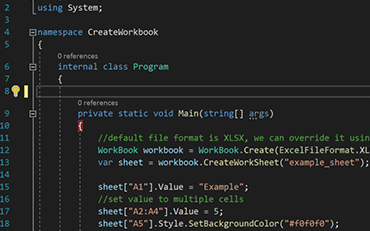
C# Excel ASP.NET

Vea cómo Jonas usa IronXL para generar archivos de Excel sin usar Office Interop...
Vea el Tutorial de Generación de Archivos de Excel de Jonas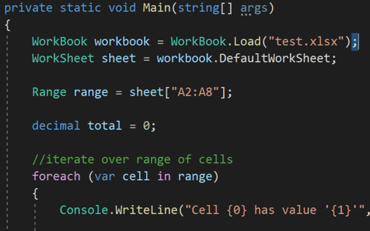
C# Excel XLS

Elijah comparte un enfoque práctico para leer datos de Excel en aplicaciones C#...
Vea el Tutorial de Lectura y Edición de Excel de Elijah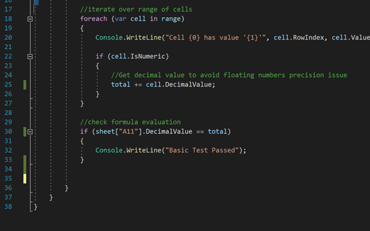
C# Excel Datos

Recorrido del código de Rebecca para leer datos de Excel en una aplicación .NET...
Lea el Tutorial de Becky en C#





El equipo de Iron tiene más de 10 años de experiencia en el mercado de componentes de software .NET.










Install-Package IronXL.Excel


No se requiere tarjeta de crédito

Su clave de prueba debería estar en el correo electrónico.El formulario de prueba fue enviado
con éxito.
Si no es así, por favor contacte
support@ironsoftware.com
No se requiere tarjeta de crédito

 Comience gratis
Probar en producción sin marcas de agua.
Funciona donde lo necesites.
Obtén 30 días de producto completamente funcional.
Instálalo y ejecútalo en minutos.
Acceso completo a nuestro equipo de soporte técnico durante tu prueba del producto
 Comience gratis
 Reserve demostración en vivo gratis
Demostración en vivo de nuestro producto y características clave
Recomendaciones de características del proyecto
Se responde a todas sus preguntas para asegurarse de que dispone de toda la información que necesita. (Sin ningún tipo de compromiso)
Reserve demostración en vivo gratis



Sin limitaciones. 100 % desbloqueado. Sin tarjeta de crédito.
 No se requiere tarjeta de crédito ni creación de cuentaSin limitaciones. 100 % desbloqueado. Sin tarjeta de crédito.




Reserva una Consulta Sin Compromiso

Completa el formulario a continuación o envía un correo a sales@ironsoftware.com
Tus detalles siempre serán mantenidos confidenciales.

Reserve una demostración personal de 30 minutos.
Sin contrato, sin datos de tarjeta, sin compromisos.






